Assess High-Level Model Trends
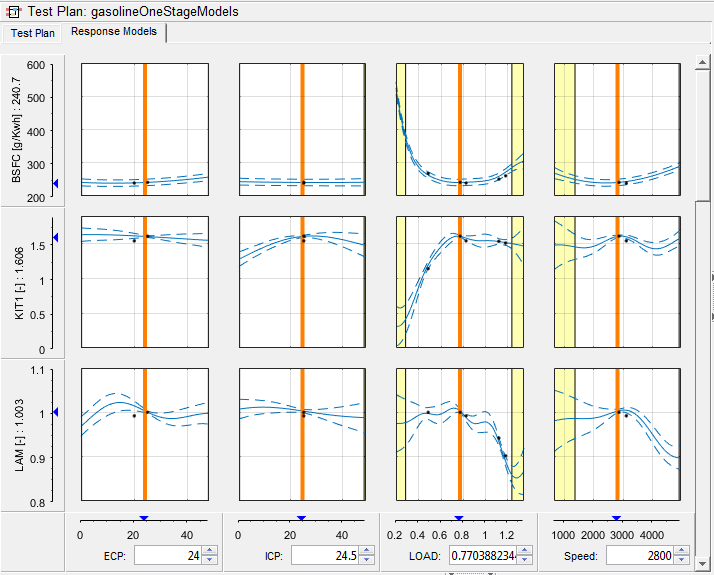
R2026bAfter fitting models in the Model Browser, to assess high-level model trends, use the Response Models plots at the test plan node.
As you examine the plots, look for the following characteristics:
| Model Characteristics | Visual Checks |
|---|---|
| Agreement between model and data | Verify that the model captures the overall trend and magnitude of the measured response across the input space. |
| Residual behavior | Confirm that residuals are small, randomly distributed, and centered around zero, with no visible structure or bias. |
| Smoothness and physical plausibility | Ensure the response surface is smooth and behaves consistently with engineering expectations and known system behavior. |
| Boundary behavior | Examine model behavior near the edges of the design space and confirm that predictions remain stable and reasonable where data coverage is sparse. |
| Data coverage | Check that regions with complex model behavior are supported by sufficient data and that the model does not over interpret sparse regions. |
After you fit models, the view at the test plan node displays the Response Models tab. If you are two-stage modeling you must create a two-stage model to see the Response Models plots.
View the cross-section plots of all your response models. You can use the following options:
To select a value of an input, either drag the orange line in a plot, change the value in the edit box under the graph, or change the value in the Value box on the right.
To change the range for displaying data points within tolerance of the input values, edit the Tolerance boxes on the right.
To set the axes limits to the boundary constraint boundary, select the Zoom to boundary constraint check box. This zooms the plots inside the constraint boundaries, so you can explore models in valid regions only.
The plots display confidence levels, common Y limits, boundary constraints, and data points within the Tolerance values. Edit these settings using the controls on the right.
When you are displaying a point-by-point model, select the operating point to display using the Operating Point controls. For point-by-point models, the plots show only the cross-sections of the local inputs.