Assess One-Stage Models
R2026bAssessing One-Stage, Response Feature or Global Models
After you fit models in the Model Browser, use the model views to assess fits. When you
select a one-stage model node (or a response feature node when two-stage modeling) in the
All Models tree, or any child nodes of these models, you see the global model view. These
kinds of models all have a global icon (  ), so this is referred to as global level. To
learn more about model types, see What Models Are Available? Plot settings are shared
between all global models in your test plan. For example, if you select a contour plot and
some variables to plot in the Response Surface plot, you see the same plots when you switch
to another global model in your test plan.
), so this is referred to as global level. To
learn more about model types, see What Models Are Available? Plot settings are shared
between all global models in your test plan. For example, if you select a contour plot and
some variables to plot in the Response Surface plot, you see the same plots when you switch
to another global model in your test plan.
Use the plots and statistics to assess fits, and use the Common Tasks pane to build alternative models to compare.
Assess Fits Using Model Plots
Use the plots to assess model fits. It can be helpful to click to highlight an outlier so that you can view the same point highlighted in other plots. You can display operating point numbers using the context menu. You can remove outliers with the plot context menus. See Remove and Restore Outliers.
Response Surface Plot
This view shows the model surface in a variety of ways. The default view is a 3-D plot of the model surface.
You can choose which input factors to display by using the drop-down menus left of the plot. The unselected input factors are held constant and you can change their values using the controls at the left of the plot (either by clicking the arrow buttons or by typing directly in the edit box). Click Select Data Point to choose a point to plot.
To plot the region inside the boundary model only, right-click and select Zoom to Boundary.
Select the Plot list to switch to a
Line, Contour, or
Multiline plot.
Diagnostic Statistics Plot
The lower default plot is the Diagnostic Statistics plot, that shows various scatter plots of statistics for assessing goodness-of-fit for the current model.
The statistics and factors available for plotting are model dependent. Choose the x- and y-axis factors using the drop-down menus. Following is an example.
![Dropdown menu with options: Predicted knot [deg], Studentized residuals (highlighted), Residuals, Cook’s Distance, Leverage, Obs. Number, knot [deg], n (N) [rpm], load (L) [ratio], and afr (A) [%].](scatteraxismenu.gif)
In this example knot is the response feature node selected. The
model output is knot, so knot and Predicted knot are
available in the menu. (For child nodes of knot, the model output is
still knot.) The global inputs, the model output, the predicted model
output and the observation number are always available.
The other options are statistics that are model dependent, and can include: Residuals, Weighted Residuals, Studentized Residuals, Leverage, and Cook's Distance. You can use any of these as criteria for selection of outliers, see Remove and Restore Outliers. At global (or one-stage) level these are externally studentized residuals.
Additional Plots
You can add or change plots by clicking the toolbar buttons, split buttons in plot title bars, or selecting an option from Current View in the context menu or View menu. The browser remembers your layout per test plan. You can add:
Predicted/Observedplot. Where there is only one input factor, the plot shows the model fit and the data against the input factor.When there is more than one input factor it becomes impossible to display the fit in the same way, so the data for the response feature is plotted against the values predicted by the global model. The line of predicted=observed is shown. With a perfect fit, each point would be exactly on this line. The distances of the points from the line (the residuals) show how well the model fits the data.
To examine plots in more detail, close other plots, or zoom in on parts of the plot by Shift-click-dragging or middle-click-dragging on the place of interest on the plot. Return to full size by double-clicking.
Note
When two-stage modeling, for response feature models, each data point is the value taken by this response feature for some local model fit (of this two-stage model). Note that response features are not necessarily coefficients of the local curves, but are always derived from them in some way. Right-click a point in the plots to open a figure plot of that particular operating point.
Normal PlotNormal plots are a useful graph for assessing whether data comes from a normal distribution. For more information, see Normal Probability Plots.Validation Data— For one-stage models. If you are using validation data, the plot shows the one-stage model validation residuals. Validation data must be attached during model setup or at the Edit Test Plan Definition. See Using Validation Data.Model Definition— View the parameters and coefficients of the model formula and the scaling details.For any radial basis function model you can see the kernel type, number of centers, width, and regularization parameter. For radial basis function models, see Radial Basis Functions for Model Building.
Remove and Restore Outliers
To remove and restore outliers, you can use the right-click context menus on plots (except the Response Surface and Validation Data) or the Outliers menu. The toolbox outlines in red possible outliers, where studentized residuals >3. You can remove outliers in the Diagnostic Statistics, Normal, and Predicted/Observed plots.
When you remove an outlier from your model, it refits immediately.
Apply to All Responses — Select to apply Clear Outliers, Remove Outliers, or Restore Removed Data to all response models.
Clear Outliers — Returns all data points to the unselected state as possible outliers.
Remove Outliers — Removes red-outlined data points from the fit. Refits the current local fit only. Use the Update Fit toolbar button or Model > Update Fit to also refit the global models. You can update or defer when another node is selected.
Restore Removed Data — Opens the Restore Removed Data dialog box, where you can choose the points to restore from the list by record number, or restore all available points. Select points in the left list and use the buttons to move points between the lists. Clicking OK refits the model, including all restored data.
If you are two-stage modeling and have removed an entire record at the local level, or you could not refit the local model, then you see records marked with an asterisk (*) in the Removed Data pane. Go to the local level to restore removed records. Double-click any removed record number to display a plot of the record in a figure window.
Copy Outliers From — Opens the Copy Outliers dialog box, where you can choose which outliers to copy. Select a model (of the same type — local or global) in the tree and click OK, and the current model (and other models affected) are refitted using the outlier selections for that model.
Selection Criteria — Opens the Outlier Selection Criteria dialog box where you can set the criteria for the automatic selection of outliers. Disabled for MLE models.
You can change the criteria for automatically selecting outliers. You can specify outliers as satisfying a condition on the value of some statistic (for example, residual > 3), or select those points that fall in a region of the distribution of values of that statistic.
For example, assume that residuals are normally distributed and select those with p-value > 0.9. You can also select outliers using the values of model input factors.
![Outlier Selection Criteria dialog with options: Select using Studentized residuals, Use absolute value Yes, Operator >, Distribution Student’s t, and Value [alpha %] set to 0.5. Includes checkbox for custom MATLAB file and OK, Cancel, Help buttons.](outlierselection.gif)
To change the criteria, select the drop-down list Select using and view the available criteria.
![Dropdown menu under ‘Select using’ showing options: Predicted BMEP [bar], Residuals [bar], Studentized residuals (highlighted), BMEP [bar], Leave-one-out residuals, Relative residuals [%], Obs. number, and BSFC [g/Kwh].](outlierselection2.gif)
The options available change depending on the type of model currently selected. The options are the same as those found in the drop-down menus for the x- and y-axis factors of the scatter plots in the Model Browser.
In the preceding example, the model selected is the knot response feature, so
knot and Predicted knot appear in the criteria
list, plus the global input factors; and it is a linear non-MLE model, so Cook's
Distance and Leverage are also available.
The range of the selected criteria (for the current data) is indicated above the Value edit box, to give an indication of suitable values. You can type directly in the edit box. You can also use the up/down buttons on this box to change the value (incrementing by about 10% of the range).
You can use the Distribution drop-down menu to remove a proportion of the tail ends of the normal or t distribution. For example, to select residuals found in the tails of the distribution making up 10% of the total area:
Select
Normalin the Distribution drop-down menu.Select the operator
>.Enter 10 as the
 % value in the edit box.
Residuals found in the tails of the distribution that make up 10% of the total area are selected. If you had a vast data set, approximately 10% of the residuals would be selected as outliers.
As shown, residuals found beyond the value of  in the distribution are selected as outliers.
  is a measure of significance; that is, the probability of finding
residuals beyond
is a measure of significance; that is, the probability of finding
residuals beyond  is less than 10%. Absolute value is used (the modulus) so outliers
are selected in both tails of the distribution.
is less than 10%. Absolute value is used (the modulus) so outliers
are selected in both tails of the distribution.
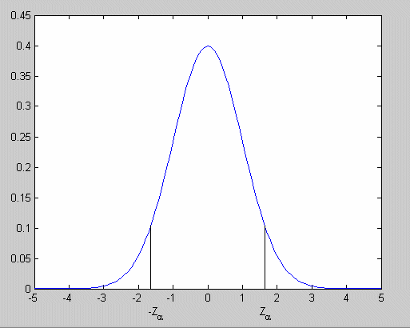
The t distribution is used for limited degrees of freedom.
If you select None in the Distribution
drop-down menu, you can choose whether or not to use the absolute value. That is, you are
selecting outliers using the actual values rather than a distribution. Using
absolute value allows you to select using magnitude only without
taking sign into account (for example, both plus and minus ranges). You can select
No here if you are only interested in one direction: positive
or negative values, above or below the value entered. For example,
selecting only values of speed below 2000 rpm.
The Select using custom MATLAB file check box enables the adjacent edit box. Here you can choose a function file that selects outliers. Type the name of the file and path into the edit box, or use the browse button.
In this file you define a MATLAB® function of the form:
function outIndices = funcname (Model, Data, Names)
Model is the current MBC model.
Data is the data used in the scatter plots. For example, if there
are currently 10 items in the drop-down menus on the scatter plot and 70 data points, the
data make up a 70 x 10 array.
Names is a cell array containing the strings from the drop-down
menus on the scatter plot. These label the columns in the data (for example, spark,
residuals, leverage, and so on).
The output, outIndices, must be an array of logical indices, the
same size as one column in the input Data, so that it contains one
index for each data point. Those points where index = 1 in outIndices
are highlighted as outliers; the remainder are not highlighted.
Model-Specific Tools
Linear Model and Multiple Linear Models
You can find model-specific tools in the Model > Utilities menu or in the toolbar.
Stepwise — This opens the Stepwise Regression window, where you can view the effects of removing and restoring model terms on the PRESS statistic (Predicted Error Sum of Squares), which is a measure of the predictive quality of a model. You can also use Min PRESS to remove all at once model terms that do not improve the predictive qualities of the model. See Stepwise Regression for further discussion of the statistical effects of the Stepwise feature.
Design Evaluation — Opens the Design Evaluation tool, where you can view properties of the design. See Design Evaluation Tool.
Prediction Error Variance Viewer - Opens the Prediction Error Variance Viewer. See Prediction Error Variance Viewer.
Radial Basis Function Models
Radial basis function models have some model-specific toolbar buttons.
Update Fit refits the RBF widths and centers. See Radial Basis Functions for Model Building.
View Centers opens a dialog box where you can view the position of the radial basis function's centers graphically and in table form.
Prune opens the Number of Centers Selector where you can minimize various error statistics by decreasing the number of centers. See Prune Functionality.
Hybrid RBFs have the same toolbar buttons as linear models.
MLE Models
If you are viewing an MLE model and have removed outliers, you can recalculate MLE using the toolbar button. This opens the MLE dialog box, where you can perform more iterations to try to refine the MLE model fit. See Create Two-Stage Models for more details.
Create Alternative Models
After you have fitted and assessed a single model fit, you will often want to create more models to search for the best fit.
To quickly build a selection of alternative models to compare, in the Common Tasks pane, click Create Alternatives. See Create Alternative Models to Compare for details.
After you create a variety of models to compare, the alternative models list appears at the top. The toolbox selects the best model, based on your selection criteria (such as AICc). Assess all the fits in case you want to choose an alternative.
The table lists the child models of the currently selected model, the number of parameters and observations, and the summary statistics for each model. Compare the child models and choose the best by selecting the Best Model check box.
Use the plots and summary statistics table to help you assess and compare fits and help you choose the best. See Assess Fits Using Model Plots and Compare Fits Using Statistics
To change the current model type, in the Common Tasks pane, click Edit Model. This opens the Model Setup dialog box, where you can choose another model type. See Explore Global Model Types.
To reset to the default model type, select Model > Reset. This opens a confirmation dialog box so you cannot unintentionally reset your model. When you confirm you want to continue, the model is reset to the global model default, that is, the global model specified at the test plan stage, restoring any removed outliers and removing any transforms.
After creating alternative models, for next steps, see Compare Alternative Models.

