Visual Studio: Configure Checkers and Coding Rules in Polyspace as You Code
R2026bYou can check for defects and coding rule violations by using Polyspace® as You Code™ in Visual Studio®. The default analysis checks for a the default Polyspace Bug Finder™ defects. To check for other defects and coding rule violations, configure Polyspace as You Code extension.
To configure checkers, you can reuse an existing checker file. Alternatively, you can create a checkers file directly from your IDE. For equivalent workflows in the Polyspace desktop and server, see Prepare Checkers Configuration for Polyspace Bug Finder Analysis (Polyspace Bug Finder).
Depending on what resource or artifact is available to you, use one of the following methods to configure checkers in your IDE extension.
Use Existing Checkers Activation File
You can use a checkers activation file (XML) or a user-defined coding standard (.pschk) to configure checkers. A checkers activation file activates a set of Bug Finder defects and external coding rules. A user-defined coding standards allow you to collect coding rules that are relevant specifically to your project into a single standard when an existing coding standard does not exactly meet your needs. If you have one of these
artifacts, specify the path to it in the Options window:
Click
 in the Configuration view to open the Options window.
In the setting Checkers File of the Analysis Setup view, enter the full path to the checkers activation file or the custom coding standard.
Optionally, you can modify the selection of checkers. In the Configuration view, click the Configure Checkers icon ( ) to open the Checkers Selection window. Modify the checker selection and then save your changes. Click Finish to close the window.
Create Checkers Configuration
If you do not have a checkers activation file (XML), you can create it
by using the Checkers Selection window. Creating user-defined coding standards
(.pschk) from the Checkers Selection window is not supported. For details
about how you can create your own user-defined coding standard, see Create User-Defined Coding Standard by Using Polyspace Bug Finder Checkers (Polyspace Bug Finder). If you already have a
checkers activation file, you can load it using the Checkers Selection window.
To open the Checkers Selection window, select Configure Checkers icon (
) in the Configuration view.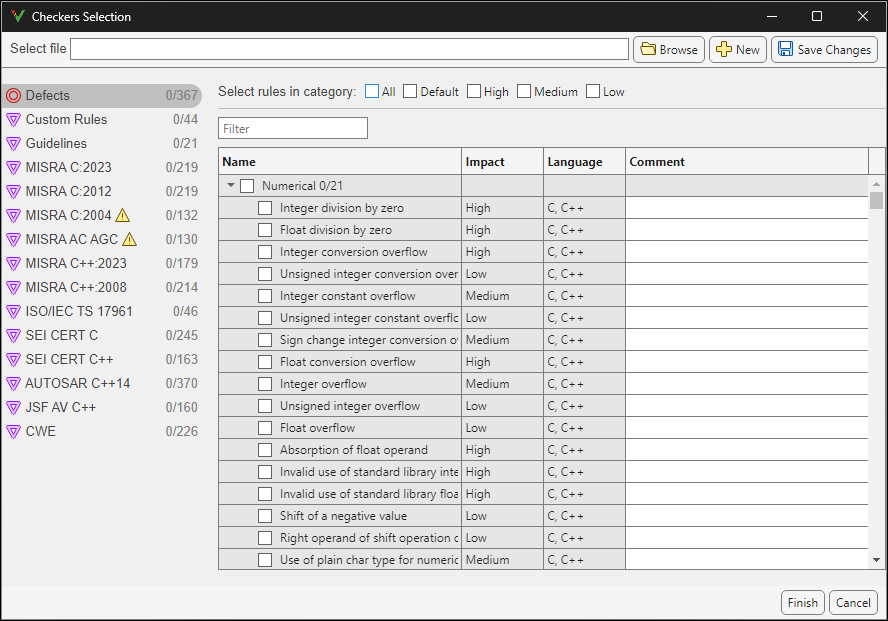
In the Checkers Selections window, click the Browse button to select your existing checkers activation file. If you do not have a checkers activation file, create a new one by selecting the checkers that you want to activate. You can also activate predefined categories of defect checkers such as All, Default, High, Medium, and Low. See Classification of Defects by Impact (Polyspace Bug Finder). Similarly, you can activate predefined set of coding rules that are defined by their corresponding standards.
When selecting Guidelines > Software Complexity checkers, review their thresholds. If the default thresholds are not acceptable, specify a suitable threshold in the Threshold column. See
Check guidelines
           (-guidelines)
(Polyspace Bug Finder).When selecting Custom rules, review the Pattern and Convention for the rules. See
Check custom rules
          (-custom-rules)
(Polyspace Bug Finder).To classify Bug Finder defects or coding rule checkers using your own classification tag, enter text in the Comment column of the Checkers selection window. Polyspace displays that text in the Results Details pane and in the Detail column of the Results List (if available) when you review results in the desktop interface, in Polyspace Access™, or in the Polyspace as You Code plugins.
Note
The custom text that you enter in the Checkers selection window is omitted in:
Generated reports.
The Polyspace desktop interface when you open results from Polyspace Access. This limitation applies only to Bug Finder checkers.
Save the selection as a reusable checkers XML file by clicking Save Changes. Click Finish to close the window.
You can later reuse the checkers XML file as an input in the field Checkers file.
Modify Checker Behavior
To modify the default behavior of Bug Finder defect and coding rule checkers, use analysis options. For a list of analysis options that modify the default behavior of checkers, see Modify Default Behavior of Bug Finder Checkers (Polyspace Bug Finder).
To specify analysis options for checkers in Polyspace as You Code:
Append the analysis options in the options file specified in the field Other Analysis Options File. This setting is located in the Analysis Setup section of the Options window. Specify the path to a text file that contains one analysis option per line. For example, to add the analysis options
-code-behavior-specifications(Polyspace Bug Finder) andEffective boolean types (-boolean-types)(Polyspace Bug Finder), in the options file, append these lines:where-code-behavior-specifications file1 -boolean-types boolean1_t,boolean2_t
file1is a code behavior specification file (XML) andboolean1_t,boolean2_tare boolean types.If you do not have an option file, create an options file that contains the necessary options. Specify the path to the new options file in the field Other Analysis Options File. See Options Files for Polyspace Analysis (Polyspace Bug Finder).
See Also
Topics
- Options Files for Polyspace Analysis (Polyspace Bug Finder)
- Checkers Deactivated in Polyspace as You Code Analysis
- Modify Default Behavior of Bug Finder Checkers (Polyspace Bug Finder)

