Edit Point Cloud
R2026b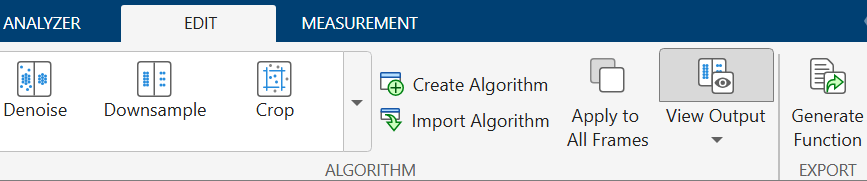
To edit point cloud data, from the Point Cloud Analyzer app toolstrip, select Edit tab. You can use the built-in edit algorithms or create a custom algorithm.
Built-in Edit Algorithms
You can use these built-in algorithms, from the Algorithm section, to process your point cloud data.
Custom Edit Algorithms
You can create a new custom edit algorithm, or import an existing one into the app.
Follow these steps to create and apply a custom algorithm to your data.
Click on Create Algorithm. The app opens a new MATLAB® function in the MATLAB editor. The default name of the function is
myAlgorithm.The
myAlgorithmfunction contains a sample code to edit the input point cloud. Replace the sample code with the code for your custom algorithm.Rename the function if required, and then save the function as a MATLAB code file with
.mextension.To import the custom algorithm into the app, click on Import Algorithm. Then, browse to and select the file that contains the algorithm you want to import.
After you import the algorithm, the app adds it to the list of algorithms in the Algorithm section.
To apply a custom algorithm to the input point cloud, select the desired custom algorithm from the Algorithm section. If the input point cloud contains multiple frames, the app opens the Confirm dialog. Select Yes to confirm that you want to apply the custom algorithm to all frames. Otherwise select, No.
Apply Edits
When you select a built-in edit algorithm, the app updates the point cloud using that
algorithm and saves the edited point cloud as
FileName_Edit in the Data
Browser pane, where FileName is
the name of the original point cloud. The Applied Algorithms pane
lists applied algorithms and shows the tunable parameters for the selected algorithm. To
restore default parameter values, click Reset. You can reorder or
delete the listed applied algorithms.

To view the processed output, toggle the View Output button on. To view the final output after applying all the algorithms, select View Output > Final. To view the output up to only the selected algorithm, select View Output > Intermediate. To view the original point cloud, toggle the View Output button off.
If the input point cloud contains multiple frames, you can choose to process only the current frame or all frames. To process all frames, toggle the Apply to All Frames button on. The app updates all frames to match the edits on the current frame. To process only the current frame, toggle the Apply to All Frames button off.
To export all applied edits as a MATLAB function, select Generate Function.
Tip
Use the Color and Camera options for better visualization while tuning the parameters. For more information, see Visualize Point Cloud Using Color and Camera Views.
See Also
Apps
Functions
pcshow|pcdownsample|pcmedian|pcdenoise|pcorganize|segmentGroundSMRF|pcfitplane|segmentGroundFromLidarData

