主要内容

Toolchain

Create, validate, and register a custom toolchain for building C/C++ sources and tests

Description

The Toolchain app enables you to author, validate, and register a custom toolchain for building sources and tests in a Polyspace® Platform project.
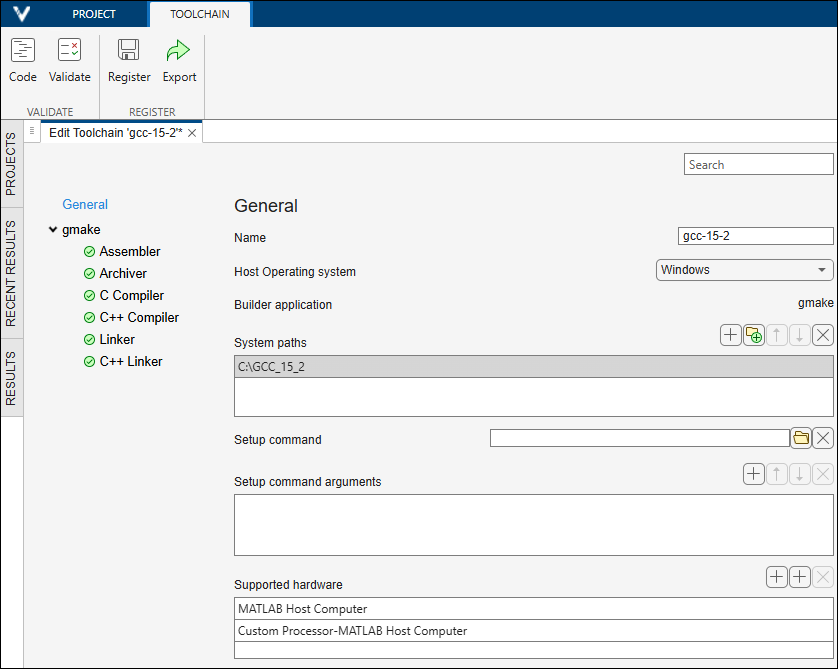
Toolchain dialog

Open the Toolchain

  • Polyspace Platform toolstrip: Select the Mange Toolchains button button in the Prepare section, and then select Manage Toolchains. On the Manage Toolchains window, select Create Toolchain or edit an existing toolchain.

  • Project configuration: On the Build tab, click Settings icon next to the option Compilation toolchain (Testing). On the Manage Toolchains window, select Create Toolchain or edit an existing toolchain.

Examples

expand all

This example outlines the workflow for authoring a new toolchain using the Toolchain app.

  1. When creating a new toolchain, select one of the following:

    • Use CMake as builder – If you typically generate build files for your source code using CMake, select this option. You can then specify the details of your CMake usage in the CMake section of the app.

    • Use GMake as builder – If you typically run a build command to build your source code, select this option. You can then explicitly specify your C compiler, C++ compiler, C linker, C++ linker, assembler, and archiver commands and flags in the appropriate sections of the app.

      • If you use GNU® C (GCC) build tools, select Initialize with gcc-style commands. This selection prepopulates the app with the gcc command for the C compiler and linker, the g++ command for the C++ compiler and linker, the ar command for the archiver, and the as command for the assembler. Each command is associated with flags appropriate for the command. For instance, the compile flag directive for the gcc command is prepopulated as -c.

      • If you use GCC-based tools for cross-compilation for a target, select Initialize with gcc-style commands prefixed with and enter a prefix. This selection prepopulates the app with GCC commands with each command prefixed with your entry. For instance, if you specify the prefix arm-none-eabi- for cross-compilation for ARM®-based microcontrollers, the C compiler is specified as arm-none-eabi-gcc, the C++ compiler as arm-none-eabi-g++, and so on.

      • In all other cases, select Create an empty toolchain. You can then explicitly enter your commands for compiler, linker, archiver and assembler in the appropriate sections of the app.

      For gmake-based toolchains, as you enter commands and flags in the app, the Command Preview window is dynamically updated to show the full command together with the associated flags.

  2. Enter the details of your toolchain in the app.

  3. Select Validate on the Toolchain tab of the toolstrip to validate the toolchain.

  4. Once validated, you can do one of the following:

    • Register the toolchain by selecting Register on the toolstrip. You can unregister the toolchain later by following these steps:

      1. On the Polyspace Platform toolstrip, select Mange Toolchains button and then select Manage Toolchains.

      2. On the Manage Toolchains window, select cross button next to the toolchain you want to unregister (remove).

    • Export the toolchain registration code to a MATLAB® file by selecting Export on the toolstrip. You can then continue to author the remainder of the target registration package. For more details of full target registration, see Create Target Registration Packages for C/C++ Test Execution on Targets.

This example shows how to use two different versions of GCC, one for building sources and tests, and another for building the driver code generated with Polyspace Test™.

Building a Polyspace Platform project involves building your sources and tests, as well as generating and building driver code that creates the final executables. You can use the same compilation toolchain for all builds, or choose a specific toolchain for your sources and tests while using a different one for the driver code. Building the driver code is officially supported only with specific compiler versions but you can use any compiler version you typically use for development for building your sources and tests. For more information on compiler support, see Specify C/C++ Compilers for Testing in Polyspace Platform User Interface.

The example uses MinGW installations on 64-bit Windows® and assumes that you installed GCC version 8.1 in the folder C:\GCC_8_1 and GCC version 15.2 in the folder C:\GCC_15_2. Both folders have a bin subfolder containing executables such as gcc and g++.

Set GCC version 8.1 as the host compiler that builds driver code:

  1. Define an environment variable MW_MINGW64_LOC and set its value to C:\GCC_8_1.

  2. Open the Polyspace Platform user interface.

  3. On the toolstrip, select Settings. In the Testing and Profiling section, select MinGW64 as the C/C++ Host Compiler.

Set GCC version 15.2 as the user compiler that builds your sources and tests using the following steps.

  1. Open the configuration of a project in the Polyspace Platform user interface.

  2. On the Build tab, select Host Computer for the options Target board name (Testing) and Processor.

    Any new toolchain you create from this configuration is associated with host execution by default.

  3. Click Settings icon next to the option Compilation toolchain (Testing).

  4. On the Manage Toolchains window, select Create Toolchain.

  5. On the Initialize toolchain window, select Use gmake as builder and then select Initialize with gcc-style commands. Click OK.

  6. On the Edit Toolchain window, specify these values for the toolchain:

    • NameGCC 15.2

    • System pathsC:\GCC_15_2\bin

    • Compiler flags-m64 (to ensure building for a 64-bit environment)

    • Linker flags-m64 and -static (to ensure static linking of libraries)

  7. On the toolstrip, in the Toolchain tab, click Validate. Once the validation is successful, click Register to register this toolchain.

Once registered, you can select the toolchain GCC 15.2 for the option Compilation toolchain (Testing) in a project configuration and build the project using this toolchain.

This example shows how to create a compilation toolchain involving a cross-compiler for embedded targets, and associate this toolchain with a previously registered board.

The example assumes that you have registered a board and processor with the following names. In other words, your target registration file contains the following lines (for more details on target registration, see Create Target Registration Packages for C/C++ Test Execution on Targets).

  • A board object creation using the name STM32F767ZIBoard:

    board = target.create("Board", Name="STM32F767ZIBoard");

  • A processor object creation using the name STM32F767ZI and manufacturer name ST:

    processor = target.create("Processor", ...
         Name="STM32F767ZI", Manufacturer="ST");

These names are meant to reflect a specific STM32 development board, but the example is written so that you can adapt it to any board and processor you might be using.

To create a toolchain in the Toolchain app to associate with the above board and processor:

  1. On the Polyspace Platform toolstrip, select the Mange Toolchains button button in the Prepare section, and then select Manage Toolchains.

  2. On the Manage Toolchains window, select Create Toolchain.

  3. Select Use gmake as builder.

    If you are using the STM32CubeIDE for working with an STM32 development board, it comes with a cross-compiler that is based on GCC. For instance, the compilation command is a variant of gcc, namely, arm-none-eabi-gcc. For variants of GCC, select Initialize with gcc-style commands prefixed with and enter the prefix arm-none-eabi-. Otherwise, select Create an empty toolchain.

  4. On the Edit Toolchain window, enter the following information for the toolchain:

    • Name – Enter a name such as GCC ARM Cortex M | STM32F767ZI.

    • System paths – Enter the path to your cross-compiler binaries. For instance, If you are using the STM32CubeIDE for working with an STM32 development board, enter the path to the subfolder of the installation folder containing binaries such as arm-none-eabi-gcc.

    • Compiler flags – Enter flags as needed. For instance, for a cross-compiler such as arm-none-eabi-gcc, you might enter flags such as -ffreestanding for avoiding unwanted assumptions about the runtime and standard library on embedded systems and -flto to enable later link-time optimizations.

    • Linker flags – Enter flags as needed. For instance, for a cross-compiler such as arm-none-eabi-gcc, you might enter flags such as -flto for link-time optimizations and -nostdlib to prevent linking against the standard C library.

    • Supported hardware: Enter the previously registered board and processor names on separate lines:

      • STM32F767ZIBoard

      • ST-STM32F767ZI

    • Assembler, Archiver, C Compiler, C++ Compiler, Linker, C++ Linker sections: If you previously selected the option Initialize with gcc-style commands prefixed with when creating the toolchain, these sections are prefilled with appropriate information. Otherwise, fill these sections with names of the assembler, archiver, C/C++ compiler and C/C++ linker binaries and associated directives.

  5. Select Validate on the Toolchain tab of the toolstrip and make sure there are no validation errors.

  6. Select Register on the Toolchain tab of the toolstrip to register the toolchain.

  7. After registration, if you select the board STM32F767ZIBoard in a project configuration, the associated toolchain with name GCC ARM Cortex M | STM32F767ZI appears in the list of toolchains for the board (above the remaining toolchains). You can select this toolchain and build your project using the toolchain and run tests on the board.

    This example assumes that you already registered a board and processor. Alternatively, you can start by exporting the MATLAB code for toolchain registration from the app and then continue authoring the rest of the target registration including the board definition in MATLAB. To export code, on the Toolchain tab of the toolstrip, select Export and then select a location to save the MATLAB code file for toolchain registration. For more information on the overall workflow, see Create Target Registration Packages for C/C++ Test Execution on Targets.

Parameters

expand all

General

Name of new toolchain. This is the toolchain name that appears in the drop-down for the option Compilation toolchain (Testing).

Example: GCC ARM Cortex M | STM32F746G

Operating system on which you plan to build Polyspace Platform project. Select one of Windows, Linux, or MacOS.

Build automation tool that acts as the basis of your toolchain. This field is set at the time of toolchain creation.

  • If you selected Use CMake as builder at the time of toolchain creation, this automatically selects cmake as the Builder application and enters the CMake section in the app below the General section.

  • If you selected Use CMake as builder at the time of toolchain creation, this automatically selects gmake as the Builder application and enters the Assembler, Archiver, C Compiler, C++ compiler, Linker, and C++ Linker sections in the app below the General section.

Any path that must be added to the PATH environment variable on your operating system before running build file generation commands (if you specify CMake as build tool) or build commands (if you specify GMake as build tool).

For instance, if you generate your build files for the Ninja build system and the path to the ninja executable is not permanently added to your system path, you can add the path using this option.

You can use environment variables to stand for paths by entering the variable name enclosed in $().

Example: $(NINJA_INSTALL_PATH)/bin/

Any command or script that must be executed before running build file generation commands (if you specify CMake as build tool) or build commands (if you specify GMake as build tool). To specify a script:

  • On Windows, specify the path to a batch file. This batch file is invoked from a generated batch file using the CALL command.

  • On Linux® or macOS, specify the path to a shell script. The shell script is run from a generated Bash shell script.

You can use environment variables in the setup command by entering the variable name enclosed in $().

Example: C:\Program Files (x86)\Microsoft Visual Studio\2019\Professional\VC\Auxiliary\Build\VCVARSALL.BAT

Example: $(VS_INSTALL_PATH)\Auxiliary\Build\VCVARSALL.BAT

If you specify a setup script for the option Setup command and the setup script takes arguments, you can enter the arguments themselves using this option.

Example: x86

Processor or board associated with toolchain.

If you create a toolchain from a project configuration, the current values of the Board and Processor are entered by default as supported hardware (there are no defaults if you create a toolchain starting from the Polyspace Platform toolstrip). For instance, if Board and Processor in a project configuration are both set to Host Computer, these values are entered by default for Supported hardware:

  • MATLAB Host Computer– Associates the toolchain with the Host Computer board.

  • Custom Processor-MATLAB Host Computer – Associates the toolchain with the Host Computer processor.

These entries allow you to select the newly created toolchain with Host Computer for Board and Processor, build your code and tests using the toolchain, and then run the tests on your host computer.

You can add other hardware in addition to the default entries.

  • If you want the toolchain to be associated with another board, add the board by name.

  • If you want the toolchain to be associated with another processor, add the processor by manufacturer name and processor name, separated by a hyphen character (-). For instance, to specify an association with the processor ST10/Super10 from the manufacturer STMicroelectronics, specify STMicroelectronics-ST10/Super10.

Flags that must be used during compilation. These flags are appended to the compiler command invocation. For instance, if you enter -fpic for this option and specify gcc as your compiler command, this flag is appended to the compiler invocation as gcc -c -fpic.

Example: /GS (Visual Studio®)

Example: -fpic (GCC)

Flags that must be used during linking. These flags are appended to the linker command invocation. For instance, if you enter -s for this option and specify gcc as your linker command, this flag is appended to the linker invocation as gcc -s.

Example: /INCREMENTAL:NO (Visual Studio)

Example: -s (GCC)

Macros that must be considered as defined during compilation. For instance, if you enter WIN32 for this option and specify gcc as your compiler command, this flag is appended to the compiler invocation as gcc -c -DWIN32.

You can also enter macro definitions specific to a project using the project option Preprocessor definitions (-D). If you want certain macro definitions to always be associated with the toolchain, use the Defines option in the Toolchain app.

Example: WIN32

Include files that must be #include-d in every source file before preprocessing. For instance, you can collect macro definitions in an include file instead of listing them explicitly for the Defines option and force inclusion of that file in every source using the Include files option.

You can also enter include files specific to a project using the project option Forced includes (-include). If you want certain include files to always be associated with the toolchain, use the Include files option in the toolchain app.

You can use environment variables to stand for paths by entering the variable name enclosed in $().

Example: macroDefs.h

Example: $(HELPER_FILES_ROOT)\macroDefs.h

Include paths that must be added during compilation. Use this option to define include paths for low-level drivers for your target package. For instance, if you enter /iLLD/TC27D/Tricore for this option and specify gcc as your compiler command, this path is used in the compiler invocation as gcc -c -I/iLLD/TC27D/Tricore.

You can also enter include paths specific to a project using project options such as Include paths (-I) or Additional include paths (-I). If you want certain include paths to always be associated with the toolchain, use the Include paths option in the Toolchain app.

You can use environment variables to stand for paths by entering the variable name enclosed in $().

Example: /iLLD/TC27D/Tricore

Example: $(AURIX_DRIVER_INSTALL)/Tricore

Source files that must be compiled in addition to files in the project. Use this option to define source files that contain the implementation of low-level drivers for your target package.

Example: /iLLD/TC27D/Tricore/Asclin/Std/IfxAsclin.c

Example: $(AURIX_DRIVER_INSTALL)/Tricore/Asclin/Std/IfxAsclin.c

Static libraries (.a or .lib files) that must be linked to the files in the project.

Shared libraries (.so or dll files) that must be linked to the files in the project.

CMake

Build system generator to be used with CMake. The value you specify for this option is the same as what you would provide as the -G argument of the cmake command.

Target platform architecture for which CMake generates files. This option is typically useful for multi-platform CMake generators such as one of the Visual Studio generators.

If you typically use the option -A with the cmake command, you can enter the value of the -A argument for this option.

Example: Win32

Example: ARM64

Tool set for which CMake generates files. This option is typically useful for selecting a specific version of the compilation toolchain.

If you typically use the option -T with the cmake command, you can enter the value of the -T argument for this option.

Example: v142

Example: host=x64,version=14.28

Toolchain file for CMake. This file is typically a .cmake file that defines the compilers, tools and settings used by CMake to build a project.

If you typically use the option -D CMAKE_TOOLCHAIN_FILE=toolchainFilePath with the cmake command, you can enter the value of toolchainFilePath for this option.

Example: /home/user/STM32Toolchains/gcc-arm-none-eabi.cmake

Build types supported by the CMake generator and toolchain file. This list is prepopulated with the build types supported with CMake. You can add or remove build types from this list. The list consists of three columns:

  • Name – Name of CMake build type (for instance, Release, Debug, RelWithDebInfo, or MinSizeRel). Note that the Release build type is mandatory.

    If you typically use the option -D CMAKE_BUILD_TYPE=buildType with the cmake command, you can retain those values of buildType for this option.

  • Debug Symbols – Whether the build type supports generation of debug symbols.

  • Debug Build Type – Substitute CMake build type for debug workflow. When a workflow requires debug symbols but the current CMake build type does not support the generation of debug symbols, use the property to provide a substitute build type that supports a debug workflow.

Variables that are stored in the CMake cache (CMakeCache.txt) and are typically used to override default values of CMake variables.

If you typically use the option -D variableName:variableType=variableValue with the cmake command, you can enter variableName, variableValue and variableType in the columns Name, Value and Type for this option.

GMake – Assembler

Specify whether you want to define an assembler for your build command (required only if you want to convert assembly level source files into object files).

Assembler command name.

Example: tricore-elf-as (GCC for Tricore family of microcontrollers)

Example: arm-none-eabi-as (GCC for ARM-based microcontrollers)

Example: asm6x (Toolchain for Texas Instruments® C6000 processors)

Any flags that you want to pass directly to the assembler command.

For instance, to work around the limitation that the command arm-none-eabi-as does not process C preprocessor directives, you can enter arm-none-eabi-gcc as the assembler command and the flags -x assembler-with-cpp as a command line argument to construct the command arm-none-eabi-gcc -x assembler-with-cpp.

Assembler command directive that specifies the name of the output file.

Example: -o (for as and variants of as)

Assembler command directive that specifies include search path for assembler.

Example: -I (for as and variants of as)

Directive that specifies preprocessor defines.

Note that assembler commands , for instance as, do not support the notion of preprocessor defines. Preprocessor directives are supported only if you specify a C compiler command such as gcc with appropriate arguments to specify assembly code.

Example: -D (if gcc -x assembler-with-cpp is used as the assembler command)

Directive that specifies debug mode.

Example: -g (for as and variants of as)

Extensions of object files from the assembler command.

Example: .o

Extensions of source files used by the assembler.

Example: .s, .sx

GMake – Archiver

Archiver command name.

Example: tricore-elf-ar (GCC for Tricore family of microcontrollers)

Example: arm-none-eabi-ar (GCC for ARM-based microcontrollers)

Example: ar6x (Toolchain for Texas Instruments C6000 processors)

Archiver command arguments.

Example: ruvs (for ar and variants of ar)

Archiver command flag to specify output. This specification is typically not required since most archiver commands do not have a specific flag for output.

Archiver command flag to specify a command file. This specification is typically not required since most archiver commands do not support the notion of a command file.

Extensions of object files used by the archiver command.

Example: .o

Extensions of static library file produced by the archiver command.

Example: .a

GMake – C/C++ Compiler

Specify whether you want to define a C++ compiler for your build command (required only if you want to compile C++ files).

If you define a C++ compiler, you must also define a C++ linker, and vice versa.

C/C++ compiler command name.

Example: tricore-elf-gcc and tricore-elf-g++ (GCC for Tricore family of microcontrollers)

Example: arm-none-eabi-gcc and arm-none-eabi-g++ (GCC for ARM-based microcontrollers)

Example: c16x (toolchain for Texas Instruments C6000 processors)

C/C++ compiler command flags.

You can also enter compiler command flags specific to a project in project options such as Extra C flags or Extra C++ flags. If you want certain flags to always be associated with the compile command, specify the flag name for the Command line arguments entry.

For instance, if you want a gcc-based compile command to always support the ISO C11 standard along with GNU extensions, specify Command line arguments as -std=gnu11.

C/C++ compiler flag to specify output.

Example: -o (for gcc, clang, and variants)

C/C++ compiler flag to specify compilation. This flag is used to compile sources and other C or C++ files in a Polyspace Platform project.

Example: -c (for gcc, clang, and variants)

C/C++ compiler flag to specify redirect of preprocessing output. This flag is used for redirect output of the compiler preprocessing in debugging scenarios.

Example: -E (for gcc, clang, and variants)

C/C++ compiler flag to specify include search path. This flag is used to add include folders from a Polyspace Platform project configuration to the compiler include search path during compilation.

Example: -I (for gcc, clang, and variants)

C/C++ compiler flag to specify debug mode.

Example: -g (for gcc, clang, and variants)

C/C++ compiler flag to specify preprocessor defines. This flag is used to define macros from a Polyspace Platform project configuration during compilation. You list the macros themselves in a project configuration using the project option Preprocessor definitions.

Example: -D (for gcc, clang, and variants)

C/C++ compiler flag to specify preprocessor macros to undefine. This flag is used to undefine macros from a Polyspace Platform project configuration during compilation.

You list the macros to undefine in a project configuration using the project option Disabled preprocessor definitions (-U).

Example: -U (for gcc, clang, and variants)

C/C++ compiler flag to enable compiler optimizations.

Example: -O3 (for gcc, clang, and variants)

C/C++ compiler flag to disable compiler optimizations.

Example: -O0 (for gcc, clang, and variants)

C/C++ compiler flag to force inclusion of a header file in every source (as if you had written #include at the top of every source file being compiled).

Example: -include (for gcc, clang, and variants)

C/C++ compiler directive to specify a file that contains additional compiler options. For instance, gcc @options.txt reads compiler options for the gcc command from the file options.txt.

Example: @ (for gcc, clang, and variants)

Extensions of header files used by the C/C++ compiler.

Example: .h

Extensions of object files produced by the C/C++ compiler. The value you specify is used to identify object files produced by the compilation command.

Example: .o

Extensions of source files used by the C/C++ compiler. The value you specify is used to identify the source files in a Polyspace Platform project.

Example: .c

Dependency file extensions used by C/C++ compiler.

Example: .d

GMake – C/C++ Linker

Specify whether you want to define a C++ linker for your build command (required only if you want to link to C++ libraries).

If you define a C++ linker, you must also define a C++ compiler, and vice versa.

C/C++ linker command name.

Example: tricore-elf-gcc and tricore-elf-g++ (GCC for Tricore family of microcontrollers)

Example: arm-none-eabi-gcc and arm-none-eabi-g++ (GCC for ARM-based microcontrollers)

Example: lnk6x (toolchain for Texas Instruments C6000 processors)

C/C++ linker command flags.

You can also enter linker command flags specific to a project in project options such as Extra flags for linking. If you want certain flags to always be associated with the linker command, specify the flag name for the Command line arguments entry.

For instance, if you want a gcc-based linker command to always link your program with the GNU C++ library, specify Command line arguments as -lstdc++.

C/C++ linker flag to specify output.

Example: -o (for gcc, clang, and variants)

C/C++ linker flag that specifies libraries to link.

Example: -l (for gcc, clang, and variants)

C/C++ linker flag to specify object files to link. This is typically not required since most linkers link to object files without requiring a specific flag.

C/C++ linker flag to specify file search path for libraries.

Example: -L (for gcc, clang, and variants)

C/C++ linker flag to specify a path where the dynamic linker (program loader) must look for shared libraries at runtime. The runtime library search path is different from the library search path, which is used to look for libraries at build time.

Example: -Wl,-rpath (for gcc, clang, and variants)

C/C++ compiler flag to specify debug mode.

Example: -g (for gcc, clang, and variants)

C/C++ linker flags to use when creating shared libraries instead of a regular executable.

Example: -shared (for gcc, clang, and variants)

Example: -Wl,--no-undefined (for gcc, clang, and variants)

C/C++ linker flag to specify creation of a module-definition (.def) file when building shared libraries on Windows. A module-definition file is a text file containing a list of symbols to export from the shared library (DLL).

Example: -Wl,-output-def (for gcc, clang, and variants)

C/C++ linker directive to specify a file that contains additional options. For instance, gcc @options.txt reads options for the gcc command from the file options.txt.

Example: @ (for gcc, clang, and variants)

C/C++ linker flag to specify start of library group. The linker command searches libraries specified inside a library group repeatedly until all symbols are resolved or no new symbols can be found.

Example: -Wl,--start-group (for gcc, clang, and variants)

C/C++ linker flag to specify end of library group. The linker command searches libraries specified inside a library group repeatedly until all symbols are resolved or no new symbols can be found.

Example: -Wl,--end-group (for gcc, clang, and variants)

Extensions of executable files produced by the C/C++ linker.

Example: .elf

Extensions of object files used by the C/C++ linker.

Example: .o

Extensions of shared library files used by the C/C++ linker

Example: .so

Tips

  • Creating a full execution target is not supported in the toolchain app. Using this app, you can only create a toolchain to associate with host execution (that is, with Host Computer as board and processor), or link it to a board that you have registered separately using a target registration file. For more information, see Create Toolchain for Building and Execution on Target.

  • If you register a toolchain using MATLAB code,you can use the Toolchain app to make modifications to the toolchain, and reregister it.

  • You can use environment variables to stand for paths by entering the variable name enclosed in $(). For instance, $(VS_INSTALL_PATH)\Auxiliary\Build\VCVARSALL.BAT represents the Microsoft® Visual Studio installation folder. This allows you to share the exported code for use on another machine where that environment variable is set to a different value.