Perform Monitor and Tune for Data Logging and Real-Time Execution
R2026bMonitor and Tune workflow allows Simulink® on your host computer to adjust parameters and observe signals from a Simulink model executing on the hardware board. This feature lets you modify model parameters and assess the impact of different values in real-time as the model runs on the hardware. When you change parameter values in a model, the modified parameter values are communicated to the target hardware immediately. You can monitor the effects of different parameter values by viewing the output signals on Sink (Simulink) blocks or in Simulation Data Inspector (SDI) (Simulink). Doing so, helps you find the optimal values for your application code.
Monitor and Tune accelerates parameter tuning. You do not have to build and deploy the model each time you change parameters. Some parameters in your model may not be tunable in real-time; these parameters appears greyed out during an external mode simulation.
You can use Monitor and Tune to develop and validate your model using the actual data and hardware for which it is designed. This software-hardware interaction is not available solely by simulating a model.
How Monitor and Tune Works
When you use the Monitor and Tune (external mode) simulation, a communication service is established on both your development computer (host) and the hardware board. This service creates a communication channel between Simulink® on the host and the generated executable running on the target hardware. This communication channel allows you to:
Tune block parameters in real time: Parameter changes in Simulink are automatically sent to the running application on the hardware.
Monitor and log signal data: Observe and record signal data from the executing application on the hardware.
The following diagram illustrates the connection between Simulink and the deployed code.
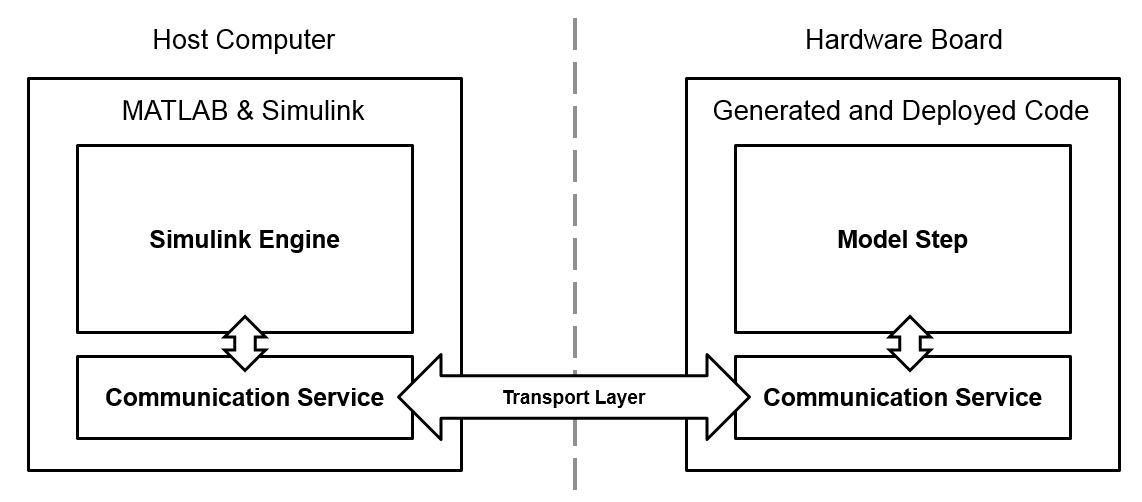
The communication services isolate the model execution on the hardware from both the application code and the transport layer. On the host computer, the communication service when required transmits data that gets updated in model code running on hardware and receives data through the transport layer and updates the Simulink model display accordingly.
The communication service in the hardware used in Monitor and Tune can be within the model thread where the application code is running (foreground task) or exist in a background thread (background task).
Foreground Task
The communication service runs at each model base rate step, immediately after model code execution. This ensures all the data is logged. This diagram shows the typical execution of the external mode relative to the model code.
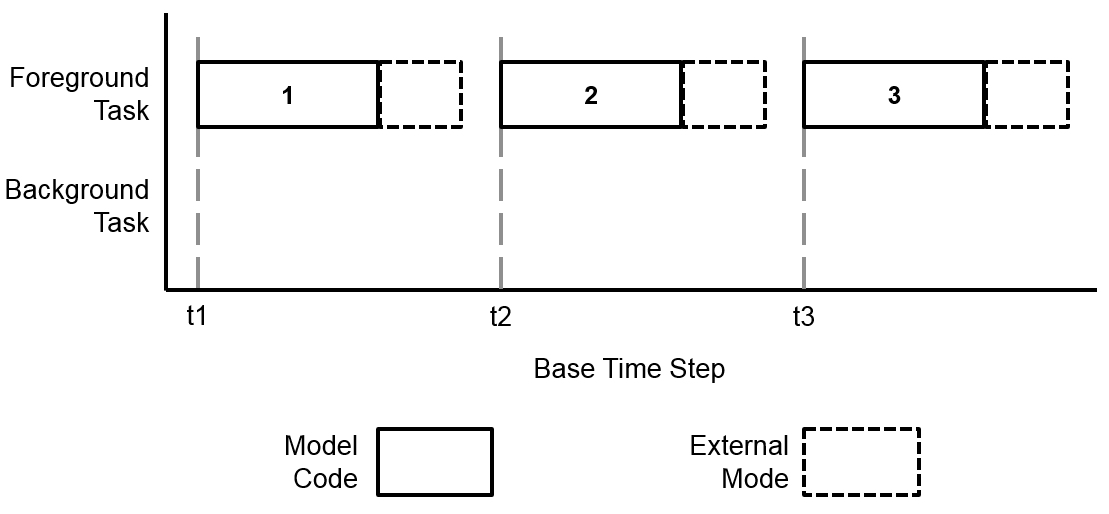
Executing after each model time step maintains the integrity of the data logged by the Monitor and Tune from the hardware board.
When model code consumes most of the execution time for each time step, the Monitor and Tune execution overruns into the next time step. This delays the start of the next model execution step and degrades the real-time behavior of the deployed model. The following diagram shows an overrun of the external mode into the next time step due to model code execution time.
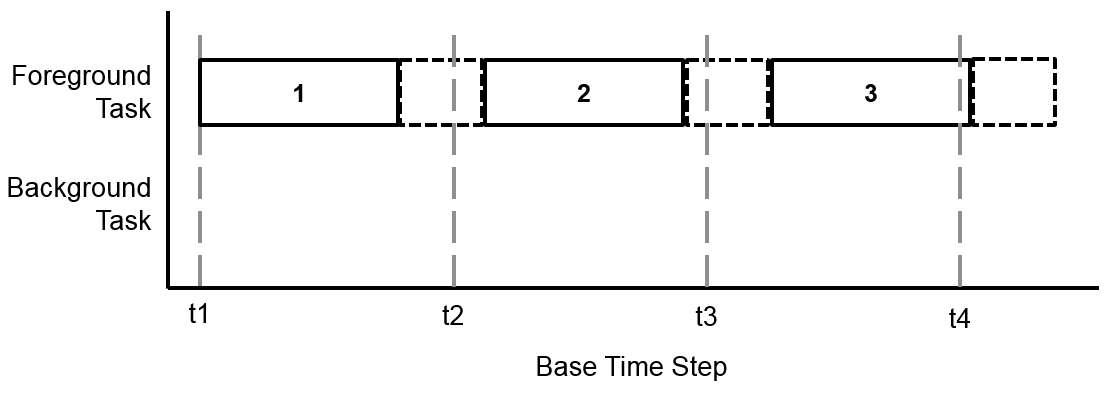
In deployed models where data logging takes priority over real-time execution, configure Monitor and Tune to operate as a foreground task.
Background Task
The communication service runs between model steps as a background task, without blocking model execution. The following diagram shows the execution of the model and background task
The following diagram shows the execution of the model and background task.
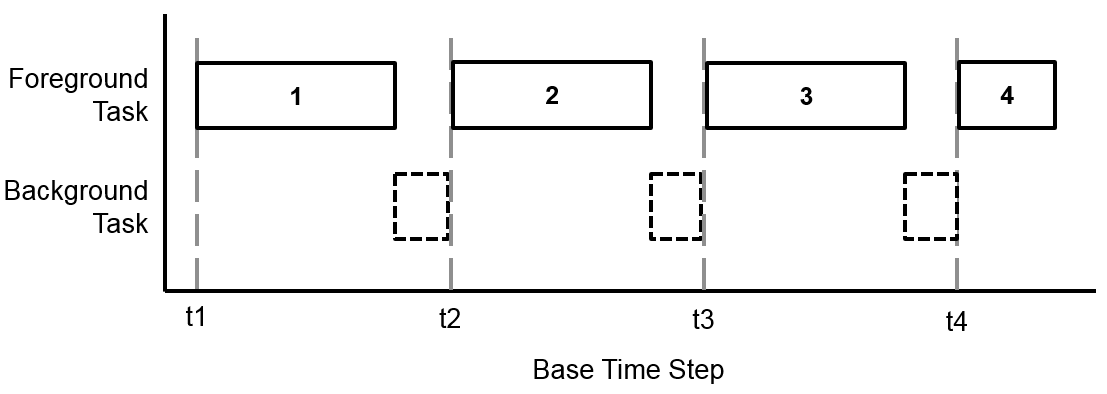
When model code consumes most of the execution time for each time step, the Monitor and Tune in the background task gets starved for execution time. Without sufficient time to collect and transmit data from the hardware board to the host computer, data packets get dropped by the Monitor and Tune, resulting in gaps in the data logging.
As a result of these potential gaps, in deployed models where real-time execution takes priority over data logging, configure Monitor and Tune to operate as a background task.
To select whether to run external mode in the background or foreground, go to Configuration Parameters. In the External Mode section under Target Hardware Resources, check or uncheck the option Run external mode in a background thread.
Note
If your Simulink model includes a Read Detections block, external mode cannot be run as a background task.
To select whether to run external mode in the background or foreground, go to Configuration Parameters. In the External Mode tab under Target Hardware Resources, check or uncheck the option Run external mode in a background thread.
See Also
Signal Monitoring and Parameter Tuning of Model Running on TI mmWave Radar Board | Model Configuration Parameters for Radar Toolbox Support Package for Texas Instruments mmWave Radar Sensors

