rfPartSelector
R2026bDescription
Use the rfPartSelector object to select amplifiers and mixers
from a third-party component database. You must install the third-party database before using
rfPartSelector. You can filter amplifiers and mixers based on their model
number, gain, frequency, nonlinearity, and other parameters. After filtering, use the
rfPart function to
create an amplifier, a mixer, or a mixerIMT
object from a selected component in the table.
Note
Install the third-party component database containing Analog
Devices™ amplifiers and mixers with the installRFParts()
command.
Creation
Syntax
Description
rfse = rfPartSelector
rfse = rfPartSelector(Type="amplifier",Vendor="ADI")
rfse = rfPartSelector(Type="mixer",Vendor="ADI")
Properties
Object Functions
Examples
Install the 3P component installed database.
installRFParts()
Select the amplifier from the 3P component installed database. To do this, first create an rfPartSelector object to specify the type of component you want to select.
rfps = rfPartSelector(Type='Amplifier')
Display all the available amplifier components from this database.
show(rfps,'all')
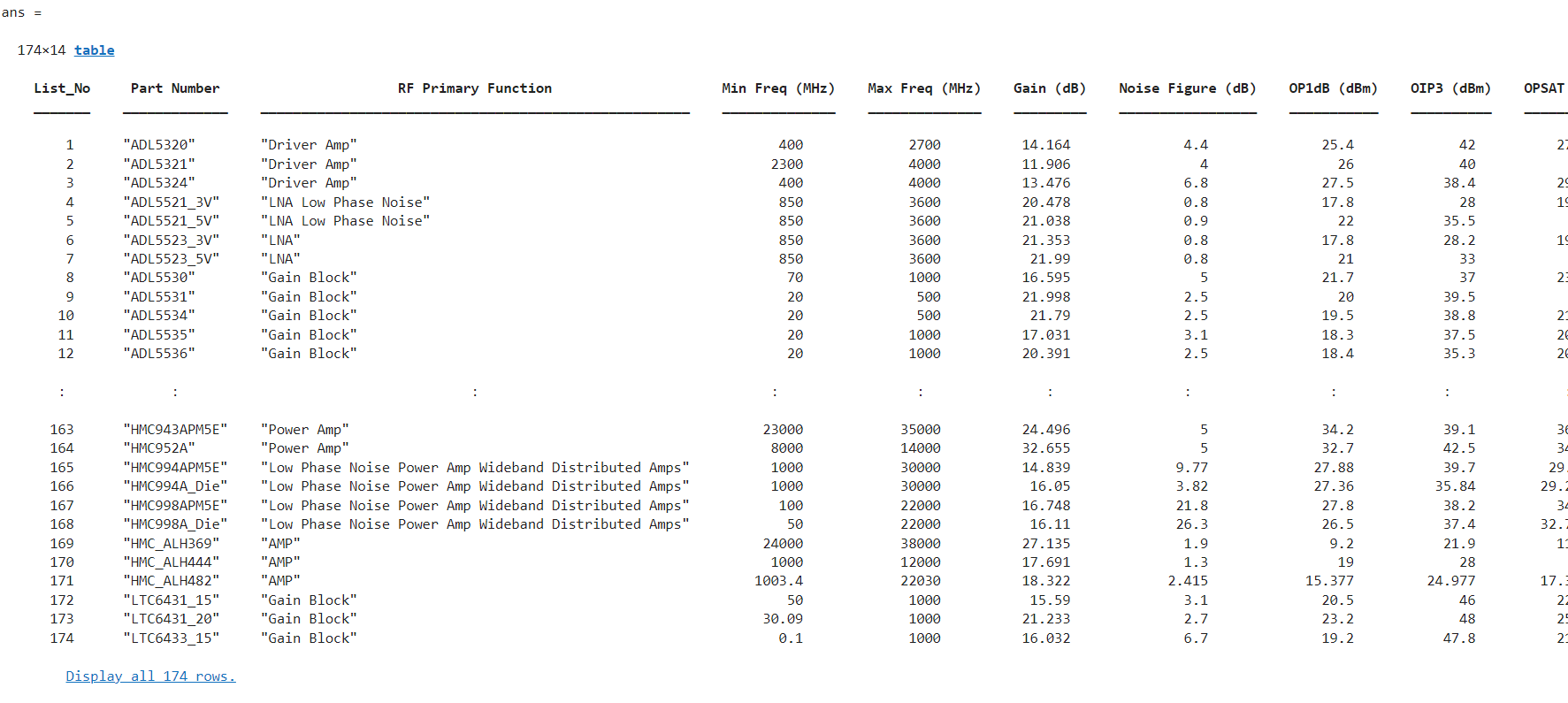
The installed database contains 174 amplifiers. Add parameter filters to select the amplifiers that operates with the gain between 12 dB and 20 dB, noise figure between 4 dB and 10 dB, OP1 between 20 dBm and 30 dBm, and OIP3 between 20 dBm to 30 dBm.
add(rfps,"SelectedSearchParameters","GainRange",[12 20], "NoiseFigureRange",[4 10],"OP1dBRange",[20 30],"OIP3Range",[20 30])
Display the selected amplifiers.
show(rfps,'selected')

The part parameter table contains 14 columns. Retain only the columns that are relevant to your search criteria. In this example, five parameters are non-relevant and must be removed from the table.
remove(rfps,"DisplayColumns","OPSAT (dBm)","Voltage (V)", "Current (mA)", "Operating Temp (degC)","Package Type")
Display the selected amplifiers with the updated part parameter table.
show(rfps,'selected')

Use the rfPart function to create amplifiers from 3P component data. You can either:
Select all amplifiers displayed based on your filtering criteria and generate
amplifierobjects.Choose a specific amplifier that meets your application requirements and create its
amplifierobject.
amp = rfPart(rfps,"HMC451LP3")
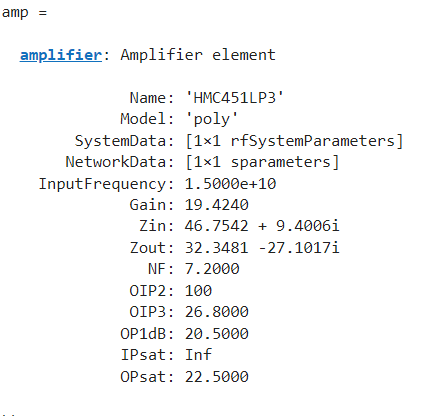
Build an RF chain that includes this amplifier, a component modeled from a Touchstone file, and an element created using an rfelement object. Then, calculate the RF budget for the complete chain at an input frequency of 6.09 GHz, an available input power of −30 dBm, and a bandwidth of 10 MHz.
n = nport('passive.s2p');
r = rfelement(Gain=10);
b = rfbudget([amp r n],6.09e9,-30,10e6)
The RF budget result as follows:
b =

  rfbudget with properties:

               Elements: [1x3 rf.internal.rfbudget.Element]
         InputFrequency:   6 GHz
    AvailableInputPower: -30 dBm
        SignalBandwidth:  10 MHz
                 Solver: Friis
             AutoUpdate: true

   Analysis Results
        OutputFrequency: (GHz) [     6       6       6]
            OutputPower: (dBm) [-10.64  -0.643  -3.975]
         TransducerGain: (dB)  [ 19.36   29.36   26.03]
                     NF: (dB)  [   8.6     8.6     8.6]
                   IIP3: (dBm) [ 8.511   8.511   8.511]
                   OIP3: (dBm) [    28      38   34.67]
                    SNR: (dB)  [ 65.38   65.38   65.37]
Use the rfPartSelector object to search and filter mixer components from the Analog Devices database, then create an RF mixer component from the results.
First, install the third-party component database.
installRFParts()
Create an rfPartSelector object for mixers from Analog Devices.
rfse = rfPartSelector(Type="mixer", Vendor="ADI")
rfse =
  rfPartSelector with properties:

                        Type: "mixer"
                      Vendor: "ADI"
            SearchParameters: {16×1 cell}
    SelectedSearchParameters: {}
             ParameterValues: {}
                 NumAllParts: 82
            NumSelectedParts: 82
              DisplayColumns: {14×1 cell}
Filter for downconverter IQ mixers with conversion gain between -9 and -6 dB.
add(rfse, "SelectedSearchParameters", ...
    "ConverterType", "DownConverter", ...
    "GainRange", [-9 -6], ...
    "RFPrimaryFunction", "IQ Mixer")
Display the filtered mixer parts in a table.
show(rfse)
    List_No     Part Number     RF Primary Function    Converter Type      Model Type     Sideband    Min RF Freq (MHz)    Max RF Freq (MHz)    Min IF Freq (MHz)    Max IF Freq (MHz)    Min LO Freq (MHz)    Max LO Freq (MHz)    Gain (dB)    Operating Temp (degC)    Package Type
    _______    _____________    ___________________    _______________    ____________    ________    _________________    _________________    _________________    _________________    _________________    _________________    _________    _____________________    ____________

       1       "HMC521ALC4"         "IQ Mixer"         "DownConverter"    "IMT"            "LSB"            10400                10400                 100                  100                 10500                10500             -6.59              25              "24 ld LCC"
       2       "HMC521ALC4"         "IQ Mixer"         "DownConverter"    "Non Linear"     "LSB"             5000                13500                 100                 3500                  8000                14000             -7.44              25              "24 ld LCC"
       3       "HMC521ALC4"         "IQ Mixer"         "DownConverter"    "IMT"            "USB"            10600                10600                 100                  100                 10500                10500             -6.59              25              "24 ld LCC"
       4       "HMC521ALC4"         "IQ Mixer"         "DownConverter"    "Non Linear"     "USB"             8500                17000                 100                 3500                  8000                14000             -6.83              25              "24 ld LCC"
       5       "HMC524ALC3B"        "IQ Mixer"         "DownConverter"    "Non Linear"     "USB"            20000                32000                 100                 2500                 17500                31900             -7.39              25              "12 ld LCC"
       6       "HMC8191LC4"         "IQ Mixer"         "DownConverter"    "IMT"            "LSB"             5000                27000                 100                 5000                  6100                31000           -8.0038              25              "24 ld LCC"
       7       "HMC8191LC4"         "IQ Mixer"         "DownConverter"    "Non Linear"     "LSB"             5000                28000                 100                 5000                  6100                31000           -8.0038              25              "24 ld LCC"
       8       "HMC8191LC4"         "IQ Mixer"         "DownConverter"    "Non Linear"     "USB"             6000                30000                 100                 5000                  5500                27000             -8.68              25              "24 ld LCC"
       9       "HMC8193LC4"         "IQ Mixer"         "DownConverter"    "IMT"            "LSB"             2500                 8500                 100                 3500                  2600                12000              -7.2              25              "24 ld LCC"
      10       "HMC8193LC4"         "IQ Mixer"         "DownConverter"    "Non Linear"     "LSB"             1500                 9000                 100                 4500                  2100                 9100              -6.5              25              "24 ld LCC"
      11       "HMC8193LC4"         "IQ Mixer"         "DownConverter"    "IMT"            "USB"             2500                 8500                 100                 3500                  1000                 8400             -7.62              25              "24 ld LCC"
      12       "HMC8193LC4"         "IQ Mixer"         "DownConverter"    "Non Linear"     "USB"             2250                10000                 100                 4500                  2000                 8900             -6.62              25              "24 ld LCC"
Create an RF mixer component object from the first part in the filtered results.
comp = rfPart(rfse, 1)
comp =
  mixerIMT: MixerIMT element

                   Name: 'HMC521ALC4'
          ConverterType: 'Down'
               Sideband: 'lower'
             SystemData: [1×1 rfSystemParameters]
         InputFrequency: 1.0400e+10
                     LO: 1.0500e+10
    ReferenceInputPower: -10
     NominalOutputPower: -16.5900
                    Zin: 50
                   Zout: 50
                     NF: 0
                IMTdiff: [6×6 double]
                 IMTsum: [6×6 double]

