Create Report That Defines Custom Page Headers
R2026bThis example shows how to create a report that includes custom header values on each page.
In this example, you define a custom mlreportgen.report.Report class and a
custom template that includes holes in the header. You then update the class to reference the
custom template and holes, and use the class to generate a PDF report that fills the
holes.
Create the Custom Report Class
To create a custom report class that you can use to define header information, use the
mlreportgen.report.Report.customizeReport method. Specify the
mlreportgen.report.Report class and its templates in a folder,
@MyClass.
mlreportgen.report.Report.customizeReport("@MyReport");mlreportgen.report.Report.customizeReport method creates a class
definition file named MyReport in the @MyReport
folder, and stores the template files for each report type in the
@MyReport\resources\templates folder.Create the Custom Template
The mlreportgen.report.Report.customizeReport method creates HTML, PDF,
and Microsoft® Word templates from the default templates used by the default
mlreportgen.report.Report class. In this example, you create a custom PDF
template to define a header with holes.
To simplify the code that creates the template, import the
mlreportgen.dom namespace and specify the folder paths of the old and
new templates.
import mlreportgen.dom.*
templateBasePath = "@MyReport/resources/templates";
templateType = "pdf";
templateName = "default";
oldTemplatePath = fullfile(templateBasePath, ...
 templateType,templateName);
newTemplatePath = oldTemplatePath+"_withHeader";
Create an mlreportgen.dom.Template object based on the default
template.
template = Template(newTemplatePath,templateType,oldTemplatePath);
open(template);
Create the header for the template. The "default" input argument value
specifies that the report includes the header on each page. For more information, see
PageType.
header = PDFPageHeader("default");Define the header content. In this example, you define holes that you fill with a client
name and a security level. Include the static content, Client: and
Security Level: , and then add a hole next to each piece of static
content.
clientName = Paragraph("Client: ");
clientName.WhiteSpace = "preserve";
append(clientName,TemplateHole("Client"))
securityPara = Paragraph("Security Level: ");
securityPara.WhiteSpace = "preserve";
append(securityPara,TemplateHole("SecurityLevel"));
To format the header content, create an invisible table that defines the layout of the content, and append the table to the header.
tbl = Table([clientName,securityPara]);
tbl.Width = "100%";
tbl.TableEntriesVAlign = "middle";
rightEntry = tbl.entry(1,2);
rightEntry.Style = {HAlign("right")};
append(header, tbl);
append(header, HorizontalRule);
template.CurrentPageLayout.PageHeaders = header;
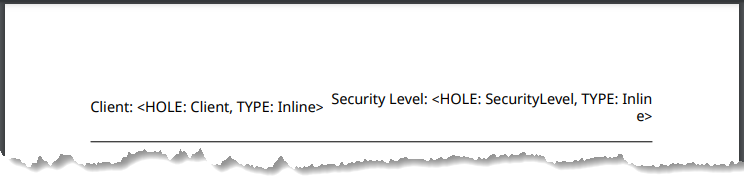
Close and preview the template. The template includes the static content. The angle brackets indicate the holes.
close(template);
tmplview(template);
Modify the Custom Report
Next, update the custom mlreportgen.report.Report class to use the custom
template by specifying the holes as properties in the class. In the
@MyReport folder, open the MyReport class definition
file. Update the properties definition section to list
Client and SecurityLevel.
properties
Client
SecurityLevel
end
The getDefaultTemplatePath method in the class definition file
retrieves the template for the report. Update this method to use the new PDF templates, but
use the default values for the other supported document types.
function templatePath = getDefaultTemplatePath(rpt)
templateBasePath = fullfile(fileparts(mfilename("fullpath")), ...
"resources","templates",rpt.Type);
  switch lower(rpt.Type)
    case "pdf"
      templatePath = fullfile(templateBasePath, ...
       "default_withHeader.pdftx");
    case "docx"
      templatePath = fullfile(templateBasePath,"default.dotx");
    case "html"
      templatePath = fullfile(templateBasePath,"default.htmtx");
    otherwise
       error("Unsupported report type: %s", type);
  end
end
Generate a Sample Report
Next, you can generate reports with the custom header content.
import mlreportgen.report.*
rpt = MyReport("test","pdf");
To fill the hole content, assign the content to the Client and
SecurityLevel properties that you added to the custom
mlreportgen.report.Report class.
rpt.Client = "John Doe";
rpt.SecurityLevel = "Top Secret";
Then, add content or other reporters to the report. Reporters that have a
Layout property define their own layout by default that overrides the
report layout. You can also specify that these reporters use the layout of the report that
contains them by setting the UseReportLayout property of the reporter
to true. In this example, add a title page, and set the layout of the
title page to the layout of the custom
report.
tp = TitlePage(Title="Report for John Doe");
tp.Layout.UseReportLayout = true;
append(rpt,tp);
Add a table of contents, a chapter, and example content for the chapter, and append them to the report.
toc = TableOfContents;
toc.Layout.UseReportLayout = true;
append(rpt,toc);
ch = Chapter("Example Chapter");
ch.Layout.UseReportLayout = true;
append(ch,"Example content");
append(rpt,ch);
View the report to see the results.
close(rpt);
rptview(rpt);
The header of each page contains the static content and the filled holes.

See Also
mlreportgen.report.Report.customizeReport | mlreportgen.report.Reporter.customizeReporter

