Understand Models and Errors Using Simulink Copilot
R2026bSimulink® Copilot provides generative AI–powered capabilities for the Simulink environment.
Use Simulink Copilot to:
Better understand models and model elements.
Get guidance on refining your model.
Analyze error and warning messages, and get help in fixing them.
In particular, these capabilities can help you understand models that you did not design but plan to refine. The Copilot generates responses based on your open model as well as relevant MathWorks® documentation and other resources.
Your models can contain:
Blocks and functionality from other MathWorks products, such as, Simscape™, Stateflow®, and DDS Blockset.
Software components or architecture models created by using MathWorks products, such as System Composer™ and AUTOSAR Blockset.
Understand Your Model
To use Copilot to better understand a model's functionality and algorithm, first
open the model. For this example, open the sldemo_absbrake model
by running this command in the Command Window.
openExample('simulink_automotive/ModelingAnAntiLockBrakingSystemExample')Open the Copilot Chat panel. Enter a prompt to request an explanation. You can specify whether you want a high-level explanation or a detailed explanation.
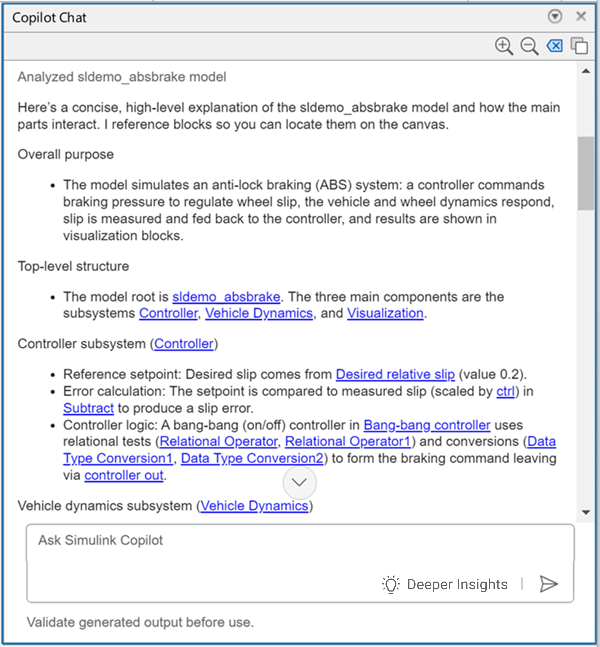
The model implements an anti-lock braking system to simulate the dynamic behavior of a vehicle under braking conditions. It uses bang-bang control strategy to control the braking system. You can ask Copilot to explain the control logic.
Explain the control logic of the braking system.
To get a deeper understanding of the model, you can ask specific questions about model functionality and implementation details. For example, ask which components are responsible for calculating wheel speed or implementing the anti-lock braking system. Using the hyperlinks of the modeling elements in the Copilot response, you can navigate to the elements in the model canvas.
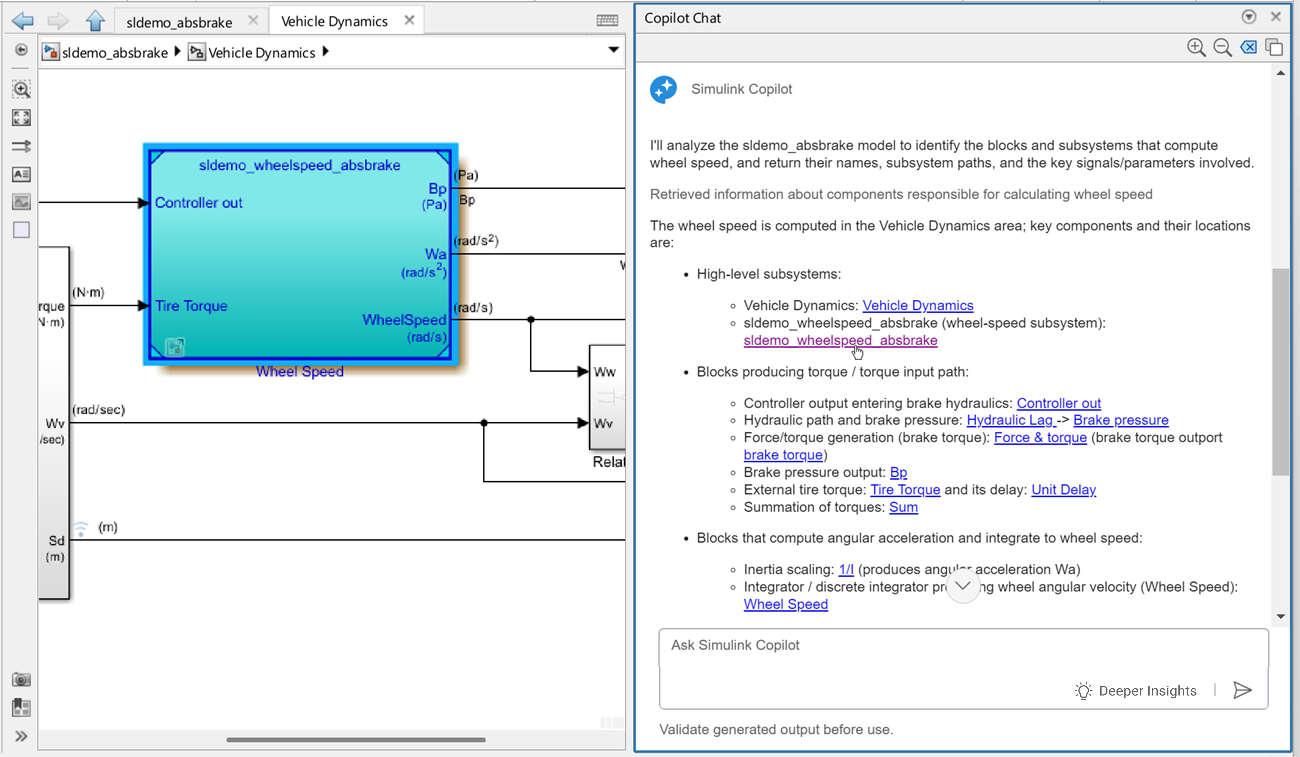
You can ask analytic questions such as:
What are the key components involved in the anti-lock
                                braking system, and how do they interact?
How does the bang-bang control strategy work within the context of this model?What outputs are visualized during simulation, and how do they reflect the performance of the anti-lock braking system?
Understand Model Elements
You can ask Copilot to explain a block in your model to better understand and explore how it contributes to implementing model functionality. First, select the block on the model canvas. Then, right-click the selected block and click the Explain with Simulink Copilot icon. In the Copilot Chat panel, Copilot explains the block. You can select multiple blocks and request an explanation from the context menu.
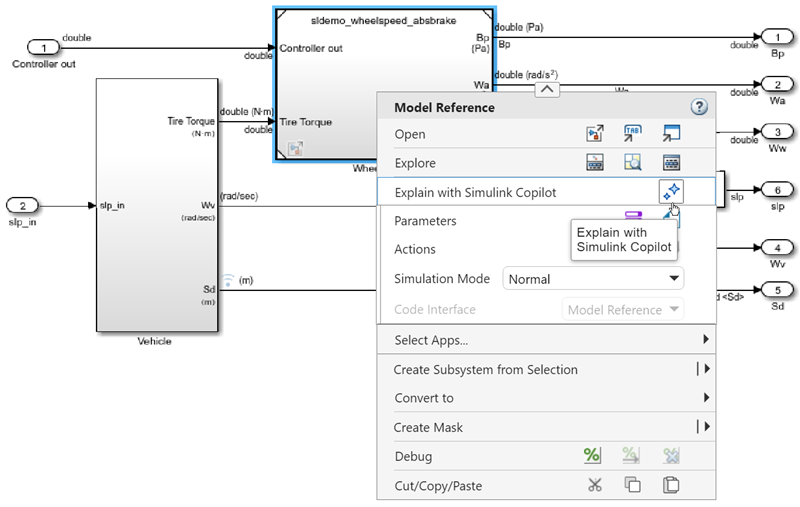
Alternatively, you can enter prompts to request an explanation of the selected blocks. For example:
Explain the selected blockExplain the <block name> block
Get Design Guidance on Refining Your Model
You can ask Copilot for guidance on modifying your model to achieve goals. For
example, if you want to improve the braking response time and stability of the
anti-lock braking system implemented in the sldemo_absbrake
model, ask copilot for guidance.
What adjustments can I make to controller parameters to enhance the
                    braking response time and stability?
By specifying goals in prompts, you can ask Copilot for design guidance.
Understand Errors and Get Assistance in Fixing Them
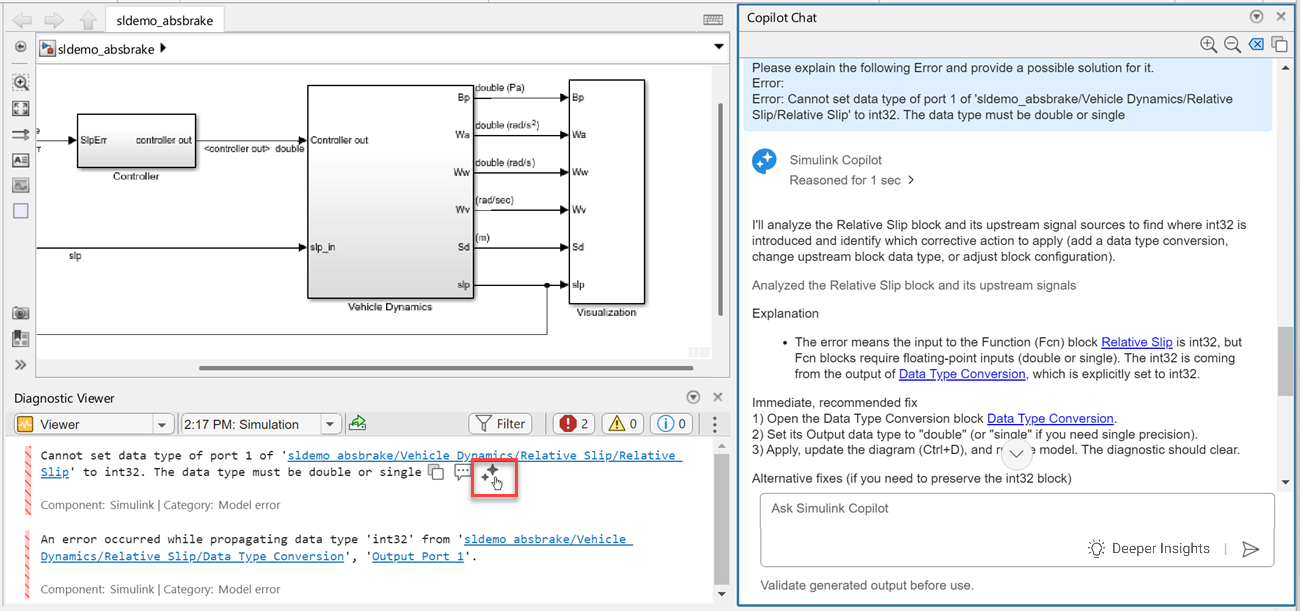
When you design or modify a model, you might encounter errors and warnings in the Diagnostic Viewer. You can ask Copilot to explain the errors and warnings.
To get an explanation of an error or warning, hover over it and click the icon that appears next to it. Typically, the response provides an explanation and a possible solution. The exact response depends on the kind of error or warning that you encounter. A typical Copilot response for an error or warning includes a description of the error or warning, a possible solution, and documentation links.
Limitations
Simulink Copilot might not provide an explanation for all block parameters, properties, and signals in your model.
Simulink Copilot might not provide an explanation for all Stateflow, Simscape, and System Composer elements in your model.
Simulink Copilot does not detect or report blocks that are commented out in models. If you ask Copilot for a list of blocks, or explicitly request whether your opened model contains commented-out blocks, Copilot may respond that none exist even when commented‑out blocks are present.
Simulink Copilot might not generate or provide detailed explanations for large or highly complex models. To work around this issue for a large model containing referenced models, open the referenced models as top models. Then, open the Copilot Chat panel for each top model and ask Copilot to explain the model. These measures reduce the scope of the analysis, enabling the Copilot to generate better responses.
Simulink Copilot cannot create models.
Simulink Copilot cannot modify models, but it can suggest ways to make changes based on your requirements.
Simulink Copilot is only supported for Simulink models (
.slxfiles). For example, if you open a standalone Stateflow Chart (.sfxfile), the Simulink Copilot Chat button does not appear in the toolstrip.Simulink Copilot is supported in Simulink Online. However, in Simulink Online, you cannot use Simulink Copilot with Process Advisor to automate and execute development and verification activities in your project.
For questions related to MATLAB, Simulink Copilot can generate responses, but they may lack detail and might not fully address your query. Use MATLAB® Copilot for questions about MATLAB. For more information, see Explain Code Using MATLAB Copilot.

