Set Up and Use Simulink Copilot
R2026bSimulink® Copilot provides generative AI–powered capabilities for the Simulink environment for workflows in Model-Based Design. Use Copilot to:
Ask questions and get answers. Copilot might use relevant MathWorks® documentation and resources to generate an answer.
Understand model functionality and algorithms, especially for models you did not design.
Identify features within your model and trace them to model elements.
Get guidance on refining your model.
Analyze errors and warnings, and get help in fixing them.
Learn about model-based design tools and techniques.
Execute and monitor development and validation tasks defined in Process Advisor (requires CI/CD Automation for Simulink Check™).
Simulink Copilot can assist you with workflows in Model-Based Design much like a colleague, by answering your questions and providing suggestions. However, Copilot responses are probabilistic, not deterministic. Asking the same question multiple times might produce a slightly different answer each time. For more information about Copilot's limitations, see Limitations.
Set Up Simulink Copilot
To use Simulink Copilot, install Simulink, MATLAB® Copilot, and Simulink Copilot from the product selection list while installing MATLAB. If you already have MATLAB installed, install the copilots from the Add-Ons panel. For more information, see Get and Manage Add-Ons.
After installation, sign in to your MathWorks Account using the Sign In button at the upper-right corner of the MATLAB toolstrip. If an update is available for Simulink Copilot, a banner appears in the Copilot Chat panel. To apply the update, close and reopen Simulink Copilot.
Before R2026b: you did not need to install the Simulink Copilot add-on.
Start a Chat Session
To chat with Simulink Copilot, open a Simulink model. The Simulink Copilot Chat button appears on the Simulink toolstrip on the Simulation and Modeling tabs.

Start a chat session by clicking the Simulink Copilot Chat button.
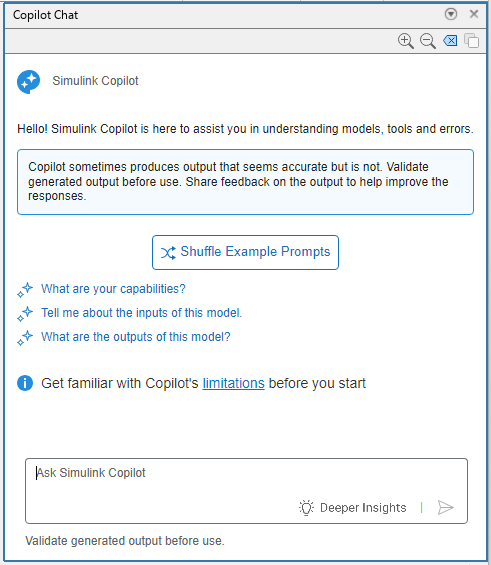
The Copilot Chat panel contains a brief description of its capabilities as well as example prompts. Click an example prompt to submit a request to the AI tool. To get a new set of example prompts, click Shuffle Example Prompts. The chat panel also has an Ask Simulink Copilot text box where you can enter prompts—statements or questions that you write using natural language. For example, enter this prompt:
Give me an overview of Sum blocks.
Copilot returns a response that can include explanations, suggestions, references to documentation, and follow-up prompts.
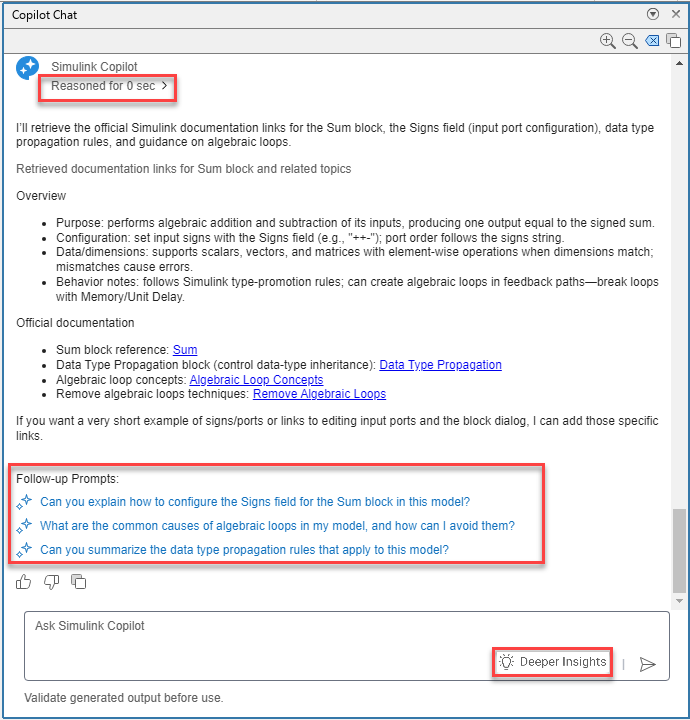
When you enter a prompt, Copilot engages in reasoning which is the process of
thinking through the problem, making inferences, and drawing conclusions to generate
a response. To understand the rationale behind a response, review the reasoning by
expanding the Reasoned content. If the generated response
is not what you want, rephrase the prompt, provide context, and specify how you want
Copilot to present the response. You can also use the follow-up prompts. For more
information about writing effective prompts, see Write Effective Prompts for Simulink Copilot.
Copilot responses can contain inaccuracies. Validate the response before using it. For more information, see Validate Copilot Responses.
Chat to Learn Copilot Capabilities
If you do not know how Simulink Copilot can assist you with workflows in Model-Based Design, you can ask it to explain its capabilities. For example, you can enter these prompts:
Explain your capabilities.What can you do?How can you assist me with workflows in Model-Based Design?
Use Deeper Insights for Higher Quality Responses
To generate more informative and detailed responses from Simulink Copilot, request deeper insights.
Type a prompt in the Ask Simulink Copilot text box.
Click the Deeper Insights button in the text box. The button turns blue from gray to indicate that the deeper insight request is activated.
Submit the prompt.
You can request deeper insights 40 times in a 30-day period. Copilot keeps track of how many times you ask for deeper insights. Hover over the button to see how many requests are used out of 40 times for the 30-day period and when the new 30-day period begins with a new set of 40 requests. When you reach the total number of requests allowed, the Deeper Insights button remains disabled until the beginning of the new period.
Validate Copilot Responses
Generative AI responses can contain inaccuracies. Always validate a generated response before using it. To validate a response, use these strategies:
Review the response.
Understand the rationale behind the response, for example, by reviewing the
Reasonedcontent.Check that the response aligns with the documentation.
Use the hyperlinks in the response to navigate to the blocks in the model canvas and review block-related information from the documentation.
Ask follow-up questions.
Consider requesting deeper insights.
Manage Conversation
Use the buttons at the upper-right corner of the Copilot Chat panel to manage conversations:
To zoom in on the Copilot output, click
 .
.To zoom out from the Copilot output, click
 .
.To clear the chat history, click
 . When you click , Copilot opens a dialog box asking you to
confirm that you want to delete the chat history and proceed.
. When you click , Copilot opens a dialog box asking you to
confirm that you want to delete the chat history and proceed.To copy the entire chat history to the clipboard, click .
To copy a specific response to the clipboard, use the button at the end of that response.
Provide Feedback on AI Responses
MathWorks uses your feedback to improve responses. Use the buttons at the end of every response to provide feedback and copy the response to clipboard.
— The response is helpful.
— The response is not helpful. This button opens a dialog box where you can provide more details.
See Also
Topics
- Write Effective Prompts for Simulink Copilot
- Understand Models and Errors Using Simulink Copilot
- Learn Model-Based Design Tools and Techniques Using Simulink Copilot
- Execute and Monitor Tasks Defined in Process Advisor Using Simulink Copilot
- Disable Simulink Copilot
- Limitations
- Connect MathWorks Copilot Products to Your LLM

