Test Variant Models Using Variant Configurations
R2026bWhen you define variant configurations using Simulink® Variant Manager™, you can create and run tests for your variant models. Instead of manually setting variant control variables, you can select a predefined configuration. Simulink Test Manager lets you choose which configuration to use when setting up test cases or iterations. The test results and reports also indicate which configuration was used, providing traceability.
Test the VMControllerGS model for its linear configuration.
Open Example Model
Open the VMControllerGS model.
modelName = "VMControllerGS";
open_system(modelName);
Create and Run Test
Create a test file for this model so that you can run a simulation test.
Open Simulink Test Manager for the model.
In the Simulink model window, on the Apps tab, in the Model Verification, Validation, and Test section, click the Simulink Test tab. Then, in the Tests tab, click Simulink Test Manager.
Alternatively, you can open Test Manager by entering this command in the MATLAB® Command Window.
sltest.testmanager.view;
Create a new test file.
In the Test Manager, click New > Test File. Name the file
controller_test_fileand save the file.By default, Test Manager creates a test suite with one test case. Right-click the test case and convert it to a simulation test case. Rename the test case to
controllerSimTestCase.Load the
VMControllerGSmodel into the test case.In the System Under Test section, click the Use current model button
 to link the test case to the model.
Select the variant configuration.
In the Parameter Overrides section, the Variant Configuration list shows the available configurations from the variant configurations object of the model. From this list, select the
Linearconfiguration.Tip
If you have added or deleted variant configurations using Variant Manager, click the Refresh button
 in Simulink Test Manager to update
the list with the latest changes.
in Simulink Test Manager to update
the list with the latest changes.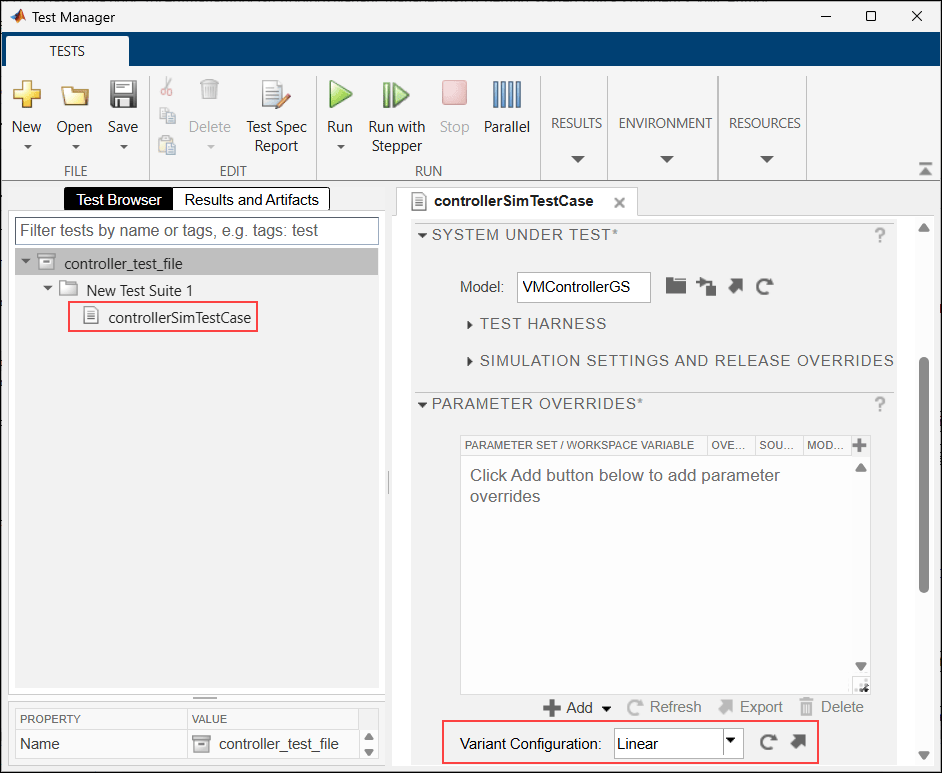
To execute the test, click Run in the Simulink Test Manager toolstrip.
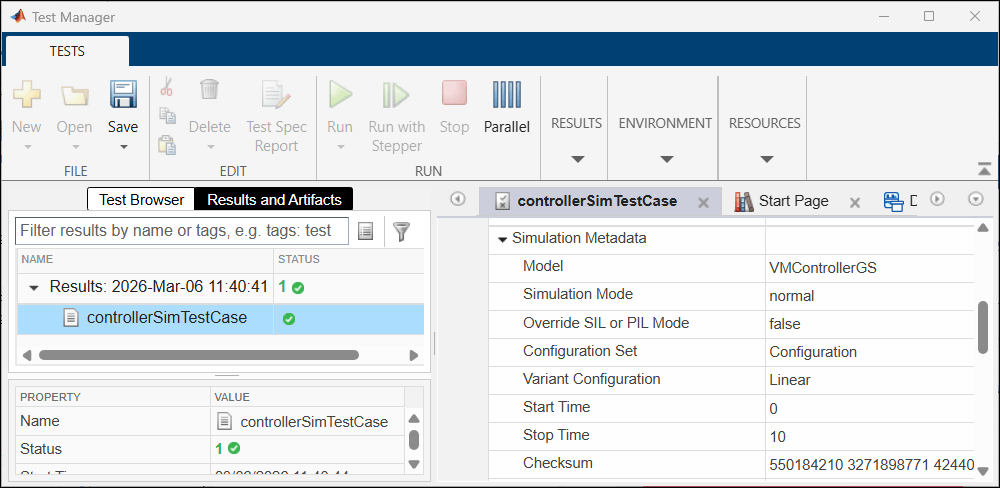
Once the test finishes, check the Results and Artifacts pane to see how the test performed.
Locate the variant configuration used for the run.
In the test results, look under the Simulation Metadata section to find the variant configuration used.
See Also
Simulink.VariantConfigurations | sltest.testmanager.view (Simulink Test)

