Set Up File Management System
R2026bUse a MATLAB® project to manage files for the battery management system. A project streamlines file sharing across teams, handles dependencies within and across developer groups, integrates with source control, and enables componentization and reuse of design files.
In this section, you:
Create a project.
Set up the file structure.
Add files to the project path.
Create shortcuts to frequently used files.
Check project integrity.
Set up source control.
Create a Project
Create a project to organize all BMS design files in a single location. On the MATLAB Home tab, click New > Project > From Folder. Select the root folder that contains your BMS design files.

The project file BatteryManagementSystem.prj stores project
metadata, including the file structure, path settings, shortcuts, and source control
configuration.
Set Up the File Structure
Organize the project into folders that separate design concerns. This structure enables independent development, testing, and code generation for each component.
Folder | Purpose | Key Files |
|---|---|---|
| BMS controller algorithm models |
|
| Battery plant model and its subsystems |
|
| Data dictionaries, enumeration types, and shared configuration | 17 |
| Battery pack design script and component libraries |
|
| Architecture models |
|
| System requirements |
|
| Startup and utility scripts |
|
| Test harnesses, test data, and test files |
|
| In-project live script ( | Live scripts covering overview, architecture, algorithms, and verification |
This folder structure separates the controller algorithms from the plant model, keeps data dictionaries and interface definitions together, and isolates test artifacts from production design files.
Add Files to the Project Path
Add folders to the project path so that models, scripts, and functions in those folders are available when you open the project.
On the Project tab, click Project Path.
Add these folders to the project path:
Design/ControllerDesign/PlantDesign/DictionariesDesign/DesignBatteryPackFunctionalityAndArchitectureScripts

When you open the project, MATLAB adds these folders to the search path. When you close the project, MATLAB removes them. This behavior prevents path conflicts with other projects.
Create Shortcuts
Create shortcuts to files you frequently open or run. Shortcuts appear in the Shortcuts section of the Projects tab and provide one-click access to key entry points.

To create a shortcut, right-click a file in the project and select Create Shortcut.

Check Project Integrity
Run integrity checks to identify missing files, broken dependencies, or other issues.
On the Project tab, click Project Issues.
Review the results in the Project Issues pane.
Resolve any issues, such as files on the project path that are not in the project or files that reference dependencies outside the project.

Use the Dependency Analyzer to visualize how files in the project depend on each other. On the Project tab, click Dependency Analyzer to generate the graph.
Set Up Source Control
Connect the project to a source control system to track changes, manage branches, and collaborate with other team members.
On the Project tab, click Use Source Control.
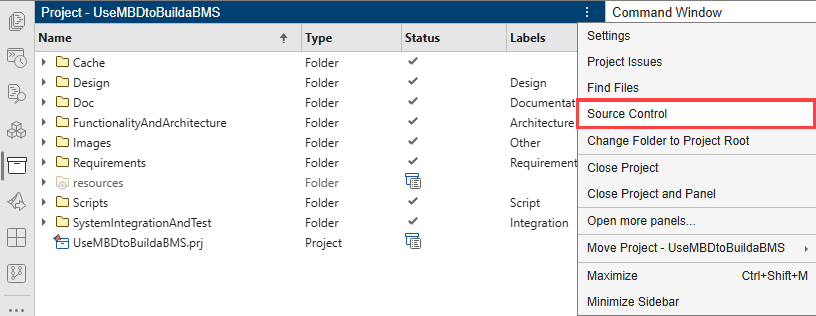
Select your source control system (for example, Git™).
Configure the repository location and commit the project files.
Source control integration enables you to:
Compare file versions and view change history.
Merge changes from multiple contributors.
Tag releases and manage branches for parallel development.

