Create Light Using MATLAB
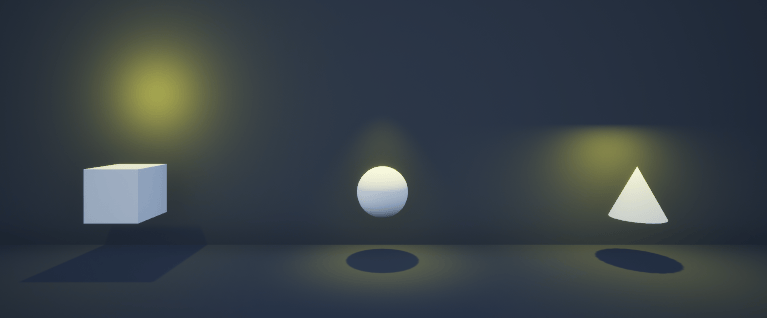
R2026bThis example shows how to create custom lighting using a sim3d.Light object in the 3D environment. First, create a room. Next, create and place three actors inside the room. Then, create a point light, a spot light, and a rectangular light and place them above each actor inside the room. Finally, view the room and the actors illuminated by the different types of light in the Simulation 3D Viewer window.
Create 3D Environment
Create a world object using sim3d.World.
world = sim3d.World();
Create Room
Create a room using the sim3d.Actor object. Set the properties of the room to visualize the light and add the room to the world.
room = sim3d.Actor(ActorName='Room');
createShape(room,'box',[60 60 20]);
room.Shadows = 1;
room.TwoSided = 1;
room.Flat = 1;
room.Metallic = 0;
room.Shininess = 0;
room.Color = [0.1 0.1 0.1];
add(world,room);
Create Actors
Create actors inside the room using the sim3d.Actor object. Set the properties of the actors and add the actors to the world.
% Create box actor
box = sim3d.Actor(ActorName='Box');
createShape(box,'box',[3 3 3]);
box.Translation = [27 -15 -6];
box.Shadows = 1;
box.Metallic = 0;
box.Shininess = 0;
add(world,box);

% Create sphere actor
sphere = sim3d.Actor(ActorName='Sphere');
createShape(sphere,'sphere',[3 3 3]);
sphere.Translation = [27 0 -6];
sphere.Shadows = 1;
sphere.Metallic = 0;
sphere.Shininess = 0;
add(world,sphere);

% Create cone actor
cone = sim3d.Actor(ActorName='Cone');
createShape(cone,'cone',[3 3 3]);
cone.Translation = [27 15 -6];
cone.Shadows = 1;
cone.Metallic = 0;
cone.Shininess = 0;
add(world,cone);
Create Point Light
Create a point light, set the light properties, and place the light above the box actor.
pointlight = sim3d.Light( ...
    ActorName='PointLight', ...
    LightType='PointLight');
pointlight.SourceRadius = 0.5;
pointlight.Intensity = 50000;
pointlight.AttenuationRadius = 20;
pointlight.Translation = [27 -15 0];
pointlight.LightColor = [1 1 0];
add(world,pointlight);
Create Spot Light
Create a spot light, set the light properties, and place the light above the sphere actor.
spotlight = sim3d.Light( ...
    ActorName='SpotLight', ...
    LightType='SpotLight');
spotlight.Intensity = 500000;
spotlight.Translation = [27 0 4];
spotlight.Rotation = [0, -pi/2, 0];
spotlight.AttenuationRadius = 20;
spotlight.LightColor = [1 1 0];
spotlight.ConeAngle = 30;
add(world,spotlight);
Create Rectangular Light
Create a rectangular light, set the light properties, and place the light above the cone actor.
rectlight = sim3d.Light( ...
    ActorName='RectLight', ...
    LightType='RectLight');
rectlight.Intensity = 50000;
rectlight.Translation = [27 15 -2];
rectlight.Rotation = [0, -pi/2, 0];
rectlight.AttenuationRadius = 20;
rectlight.LightColor = [1 1 0];
rectlight.SourceWidth = 3;
add(world,rectlight);
Run Simulation
Set the Simulation 3D Viewer window point of view using createViewpoint function and setView function and run the simulation. You can visualize the reflections of each light type on the wall behind the actors.
view = createViewpoint(world);
view.Translation = [3 0 -2];
setView(world,view);

sampletime = 0.01;
stoptime = 5;
run(world,sampletime,stoptime);
delete(world);
See Also
sim3d.Light | sim3d.Actor | sim3d.World | createShape | add | run

