Create Parallel States in State Transition Tables
R2026bBy default, states in state transition tables use exclusive decomposition, which means that only one state in each level of hierarchy is active. To simultaneously activate every state in a level of hierarchy, enable parallel decomposition.
When a table or state that uses parallel decomposition becomes active, every direct child of that table or state also becomes active. These direct children are called parallel states.
For example, in this table, the Parallel_Parent state uses parallel
decomposition, while the Exclusive_Parent state uses exclusive decomposition.
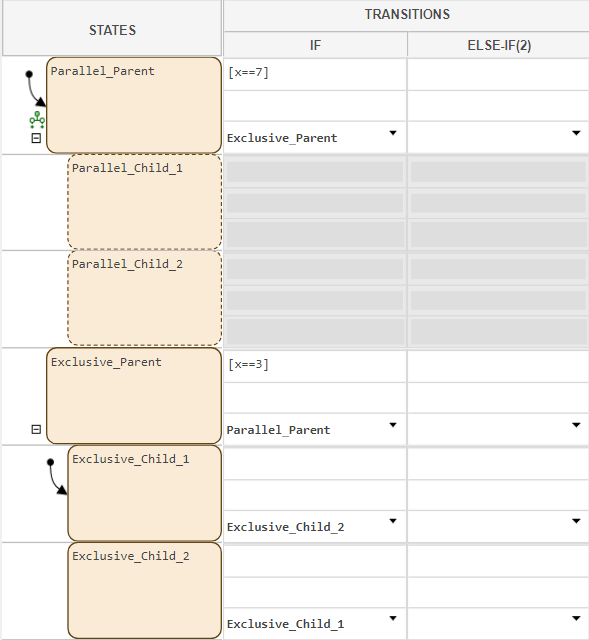
When Parallel_Parent becomes active, the parallel states
Parallel_Child_1 and Parallel_Child_2 also
become active. Because parallel states do not support transitions. Instead, their
transition columns are dimmed.
Enable Parallel Decomposition
To enable parallel decomposition for a state, right-click the state and select
Set State Decomposition > Parallel (AND). To the left
of the state, the parallel decomposition icon  appears. The direct children become parallel states. To disable
parallel decomposition for the state, right-click the state and select
Set State Decomposition > Exclusive (OR).
appears. The direct children become parallel states. To disable
parallel decomposition for the state, right-click the state and select
Set State Decomposition > Exclusive (OR).
To enable parallel decomposition for a table, in the Modeling
tab, select Decomposition > Parallel (AND). In the
bottom-left corner of the table window, the parallel decomposition icon
appears. The top-level states of the table become parallel
states. To disable parallel decomposition for the table, in the
Modeling tab, select Decomposition > Exclusive
(OR).

