Use Polyspace Test for Testing C/C++ Code to Run on STM32 Microcontrollers
R2026bThis example shows how to use Polyspace Test to develop, manage, and execute unit and integration tests for C and C++ code and intended to run on STM32 microcontrollers. Using Polyspace Test, you can run tests on STM32 Microcontrollers, automate test execution, and link tests to requirements for traceability.
Prerequisites
STM32G431RBTx microcontroller
USB cable
These software products installed: MATLAB, MATLAB Coder, Simulink, Simulink Coder, Embedded Coder, STM32 Microcontroller Blockset, and Polyspace Test
Create STM32 Polyspace Target Registration Scripts
1. Open MATLAB.
2. At the MATLAB command prompt, enter the command stm32setup. The command downloads third-party tools required to build and deploy code to STM32 boards and opens a hardware setup utility.
3. Follow the instructions that the setup utility displays to install and set up the third-party tools.
4. Create an STM32 input/output configuration (IOC) file, which generates C initialization code.
a. Get the name of your STM32 board. To display the list of supported board names, enter this command at the MATLAB command prompt:
> stm32.pstest.getSupportHardwareList
ans =

 15x1 cell array

  {'STM32F1xx Based'         }

  {'STM32F2xx Based'         }

  {'STM32F3xx Based'         }

  {'STM32F4xx Based'         }

  {'STM32F7xx Based (Double precision FPU)'}

  {'STM32F7xx Based (Single precision FPU)'}

  {'STM32G0xx Based'         }

  {'STM32G4xx Based'         }

  {'STM32H5xx Based'         }

  {'STM32H7xx Based (Single-core)'    }

  {'STM32H7xx Based (Dual-core)'      }

  {'STM32L4xx Based'         }

  {'STM32L5xx Based'         }

  {'STM32U5xx Based'         }

  {'STM32WBxx Based'         }
b. Get the name of your STM32 product that uses the board you identified in step a. To display the list of STM32 board products that use a supported board, enter the board name as an argument to the command stm32.pstest.getListOfBoards. For example:
stm32.pstest.getListOfBoards('STM32G4xx Based')
ans =

 6x1 cell array

  {'B-G474E-DPOW1'    }

  {'NUCLEO-G431KB'    }

  {'NUCLEO-G431RB'    }

  {'NUCLEO-G474RE'    }

  {'NUCLEO-G491RE'    }

  {'Custom STM32G4xx Based'}
c. Create an IOC file by specifying the pathname for your STM32 IOC file and the STM32 board and product names that you identified in steps a and b as arguments to the command stm32.pstest.createSTMCubeMXProject. For example:
stm32.pstest.createSTMCubeMXProject('L/myProject/myG4.ioc','STM32G4xx Based','NUCLEO-G431RB')
Project Path: L:\myProject\myG4\myG4.ioc
The command creates an IOC file and displays the pathname for the file. If you specify a full file path, the command creates the IOC file in the specified folder. Otherwise, the command creates the file in your current folder.
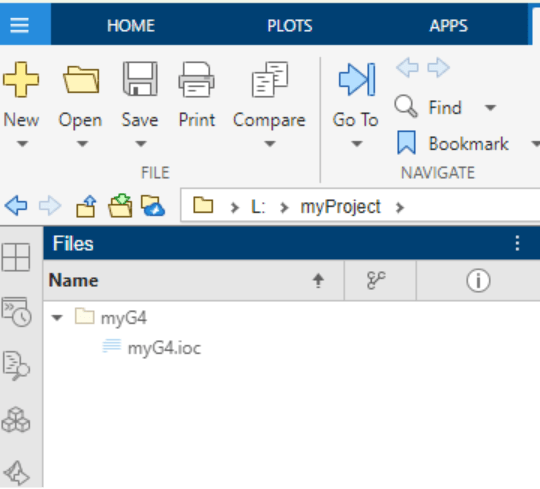
d. Create the STM32 registration script by entering the command stm32.pstest.createPSTESTRegisterFile with these arguments:
hardwareBoard - One of the board names returned by the command
stm32.pstest.getSupportHardwareList, for example'STM32L4xx Based'.iocFilePath- Pathname returned by the commandstm32.pstest.createSTMCubeMXProject.filePath- Optional pathname for the generated STM32 registration script. If you specify a file name only, the command creates the file in your current folder.uasart - Optional universal synchronous/asynchronous receiver/transmitter (USART). If you do not specify a USART, the command automatically sets the USART for the specified board.
comPort- Optional communication (COM) port. If you do not specify a COM port, the command automatically sets the COM port for the specified board.
For example:
stm43.pstest.createPSTESTRegisterFile('STM32G4xx Based','L:\myProject\myG4\myG4.ioc')
STM Register file saved at: L:\myProject\registerSTM.m.
STM configuration file saved at: L:\myProject\STM32G4xxBased_PackageRegister.m
STM unregister file saved at: L:\myProject\unRegisterSTM.m
Run STM32 Polyspace Target Registration Scripts
To run tests in Polyspace Test on the C or C++ code that is running on your STM32 board:
1. On your development computer, open the Polyspace Platform user interface.
2. On the Polyspace Platform toolstrip, select Configuration > Manage Boards. This display appears:
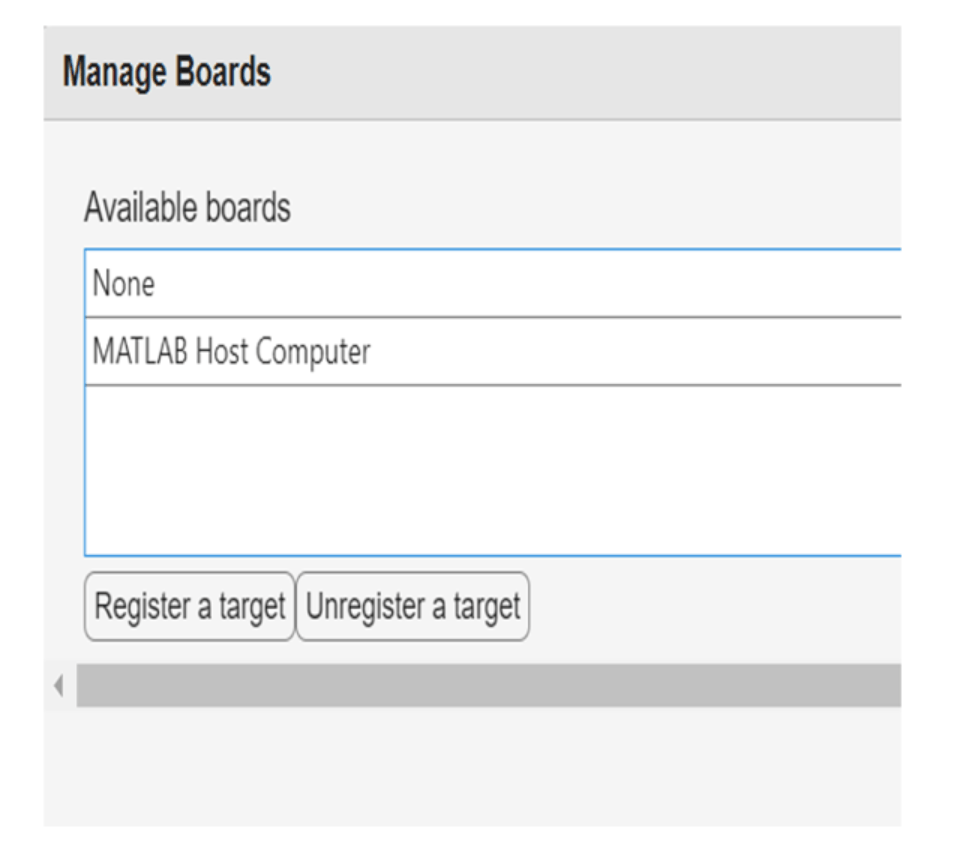
3. Click Register a target.
4. Navigate to the STM32 target registration scripts that you created in internal link. Files created by the registration scripts cited in that section were located at L:\myProject. The two generated scripts were registerSTM.m and STM32G4xxBased_PackageRegister.m.
Open Polyspace Platform User Interface
To open the Polyspace Platform user interface, double-click the desktop shortcut Polyspace Test R2026a. If you have not added a desktop shortcut during installation, double-click or otherwise start the following executable:
polyspaceroot\polyspace\bin\polyspace-desktop-ui.exe
Here, polyspaceroot is the Polyspace installation folder, for instance, C:\Program Files\Polyspace\``R2026a.
Create PolySpace Test Project
Create a project in Polyspace Test and add source files to the project.
In the Polyspace Platform toolstrip, click New. Navigate to the location where you want to save the project, enter a project name, and click Save.A project consists of this information in separate nodes:
Code — C/C++ source files.
Configuration — Build information, such as include paths and compiler flags.
Test Artifacts — Artifacts associated with code testing, such as function stubs and mocks.
Tests — One or more tests that you can write in graphical format or as scripts.
Right-click the Code node and select Add Source File. Alternatively, click the Add Source File button in the toolstrip. Select the project source files and add them to your project.
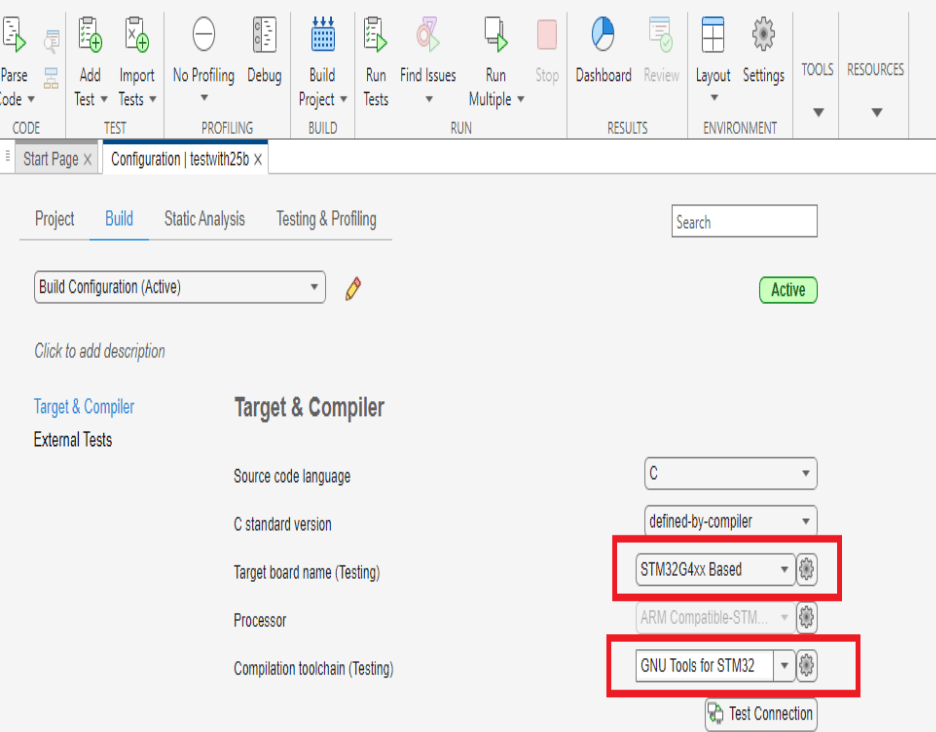
On the project Configuration tab:
For Target board name (Testing), select the name of the target board (for example,
STM32G4xx Based).For Compilation tooling (Testing), select
GNU Tools for STM32 Toolchain.
Run Polyspace Tests on STM32 Board
To run Polyspace Test tests on the C or C++ code that runs on an STM32 board:
On the Polyspace Platform toolstrip, click Build Project.
On the toolstrip, click Run Tests. Polyspace Test runs the tests on the board and publishes test results.
Review the test results. On the Results pane, right-click the node that corresponds to the test results and select Open Review.
Calculate Code Coverage on STM32 Board
To calculate code coverage for the C or C++ code running on an STM32 board:
On the Polyspace Platform toolstrip, under the Profiling section, select Code Coverage.
On the toolstrip, click Build Project. Polyspace Test instruments the source file for code coverage calculation and builds the instrumented sources and tests.
On the toolstrip, click Run Tests.
Unregister STM32 Board
To unregister an STM32 board from Polyspace Test:
On the Polyspace Platform toolstrip, select Configuration > Manage Boards.
Click Unregister a target.
Navigate to the STM32 target unregister script. Internal link shows the path to an example unregister script
L:\myProject\unRegisterSTM.m.

