Get Started with MQTT on STM32 Boards
R2026bThis example shows how to use the MQTT Publish and MQTT Subscribe blocks with two MQTT brokers: ThingSpeak™ and HiveMQ®. The example also includes the required STM32CubeMX IOC configuration and is implemented for the STM32H743ZI2 board.
To use MQTT blocks in models that target STM32 boards, configure the Ethernet settings in STM32CubeMX. For more information, see Ethernet Configuration in STM32CubeMX for STM32 Processor-Based Boards.
Model Overview
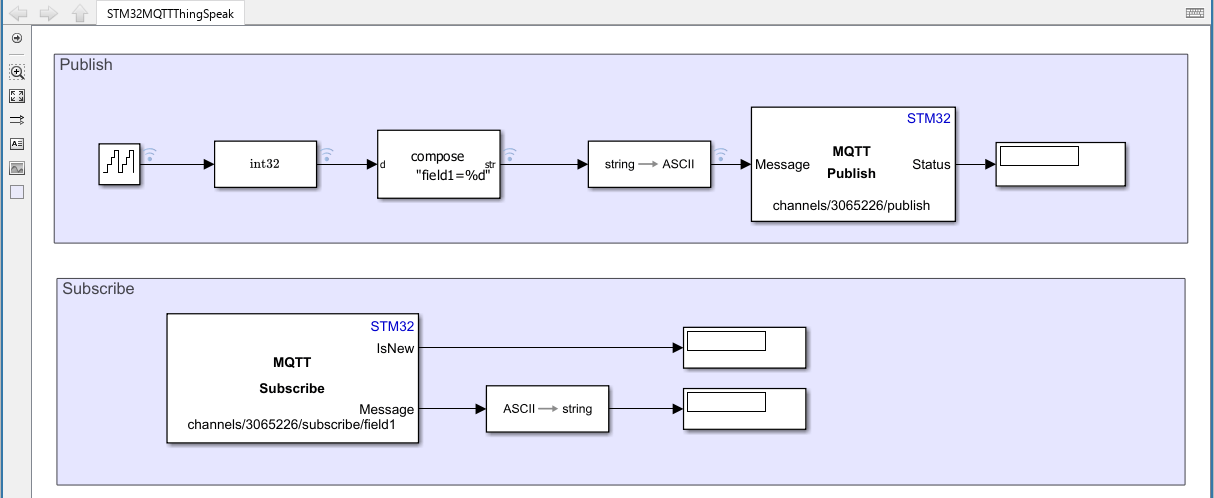
This examples includes two models: STM32MQTTHivemq.slx and STM32MQTTThingSpeak.slx. Both these models consist of Publish and Subscribe sections.
Publish
The model accepts a sequence of integers as input, converts the values to a string, and then translates the string into its corresponding ASCII values. The MQTT Publish block sends the resulting data to the selected broker.
For the ThingSpeak broker, use the following topic format:
channels/<channelID>/publish/fields/field<fieldNumber>
Publishing to this topic updates the specified field in the ThingSpeak channel.
To update the channel feed instead, use the following topic format:
channels/<channelID>/publish
Publishing to this topic updates the channel feed in ThingSpeak
Subscribe
The MQTT Subscribe block subscribes to a specified topic and displays the data that it receives.
For the ThingSpeak broker, use the following topic format:
channels/<channelID>/subscribe/fields/field<fieldNumber>
Subscribing to this topic receives updates from the specified field in a ThingSpeak channel.
To receive updates from the entire channel feed, use the following topic format:
channels/<channelID>/subscribe
Subscribing to this topic receives updates from all fields in the ThingSpeak channel feed.
MQTT Quality of Service (QoS)
Quality of Service (QoS) determines the reliability of MQTT message delivery. MQTT supports three QoS levels: QoS 0, QoS 1, and QoS 2. You can specify one of these QoS levels in the MQTT Publish and MQTT Subscribe blocks.
QoS 0: At Most Once
QoS 0 provides best-effort delivery. The sender transmits a message once and does not wait for an acknowledgment from the receiver. If the message is lost during transmission, the sender does not re-transmit it.
QoS 1: At Least Once
QoS 1 ensures that a message is delivered at least once. The sender stores the message until it receives a PUBACK acknowledgment from the receiver. If the acknowledgment is not received within 10 seconds, the sender re-transmits the message.
Because the sender can re-transmit a message, the receiver might receive duplicate messages.
QoS 2: Exactly Once
QoS 2 provides the highest level of delivery assurance and ensures that a message is delivered exactly once. This QoS level uses a four-step handshake protocol between the sender and receiver. As a result, QoS 2 introduces additional communication overhead and provides the slowest message delivery.
Note: Not all brokers support every QoS level. For example, ThingSpeak MQTT supports only QoS 0.
Use the ThingSpeak Broker
Create a ThingSpeak Channel and Device
To use a ThingSpeak broker, first create a channel and then add a device to that channel.
After you create the channel, ThingSpeak generates a Channel ID. To find the Channel ID, in ThingSpeak, go to Channels > My Channels and select the channel.
Use the Channel ID when you configure MQTT topics for publishing and subscribing to channel data.
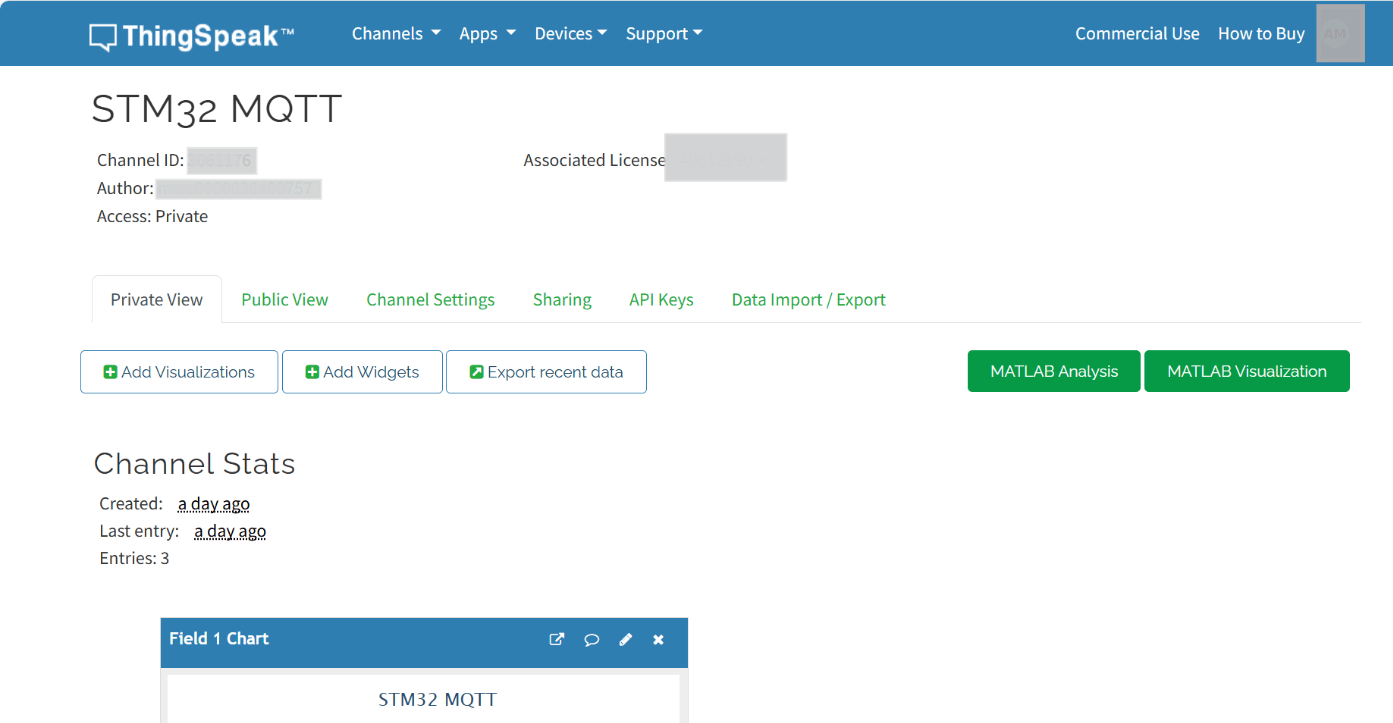
Next, go to Devices > MQTT and create an MQTT device. Associate the device with the channel that you created earlier.
After you create the device, ThingSpeak generates the credentials required to connect to the MQTT broker:
Client ID
Username
Password
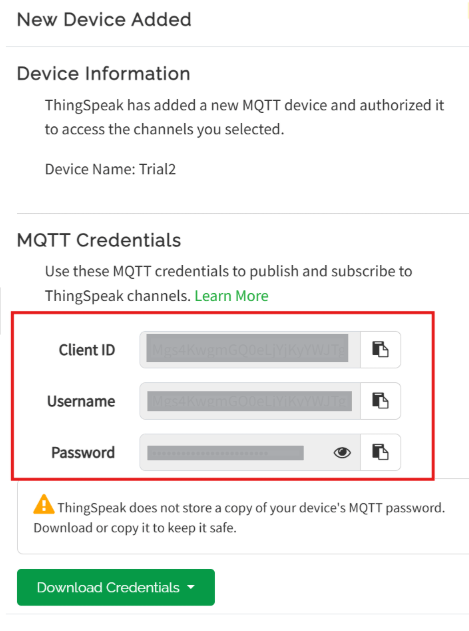
Enter these credentials in the corresponding Client username, Client Password, and Client id parameters of the MQTT configuration settings of the Simulink model.
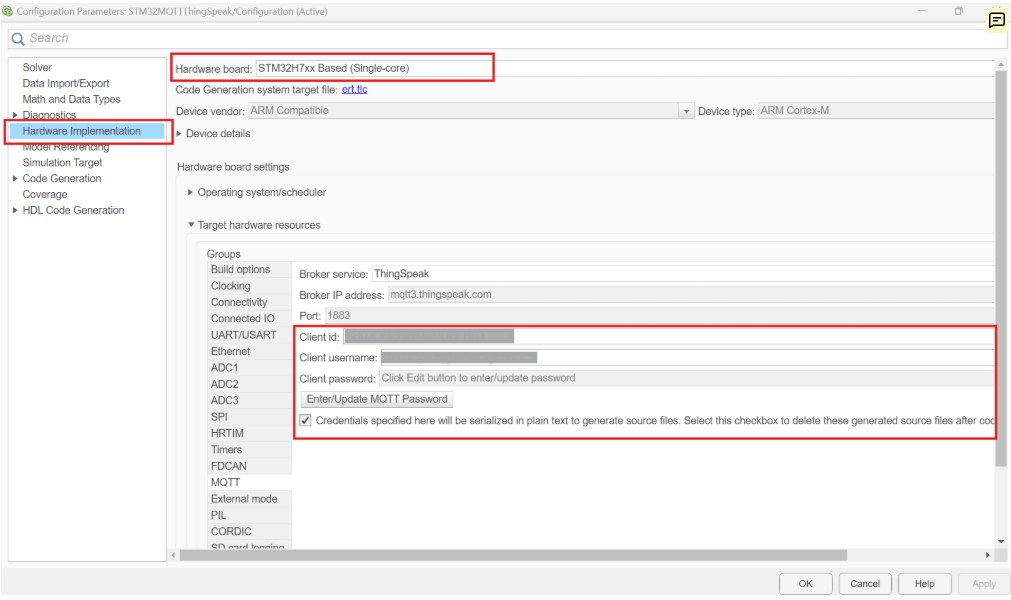
After updating the configuration, follow these steps to verify the MQTT communication:
Click Monitor & Tune to run the model on the target hardware in External mode.
Open the configured ThingSpeak channel.
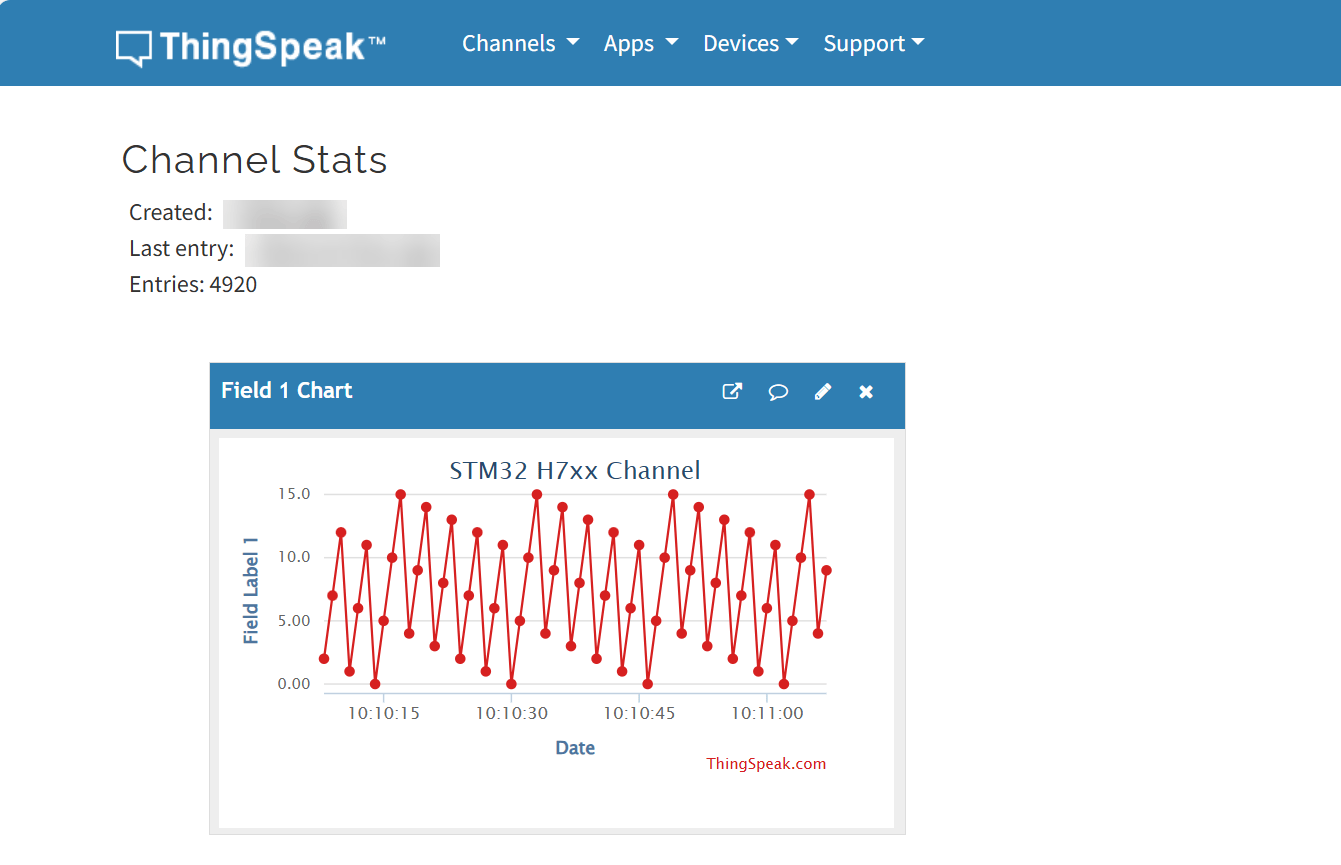
Verify that the published data appears in the channel.
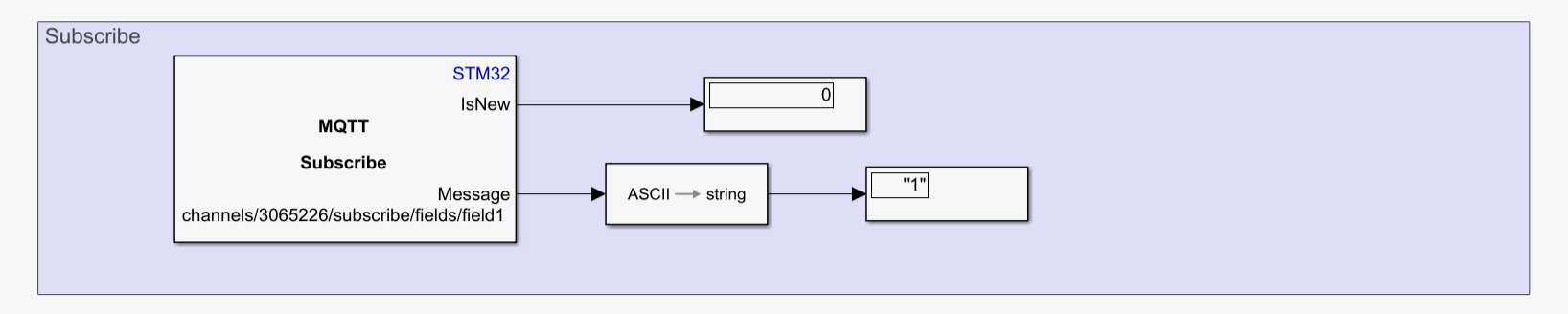
Confirm that the MQTT Subscribe block receives and displays the same data.
Successful completion of these steps confirms that the MQTT Publish and MQTT Subscribe blocks are communicating correctly through the configured ThingSpeak broker.
This image shows the data received by Subscribe Block.
This image shows the corresponding data received in ThingSpeak channel.
Use the HiveMQ Broker
Create a new HiveMQ cluster and configure authentication credentials for MQTT clients.
To create a new credential:
Open the HiveMQ cluster.
Go to Access Management.
Select Add New Credential.
Specify a username and password.
Grant Publish and Subscribe permissions.
For more information, refer to the HiveMQ Documentation.
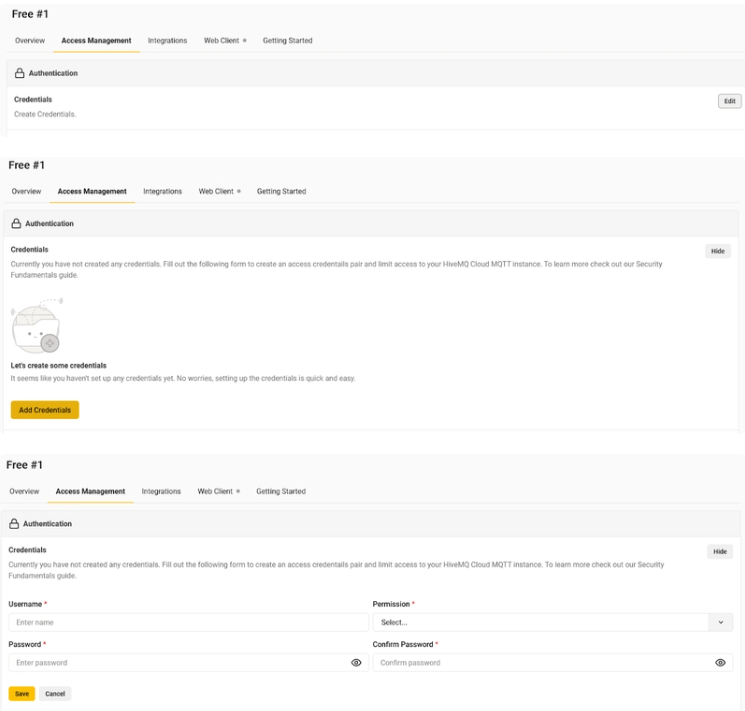
Record the following connection details from your HiveMQ cluster:
Cluster URL
Port number
Username
Password
Enter these values in the Simulink model configuration.
Note: Use port 1883. The MQTT blocks currently support only non-SSL connections. SSL connections that use port 8883 are not supported.
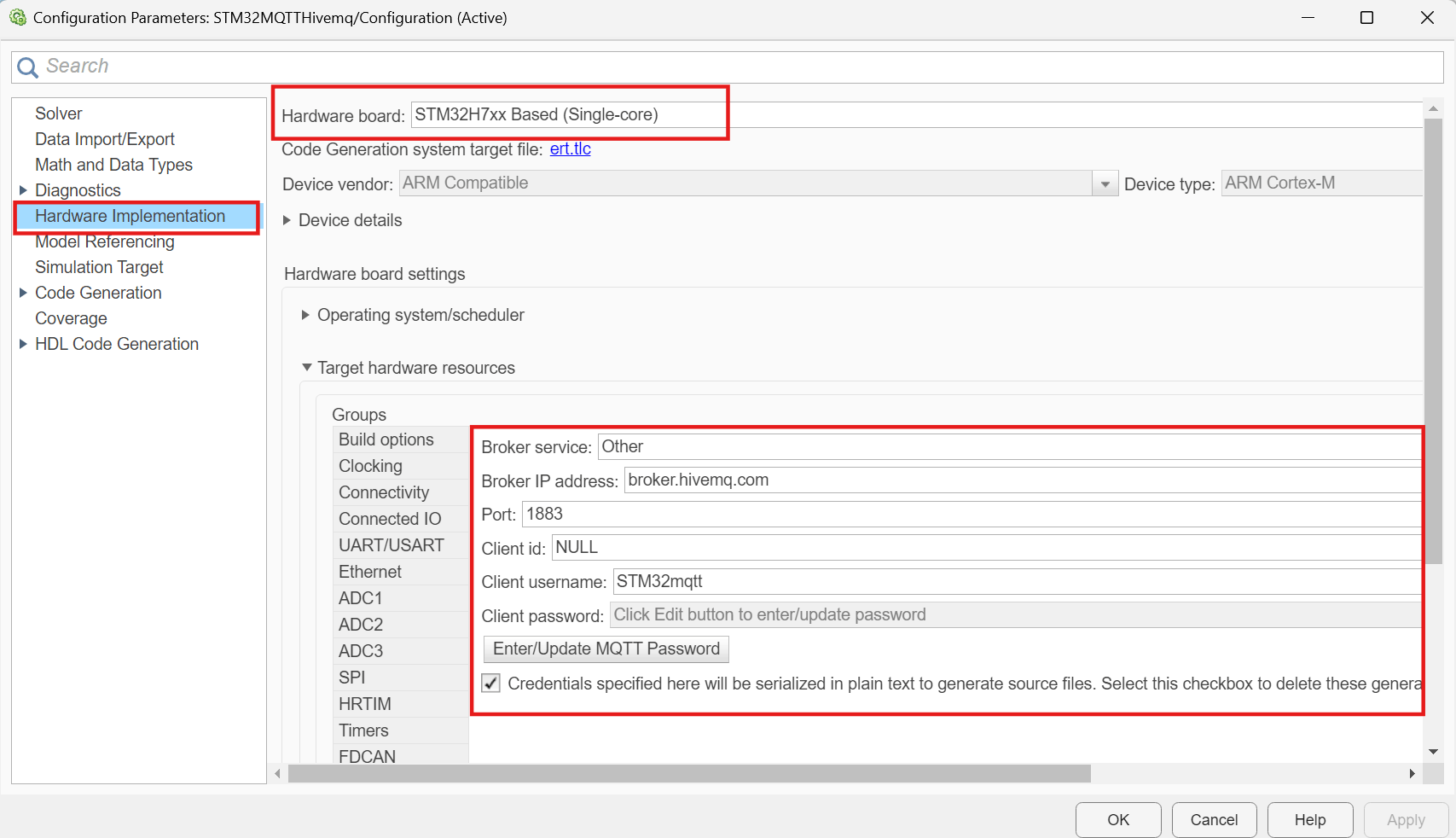
Connect to the HiveMQ Web Client using the username and password that you created for the cluster. After you sign in, configure the topic for publishing and subscribing, as shown in the following example.
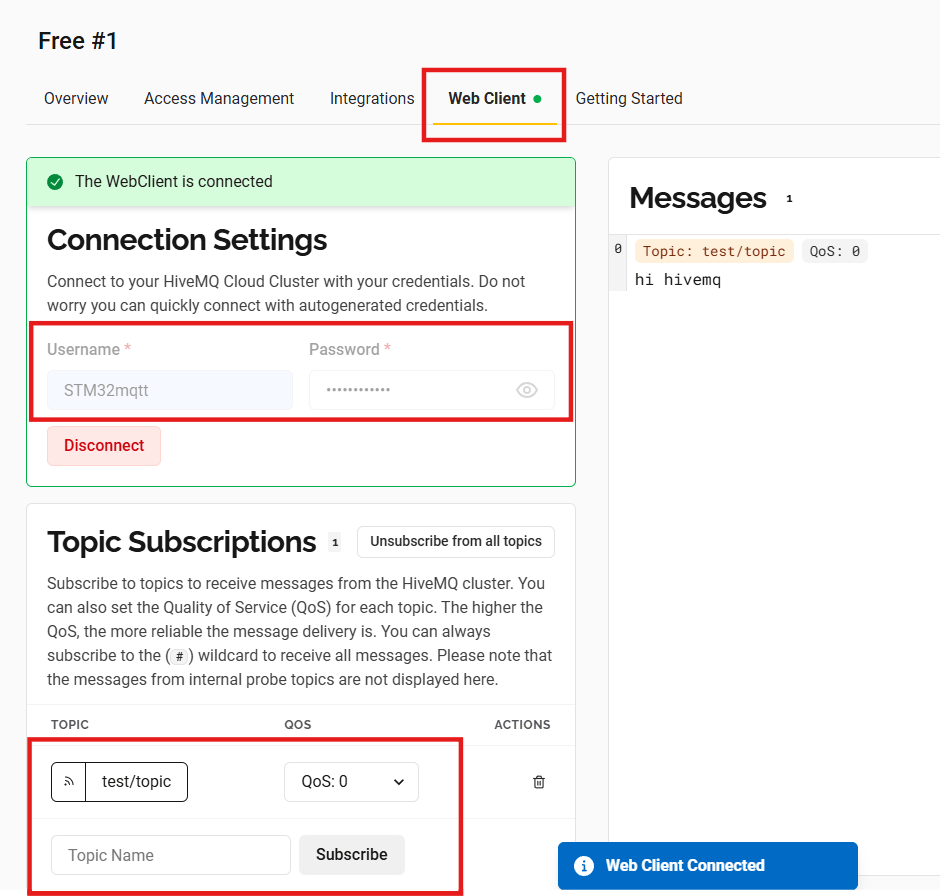
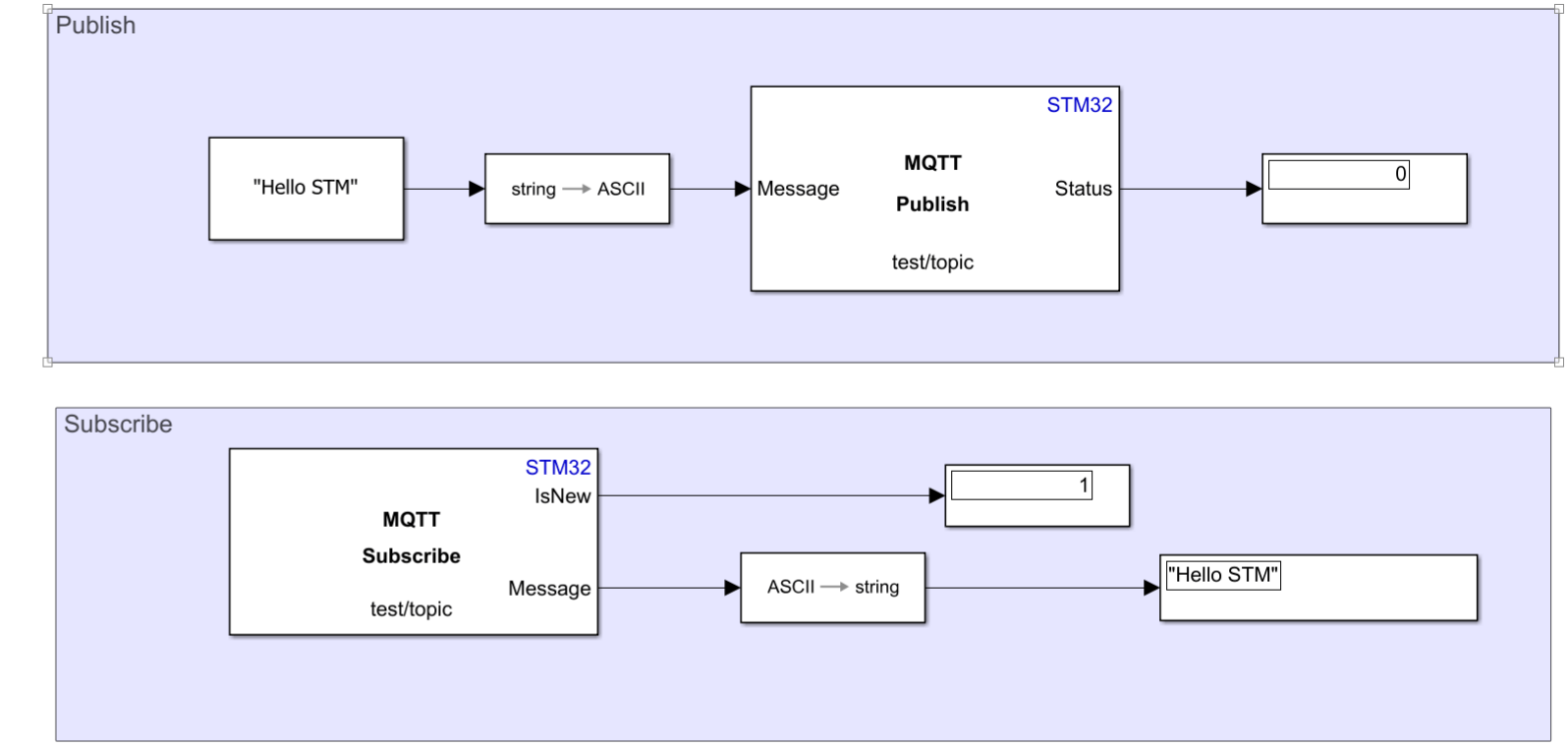
Update the topic in both the MQTT Publish and MQTT Subscribe blocks so that they use the same MQTT topic.
After you complete the configuration, follow these steps:
Click Monitor & Tune to run the model on the target hardware in External mode.
Verify that the MQTT Subscribe block receives and displays the data published by the MQTT Publish block.
Successful completion of these steps confirms that the MQTT clients can publish and subscribe to messages through the configured HiveMQ broker.
Use Wildcards in MQTT Topics
Wildcards enable MQTT clients to subscribe to multiple topics by using a single subscription. MQTT supports single-level and multi-level wildcards.
Single-Level Wildcard (+)
The plus sign (+) represents a single topic level.
To receive a message, all topic levels except the wildcard level must match the published topic. A topic filter can contain multiple single-level wildcards.
Multi-Level Wildcard (#)
The number sign (#) represents all remaining topic levels.
A topic filter can contain only one multi-level wildcard, and the wildcard must appear at the end of the topic.
Example
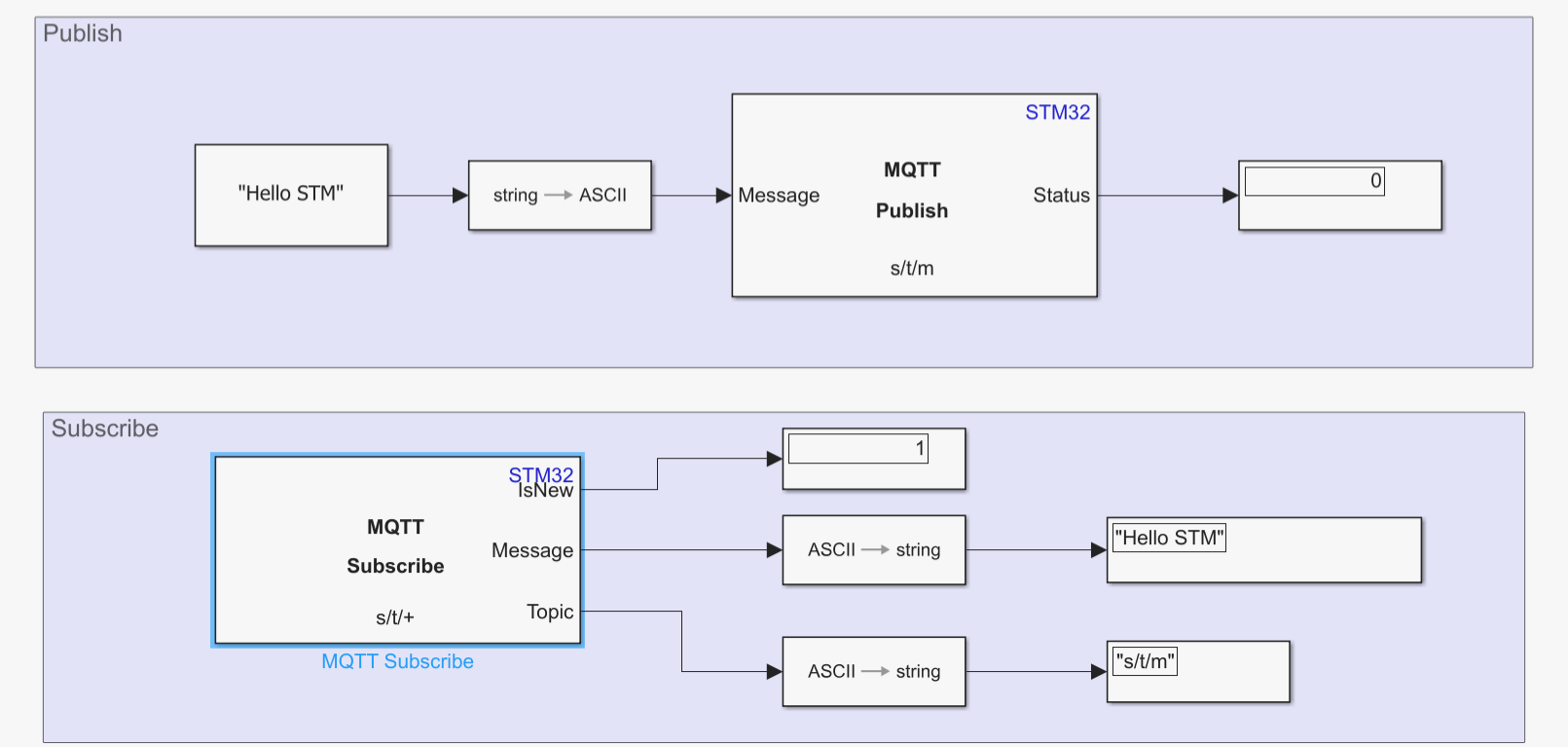
Suppose the MQTT Publish block publishes messages to the topic s/t/m. If the MQTT Subscribe block is configured with the topic filter s/t/+, it receives messages from any topic that starts with s/t/, regardless of the final topic level.
The MQTT Subscribe block also outputs the topic associated with each received message.
Monitor Publish Status
Use the Status output of the MQTT Publish block to determine whether a message was published successfully.
0 – The message was published successfully.
Nonzero value – An error occurred while publishing the message.
Monitor the Status output to detect communication issues and verify successful message delivery.