Locating ArduPilot Firmware Path in WSL2
R2026bNote
This section explains the task to be completed as part of the step—Validate
ArduPilot Source Code—of the Hardware Setup process (using the Hardware
Setup screens).
After the ArduPilot® Firmware is cloned in WSL as mentioned in Download ArduPilot Source Code and Set Up Toolchain in Windows Subsystem for Linux, the path needs to be validated in the Hardware setup process. To know how to locate and specify the Firmware path, follow these steps.
Make sure that you have followed the instructions to clone the ArduPilot Firmware in Download ArduPilot Source Code and Set Up Toolchain in Windows Subsystem for Linux. To find the firmware path, launch WSL shell and navigate to the downloaded folder, as shown here.
cd ~
cd ardupilot/
Replace ardupilot with your actual folder name if different.
Run the command PWD to print out the path value
pwd
This command will print the full path to your current directory, which is where your ArduPilot firmware source code is located.
Example output:
/home/your-username/ardupilot
Copy the path value and enter it in the edit field in the
Validate
                  ArduPilot Source code
step of the hardware setup.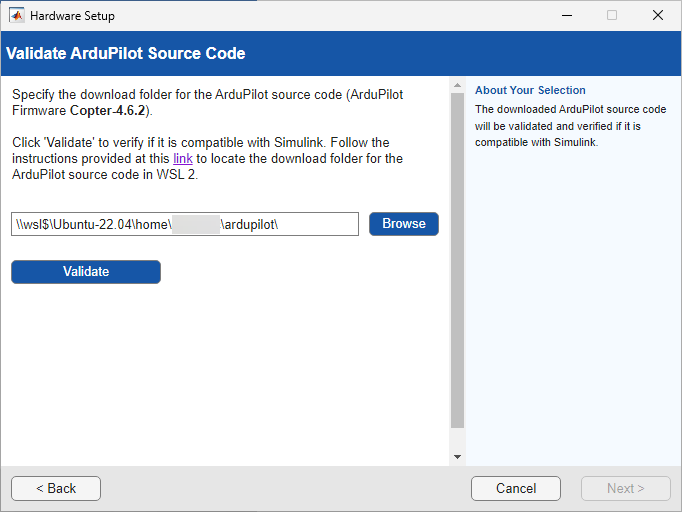
Click Validate.
Alternatively, you can also specify the Windows® UNC path for your cloned firmware location in WSL2 as shown below. If your WSL Ubuntu® distribution name is "Ubuntu", then
/homein Unix corresponds to\\wsl.localhost\Ubuntu\homein Windows. Thus, the path/home/<your_WSL_username>/ardupilotis equivalent to\\wsl.localhost\Ubuntu\home\<your_WSL_username>\ardupilot

