Manually Set COM Port for Upload and Communication
Set Bootloader COM Port for Firmware Upload and Deploy
For the Simulink® model, launch the Model Settings.

A sample image of the default settings for hardware implementation is shown here.
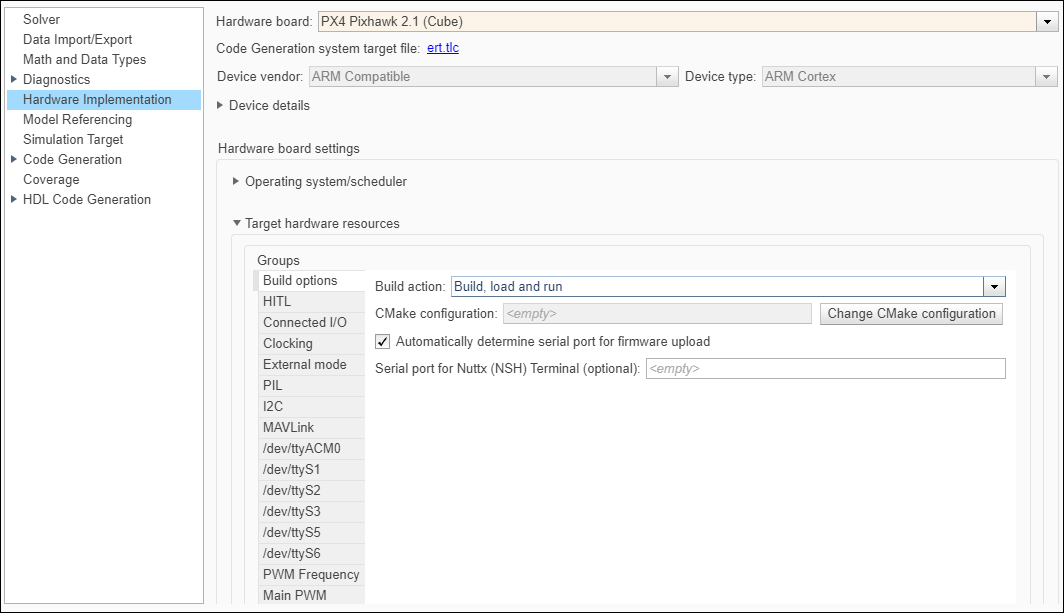
Clear the Automatically determine serial port for firmware upload option and enter the bootloader serial port in Serial Port for firmware upload (This should be the bootloader port).

Deploy the Simulink model. On the Hardware tab, in the Mode section, select Run on board and then click Build, Deploy & Start.
Set Communication COM Port for Monitor & Tune (External Mode)
Perform the settings for Build options as shown in the topic Set Bootloader COM Port for Firmware Upload and Deploy.
In External mode tab, clear the Use the same host serial port for External Mode as used for firmware upload option and mention the main communications port in Host Serial Port (this must be different from the bootloader port you mentioned earlier in Build options).

Run External Mode for the model.
Set Communication COM Port for PIL
Perform the settings for Build options as shown in the topic Set Bootloader COM Port for Firmware Upload and Deploy.
In PIL Tab, clear the Use the same host serial port for PIL as used for firmware upload option and mention the main communications port in Host Serial port (this must be different from the bootloader port you mentioned earlier in Build options).

Set Communication COM Port for Connected IO
Perform the settings for Build options as shown in the topic Set Bootloader COM Port for Firmware Upload and Deploy.
In Connected I/O tab, clear the Use the same host serial port for Connected I/O as used for firmware upload option and mention the main communications port in Host Serial Port (this must be different than the bootloader port you mentioned earlier in Build options).


