Deploy Visual Inspection Code, Models, and Applications
R2026bYou can deploy trained visual inspection models and algorithms to production environments through these pathways: exporting to the Open Neural Network Exchange (ONNX) format for integration with external inference frameworks, generating optimized C or C++ code for desktop and embedded targets, generating CUDA® code for GPU targets, or packaging complete inspection workflows as standalone applications.
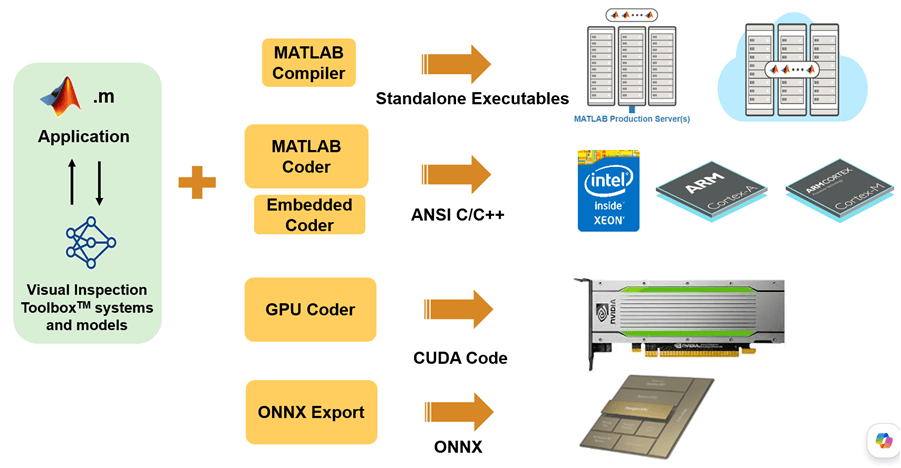
Export Models to ONNX
Export trained visual inspection models to ONNX format for integration with external inference frameworks on edge hardware, cloud platforms, or third-party runtimes such as ONNX Runtime. To export and deploy an ONNX model, follow this general workflow:
Train or load a visual inspection model, such as a
studentTeacherAnomalyDetectororyoloxObjectDetector.Export the model to an ONNX file by using the
exportONNXNetworkfunction.exportONNXNetwork(detector,"myModel.onnx")
Transfer the ONNX file to your target hardware or cloud environment.
Run inference on the target by using an ONNX-compatible runtime (such as ONNX Runtime or TensorRT™).
Postprocess the inference results. For YOLOX detectors, use
visualinspection.detection.yolox.postprocessto convert raw network outputs into bounding boxes, labels, and scores. Student-Teacher anomaly detectors export as end-to-end models that return anomaly scores directly.
Note
For YOLOX detectors, preprocess input images by using visualinspection.detection.yolox.resizeLetterbox before inference. Both
the preprocessing and postprocessing functions support C or C++ code generation for
deployment on edge hardware.
For an example showing how to deploy an exported ONNX YOLOX model on an NVIDIA® Jetson™ Nano, see Deploy ONNX YOLOX Object Detector on NVIDIA Jetson Orin Nano for PCB Defect Detection.
Generate C/C++ and CUDA Code
Generate optimized C or C++ code for desktop and CPU-based deployment by using MATLAB
Coder (MATLAB Coder), target embedded processors by using Embedded Coder® with a coder.EmbeddedCodeConfig configuration, or generate
CUDA code for high-performance execution on NVIDIA GPUs by using GPU Coder (GPU Coder). These
tools enable you to package trained networks, along with preprocessing and postprocessing
logic, into deployable libraries and executables.
To generate code from a visual inspection workflow:
Write a MATLAB® function that accepts inputs, such as images, and returns detection or classification results.
Verify that all functions in the workflow support code generation. Use the
codegenGenerate standalone C or C++ code or a shared library by configuring
codegenwith acoder.config("lib")orcoder.config("exe")configuration object. To target embedded processors, use acoder.EmbeddedCodeConfig
For an example showing how to generate code for a YOLOX object detector that detects, localizes, and classifies PCB defects, see Code Generation for Detect Defects on Printed Circuit Boards Using YOLOX Network.
Create Standalone Applications with MATLAB Compiler
Package visual inspection pipelines as standalone applications by using MATLAB Compiler™. Standalone applications run on machines that do not have MATLAB installed, enabling you to distribute anomaly detection, object detection, or other inspection workflows to end users in production environments.
To create a standalone application, write a MATLAB function that encapsulates your workflow. If the function requires workspace
variables (such as a trained model), save them to a MAT file (for example,
save("yourAnomalyDetector.mat","detector")) and load them at runtime.
The following example function loads a saved anomaly detector, reads a test image,
classifies the image, and saves an anomaly map overlay to disk. Adapt this template to your
own workflow by replacing the processing logic.
function detectAnomaly(imagePath,matFile)

s = load(matFile);
detector = s.detector;

image = imread(imagePath);

[isAnomaly,anomalyScore,anomalyMap] = detect(detector,image);

fprintf("Image: %s\n",imagePath);
fprintf("isAnomaly: %d\n",isAnomaly);
fprintf("anomalyScore: %f\n",anomalyScore);

overlay = anomalyMapOverlay(image,anomalyMap);
imwrite(overlay,"anomalyOverlay.png");
fprintf("Overlay saved to anomalyOverlay.png\n");

end
Compile the function into a standalone executable by using the mcc
mcc -m detectAnomaly.m -a yourAnomalyDetector.mat
Run the compiled executable from the system command prompt. Pass the path to the image
you want to inspect, testImage.png, and the MAT file containing your
saved variables as command-line arguments. On Windows®:
detectAnomaly.exe C:\path\to\testImage.png yourAnomalyDetector.mat
On Linux:
./detectAnomaly /path/to/testImage.png yourAnomalyDetector.mat
For more information about creating standalone executables, see Create Standalone Application from MATLAB (MATLAB Compiler).
List of Unsupported Functions and Apps
These functions are currently not supported for compilation by MATLAB Compiler:
trainFastFlowAnomalyDetectortrainFCDDAnomalyDetectortrainStudentTeacherAnomalyDetectortrainPatchCoreAnomalyDetectortrainYOLOXObjectDetectorshapemodelvisualAnomalyDetector
See Also
Topics
- Deploy ONNX YOLOX Object Detector on NVIDIA Jetson Orin Nano for PCB Defect Detection
- Code Generation for Detect Defects on Printed Circuit Boards Using YOLOX Network
- Deploy ONNX Student-Teacher Anomaly Detector on NVIDIA Jetson Orin Nano for Screen Defect Detection
- Deploy and Run Student-Teacher Anomaly Detection on NVIDIA Jetson
- Verify Student-Teacher Anomaly Detection Deployment Using Processor-in-the-Loop on NVIDIA Jetson

