搜索

In the sequence of previous suggestion in Meta Cody comment for the 'My Problems' page, I also suggest to add a red alert for new comments in 'My Groups' page.
Thank you in advance.

Introduction
Experiments with Claude code and MATLAB MCP Core Server describes how to link Claude App to a local MATLAB such that Claude can read and write scripts on your file system, operate MATLAB App to test them, collect errors, and iterate, obviating the need for copy-pasting between Claude App and MATLAB. Here I describe how one can achieve essentially the same functionality with Perplexity App, conveniently provide graphical results to Perplexity via screen sharing rather than by saving figures to files, and simultaneously run both Perplexity and Claude Apps thusly connected.
Setup
To allow Perplexity App to read and write files, go to Perplexity Settings-> Connectors-> Browse Connectors and select Filesystem. To add an installed MATLAB MCP, go to Perplexity Settings-> Connectors-> Add Connector. Here, under the Simple tab, you can add any server name, say MATLAB MCP, and a command like /Users/duncancarlsmith/Developer/mcp-servers/matlab-mcp-core-server --matlab-root /Applications/MATLAB_R2025a.app pointing to your MATLAB App. Then, under advanced, add JSON configuration code that points to the location of the matlab-mcp=cos=server such as
{
"args" : [
"--matlab-root",
"/Applications/MATLAB_R2025a.app"
],
"command" : "/Users/duncancarlsmith/Developer/mcp-servers/matlab-mcp-core-server",
"env" : {
},
"useBuiltInNode" : true
}
I append a Perplexity-generated summary of installation steps and gotcha’s.
Example test
In the screenshot below, you see the Perplexity App on the left after it created a test folder and a simple MATLAB test script to plot a function. It has recently changed the value of a code parameter from 2 to 3. The script appears in the MATLAB window along with a figure it produced when run. At the lower right appears Claude App. It has just changed that value to 4, thank you.
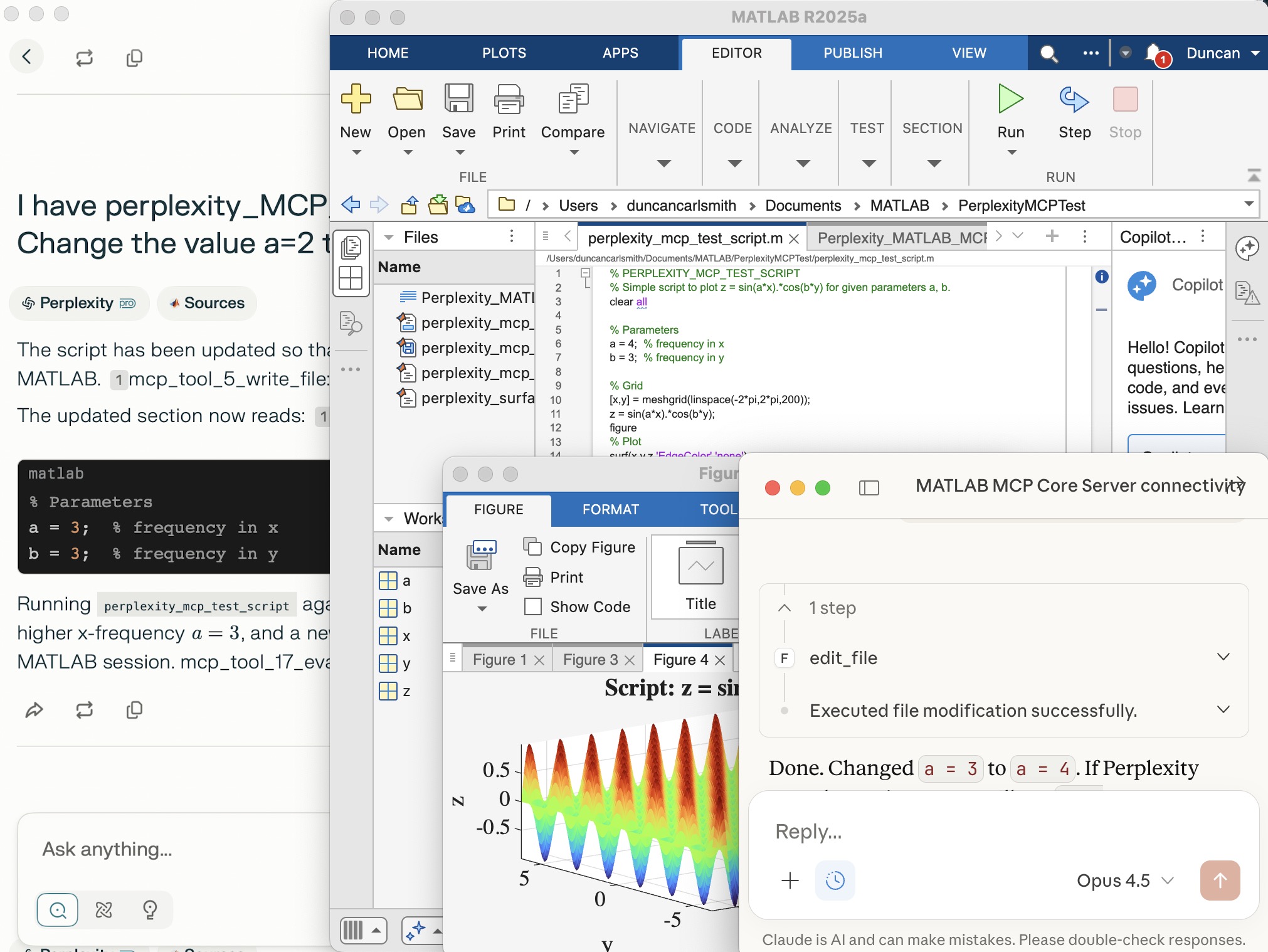
Note that Perplexity App’s file system access, like Claude App’s access, is limited to a folder of your choice, but both can issue system commands through MATLAB, so they inherit MATLAB’s privileges. Access can be restricted on a Mac by denying full disk access under Sytem Settings->Privacy and Security->Full Disk Access but that may be insufficient protection. Be careful. Also, when issuing a command to the MCP Server, both require you to review and approve any operation by default and allow you to override that behavior.
Screen sharing with Perplexity
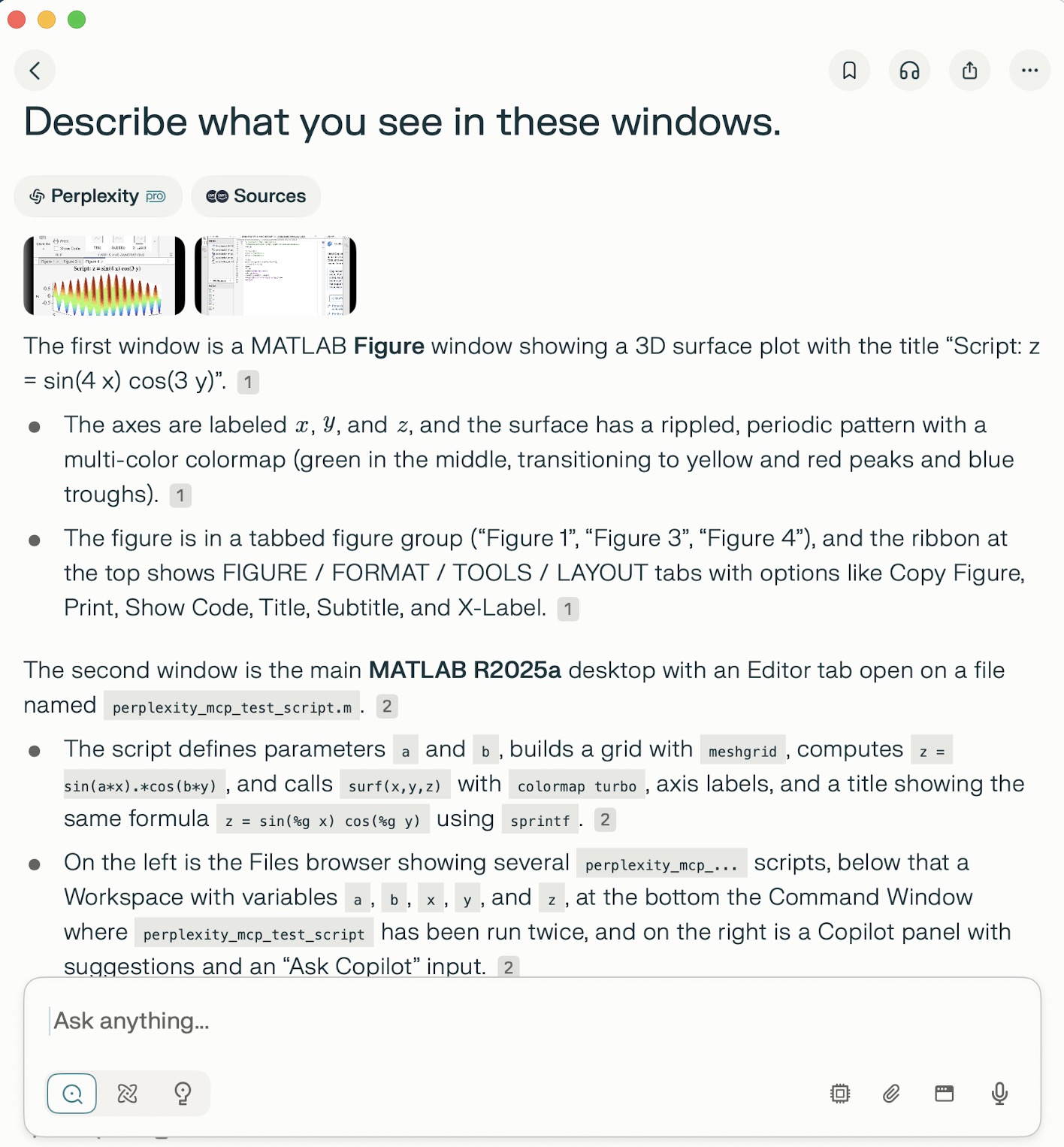
While Perplexity and Claude Apps do not “see” figures and other non-standard output via the MCP server unless saved to files the can access through its file server, Perplexity can in fact see the graphical results of a code and more through screen sharing, as demonstrated in the screenshot below of Perplexity App. At the bottom, below the Perplexity input form field, just to the left of the microphone, is a button enabling Perplexity to accept screen sharing from a selection of windows. I selected the MATLAB App window and the MATLAB Figure window and then asked Perplexity to describe the contents. Images of these wondows appear in the response as well as descriptions of the images. Sweet! No longer must I attempt to provide feedback by attempting to describe such results myself in words.
Appendix
(by Perplexity App)
Perplexity + MATLAB MCP Core Server Setup (macOS, R2025a)
1. Install and locate MATLAB
- Ensure MATLAB R2025a (or your chosen version) is installed under /Applications (e.g., /Applications/MATLAB_R2025a.app).
- From Terminal, verify MATLAB works:
"/Applications/MATLAB_R2025a.app/bin/matlab" -batch "ver"
This should list MATLAB and toolboxes without errors.
2. Fix PATH and shell alias for matlab
- Confirm the shell resolves the correct matlab:
which matlab
- If it is missing or points to an old version (e.g., R2022b), adjust:
export PATH="/Applications/MATLAB_R2025a.app/bin:$PATH"
which matlab
- Clear any stale alias or function:
type matlab
unalias matlab 2>/dev/null
unset -f matlab 2>/dev/null
which matlab
matlab -batch "ver"
Now matlab should invoke R2025a.
3. Place the MATLAB MCP Core Server binary
- Put the matlab-mcp-core-server binary in a convenient folder, e.g.:
/Users/duncancarlsmith/Developer/mcp-servers/matlab-mcp-core-server
- Make it executable:
cd /Users/duncancarlsmith/Developer/mcp-servers
chmod +x matlab-mcp-core-server
4. (Optional sanity check) Run the core server manually
- In Terminal, start the server once to confirm it can see MATLAB:
cd /Users/duncancarlsmith/Developer/mcp-servers
mkdir -p "$HOME/Claude-MATLAB-work"
./matlab-mcp-core-server \
--matlab-root="/Applications/MATLAB_R2025a.app" \
--initial-working-folder="$HOME/Claude-MATLAB-work"
- You should see INFO logs ending with:
"MATLAB MCP Core Server application startup complete".
- This process is not required long term once Perplexity is configured to launch the server itself.
5. Configure the MATLAB MCP connector in Perplexity (Mac app)
- Open Perplexity.
- Go to Settings → Connectors → Add Connector (or edit existing).
- Simple tab:
- Server command:
/Users/duncancarlsmith/Developer/mcp-servers/matlab-mcp-core-server --matlab-root /Applications/MATLAB_R2025a.app
- Advanced tab for the same connector:
{
"args": [
"--matlab-root",
"/Applications/MATLAB_R2025a.app"
],
"command": "/Users/duncancarlsmith/Developer/mcp-servers/matlab-mcp-core-server",
"env": {
},
"useBuiltInNode": true
}
- Save and ensure the connector shows as enabled.
6. Configure the filesystem MCP connector for MATLAB files
- Install the filesystem MCP server (one-time):
npx -y @modelcontextprotocol/server-filesystem /Users/duncancarlsmith/Documents/MATLAB
- In Perplexity Settings → Connectors → Add Connector:
- Name: filesystem (or similar).
- Server command:
npx -y @modelcontextprotocol/server-filesystem /Users/duncancarlsmith/Documents/MATLAB
- This allows Perplexity to list, create, and edit files directly under ~/Documents/MATLAB.
7. Test connectivity from Perplexity
- Start a new thread in Perplexity, with both the MATLAB connector and filesystem connector enabled.
- Verify MATLAB access by listing toolboxes or running a simple command via MCP:
- For example, list the contents of ~/Documents/MATLAB.
- Create a test folder (e.g., PerplexityMCPTest) using MATLAB or filesystem tools and confirm it appears.
8. Create and run a simple MATLAB script via Perplexity
- Using the filesystem connector, create a script in PerplexityMCPTest, e.g. perplexity_mcp_test_script.m:
% PERPLEXITY_MCP_TEST_SCRIPT
% Simple script to plot z = sin(a*x).*cos(b*y) for given parameters a, b.
clear all
% Parameters
a = 2; % frequency in x
b = 3; % frequency in y
% Grid
[x,y] = meshgrid(linspace(-2*pi,2*pi,200));
z = sin(a*x).*cos(b*y);
figure
% Plot
surf(x,y,z,'EdgeColor','none');
colormap turbo;
xlabel('x'); ylabel('y'); zlabel('z');
title(sprintf('Script: z = sin(%g x) cos(%g y)',a,b));
axis tight;
- From Perplexity, call MATLAB via the MCP server to run:
cd('PerplexityMCPTest'); perplexity_mcp_test_script
- In the local MATLAB desktop, a figure window will appear with the plotted surface.
9. Notes on behavior
- Perplexity interacts with MATLAB through the MCP Core Server and does not see the MATLAB GUI or figures; only text output/errors are visible to Perplexity.
- A brief extra MATLAB window may appear and disappear when the core server starts or manages its own MATLAB session; this is expected and separate from your own interactive MATLAB instance.
- File creation and editing from Perplexity occur via the filesystem MCP server and are limited to the configured root (here, ~/Documents/MATLAB).

I’m currently developing a multi-platform viewer using Flutter to eliminate the hassle of manual channel setup. Instead of adding IDs one by one, the app uses your User API Key to automatically discover and list all your ThingSpeak channels instantly.
Key Highlights (Work in Progress):
- Automatic Sync: All your channels appear in seconds.
- Multi-platform: Built for Web, Android, Windows, and Linux.
- Privacy-Focused: Secure local storage for your API keys.
I’ve installed Claude-code, MATLAB MCP Core Server, and now Puppeteer on my MacBook Pro. Puppeteer can navigate and operate web pages like Perplexity Comet or the new Claude Chrome Extension. The new wrinkle is MATLAB in the loop.
Claude-code and MATLAB MCP installation are described at Experiments with Claude code and MATLAB MPC Core Server . To install and configure Puppeteer, I used Claude App and its ability to use my MATLAB’s access to system files. The installation includes a Google Chrome for testing browser that is independent of (and does not interfere with) my normal Chrome browser. Puppeteer installation took just minutes of my approving various steps, and quitting and relaunchinbg Claude App. A minor hiccough was overwriting a special fetch connector configuration but that was readily fixed. The resulting linkage is Claude (cloud) ↔ Claude Desktop App ↔ MCP Server (local) ↔ Puppeteer ↔ Chrome for Testing (local) as well as the link to MATLAB on my laptop.
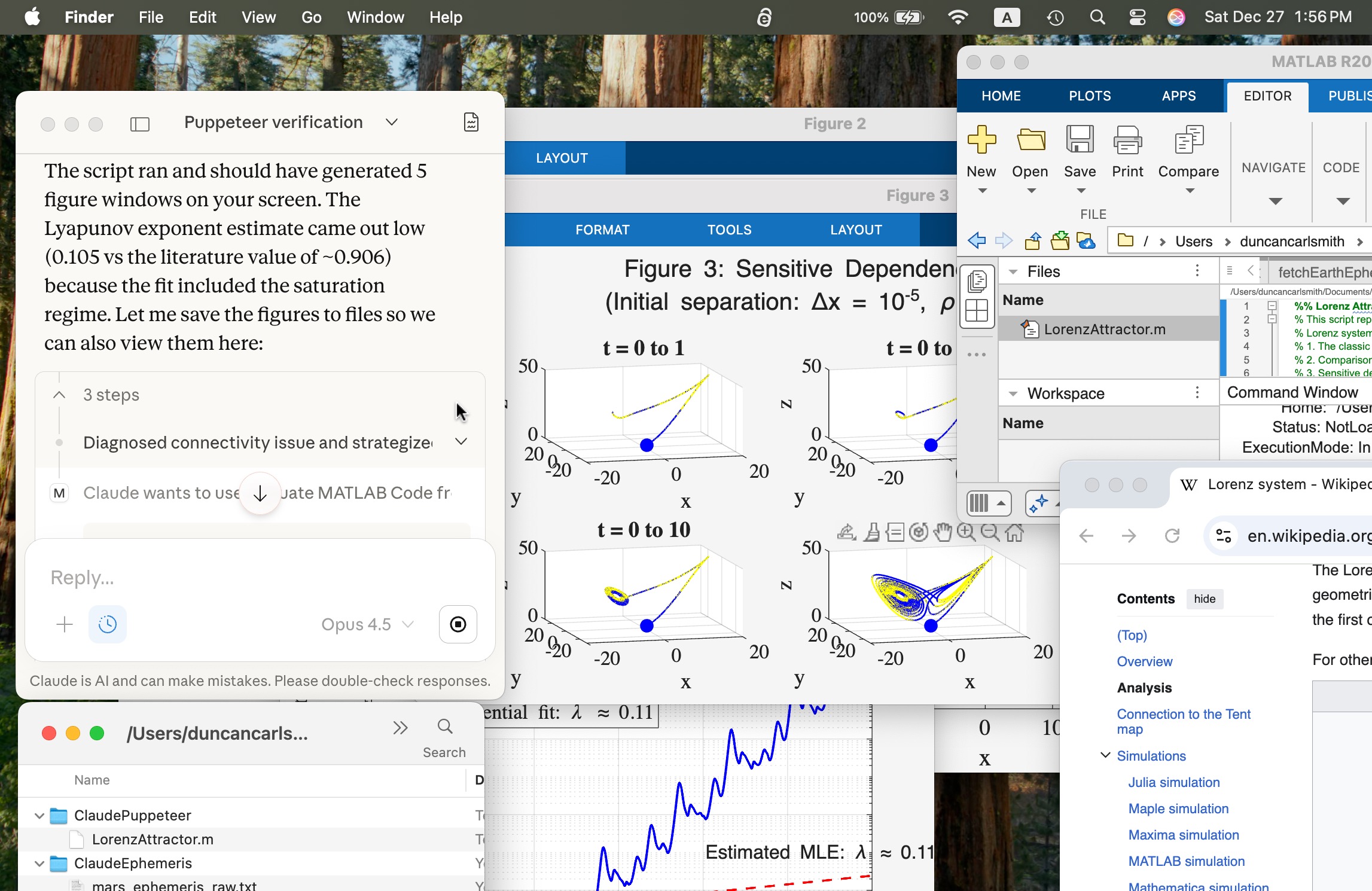
As a very first test, I selected Wikipedia from the Claude App suggestions. We navigated to a page Lorenz system in the Chrome for testing browser where Claude dismissed a prompt for donations to Wikipedia. ( I was like “What is Anthropic’s valuation and why didn’t you donate?” but said nothing.) and extracted content and summarized, many of the equations beautifully formated. I issued the following prompt: “Take a look at the differential equations there and at the example solutions and their parameter values. Then create a MATLAB script in my folder MATLAB/ClaudePuppeteer to reproduce the illustrations and run the script.” After clicking to approve various steps, presto.
The screen shot below shows 1) Claude App (upper left) after the process completed, 2) a MacOS Finder window showing the Lorentz Attractor.m in a folder ClaudePuppeteer that Claude had previously created for me to test Puppeteer functionality, 3) the Lorentz system wiki page in the Google Chrome for testing browser (lower right), 4) the LorentzAttractor script open in MATLAB (upper right), and 5) various figures created by the MATLAB Script.
Um, wow!
Introduction
MCP is an open protocol that can link Claude and other AI Apps to MATLAB using MATLAB MCP Core Server (released in Nov 2025). For an introduction, see Exploring the MATLAB Model Context Protocol (MCP) Core Server with Claude Desktop. Here, I describe my experience with installation and testing Claude-Code and MATLAB, a security concern, and in particular how I "taught" Claude to handle various MATLAB file formats.
Setup
A basic installation requires you download for your operating system claude-code, matlab-mcp-core-server, and node.js. One configuration is a terminal-launched claude connected to MATLAB. To connect Claude App to MATLAB requires an alternate configuration step and I recommend it for interative use. The configuration defines the default node/folder and MATLAB APP location.
I recommend using Claude itself to guide you through the installation and configuration steps for your operating system by providing terminal commands. I append Claude’s general description of installation for my APPLE Silicon laptop. Once set up, just ask in Claude App to do something in MATLAB and MATLAB App will be launched.
Security warning: Explore the following at your own risk.
When working with Claude App, Claude code, and MATLAB, you are granting Claude AI access to read and write files. By default, you must approve (one time or forever) any action so you hopefully don’t clobber files etc. Claude App believes it can not directly access file outside the top node defined in the setup. For this reason, I set the top node to be a folder ..../Documents/MATLAB. However, Claude inherits MATLAB App's command line privileges, typically your full system privileges. Claude can describe for you some work-arounds like a Docker container which might still be license validation compatible. I have not explored such options. During my setup, Claude just provided me terminal commands to copy and run. After setup, I've demonstrated it can run system level commands via matlab:evaluate_matlab_code and the MCP server. Be careful out there!
My first test
Claude can write a text-based .m script, execute it, collect text standard output from it, and open files it makes (or any file). It cannot access figures that you might see in MATLAB App unless they are saved as files or embedded in files. As we will see, the figures generated by a Live Script are saved in an Claude-accessible format when the Live Script is saved so the code need not itself export them.
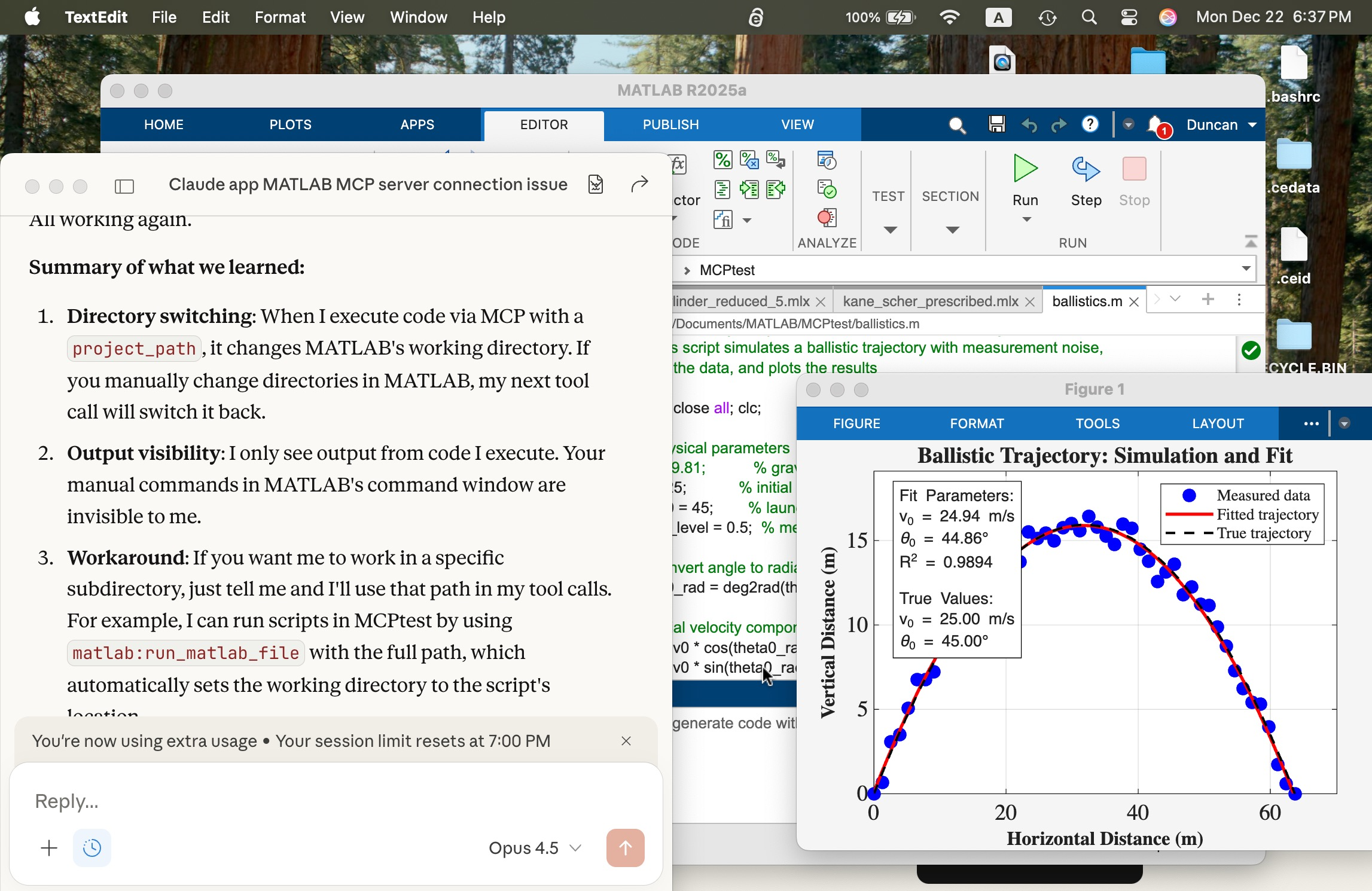
In the screen shot below, the window at left is the Claude App after a successful connection. The MATLAB App window shows a script in the MATLAB editor that simulates a ballistics experiment, the script created successfully with a terminal-interfaced Claude and a simple prompt on the first try.
I deliberately but trivially broke this script using MATLAB App interactively by commenting out a needed variable g (acceleration of gravity) and saving the script to the edit was accessible to Claude. Using Claude App after its connection, I fixed the script with a simple prompt and ran it successfully to make the figure you see. The visible MATLAB didn’t know the code had been altered and fixed by Claude until I reloaded the file. Claude recommends plots be saved in PNG or JPEG, not PDF. It can describe in detail a plot in a PNG and thusly judge if the code is functioning correctly.
Live Scripts with Claude
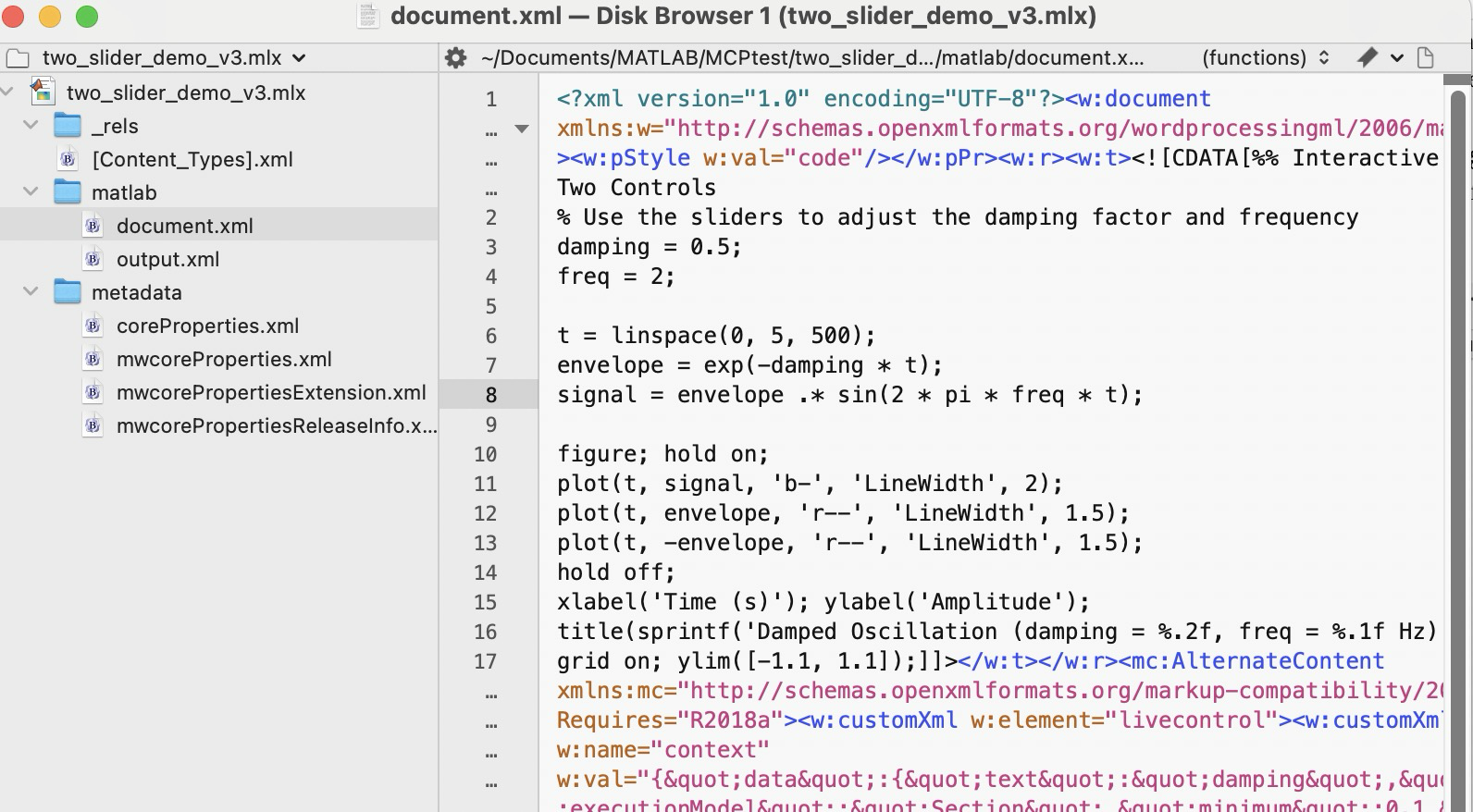
What about Live Scripts (.mlx) and the (2025a) .m live? A .mlx file is a zipped package of files mixing code and images wtih XML markup. You can peek inside one and edit it directly without unzipping and rezipping it using a tool like BBEdit on a Mac, as shown below. This short test script has two interactive slider controls. You can in v2025+ now save a .mlx in a transportable .m Live text file format. The .mlx and .m Live formats have special markup for formatted text, interactive features like sliders, and figures.
Claude can convert a vanilla .m file to .mlx using matlab.internal.liveeditor.openAndSave(source.m, dest.mlx) and the reverse matlab.internal.liveeditor.openAndConvert('myfile.mlx', 'myfile.m’).
These functions do not support .m Live yet apparently. It would be great if they did.
Vanilla Claude doesn’t know all the details of the .mlx and .m formats yet. To teach Claude these formats, I created a simple .mlx with interactive features (sliders), saved it, and exported it to .m Live. I then sketched for Claude these structures. Claude digested these files and was then able to create such formats from scratch immediately. Wow! In the figure below, you see Claude on the left after creating a .mlx with sliders from scratch. The successfully executed Live Script appears in the MATLAB App.
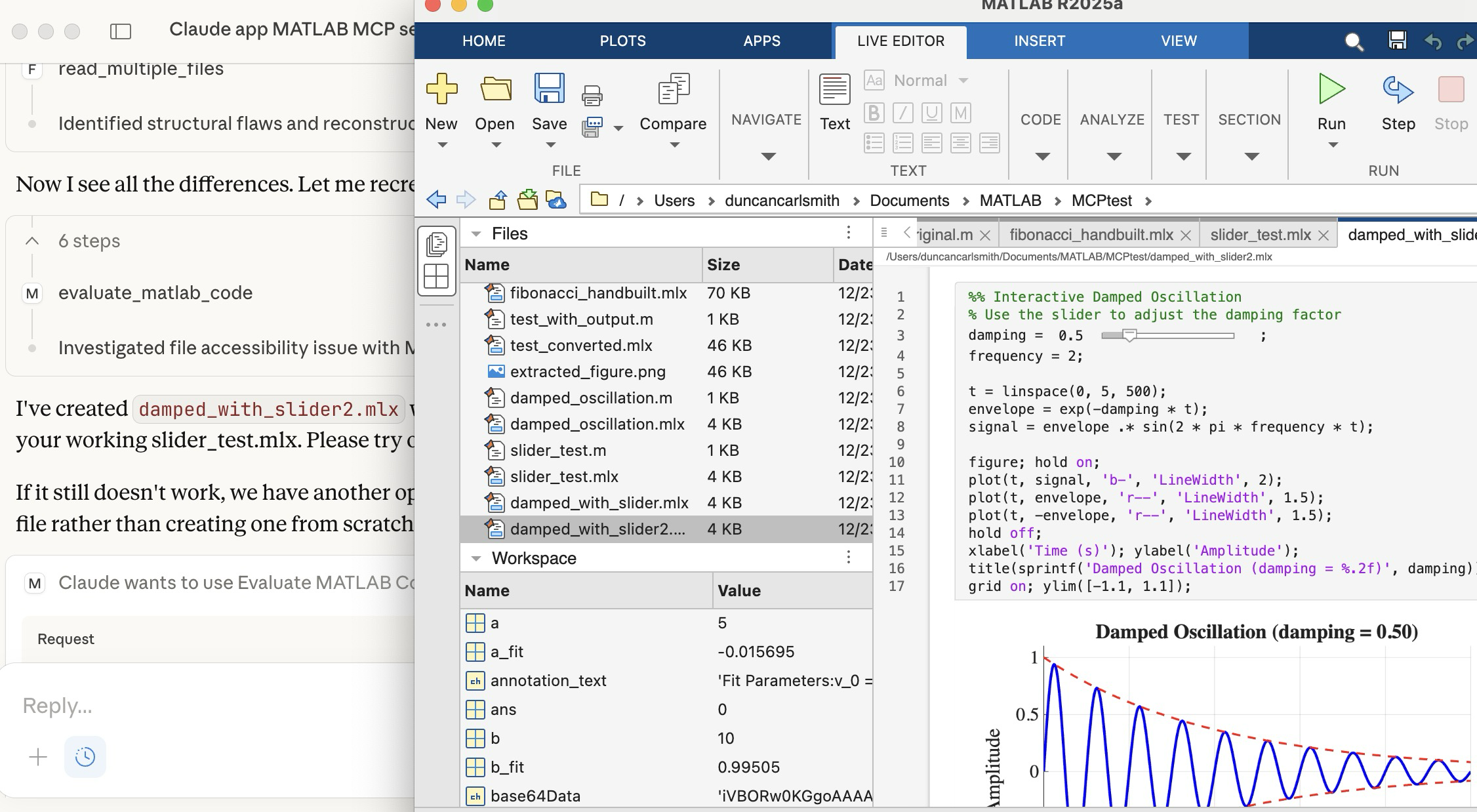
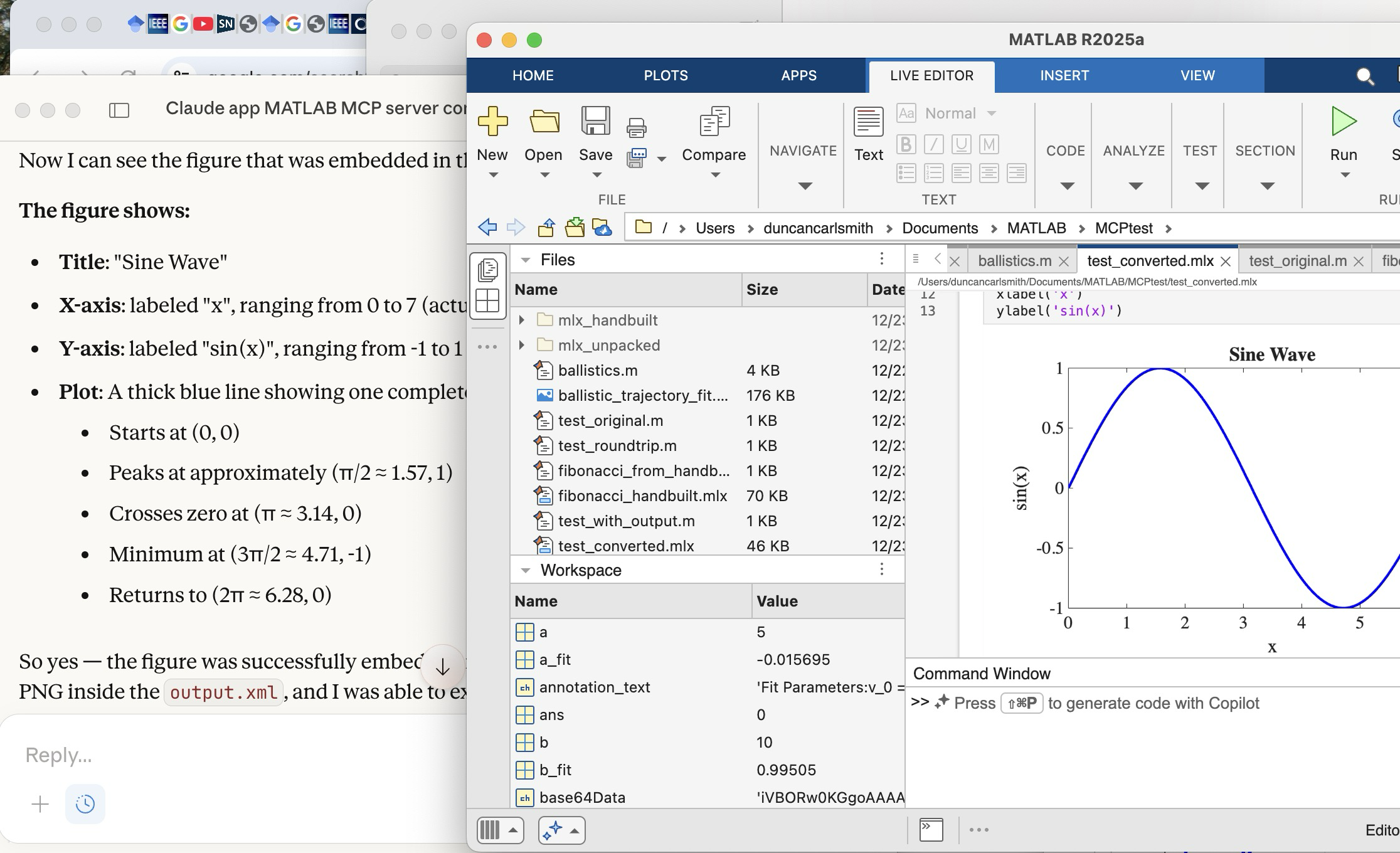
Once Claude knows the .mlx format, it can peek inside a saved .mlx, process a PNG figure saved there, and describe it, as illustrated below. Here you see Claude describing a plot it found in the .mlx shown in the MATLAB window.
Wrap up
This summarizes my first look at using claude-code. The generation of simple MATLAB codes with the latest models is increasingly trivial with Claude, Perplexity, Open.ai GPT and other apps and the direct method of code and other file transfer between a native MATLAB and Claude seems to beat a copy-paste workflow. New methods to connect MATLAB Online with commercial AI's like Comet and Anthropic's Chrome extension seem to me more fluid and intuitive in that the user and the AI are co-working the same interface without copy-paste steps, but seem slower.
Appendix
Here are installation and setup instructions for Mac from Claude for reference.
Setting Up Claude Code + MATLAB MCP Server on Mac
Part 1: Claude Code
Install via npm:
bash
npm install -g @anthropic-ai/claude-code
Or via Homebrew:
bash
brew install claude-code
Run it:
bash
cd /path/to/your/project
claude
You'll need to authenticate with your Anthropic account on first run. Claude Code works in your terminal and can read/write files, run commands, and do agentic coding tasks.
Part 2: MATLAB MCP Server
Step 1: Download the server binary
Go to the MathWorks GitHub or File Exchange and download matlab-mcp-core-server for macOS (Apple Silicon or Intel depending on your Mac).
Step 2: Make it executable
bash
chmod +x ~/Downloads/matlab-mcp-core-server
Step 3: Create/edit Claude Desktop config
Edit ~/Library/Application Support/Claude/claude_desktop_config.json:
json
{
"mcpServers": {
"matlab": {
"command": "/Users/YOURUSERNAME/Downloads/matlab-mcp-core-server",
"args": ["--matlab-root", "/Applications/MATLAB_R2025a.app"]
},
"filesystem": {
"command": "npx",
"args": [
"@modelcontextprotocol/server-filesystem",
"/Users/YOURUSERNAME/Documents/MATLAB"
]
}
}
}
Replace YOURUSERNAME with your actual username, and adjust the MATLAB version if needed.
Step 4: Install Node.js (if not already)
bash
brew install node
Step 5: Restart Claude Desktop
Quit fully (Cmd+Q) and reopen. You should see a hammer/tools icon indicating MCP servers are connected.
Part 3: Verify Connection
In Claude Desktop, ask me to run MATLAB code. I should be able to execute:
matlab
disp('Hello from MATLAB!')
Troubleshooting
Check logs:
bash
cat ~/Library/Logs/Claude/mcp-server-matlab.log
cat ~/Library/Logs/Claude/mcp.log
Common issues:
- Missing --matlab-root argument → "no valid MATLAB environments found"
Connecting Claude App to MATLAB via MCP Server
Edit ~/Library/Application Support/Claude/claude_desktop_config.json:
json
{
"mcpServers": {
"filesystem": {
"command": "npx",
"args": [
"-y",
"@modelcontextprotocol/server-filesystem",
"/Users/YOURUSERNAME/Documents/MATLAB"
]
},
"matlab": {
"command": "/Users/YOURUSERNAME/Downloads/matlab-mcp-core-server",
"args": [
"--matlab-root", "/Applications/MATLAB_R2025a.app"
]
}
}
}
Then fully quit Claude Desktop (Cmd+Q) and reopen.
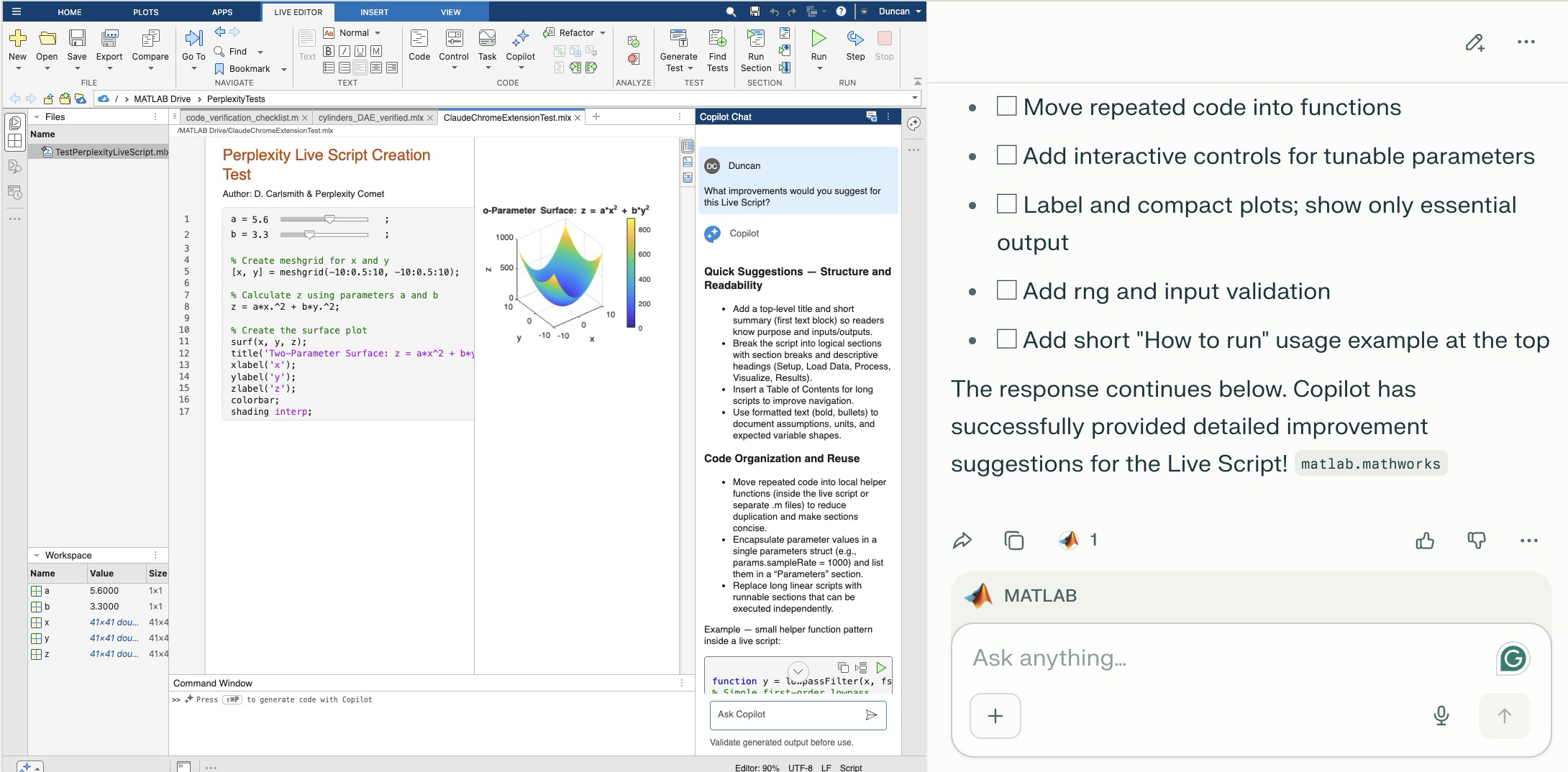
Comet browser can figure out and operate a user interface on the web including MATLAB Online. The screen shot shows MATLAB online to the left of the Comet AI. You see a test Live Script with sliders thjat Comet created in a folder (that it created). Comet is summarizing suggested improvements it requested of MATLAB Online's Copilot. Comet can plow into the arcane NASA astrophysical database interface SIMBAD, figure out how to grab information about, say, a star orbiting the black hole in the center of our galaxy and structure that information into a MATLAB data structure in a MATLAB script and run the script in MATLAB Online and display the results in the structure - it succeeded on the first try. It can do a Google Scholar citation tree search and park the results in MATLAB (success first try) or presumably in say MS Word in Office online. Presumably it can switch to a JuypterHub tab to then run a notebook or what you will. It can make mistakes, explore and discover GUI options, and recover e.g. use undo paste in MATLAB, operate in the command window, get help via the GUI if needed. Not at light speed but this seems enabling. Just released, Claude Chrome Extension Beta has similar capabilities.

Inspired in part by Christmas Trees, I'm curious about people's experience using AI to generate Matlab code.
1. Do you use AI to generate production code or just for experimentation/fun code?
2. Do you use the AI for a complete solution? Or is it more that the AI gets you most of the way there and you have to apply the finishing touches manually?
3. What level of quality would you consider the generated code? Does it follow "standard" Matlab coding practices? Is it well commented? Factored into modular functions? Argument checking? Memory efficient? Fast execution? Etc.?
4. Does the AI ever come up with a good or clever solution of which you wouldn't have thought or maybe of which you weren't even aware?
5. Is it easy/hard to express your requirements in a manner that the AI tool effectively translates into something useful?
6. Any other thoughts you'd care to share?

I thought it would be fun to vibe code Christmas trees.
Model: Claude Sonnet4.5
Prompt: Write a MATLAB script that draws a Christmas tree. There should be decorations and presents too.
Result:
christmasTree()

function christmasTree()
% Christmas Tree with Decorations and Presents
% Creates a festive scene with a decorated tree and gift boxes
figure('Color', 'w', 'Position', [100, 100, 800, 900]);
hold on;
axis equal;
axis off;
xlim([-3, 3]);
ylim([0, 10]);
% Draw the tree (three layered triangular sections)
drawTreeSection(0, 2, 2.5, 2.5, [0.1, 0.5, 0.1]);
drawTreeSection(0, 3.5, 2, 2, [0.15, 0.55, 0.15]);
drawTreeSection(0, 4.8, 1.5, 1.8, [0.2, 0.6, 0.2]);
% Tree trunk
rectangle('Position', [-0.3, 0, 0.6, 2], 'FaceColor', [0.4, 0.2, 0.1], ...
'EdgeColor', 'none');
% Add decorations
addOrnaments();
addTinsel();
% Star on top
drawStar(0, 7.2, 0.4, [1, 0.84, 0]);
% Add presents under the tree
drawPresent(-1.8, 0, 0.6, 0.5, [0.8, 0.1, 0.1], [1, 0.84, 0]);
drawPresent(-0.8, 0, 0.5, 0.6, [0.1, 0.3, 0.8], [0.9, 0.9, 0.9]);
drawPresent(1.2, 0, 0.7, 0.4, [0.7, 0.5, 0.9], [0.2, 0.8, 0.2]);
drawPresent(0.2, 0, 0.4, 0.5, [1, 0.7, 0.1], [0.8, 0.1, 0.1]);
% Add some snow on the ground
scatter(randn(1, 100)*2.5, rand(1, 100)*0.3, 20, 'w', 'filled', ...
'MarkerEdgeColor', [0.8, 0.8, 0.8]);
title('Merry Christmas!', 'FontSize', 24, 'Color', [0.8, 0.1, 0.1], ...
'FontWeight', 'bold');
hold off;
end
function drawTreeSection(x, y, width, height, color)
% Draw a triangular section of the tree
xPoints = [x - width, x + width, x];
yPoints = [y, y, y + height];
fill(xPoints, yPoints, color, 'EdgeColor', [0.05, 0.3, 0.05], ...
'LineWidth', 1.5);
end
function addOrnaments()
% Add colorful baubles to the tree
ornamentColors = [
1, 0, 0; % Red
0, 0, 1; % Blue
1, 0.84, 0; % Gold
0.9, 0.1, 0.5;% Pink
0.5, 0, 0.5 % Purple
];
% Ornament positions (x, y coordinates)
positions = [
-1.5, 2.5; 1.5, 2.5; 0, 3.2;
-1.2, 3.8; 1.2, 3.8; -0.6, 4.2; 0.6, 4.2;
-0.8, 5.2; 0.8, 5.2; 0, 5.8; -0.4, 6.3; 0.4, 6.3
];
for i = 1:size(positions, 1)
colorIdx = mod(i-1, size(ornamentColors, 1)) + 1;
x = positions(i, 1);
y = positions(i, 2);
% Draw bauble
theta = linspace(0, 2*pi, 50);
radius = 0.15;
xCirc = x + radius * cos(theta);
yCirc = y + radius * sin(theta);
fill(xCirc, yCirc, ornamentColors(colorIdx, :), ...
'EdgeColor', ornamentColors(colorIdx, :)*0.7, 'LineWidth', 1.5);
% Add highlight for shine
highlightX = x - radius*0.4 + radius*0.3*cos(theta(1:15));
highlightY = y + radius*0.4 + radius*0.3*sin(theta(1:15));
fill(highlightX, highlightY, [1, 1, 1], 'EdgeColor', 'none', ...
'FaceAlpha', 0.6);
end
end
function addTinsel()
% Add sparkly tinsel effect
tinselX = [-1.8, -1.2, -0.5, 0.2, 0.9, 1.6];
tinselY = [2.8, 3.5, 4.0, 4.5, 5.0, 5.5];
for i = 1:length(tinselX)
plot(tinselX(i) + randn(1, 5)*0.1, tinselY(i) + rand(1, 5)*0.2, ...
'*', 'Color', [1, 0.84, 0], 'MarkerSize', 8, 'LineWidth', 1.5);
end
end
function drawStar(x, y, size, color)
% Draw a 5-pointed star on top of the tree
angles = linspace(0, 2*pi, 11);
radii = repmat([size, size*0.4], 1, 5);
radii = [radii, radii(1)];
xStar = x + radii .* cos(angles - pi/2);
yStar = y + radii .* sin(angles - pi/2);
fill(xStar, yStar, color, 'EdgeColor', [0.8, 0.6, 0], 'LineWidth', 2);
% Add sparkle
plot(x, y, '*', 'Color', [1, 1, 1], 'MarkerSize', 15, 'LineWidth', 2);
end
function drawPresent(x, y, width, height, boxColor, ribbonColor)
% Draw a gift box with ribbon and bow
% Box
rectangle('Position', [x, y, width, height], 'FaceColor', boxColor, ...
'EdgeColor', boxColor*0.7, 'LineWidth', 2);
% Vertical ribbon
ribbonWidth = width * 0.15;
rectangle('Position', [x + width/2 - ribbonWidth/2, y, ribbonWidth, height], ...
'FaceColor', ribbonColor, 'EdgeColor', 'none');
% Horizontal ribbon
ribbonHeight = height * 0.15;
rectangle('Position', [x, y + height/2 - ribbonHeight/2, width, ribbonHeight], ...
'FaceColor', ribbonColor, 'EdgeColor', 'none');
% Bow on top
bowX = x + width/2;
bowY = y + height;
bowSize = width * 0.2;
% Left loop
theta = linspace(0, pi, 30);
fill(bowX - bowSize*0.3 + bowSize*0.5*cos(theta), ...
bowY + bowSize*0.5*sin(theta), ribbonColor, 'EdgeColor', 'none');
% Right loop
fill(bowX + bowSize*0.3 + bowSize*0.5*cos(theta), ...
bowY + bowSize*0.5*sin(theta), ribbonColor, 'EdgeColor', 'none');
% Center knot
theta = linspace(0, 2*pi, 30);
fill(bowX + bowSize*0.25*cos(theta), bowY + bowSize*0.25*sin(theta), ...
ribbonColor*0.8, 'EdgeColor', 'none');
end

I like this quote, what do you think?
"If the part of programming you enjoy most is the physical act of writing code, then agents will feel beside the point. You’re already where you want to be, even just with some Copilot or Cursor-style intelligent code auto completion, which makes you faster while still leaving you fully in the driver’s seat about the code that gets written.
But if the part you care about is the decision-making around the code, agents feel like they clear space. They take care of the mechanical expression and leave you with judgment, tradeoffs, and intent. Because truly, for someone at my experience level, that is my core value offering anyway. When I spend time actually typing code these days with my own fingers, it feels like a waste of my time."
— Obie Fernandez, What happens when the coding becomes the least interesting part of the work

The Cody Contest 2025 has officially wrapped up! Over the past 4 weeks, more than 700 players submitted over 20,000 solutions. In addition, participants shared 20+ high-quality Tips & Tricksarticles—resources that will benefit Cody users for years to come.
Now it’s time to announce the winners.
🎉 Week 4 winners:
Weekly Prizes for Contest Problem Group Finishers:
@JKMSMKJ, @Yu Zhang, @Oliver Jaros, @Pauli Huusari, @Karl, @Marcos Silveira, @goc3, @Ildeberto de los Santos Ruiz, @Norberto, @Eric
Weekly Prizes for Contest Problem Group Solvers:
Weekly Prizes for Tips & Tricks Articles:
This week’s prize goes to @WANG Zi-Xiang. See the comments from our judge and problem group author @Matt Tearle:
‘We had a lot of great tips for solving Cody problems in general and the contest problems specifically. But we all know there are those among us who, having solved the problem, still want to tinker and make their code better. There are different definitions of "better", but code size remains the base metric in Cody. Enter Wang Zi-Xiang who compiled a list of many tips for reducing Cody size. This post also generated some great discussion (even prompting our insane autocrat, Lord Ned himself, to chime in). I particularly like the way that, while reducing Cody size often requires some arcane tricks that would normally be considered bad coding practice, the intellectual activity of trying to "game the system" makes you consider different programming approaches, and sometimes leads you to learn corners of MATLAB that you didn't know.’
🏆 Grand Prizes for the Main Round
Team Relentless Coders:
2nd Place: @Roberto
Team Creative Coders:
Team Cool Coders
Congratulations to all! Securing a top position on the leaderboard requires not only advanced MATLAB skills but also determination and consistency throughout the four-week contest. You will receive Amazon gift cards.
🥇 Winning Team
The competition was incredibly tight—we even had to use the tie-breaker rule.
Both Team Cool Coders and Team Relentless Coders achieved 16 contest group finishers. However, the last finisher on Cool Coders completed the problem group at 1:02 PM on Dec 7, while the last finisher on Relentless Coders finished at 9:47 PM the same day.
Such a close finish! Congratulations to Team Cool Coders, who have earned the Winning Team Finishers badge.

🎬 Bonus Round
Invitations have been sent to the 6 players who qualified for the Bonus Round. Stay tuned for updates—including the Big Watch Party afterward!
Congratulations again to all winners! We’ll be reaching out after the contest ends. It has been an exciting, rewarding, and knowledge-packed journey.
See you next year!

I can't believe someone put time into this ;-)

Our exportgraphics and copygraphics functions now offer direct and intuitive control over the size, padding, and aspect ratio of your exported figures.
- Specify Output Size: Use the new Width, Height, and Units name-value pairs
- Control Padding: Easily adjust the space around your axes using the Padding argument, or set it to to match the onscreen appearance.
- Preserve Aspect Ratio: Use PreserveAspectRatio='on' to maintain the original plot proportions when specifying a fixed size.
- SVG Export: The exportgraphics function now supports exporting to the SVG file format.
Check out the full article on the Graphics and App Building blog for examples and details: Advanced Control of Size and Layout of Exported Graphics

No, staying home (or where I'm now)
25%
Yes, 1 night
0%
Yes, 2 nights
12.5%
Yes, 3 nights
12.5%
Yes, 4-7 nights
25%
Yes, 8 nights or more
25%
8 个投票

Hi everyone
I've been using ThingSpeak for several years now without an issue until last Thursday.
I have four ThingSpeak channels which are used by three Arduino devices (in two locations/on two distinct networks) all running the same code.
All three devices stopped being able to write data to my ThingSpeak channels around 17:00 CET on 4 Dec and are still unable to.
Nothing changed on this side, let alone something that would explain the problem.
I would note that data can still be written to all the channels via a browser so there is no fundamental problem with the channels (such as being full).
Since the above date and time, any HTTP/1.1 'update' (write) requests via the REST API (using both simple one-write GET requests or bulk JSON POST requests) are timing out after 5 seconds and no data is being written. The 5 second timeout is my Arduino code's default, but even increasing it to 30 seconds makes no difference. Before all this, responses from ThingSpeak were sub-second.
I have recompiled the Arduino code using the latest libraries and that didn't help.
I have tested the same code again another random api (api.ipify.org) and that works just fine.
Curl works just fine too, also usng HTTP/1.1
So the issue appears to be something particular to the combination of my Arduino code *and* the ThingSpeak environment, where something changed on the ThingSpeak end at the above date and time.
If anyone in the community has any suggestions as to what might be going on, I would greatly appreciate the help.
Peter

In a recent blog post, @Guy Rouleau writes about the new Simulink Copilot Beta. Sign ups are on the Copilot Beta page below. Let him know what you think.
Guy's Blog Post - https://blogs.mathworks.com/simulink/2025/12/01/a-copilot-for-simulink/
Simulink Copilot Beta - https://www.mathworks.com/products/simulink-copilot.html
I believe that it is very useful and important to know when we have new comments of our own problems. Although I had chosen to receive notifications about my own problems, I only receive them when I am mentioned by @.
Is it possible to add a 'New comment' alert in front of each problem on the 'My Problems' page?
Over the past three weeks, players have been having great fun solving problems, sharing knowledge, and connecting with each other. Did you know over 15,000 solutions have already been submitted?
This is the final week to solve Cody problems and climb the leaderboard in the main round. Remember: solving just one problem in the contest problem group gives you a chance to win MathWorks T-shirts or socks.
🎉 Week 3 Winners:
Weekly Prizes for Contest Problem Group Finishers:
@Umar, @David Hill, @Takumi, @Nicolas, @WANG Zi-Xiang, @Rajvir Singh Gangar, @Roberto, @Boldizsar, @Abi, @Antonio
Weekly Prizes for Contest Problem Group Solvers:
Weekly Prizes for Tips & Tricks Articles:
This week’s prize goes to @Cephas. See the comments from our judge and problem group author @Matt Tearle:
'Some folks have posted deep dives into how to tackle specific problems in the contest set. But others have shared multiple smaller, generally useful tips. This week, I want to congratulate the cumulative contribution of Cool Coder Cephas, who has shared several of my favorite MATLAB techniques, including logical indexing, preallocation, modular arithmetic, and more. Cephas has also given some tips applying these MATLAB techniques to specific contest problems, such as using a convenient MATLAB function to vectorize the Leaderboard problem. Tip for Problem 61059 – Leaderboard for the Nedball World Cup:'
Congratulations to all Week 3 winners! Let’s carry this momentum into the final week!

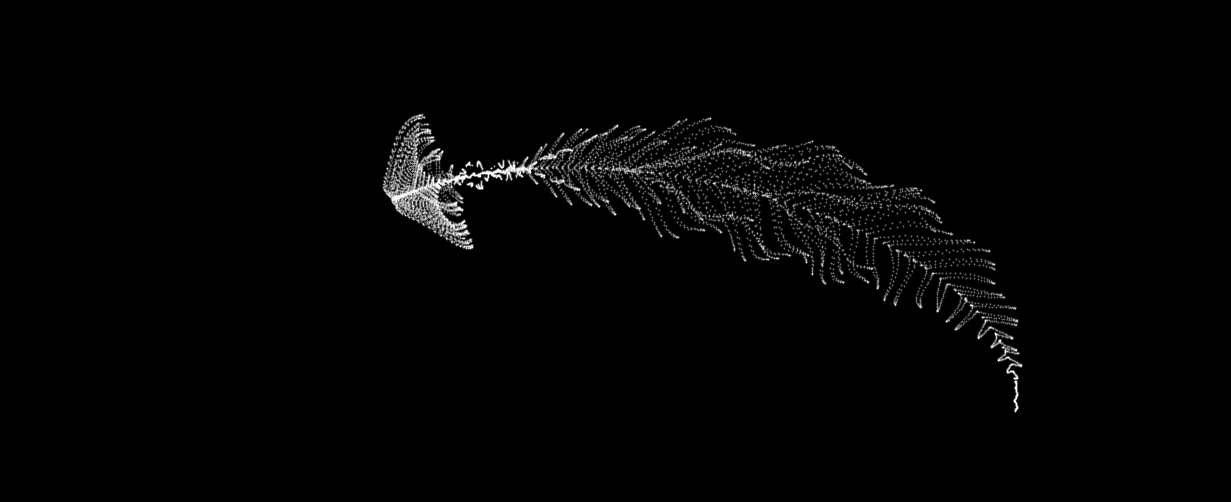
The formula comes from @yuruyurau. (https://x.com/yuruyurau)
digital life 1
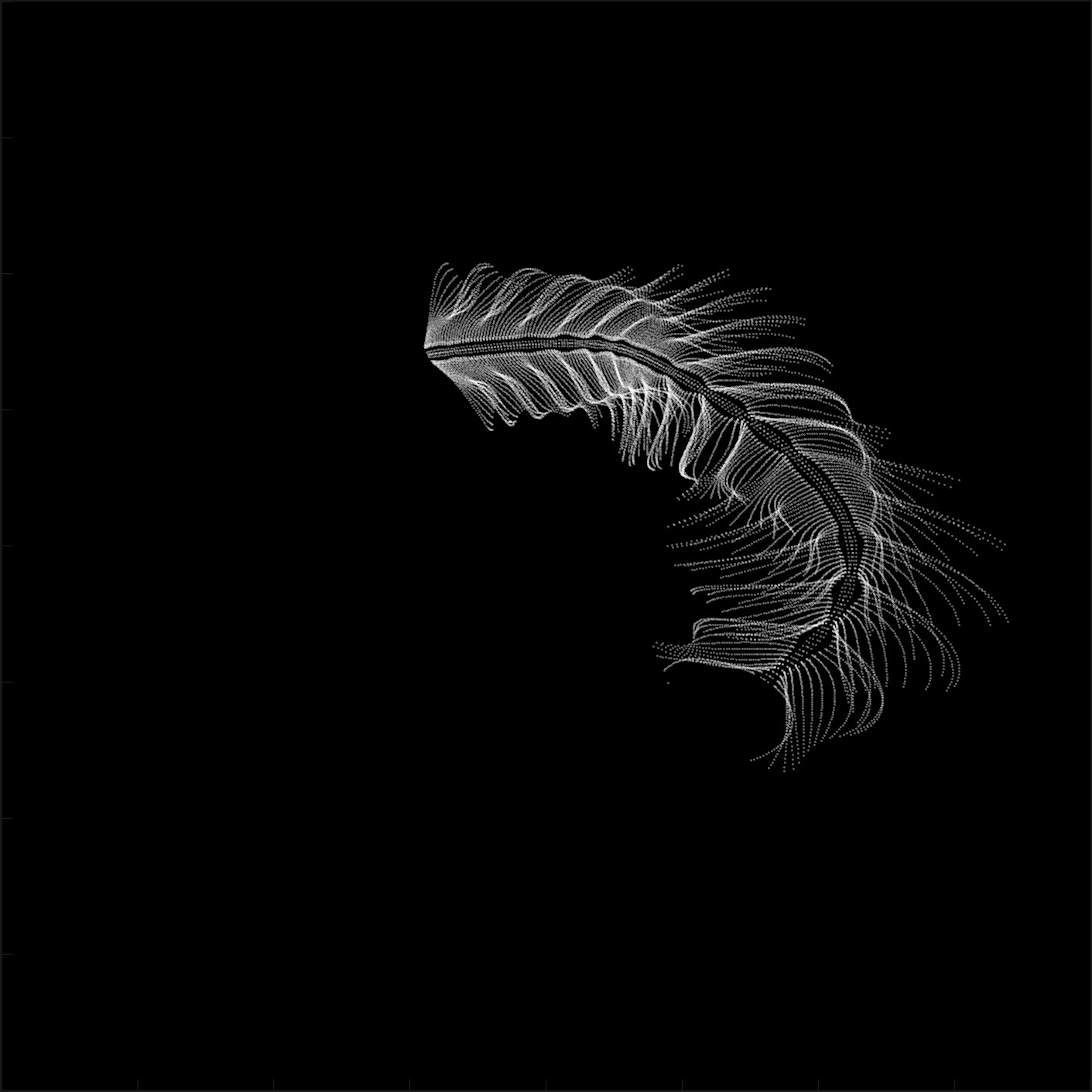
figure('Position',[300,50,900,900], 'Color','k');
axes(gcf, 'NextPlot','add', 'Position',[0,0,1,1], 'Color','k');
axis([0, 400, 0, 400])
SHdl = scatter([], [], 2, 'filled','o','w', 'MarkerEdgeColor','none', 'MarkerFaceAlpha',.4);
t = 0;
i = 0:2e4;
x = mod(i, 100);
y = floor(i./100);
k = x./4 - 12.5;
e = y./9 + 5;
o = vecnorm([k; e])./9;
while true
t = t + pi/90;
q = x + 99 + tan(1./k) + o.*k.*(cos(e.*9)./4 + cos(y./2)).*sin(o.*4 - t);
c = o.*e./30 - t./8;
SHdl.XData = (q.*0.7.*sin(c)) + 9.*cos(y./19 + t) + 200;
SHdl.YData = 200 + (q./2.*cos(c));
drawnow
end
digital life 2
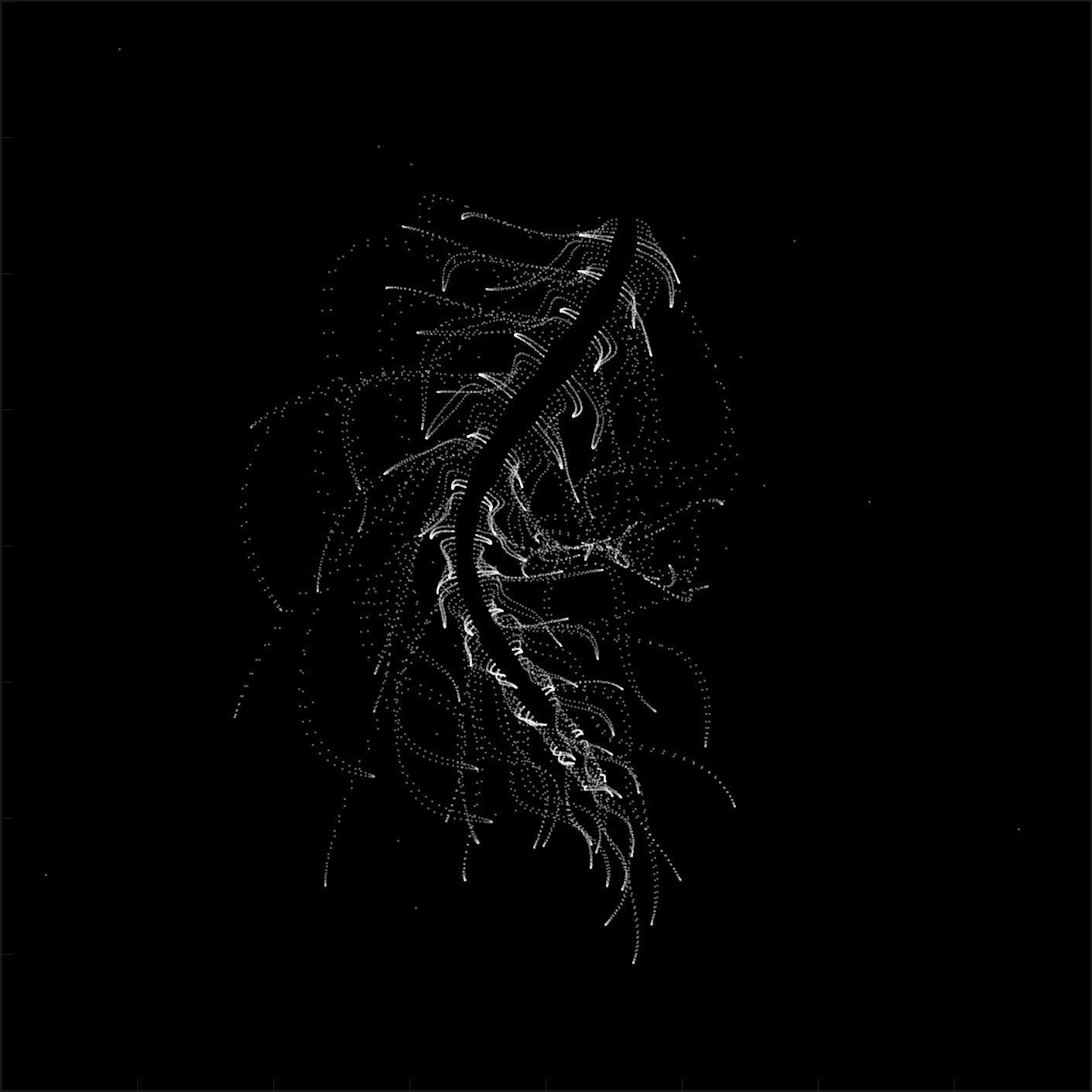
figure('Position',[300,50,900,900], 'Color','k');
axes(gcf, 'NextPlot','add', 'Position',[0,0,1,1], 'Color','k');
axis([0, 400, 0, 400])
SHdl = scatter([], [], 2, 'filled','o','w', 'MarkerEdgeColor','none', 'MarkerFaceAlpha',.4);
t = 0;
i = 0:1e4;
x = i;
y = i./235;
e = y./8 - 13;
while true
t = t + pi/240;
k = (4 + sin(y.*2 - t).*3).*cos(x./29);
d = vecnorm([k; e]);
q = 3.*sin(k.*2) + 0.3./k + sin(y./25).*k.*(9 + 4.*sin(e.*9 - d.*3 + t.*2));
SHdl.XData = q + 30.*cos(d - t) + 200;
SHdl.YData = 620 - q.*sin(d - t) - d.*39;
drawnow
end
digital life 3
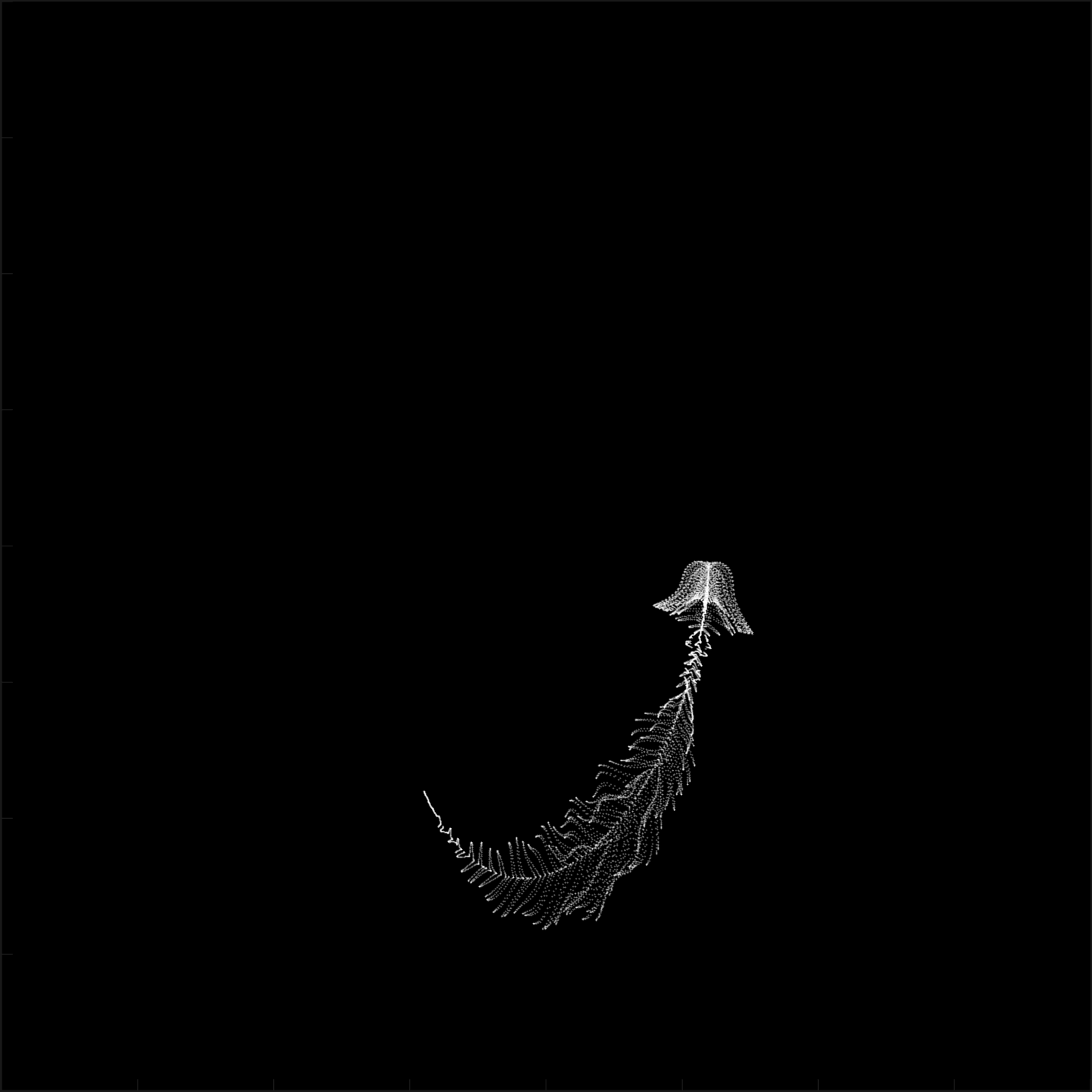
figure('Position',[300,50,900,900], 'Color','k');
axes(gcf, 'NextPlot','add', 'Position',[0,0,1,1], 'Color','k');
axis([0, 400, 0, 400])
SHdl = scatter([], [], 1, 'filled','o','w', 'MarkerEdgeColor','none', 'MarkerFaceAlpha',.4);
t = 0;
i = 0:1e4;
x = mod(i, 200);
y = i./43;
k = 5.*cos(x./14).*cos(y./30);
e = y./8 - 13;
d = (k.^2 + e.^2)./59 + 4;
a = atan2(k, e);
while true
t = t + pi/20;
q = 60 - 3.*sin(a.*e) + k.*(3 + 4./d.*sin(d.^2 - t.*2));
c = d./2 + e./99 - t./18;
SHdl.XData = q.*sin(c) + 200;
SHdl.YData = (q + d.*9).*cos(c) + 200;
drawnow; pause(1e-2)
end
digital life 4
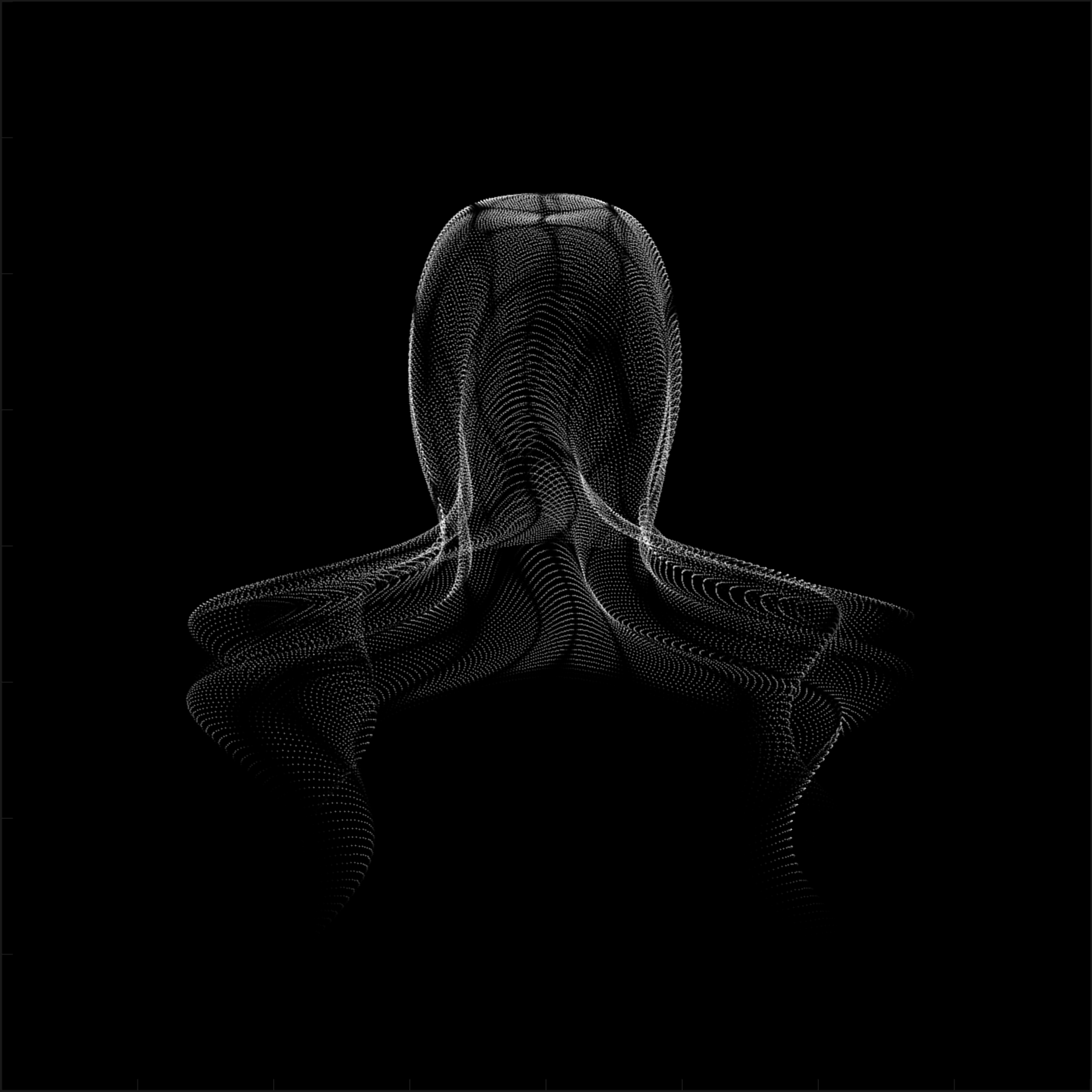
figure('Position',[300,50,900,900], 'Color','k');
axes(gcf, 'NextPlot','add', 'Position',[0,0,1,1], 'Color','k');
axis([0, 400, 0, 400])
SHdl = scatter([], [], 1, 'filled','o','w', 'MarkerEdgeColor','none', 'MarkerFaceAlpha',.4);
t = 0;
i = 0:4e4;
x = mod(i, 200);
y = i./200;
k = x./8 - 12.5;
e = y./8 - 12.5;
o = (k.^2 + e.^2)./169;
d = .5 + 5.*cos(o);
while true
t = t + pi/120;
SHdl.XData = x + d.*k.*sin(d.*2 + o + t) + e.*cos(e + t) + 100;
SHdl.YData = y./4 - o.*135 + d.*6.*cos(d.*3 + o.*9 + t) + 275;
SHdl.CData = ((d.*sin(k).*sin(t.*4 + e)).^2).'.*[1,1,1];
drawnow;
end
digital life 5
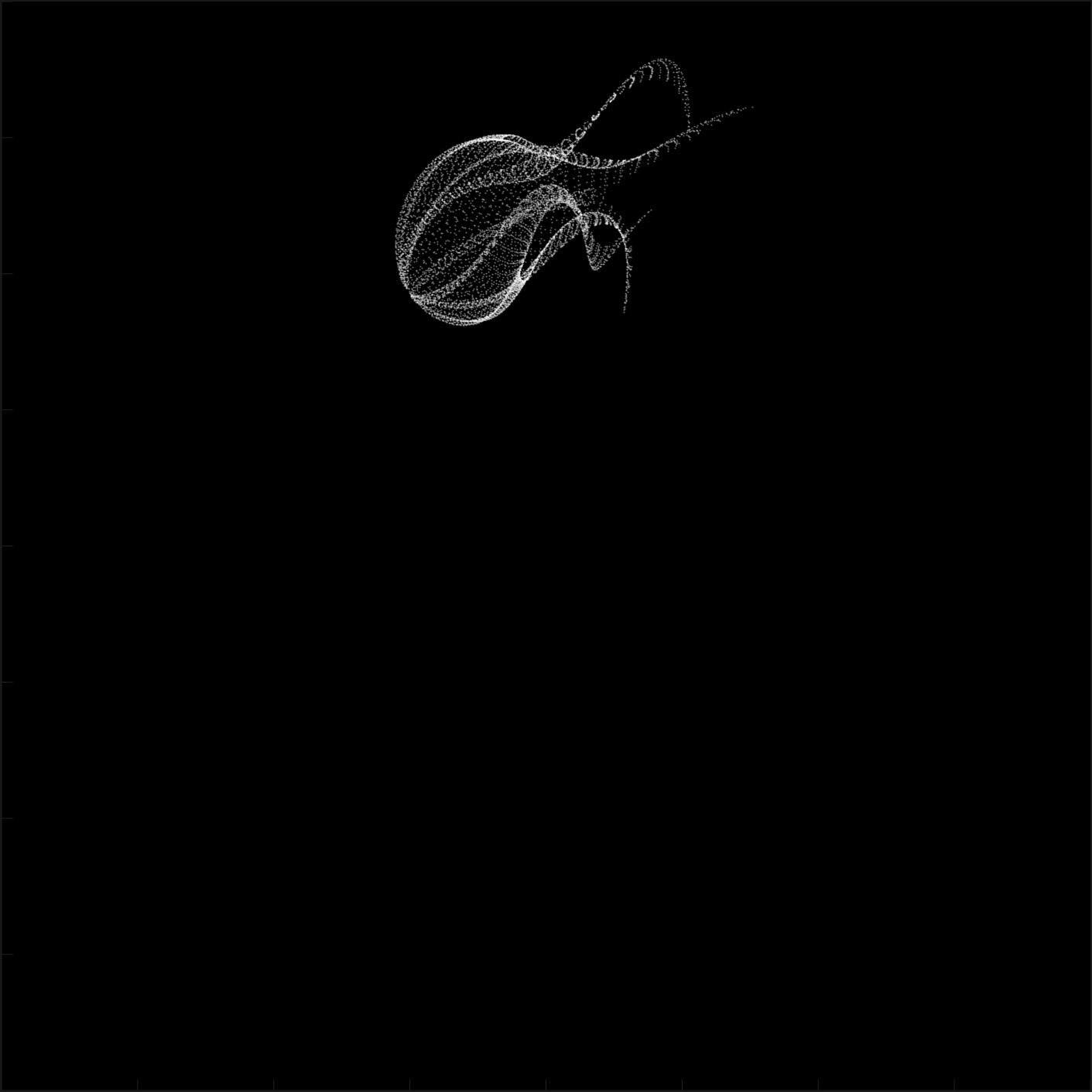
figure('Position',[300,50,900,900], 'Color','k');
axes(gcf, 'NextPlot','add', 'Position',[0,0,1,1], 'Color','k');
axis([0, 400, 0, 400])
SHdl = scatter([], [], 1, 'filled','o','w',...
'MarkerEdgeColor','none', 'MarkerFaceAlpha',.4);
t = 0;
i = 0:1e4;
x = mod(i, 200);
y = i./55;
k = 9.*cos(x./8);
e = y./8 - 12.5;
while true
t = t + pi/120;
d = (k.^2 + e.^2)./99 + sin(t)./6 + .5;
q = 99 - e.*sin(atan2(k, e).*7)./d + k.*(3 + cos(d.^2 - t).*2);
c = d./2 + e./69 - t./16;
SHdl.XData = q.*sin(c) + 200;
SHdl.YData = (q + 19.*d).*cos(c) + 200;
drawnow;
end
digital life 6
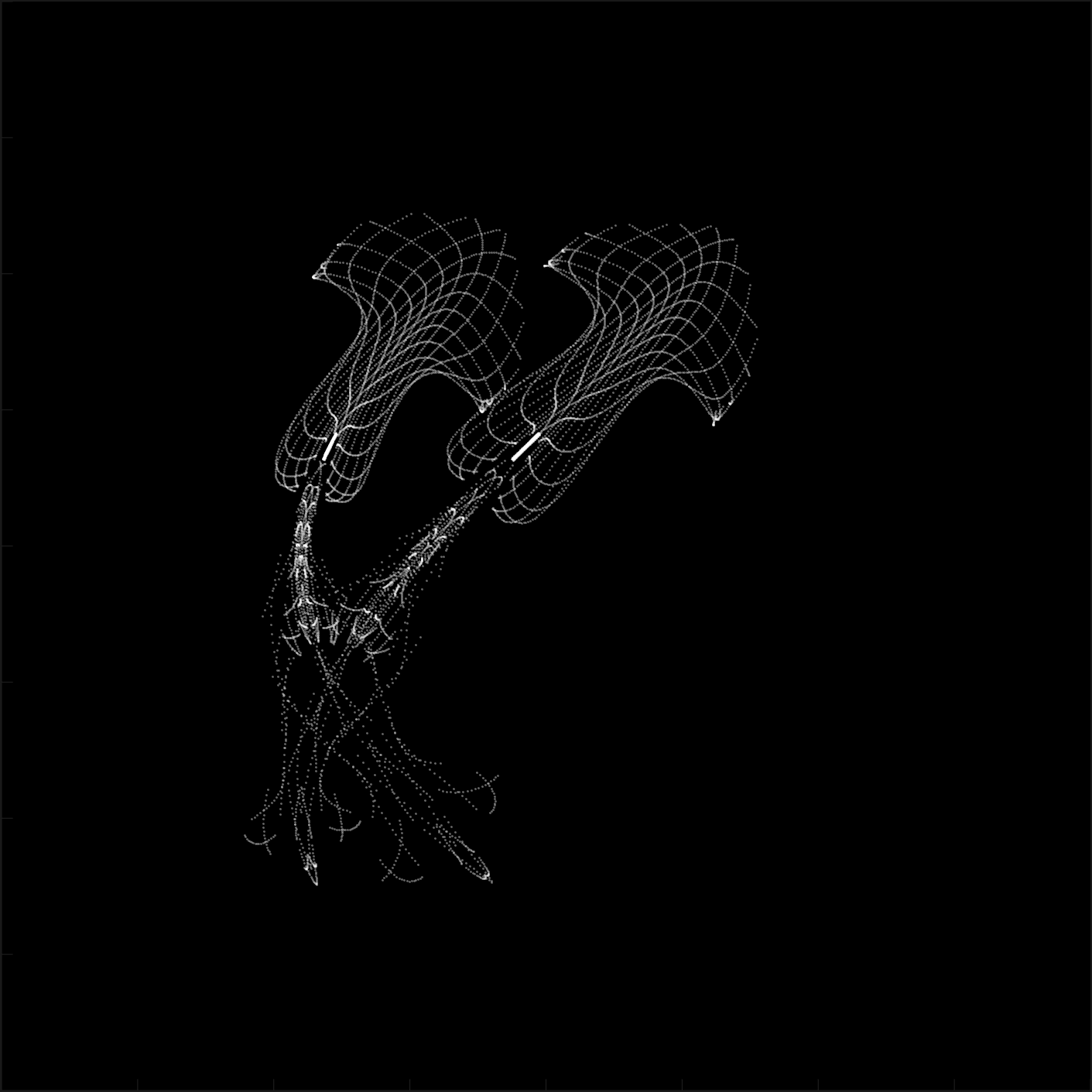
clc; clear
figure('Position',[300,50,900,900], 'Color','k');
axes(gcf, 'NextPlot','add', 'Position',[0,0,1,1], 'Color','k');
axis([0, 400, 0, 400])
SHdl = scatter([], [], 2, 'filled','o','w', 'MarkerEdgeColor','none', 'MarkerFaceAlpha',.4);
t = 0;
i = 1:1e4;
y = i./790;
k = y; idx = y < 5;
k(idx) = 6 + sin(bitxor(floor(y(idx)), 1)).*6;
k(~idx) = 4 + cos(y(~idx));
while true
t = t + pi/90;
d = sqrt((k.*cos(i + t./4)).^2 + (y/3-13).^2);
q = y.*k.*cos(i + t./4)./5.*(2 + sin(d.*2 + y - t.*4));
c = d./3 - t./2 + mod(i, 2);
SHdl.XData = q + 90.*cos(c) + 200;
SHdl.YData = 400 - (q.*sin(c) + d.*29 - 170);
drawnow; pause(1e-2)
end
digital life 7
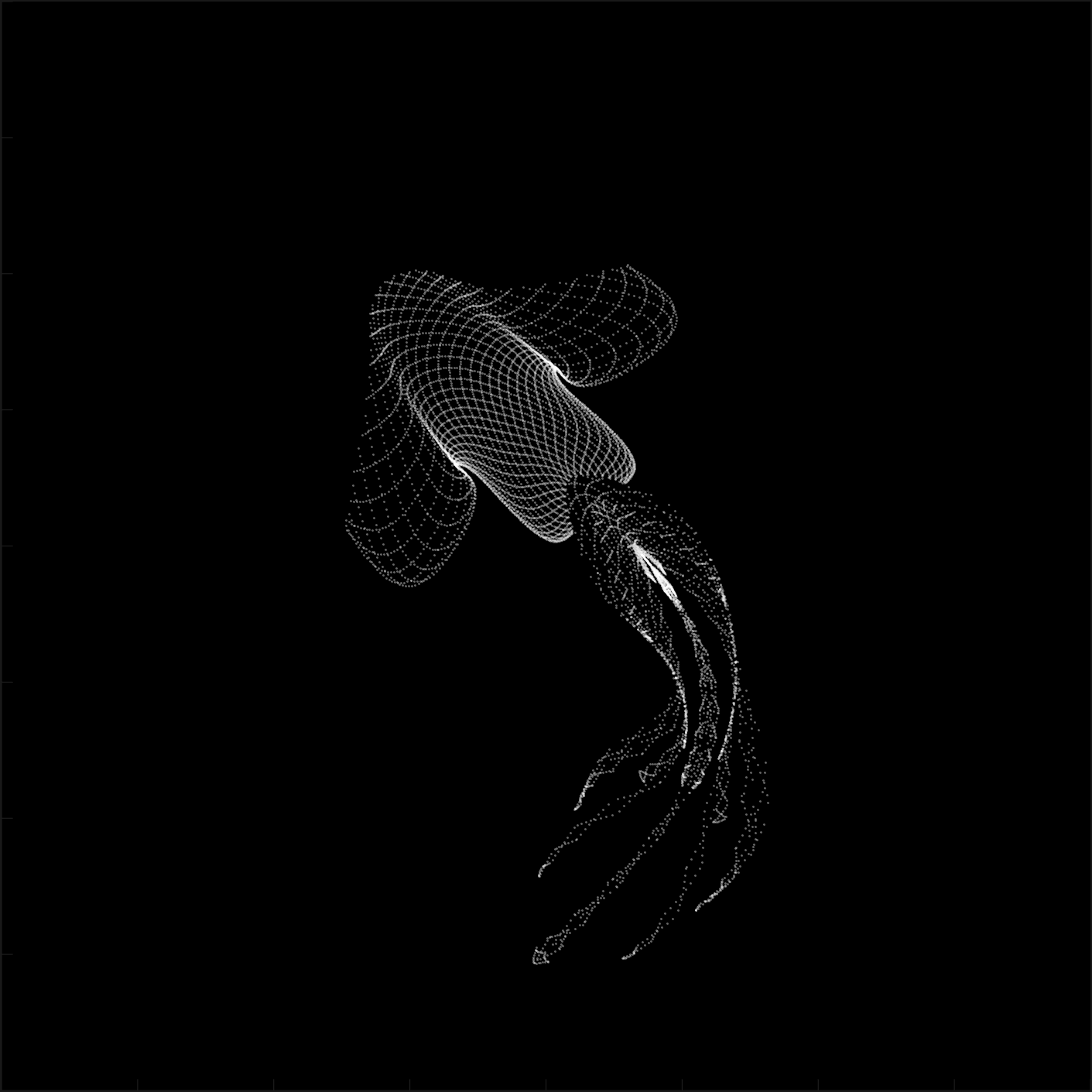
clc; clear
figure('Position',[300,50,900,900], 'Color','k');
axes(gcf, 'NextPlot','add', 'Position',[0,0,1,1], 'Color','k');
axis([0, 400, 0, 400])
SHdl = scatter([], [], 2, 'filled','o','w', 'MarkerEdgeColor','none', 'MarkerFaceAlpha',.4);
t = 0;
i = 1:1e4;
y = i./345;
x = y; idx = y < 11;
x(idx) = 6 + sin(bitxor(floor(x(idx)), 8))*6;
x(~idx) = x(~idx)./5 + cos(x(~idx)./2);
e = y./7 - 13;
while true
t = t + pi/120;
k = x.*cos(i - t./4);
d = sqrt(k.^2 + e.^2) + sin(e./4 + t)./2;
q = y.*k./d.*(3 + sin(d.*2 + y./2 - t.*4));
c = d./2 + 1 - t./2;
SHdl.XData = q + 60.*cos(c) + 200;
SHdl.YData = 400 - (q.*sin(c) + d.*29 - 170);
drawnow; pause(5e-3)
end
digital life 8
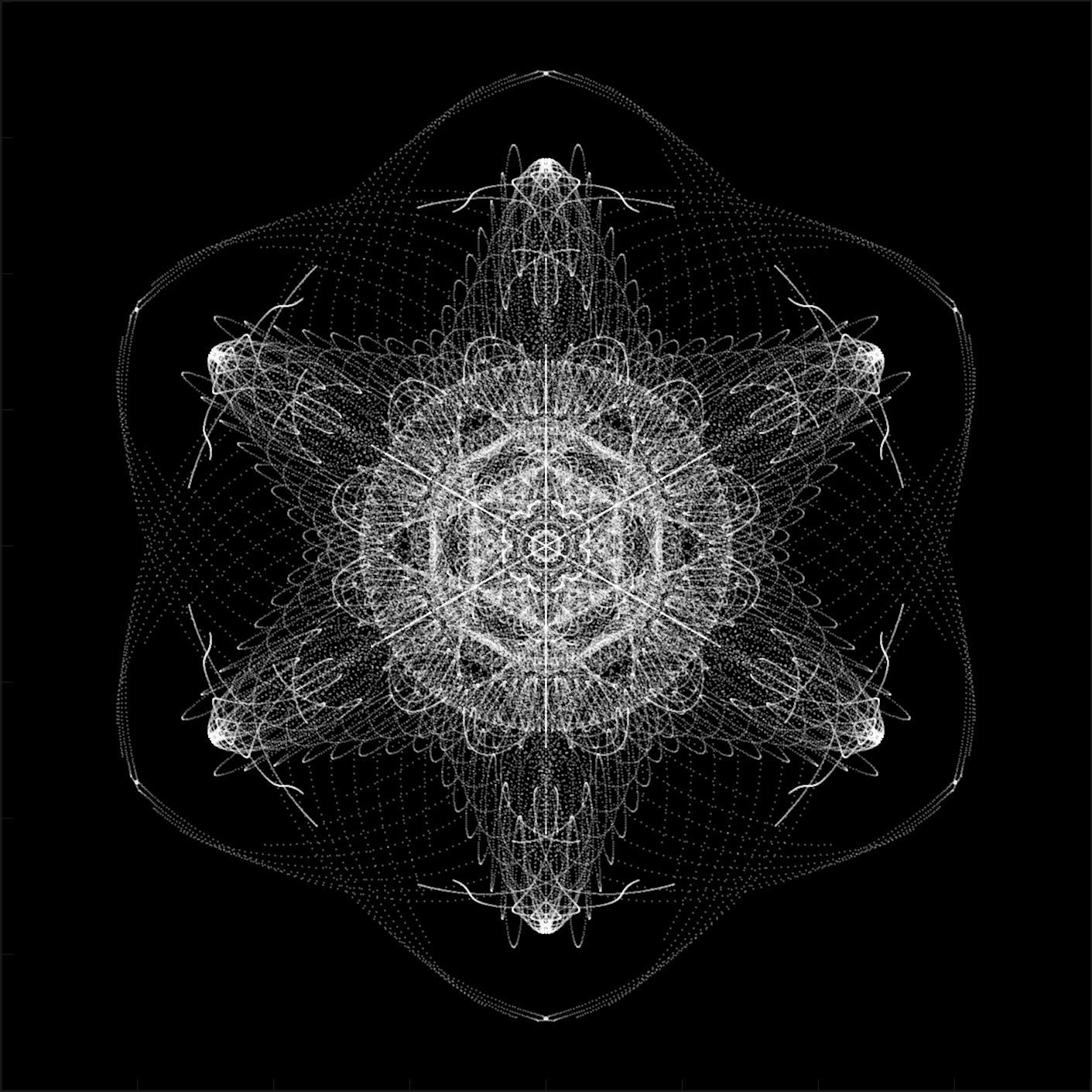
clc; clear
figure('Position',[300,50,900,900], 'Color','k');
axes(gcf, 'NextPlot','add', 'Position',[0,0,1,1], 'Color','k');
axis([0, 400, 0, 400])
SHdl{6} = [];
for j = 1:6
SHdl{j} = scatter([], [], 2, 'filled','o','w', 'MarkerEdgeColor','none', 'MarkerFaceAlpha',.3);
end
t = 0;
i = 1:2e4;
k = mod(i, 25) - 12;
e = i./800; m = 200;
theta = pi/3;
R = [cos(theta) -sin(theta); sin(theta) cos(theta)];
while true
t = t + pi/240;
d = 7.*cos(sqrt(k.^2 + e.^2)./3 + t./2);
XY = [k.*4 + d.*k.*sin(d + e./9 + t);
e.*2 - d.*9 - d.*9.*cos(d + t)];
for j = 1:6
XY = R*XY;
SHdl{j}.XData = XY(1,:) + m;
SHdl{j}.YData = XY(2,:) + m;
end
drawnow;
end
digital life 9
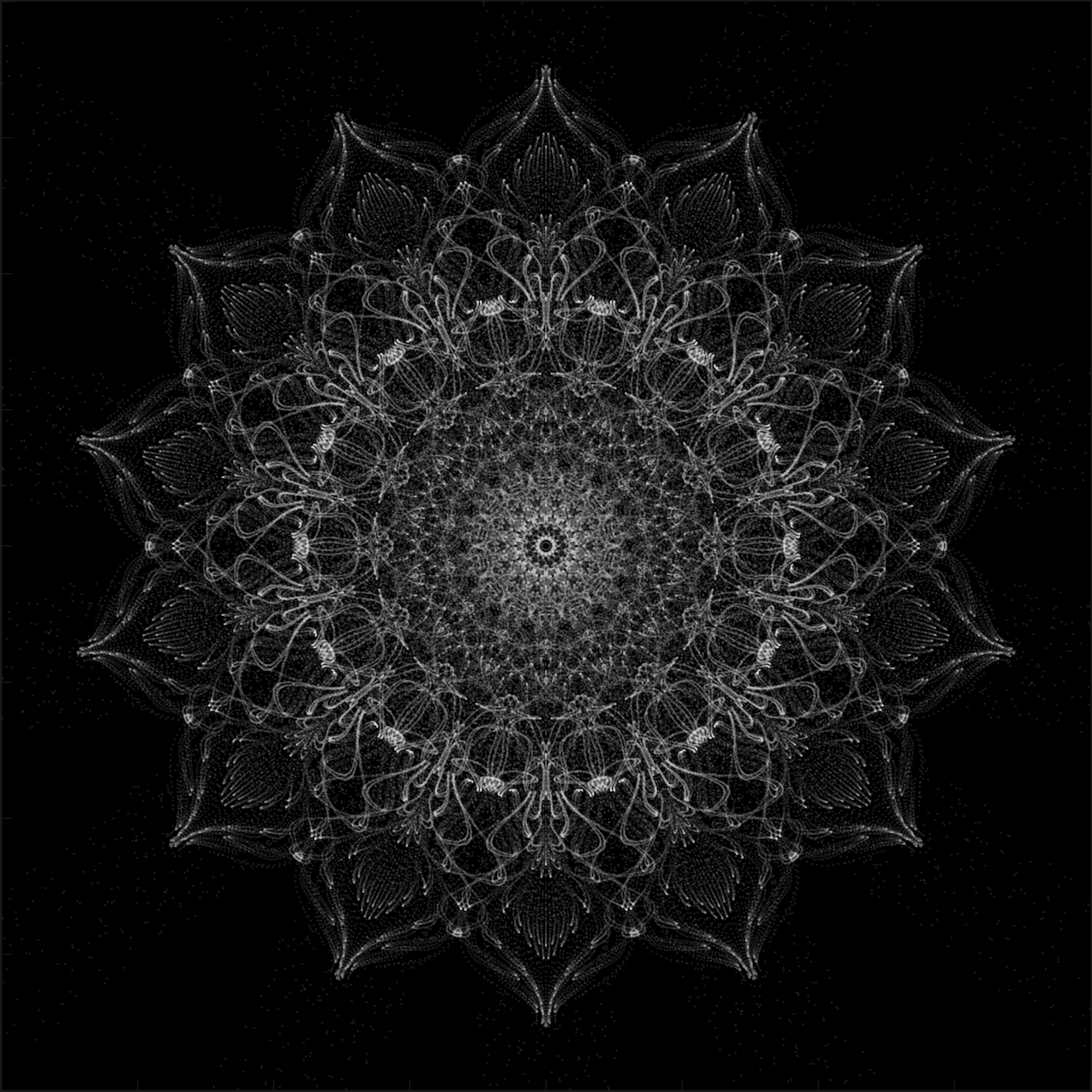
clc; clear
figure('Position',[300,50,900,900], 'Color','k');
axes(gcf, 'NextPlot','add', 'Position',[0,0,1,1], 'Color','k');
axis([0, 400, 0, 400])
SHdl{14} = [];
for j = 1:14
SHdl{j} = scatter([], [], 2, 'filled','o','w', 'MarkerEdgeColor','none', 'MarkerFaceAlpha',.1);
end
t = 0;
i = 1:2e4;
k = mod(i, 50) - 25;
e = i./1100; m = 200;
theta = pi/7;
R = [cos(theta) -sin(theta); sin(theta) cos(theta)];
while true
t = t + pi/240;
d = 5.*cos(sqrt(k.^2 + e.^2) - t + mod(i, 2));
XY = [k + k.*d./6.*sin(d + e./3 + t);
90 + e.*d - e./d.*2.*cos(d + t)];
for j = 1:14
XY = R*XY;
SHdl{j}.XData = XY(1,:) + m;
SHdl{j}.YData = XY(2,:) + m;
end
drawnow;
end

Hello everyone,
My name is heavnely, studying Aerospace Enginerring in IIT Kharagpur. I'm trying to meet people that can help to explore about things in control systems, drones, UAV, Reseearch. I have started wrting papers an year ago and hopefully it is going fine. I hope someone would reply to reply to this messege.
Thank you so much for anyone who read my messege.
In just two weeks, the competition has become both intense and friendly as participants race to climb the team leaderboard, especially in Team Creative, where @Mehdi Dehghan currently leads with 1400+ points, followed by @Vasilis Bellos with 900+ points.
There’s still plenty of time to participate before the contest's main round ends on December 7. Solving just one problem in the contest problem group gives you a chance to win MathWorks T-shirts or socks. Completing the entire problem group not only boosts your odds but also helps your team win.
🎉 Week 2 Winners:
Weekly Prizes for Contest Problem Group Finishers:
@Cephas, @Athi, @Bin Jiang, @Armando Longobardi, @Simone, @Maxi, @Pietro, @Hong Son, @Salvatore, @KARUPPASAMYPANDIYAN M
Weekly Prizes for Contest Problem Group Solvers:
Weekly Prizes for Tips & Tricks Articles:
This week’s prize goes to @Athi for the highly detailed post Solving Systematically The Clueless - Lord Ned in the Game Room.
Comment from the judge:
Shortly after the problem set dropped, several folks recognized that the final problem, "Clueless", was a step above the rest in difficulty. So, not surprisingly, there were a few posts in the discussion boards related to how to tackle this problem. Athi, of the Cool Coders, really dug deep into how the rules and strategies could be turned into an algorithm. There's always more than one way to tackle any difficult programming problem, so it was nice to see some discussion in the comments on different ways you can structure the array that represents your knowledge of who has which cards.
Congratulations to all Week 2 winners! Let’s keep the momentum going!

