Create and Add Custom Mobility Model to Bluetooth LE Nodes
R2026bThis example demonstrates how to implement a custom mobility model and apply it to Bluetooth® low energy (LE) nodes.
Accurately evaluating wireless network performance requires mobility models that closely mimic the real-world movement patterns of wireless nodes. With Wireless Network Toolbox™, you can define and implement custom mobility models tailored to your specific scenarios.
In this example, you implement the custom mobility model using the wnet.Mobility base class, add it to Bluetooth LE nodes, and then visualize the node mobility using wirelessNetworkViewer.
Implement Custom Mobility Model
To create a custom mobility model using the wnet.Mobility base class of Wireless Network Toolbox, follow these steps:
Inherit from the
wnet.Mobilitybase class. The class definition must have this format, wherecustomMobilityis the name of your custom mobility class.
 classdef customMobility < wnet.Mobility
   ...
 end
Override the
mobilityInfo methodof thewnet.Mobilitybase class. Optionally, you can also override theinitmethod ofwnet.Mobility.Save the class definition in an
.mfile.In a simulation script, create an object of the
customMobilityclass. Plug this custom mobility object intobluetoothLENodeby using itsaddMobilityobject function.
This example implements a mobility model with constant acceleration and deceleration. The model is attached to this example as a supporting file. For more information on the implementation of the model, see Supporting Files.
Add Custom Mobility to Bluetooth® LE Nodes and Visualize Their Movement
Initialize the wireless network simulator.
simulator = wirelessNetworkSimulator.init;
Create three Bluetooth® LE nodes with initial positions.
btNode1 = bluetoothLENode(Position=[0 0 0]);
btNode2 = bluetoothLENode(Position=[0 -2 0]);
btNode3 = bluetoothLENode(Position=[1 -2 0]);
Add the Bluetooth® LE nodes nodes to the simulator.
addNodes(simulator,[btNode1 btNode2 btNode3])
Initialize the wireless network viewer.
visualizer = wirelessNetworkViewer;
Add the Bluetooth® LE nodes nodes to the wireless network viewer.
addNodes(visualizer,[btNode1 btNode2 btNode3])
Create two custom mobility models using the customConstantAccelerationMobility helper object, attached to this example as a supporting file.
%The input vectors specify the initial velocity and constant acceleration
% in the [x, y, z] directions (in meters per second and meters per second squared, respectively).

% Mobility model 1: Starts with velocity [2,0,0] m/s and acceleration [1,0.2,0] m/s^2
mob1 = customConstantAccelerationMobility([2 0 0], [1 0.2 0]);
% Mobility model 2: Starts with velocity [2,2,0] m/s and deceleration [-1,-1,0] m/s^2
mob2 = customConstantAccelerationMobility([2 2 0], [-1 -1 0]);
Add the custom mobility mob1 to the first Bluetooth® LE node.
addMobility(btNode1,MobilityModel=mob1)
Add the custom mobility mob2 to the second and third Bluetooth® LE nodes.
addMobility([btNode2 btNode3],MobilityModel=mob2)
Simulate and Visualize
Run the simulation for 2 seconds.
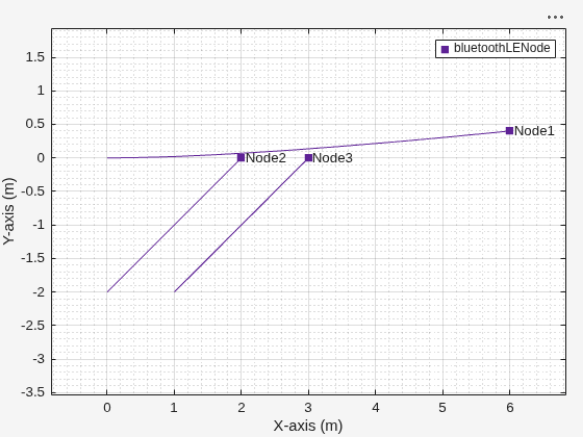
You can observe the movement of the nodes in the wireless network viewer. Node 1 starts at position [0 0 0] with an initial velocity of [2 0 0] m/s and accelerates at [1 0.2 0] m/s². Over the 2-second simulation, Node 1 moves primarily along the x-axis, with a slight increase in velocity along the y-axis due to the nonzero y-acceleration. Nodes 2 and 3 start at [0 -2 0] and [1 -2 0], respectively, both with an initial velocity of [2 1 0] m/s and deceleration of [-1 -1 0] m/s². These nodes move diagonally in the xy-plane, but both their x- and y-velocities decrease over time due to the negative accelerations.
run(simulator,2)
Supporting Files
customConstantAccelerationMobility.m— Implements a mobility model with constant acceleration and deceleration.
% Custom mobility model with constant acceleration and deceleration for wireless network nodes
classdef  customConstantAccelerationMobility < wnet.Mobility
    properties
        % Initial position of the node [x,y,z] when the mobility model is added to the node
        InitialPosition (1,3)
        % Simulation time when the mobility model is added to the node
        InitialTime (1,1)
        % Initial velocity vector [vx,vy,vz] for node movement
        InitialVelocity (1,3)
        % Constant acceleration vector [ax,ay,az]
        Acceleration (1,3)
    end

    methods
        % Constructor: Set the initial velocity and acceleration for this mobility model
        function obj =  customConstantAccelerationMobility(initialVelocity, acceleration)
            validateattributes(initialVelocity, {'numeric'},{'vector','numel',3,'real','finite'});
            validateattributes(acceleration, {'numeric'},{'vector','numel',3,'real','finite'});
            obj.InitialVelocity = initialVelocity;
            obj.Acceleration = acceleration;
        end

        % Initialize mobility model with the current position and time of the node
        % Note: A subclass of wnet.Node calls the init method when you configure
        % a mobility model using the addMobility method. The addMobility method
        % creates the mobility context and passes it to the init method.
        % The mobility context is a structure containing the position, name,
        % ID, and current simulation time of the node.

        function init(obj,mobilityContext)
            obj.InitialPosition = mobilityContext.LatestPosition;
            obj.InitialTime = mobilityContext.LastUpdateTime;
        end

        % Compute current position and velocity at a given simulation time
        % Whenever the node queries its position and velocity,
        % the simulation invokes the mobilityInfo method.
        function [pos,vel] = mobilityInfo(obj,currentSimulationTime)
            % Calculate elapsed time since initialization
            elapsedTime = currentSimulationTime - obj.InitialTime;
            % Update position using kinematic equation for constant acceleration
            % Mathematical equation:
            % x = x0 + v0*t + 0.5*a*t^2
            % where:
            % x  = position at time t
            % x0 = initial position
            % v0 = initial velocity
            % a  = acceleration
            % t  = elapsed time
            pos = obj.InitialPosition + ...
                obj.InitialVelocity*elapsedTime + ...
                0.5*obj.Acceleration*elapsedTime^2;
            % Update velocity
            % v = v0 + a*t
            % where:
            % v  = velocity at time t
            % v0 = initial velocity
            vel = obj.InitialVelocity + obj.Acceleration*elapsedTime;
        end
    end
end
See Also
Objects
bluetoothLENode|nodeMobilityConstantVelocity(Wireless Network Toolbox) |nodeMobilityRandomWaypoint(Wireless Network Toolbox) |nodeMobilityRandomWalk(Wireless Network Toolbox) |wirelessNetworkViewer(Wireless Network Toolbox)
Classes
wnet.Mobility(Wireless Network Toolbox)

