Track Changes in Safety Analysis Manager Spreadsheets
R2026bIf you have a Requirements Toolbox™ license and your files are in a project, you can create links that connect cells and rows in Safety Analysis Manager spreadsheets to external artifacts such as requirements, test cases, or model elements. When these linked artifacts change, you can use change tracking to identify which spreadsheet elements are affected, then accept the changes to update the baseline.
To learn how to create links to cells and rows before tracking changes, see Link Safety Analysis Manager Spreadsheet Cells and Rows to Requirements, Tests, and Faults.
Establish a Baseline and Detect Changes
To detect changes to Requirements Toolbox links and linked artifacts, you must open the project that contains the files and open the spreadsheet. After opening the project and the files, you establish a baseline. When you make changes to the links or linked artifacts, the Safety Analysis Manager compares the changes to the baseline.
Establish a Baseline
The Safety Analysis Manager establishes baselines for the links and linked artifacts in the spreadsheet when you:
Manually accept changes by clicking Accept All in the Analyze Changes section of the toolstrip. The Safety Analysis Manager establishes a new baseline state for each artifact in the spreadsheet.
Open or save the spreadsheet while the project is open. When you open or save the spreadsheet, the Safety Analysis Manager creates new baselines for artifacts that do not have a baseline. For example, if you open a spreadsheet and add three rows and three columns, you can establish baselines for the new rows and cells by saving the spreadsheet.
The Safety Analysis Manager does not establish baselines when:
The changed files and artifacts are not on the project path.
You add cells to the spreadsheet and save the spreadsheet while the project is closed.
You add an open spreadsheet to the project. To establish the baseline, close the spreadsheet, add it to the project, then reopen it.
Creating a baseline overwrites the previous baseline.
Detect Changes from Baselines
After establishing the baseline, you can detect changes to the links or linked
artifacts. To detect the changes, in the Analyze Changes
section, click Detect, or use the detectChanges function.
The Safety Analysis Manager detects changes when you:
Create a link to a cell or row and save the link set.
Delete a link from a cell or row and save the link set.
Update the properties of a link to a cell or row and save the link set.
Change a linked artifact, such as a requirement, test case, or model element, and save the file. For a complete list of linkable artifacts, see Linkable Items (Requirements Toolbox). If the artifact is in a Simulink® model, the Safety Analysis Manager only indicates that the model changed, and does not identify the specific changed artifact.
Note
If you save the Simulink model and detect changes, the spreadsheet reports changes to linked artifacts in the Simulink model, even if those artifacts are unchanged.
Change and save a dependent file associated with a linked artifact. For example, if you link a test case that has a model under test to a cell, then save the model, the event indicates a change.
Save the Simulink model that contains an artifact that links to a cell or row.
The spreadsheet adds a detected changes badge to linked rows and cells if it detects a change.
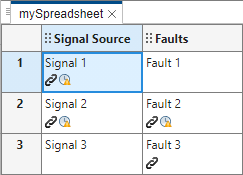
View Affected Artifacts and Accept Changes
The detected changes badge can represent more than one detected change.
You can navigate to the source of the change from the spreadsheet by pointing to the
badge and clicking the source name. You can also programmatically access the change
information by using the getChanges function to retrieve the ChangeInformation objects of the detected changes.
To view a list of the changes in the spreadsheet, row, or cell, in the Properties pane, in either the Spreadsheet, Row, or Cell tabs, expand the Changes section.
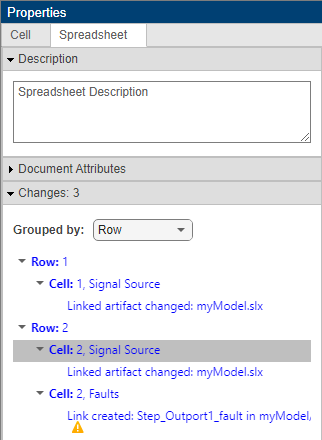
You can accept a single change or all of the changes in a cell, row, or the spreadsheet. To accept individual changes:
Point to the right of the row, cell, or individual change, and click the green check mark .
Use the
acceptfunction on theChangeInformationobject.
To accept all changes in the spreadsheet:
In the Analyze Changes section, click Accept All.
Use the
acceptAllChangesfunction.
Accepting a change updates the baseline.
If the change is caused by link creation, you cannot accept the change individually. To accept this kind of change, you must accept all of the changes listed in the cell, row, or spreadsheet that contains the change.
Track Changes in Safety Analysis Manager Spreadsheet Example
This example shows how to detect changes to links and linked artifacts to a Safety Analysis Manager spreadsheet that links to a model of a fault-tolerant control system. The model represents a fuel control system for a gasoline engine, and is a modified version of the model in Evaluate Fault Combinations on a Fault-Tolerant Fuel System.
Open the Project and Set Up the Model and Spreadsheet
Open the project, EvaluateFaultsFuelSysProject.
openProject("EvaluateFaultsFuelSystemProject");This example contains a model, sldemo_fuelsys_fault_analyzer, and a Failure Mode and Effects Analysis (FMEA) spreadsheet, FuelSysFMEA.mldatx. When you first open the project, the model does not have faults or links to the Safety Analysis Manager spreadsheet. Open the model and the spreadsheet, and run the fuelSysFaultSetupProject helper function to add the faults and the links.
mdlName = "sldemo_fuelsys_fault_analyzer";
FMEAName = safetyAnalysisMgr.openDocument("FuelSysFMEA.mldatx");
open_system(mdlName)
fuelSysFaultSetupProject
Open the Safety Analysis Manager to view the spreadsheet and the links.
safetyAnalysisManager
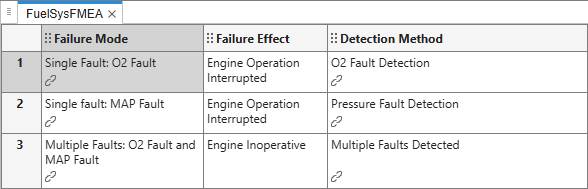
The helper function establishes the current start of the model as the baseline state by executing the acceptAllChanges function. In the Analyze Changes section, click Detect to confirm that the spreadsheet does not detect changes.
Change the Fault Property
The model has three faults, one on the third input port to the To Controller subsystem, and two on the fourth input port of the To Controller subsystem. The fault on the third input port has a timed trigger that has a trigger time of 5. In this example, adjust the trigger time and detect the changes in the spreadsheet.
In the
sldemo_fuelsys_fault_analyzermodel, open the Fault Analyzer App. In the Apps tab, click Fault Analyzer. The Fault Table pane opens.In the Fault Table pane, in the Fault tab, expand the To Controller/Inport/3 model element to view the fault on the third input port of the
To Controllersubsystem,ego_fault.Right-click the fault and click Properties.
In the Property Inspector, In the Fault section, set the Trigger fault at time property to
10.In the Fault Analyzer tab, in the File section, click Save All > Save Only Fault Artifacts.
In the
FuelSysFMEA.mldatxspreadsheet, detect the changes. In the Analyze Changes section, click Detect.
The spreadsheet detects changes in the first and third cells that link to the fault.
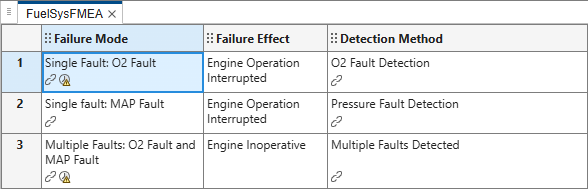
To accept the changes individually, point to each detected changes badge and click the green check mark  next to the change.

