Understand Unexpected Results from Data Type Conversion
R2026bSimulink® models that use fixed-point data types can sometimes yield unexpected values due to precision loss from quantization. This example shows how quantization occurs when you calculate fixed-point values. While this example uses the Data Type Conversion block, similar calculations can lead to quantization in other Simulink blocks, such as Gain and Product.
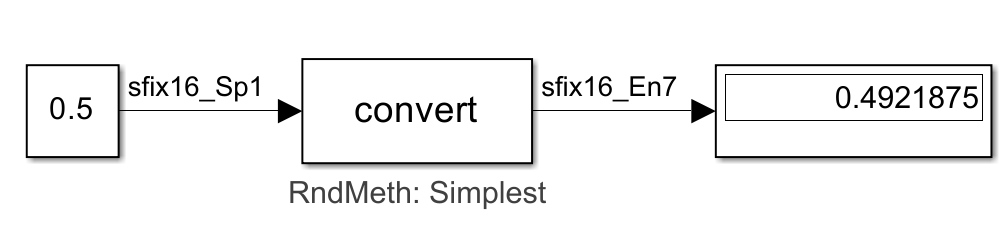
Consider a simple data type conversion operation in Simulink. The model shown here converts the value 0.5 from sfix16_Sp1 to sfix16_En7. Both of these data types are able to represent the value 0.5. However, quantization occurs during data type conversion, resulting in the observed value 0.4921875.
Data Type Conversion Calculation
To understand how quantization occurs during this operation, consider the data type conversion formula
where
, are stored integers.
, are the Slope Adjustment Factor of their respective data type.
, are the Fixed Exponent of their respective data type.
, are the Bias of their respective data type.
Each side of the equation represents a real-world value. The left side represents the value of the block input. The right side represents the value of the block's output. The formula contains the data type specifications that translate the stored integers, and , to real-world values. The goal of the data type conversion equation is to retain the real-world value of the input signal while changing the data type.
When converting data types, the input stored integer value, , and input data type are known and give the values for the input variables, including the stored integer value. The output data type is also known, as it is specified in the Data Type Conversion block. The unknown variable is the output stored integer . Solve for to find the stored integer value that best represents the input value with the new data type specifications.
To solve for , gather the known values of the input and output variables from the Simulink data types in the model.
Gather Known Values for Input Calculation
At the command line, create a fi object a_in that has the same numeric type as the input data type, sfix16_Sp1.
T_in = numerictype("sfix16_Sp1");
a_in = fi(0.5,T_in)
a_in =
0.5
DataTypeMode: Fixed-point: slope and bias scaling
Signedness: Signed
WordLength: 16
Slope: 0.1
Bias: 0
The data type has a Bias value of 0. To gather the remaining known values for the input data type, query the int, Slope Adjustment Factor, and Fixed-Exponent parameters of a_in.
Q_in = a_in.int;
F_in = a_in.SlopeAdjustmentFactor;
E_in = a_in.FixedExponent;
The values for the input equation are:
= 5
= 1.6
= –4
= 0
Gather Known Values for Output Calculation
Gather the known values for the output data type. Create a fi object a_out that has the same numeric type as the output data type, sfix16_En7.
T_out = numerictype("sfix16_En7");
a_out = fi(0.5,T_out)
a_out =
0.5000
DataTypeMode: Fixed-point: binary point scaling
Signedness: Signed
WordLength: 16
FractionLength: 7
The data type has a Bias value of 0. Query the Slope Adjustment Factor, and Fixed-Exponent parameters of a_out to gather the remaining known values.
F_out = a_out.SlopeAdjustmentFactor;
E_out = a_out.FixedExponent;
The values for the output equation are:
= 1
= –7
= 0
Solve for Stored Integer Value
Solve the data type conversion equation for . In this example, the bias of each data type is equal. The remaining values result in the equation
Estimate the quantized Slope Adjustment Factor using a fi object with the signedness and word length of the output value.
initFormat = get(0, 'Format');
format longg
quantSlopeAdj = fi(F_in/F_out,true,16)
quantSlopeAdj =
           1.5999755859375

          DataTypeMode: Fixed-point: binary point scaling
            Signedness: Signed
            WordLength: 16
        FractionLength: 14
The quantized Slope Adjustment Factor value is slightly less than the ideal value 1.6.
You can now substitute the known values into the equation to find .
Q_in = 5;
F_net = quantSlopeAdj;
E_net = E_in-E_out;
Q_out = Q_in*F_net*2^E_net
Q_out =
63.9990234375


          DataTypeMode: Fixed-point: binary point scaling
            Signedness: Signed
            WordLength: 64
        FractionLength: 53
Since is a stored integer, it must be rounded to an integer value. The default integer rounding mode is Floor.
Q_out = floor(Q_out)
Q_out =
    63

          DataTypeMode: Fixed-point: binary point scaling
            Signedness: Signed
            WordLength: 11
        FractionLength: 0
The stored integer value for the output after data type conversion is 63.
Calculate Real-World Value from Data Type Conversion
To see the real-world value that would be represented by the stored integer with the Simulink data type sfix16_En7, plug back into the right side of the original equation. You would see this value displayed as the output after data type conversion.
RWV = Q_out * F_out * 2^E_out
RWV =
                 0.4921875

          DataTypeMode: Fixed-point: binary point scaling
            Signedness: Signed
            WordLength: 44
        FractionLength: 36
The result of the Data Type Conversion block calculation is, 0.4921875. Although the data type sfix16_En7 can represent the value 0.5 exactly, these calculations show how quantization can occur when you use a Data Type Conversion block. The principles of quantization also apply to calculations of fixed-point values in other Simulink blocks. To learn more about how to adjust settings in your Simulink model to improve accuracy of fixed-point values, see Resolve Unexpected Values from Data Type Conversion.
% Restore initial format
format(initFormat);
