FPGA Board Editor
Edit custom board definition for FPGA-in-the-loop workflows
Description
Edit custom board definition for FPGA-in-the-loop workflows.
You can edit a previously-created custom board definition file. To edit a board definition XML file, you must first make it writeable. If the file is read-only, the FPGA Board Editor only lets you view the board configuration information. You cannot modify that information.
Open the FPGA Board Editor
FPGA Board Manager: Select board and click Edit.
Examples
Parameters
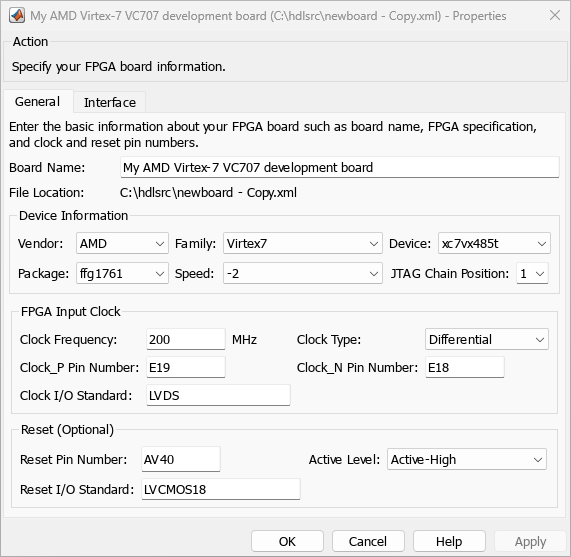
General Tab
Specify a unique name for your custom board. This name will appear in the board list of the FPGA Board Manager.
Specify device-specific properties.
Vendor —
AMDorAlteraFamily — Family depends on the specified vendor. See the board specification file for applicable settings.
Device — Device depends on the specified vendor and family. See the board specification file for applicable settings.
For AMD® boards only:
Package — Package depends on specified vendor, family, and device. See the board specification file for applicable settings.
Speed — Speed depends on package. See the board specification file for applicable settings.
JTAG Chain Position — Value indicates the starting position for JTAG chain. Consult the board specification file for this information.
Clock details are required for board configuration. You can find all necessary information in the board specification file (available from board vendor).
Clock Frequency. Must be from 5 through 300. For an Ethernet interface, the suggested clock frequencies are 50, 100, 125, and 200 MHz.
Clock Type:
Single_EndedorDifferential.Clock Pin Number (Single_Ended) — Must be specified. Example:
N10.Clock_P Pin Number (Differential) — Must be specified. Example:
E19.Clock_N Pin Number (Differential) — Must be specified. Example:
E18.Clock IO Standard — The programmable I/O Standard to use to configure input, output, or bi-directional ports. For example,
LVDS.
To indicate a reset, find the pin number and active level in the board specification file, and enter that information.
Reset Pin Number — Leave empty if you do not have one.
Active Level —
Active-LoworActive-High.Reset IO Standard — The programmable I/O Standard to use to configure input, output, or bi-directional ports. For example,
LVCMOS33.
Interface Tab
The Interface tab describes the supported FPGA I/O Interfaces. Select any listed interface and click:
View – to see the Signal List
Add New – to add a new interface. This option is available if the board definition file has write permission.
Remove – to remove the interface from the board definition.
Edit – to edit the interface (opens a new dialog box).
JTAG with Digilent® Cable Setup
Note
Enter information for the JTAG cable setup carefully. If the settings are incorrect, the simulation errors out and does not work. If you are still unsure about how to setup your JTAG cable after reading these instructions, contact MathWorks® technical support with detailed information about your board.
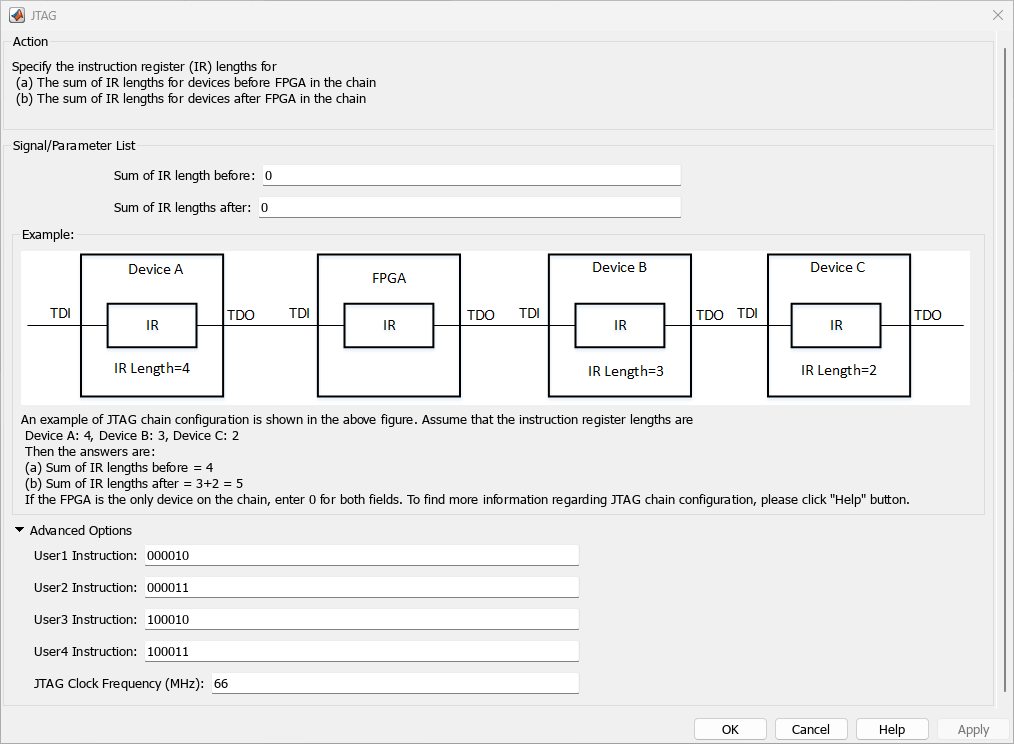
Signal/Parameter List — Provide the sum of the lengths of the instruction registers (IR) for all devices before and after the FPGA in the chain.
If the FPGA is the only item in the device chain, use zeros in both Sum of IR length before and Sum of IR length after.
If you are using a Zynq® device, and it is the only item in the device chain, set the Sum of IR length before and Sum of IR length after fields based on the JTAG chain position:
If the JTAG chain position is 1 (for example, the Zynq UltraScale+™ family), enter
0in Sum of IR length before and4in Sum of IR length after.If the JTAG chain position is 2 (for example, the Zynq-7000 family), enter
4in Sum of IR length before and0in Sum of IR length after.
If your board does not meet either of those conditions, follow these instructions to obtain the IR lengths:
Connect the FPGA board to your computer using the JTAG cable. Turn on the board.
Make sure that you installed the cable drivers during Vivado® installation.
Open Vivado Hardware Manager and select Open a new hardware target. In the dialog box is a summary of the IR lengths for all devices for that target.
Sum the IR lengths before the FPGA and enter the total in Sum of IR length before. Sum the IR lengths after the FPGA and enter the total in Sum of IR length after.
Vivado Hardware Manager cannot recognize the IR length of less common devices. For these devices, consult the device manual for instruction register length.
Advanced Options — If the default values are not the same as the most common settings for many devices, set the User1 Instruction and JTAG Clock Frequency (MHz) parameters. The most common settings are
000010and66, respectively.User1 Instruction — The JTAG USER1 Instruction defined in the AMD Bscane2 primitive. This binary instruction number, defined by AMD, varies from device to device. For most of the 7-series devices, this instruction is
000010. If your device has a different value, enter it in this parameter.To find this value, download the
BSDLfile for your device from the AMD website. For example, for the XA7A32T-CPG236 device, extract the xc7a35t_cpg236.bsd from the BSDL ZIP archive.Open this file. The
USER1value is000010. Enter this value at User1 Instruction."USER1 (000010),"
JTAG Clock Frequency (MHz) — Clock frequency used by the JTAG circuit. This value varies by device. You can find this value in the same
bsdfile described under User1 Instruction. For example, the JTAG clock frequency is 66 MHz for device XA7A32T-CPG236:attribute TAP_SCAN_CLOCK of TCK : signal is (66.0e6, BOTH);
Version History
Introduced in R2012b

