Cosimulate Multiple HDL Modules Using Single Simulator Session
R2026bThis example shows how to cosimulate multiple HDL modules using a single HDL simulator session. Running one session helps conserve HDL simulator licenses.
This example uses the Questa™/ModelSim™ simulator. Before you start, make sure that the HDL simulator is on the system path.
Generate Cosimulation Blocks
This example uses a multiplier-accumulator (MAC) unit as the application. It provides two Verilog HDL modules:
dut1.v– A pipelined multiplierdut2.v– An accumulator
To cosimulate multiple HDL modules in Simulink®, you first need to create one HDL Cosimulation block per module.
Programmatic Alternative
Open the Cosimulation Wizard by executing the following command at the MATLAB® command prompt:
cosimWizard
In the Cosimulation Type page, select
ModelSimas the HDL simulator andSimulinkfor HDL cosimulation with.In the HDL Files page, add
dut1.vas the source file for your first module. In the Simulation Options page, selectShared Memoryas the connection method.Complete the remaining steps to generate the cosimulation block.
Repeat the process for the second module,
dut2.v.
Programmatic Alternative
To generate the two blocks, execute the following at the MATLAB command prompt:
generateCosimulationBlock('dut1',{'dut1.v'});
generateCosimulationBlock('dut2',{'dut2.v'});
These commands create two models, hdlverifier_wizard_dut1.slx and hdlverifier_wizard_dut2.slx, each containing the corresponding HDL cosimulation block.
Add Cosimulation Blocks to Simulink Testbench
After generating all cosimulation blocks, add them to your Simulink testbench. Open the testbench provided with this example:
open_system("multipleCosimulationBlockQuesta");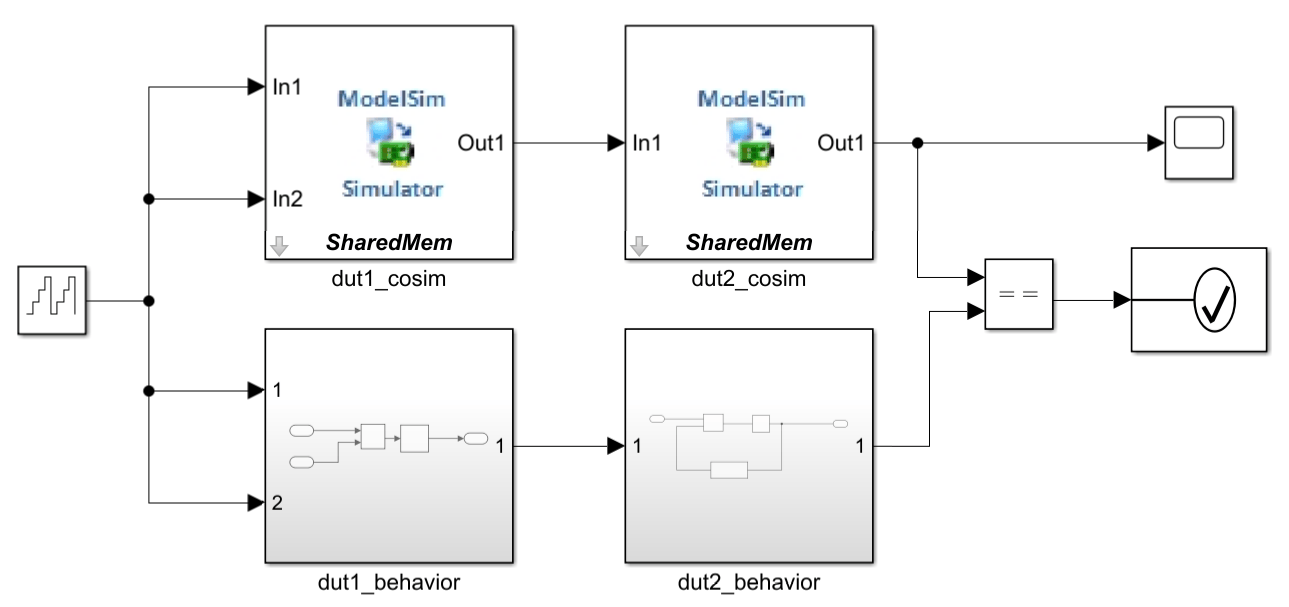
The model includes:
Two pregenerated cosimulation blocks for
dut1anddut2A ramp signal as input to the MAC unit
Behavioral models of dut1 and dut2 for output comparison
Start HDL Simulator
To run multiple HDL modules in a single simulator session, compile all source files and start the simulator using a customized Tcl command:
tclCommand = {
    'vlib work',... % define library
    'vlog ./dut1.v' ,...% compile all modules
    'vlog ./dut2.v' ,...
    'vsimulink -voptargs=+acc work.dut1 work.dut2',... % load all module instances for cosimulation
    };

vsim('tclstart', tclCommand, 'runmode','Batch');
The HDL simulator has been started in the background. When linking with MATLAB, the HDL simulator starts the simulation automatically when the 'run' command is provided with the 'tclstart' property of the 'vsim' command. When linking with Simulink, the HDL simulator is blocked after startup by the 'vsimulink' command. It is unblocked by starting the cosimulation from Simulink. To unblock and exit the HDL simulator without initiating a cosimulation session, use the breakHdlSim command in MATLAB. When linking with MATLAB System Object, the HDL simulator is blocked after startup by the 'vsimmatlabsysobj' command. It is unblocked by starting the cosimulation from MATLAB. To unblock and exit the HDL simulator without initiating a cosimulation session, use the breakHdlSim command in MATLAB.
Run Simulink Testbench
Wait for the HDL simulator to start and then run the testbench by executing:
pingHdlSim(60);
sim("multipleCosimulationBlockQuesta");
During the simulation, the model compares cosimulation outputs to behavioral outputs and asserts an error on mismatch.
Explore Further
You can choose
socketas the connection method, when generating cosimulation blocks. Make sure all blocks use the same port number to connect to the same HDL simulator session.You can customize the Tcl commands passed to
vsim. For example, use custom library names (vlib) instead of the defaultworklibrary, or add signals of interest to the Questa Wave window. For more options, see your HDL simulator documentation.
See Also
Functions
pingHdlSim|vsim|vsimulink

