Create MATLAB App for Modbus Data Logging
R2026bThis example shows how to create a MATLAB® app that logs Modbus® data to a file using Industrial Communication Toolbox™ and App Designer. The app connects to a Modbus server, reads data from specified registers at user-defined intervals, and logs this data into a MAT or XLSX file.
The example opens the app in Design View of App Designer. To run the app, install a Modbus TCP/IP Server on the local network, then click Run in App Designer. Alternately, run the app from the MATLAB command line by entering modbusDataLogger. For more information about the basic UI components and callbacks in App Designer, see Create and Run a Simple App Using App Designer.
App Description
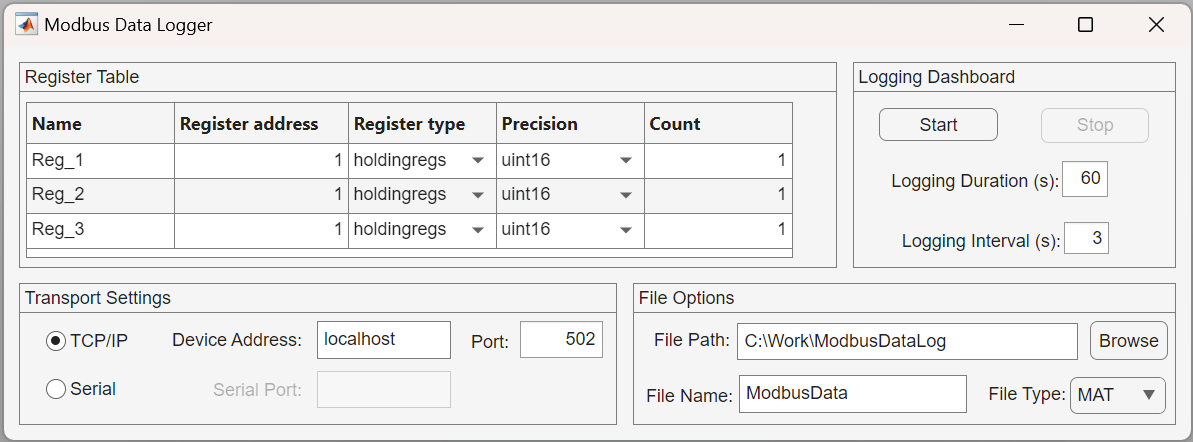
The modbusDataLogger app provided with this example contains these panels:
Register Table This panel displays an editable table that contains Modbus register details, such as register address, register type, precision, and count. The app uses these details as inputs for the Modbus read operation. Additionally, the app uses the register names specifically for data logging purposes.
Transport Settings This panel provides options to configure the Modbus server connection.
Protocol Selection: Choose between TCP/IP and serial protocols to determine how the app communicates with the Modbus server.
Configuration Settings: Enter the device address and port (for the TCP/IP protocol) or the serial port (for the serial protocol) to configure the server connection.
Logging Dashboard This panel controls the logging process with Start and Stop buttons. Use the input fields to set the logging duration and interval in seconds.
Logging Duration: Specify the total time period for data logging.
Logging Interval: Specify the time interval between each data logging event.
File Options This panel provides options to specify the file path, filename, and file type for saving Modbus data.
App Functions and Callbacks for UI Components
Open the app in Code View in App Designer to view callbacks, functions, and properties. Use the Code Browser pane at the left to navigate the code.
ModbusLog Function
This function defines the core functionality of the modbusDataLogger app. It performs these operations when you click the Start button on the logging dashboard:
Create a Modbus object based on user inputs in the Transport Settings panel using the
modbusfunction.Read data from registers specified in the register table using the Modbus
readfunction.Log data into a timetable at the specified intervals for the logging duration.
Stop logging data after the specified logging duration.
By default, the register table accepts three register entries. To change the number of entries, edit the NumRegisters property in the app code.
UpdateFilenameAndType Function
This function updates the name and type for the file that saves the Modbus data when you select a file type or change the default filename.
Callbacks for UI Components
The interactive behavior for each UI component in the modbusDataLogger app is defined in their callback functions. This table lists the UI components and their corresponding callbacks.
UI Component | Callback | Description |
Transport Settings radio buttons |
| Set app properties to configure the selected transport protocol. |
Register table |
| Control the dependency between file type and precision. For example, a register type of "coils" can have only "bit" precision. |
File Name edit field |
| When the edit field value is changing, disable the Start button. When the edit field value has changed, update the log filename with the specified name. |
File Type drop-down list |
| Update the log filename based on the selected file type. |
Browse button |
| Update the log file path using the file browser. |
Start button |
| Disable all input entries for the app and enable the Stop button while logging data. |
Stop button |
| Stop logging data and save the data to the specified log file. Enable all input entries for the app, including the Log button. |
Share App
Share this app with other MATLAB users by packaging it as a MATLAB app. To share the app, click Share from the Designer tab in App Designer and select MATLAB App. For more information, see Package Apps in App Designer.
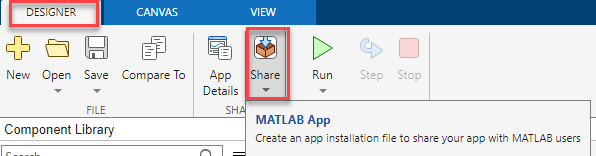
To package and share the app as a standalone desktop app, click Share from the Designer tab and select Standalone Desktop App. This option requires MATLAB Compiler™. For more information, see Create a Standalone Desktop Application.

