Generate Tests with Suggested Values for Function Inputs
R2026bIf you have a MATLAB® Test™ license, you can create tests with suggested input values for a function. Using suggested values helps you create tests that exercise various input scenarios, including edge cases, without manually selecting test data. By creating tests with suggested values, you can verify that your function behaves as expected across a representative range of inputs and does not produce unexpected errors.
This example shows how to create tests for a MATLAB function with suggested values for the function inputs.
Create Tests
To create tests with suggested values, open a function file in the Editor and use the Generate Test > Suggest test inputs option from the MATLAB Toolstrip. The Suggested Test Inputs dialog box displays values based on the function argument validation of the current function. You can review the suggested values, customize your selection, and then create a test file.
Note
The testing framework suggests values for logical, numeric, and text data types.
If the function does not use an arguments block, the framework
suggests values for all of these data types without applying constraints.
For example, in the Editor, open the file for a function named
rectangleArea, which computes the area of a rectangle given the
lengths of its sides. To validate its inputs, the function uses an
arguments block.
function area = rectangleArea(side1,side2)
arguments
    side1 (1,1) double {mustBePositive}
    side2 (1,1) double {mustBePositive}
end

area = side1 * side2;
end
To create tests with suggested input values for the rectangleArea
function, on the Editor tab, in the Test
section, select Generate Test > Suggest test inputs. The Suggested Test Inputs dialog box displays suggested values for the
function inputs, including only values that the function can accept. Because the
arguments block of the rectangleArea
function restricts inputs to positive numeric scalars, the suggested values in this
example are positive finite and infinite values.
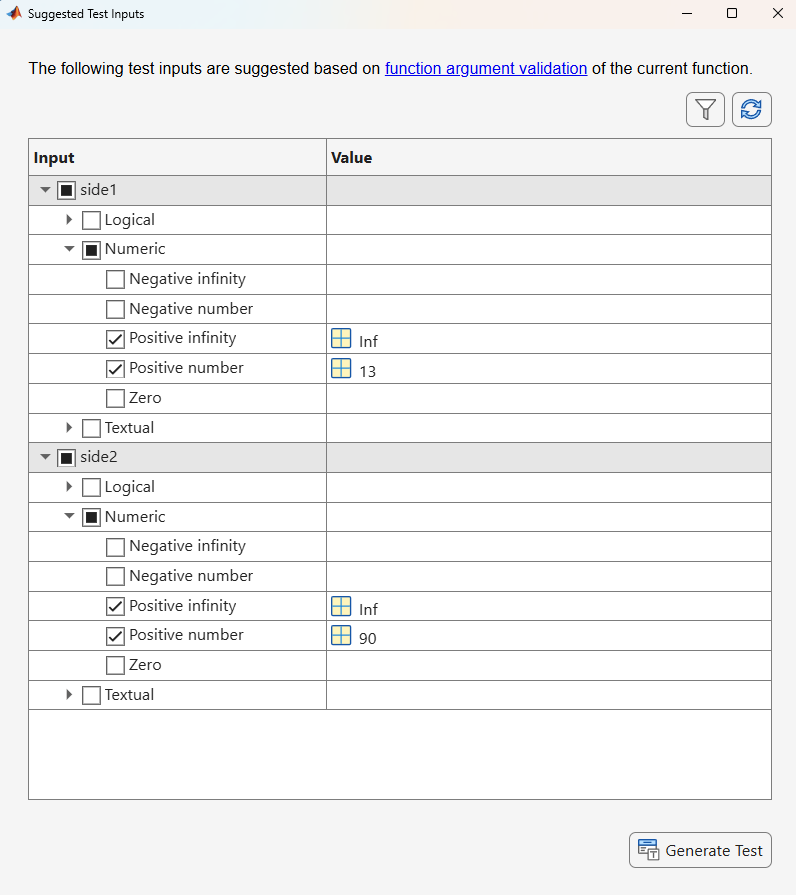
The suggested values are based on function argument validation. To update the suggested values after modifying the source code, click Refresh Table in the dialog box. To display only the selected values, click Filter Table .
In the dialog box, you can accept the suggested values, exclude specific values by clearing their corresponding check boxes, or choose other scenarios to generate test data. In this example, create tests for the suggested values by clicking Generate Test. The testing framework generates a test class that contains one test per suggested input value. Each test calls the function with one suggested input while using default values for the remaining inputs.
% Autogenerated test file for rectangleArea using suggested inputs
classdef rectangleAreaTest < matlab.unittest.TestCase
    properties
        % Default input values

        side1Default = 62

        side2Default = 10
    end

    methods (Test)
        % Tests for input arguments with suggested values
        function testSide1IsPositiveInfinity(testCase)
            side1 = Inf;
            rectangleArea(side1, testCase.side2Default);
        end

        function testSide1IsPositiveNumber(testCase)
            side1 = 13;
            rectangleArea(side1, testCase.side2Default);
        end

        function testSide2IsPositiveInfinity(testCase)
            side2 = Inf;
            rectangleArea(testCase.side1Default, side2);
        end

        function testSide2IsPositiveNumber(testCase)
            side2 = 90;
            rectangleArea(testCase.side1Default, side2);
        end
    end
end
Run Tests
You can run the generated tests to verify that the function executes without unexpected errors. For more information about ways to run tests, see Run MATLAB Tests.
For example, run the generated rectangleAreaTest test class by using
the runtests function. All tests pass,
confirming that the rectangleArea function executes without
unexpected errors for the suggested input values.
results = runtests("rectangleAreaTest");Running rectangleAreaTest .... Done rectangleAreaTest __________
You can customize the generated test class by adding qualifications to the
Test methods. For example, you can verify the output of the
function by using the verifyEqual method. This table shows how
to update the testSide1IsPositiveInfinity method to verify the expected
output.
| Before | After |
|---|---|
function testSide1IsPositiveInfinity(testCase) side1 = Inf; rectangleArea(side1, testCase.side2Default); end |
function testSide1IsPositiveInfinity(testCase) side1 = Inf; actual = rectangleArea(side1, testCase.side2Default); testCase.verifyEqual(actual, Inf) end |
After adding qualifications, run the tests again to verify that the function produces the expected output for the suggested input values.

