Create a Tradeoff from an Optimization
R2026bTypically, there are many different and conflicting calibration objectives. For example, a calibrator might want to maximize torque while restricting nitrogen oxides (NOX) emissions. It is not possible to achieve maximum torque and minimum NOX together, but it is possible to tradeoff a slight reduction in torque for a reduction of NOX emissions. A calibrator chooses the values of the input variables that produce the slight torque loss over the values that produce the maximum torque.
Use MBC Optimization app with statistical models created in MBC Model Fitting app to balance competing objectives and fill lookup tables that control engine functions. After you import your models, you can create a tradeoff. The easiest way to automate trading off competing objectives is to create a tradeoff from an optimization. Follow this workflow.
| Step | Description | |
|---|---|---|
| 1 | Use the MBC Model Fitting app to import models to CAGE.
| |
| 2 | Click Lookup Tables and Tradeoff to use the Create Lookup Tables from Model wizard to create the tables and tradeoffs.
| |
| 3 | Click Optimization to use the Optimization Quick Start Tool to create the optimization.
| |
| 4 | On the Common Tasks pane, click Run to run the optimization.
| |
| 5 | On the Common Tasks pane, click Fill Tables to fill the tables with the optimization results.
| |
| 6 | On the Processes pane, select Tradeoffs to analyze the tradeoff tables.
| |


Import Models
Use the MBC Model Fitting app to import models to CAGE. For example, import the duel CAM gasoline engine with spark models.
In the command window, to open the MBC Model Fitting app, enter
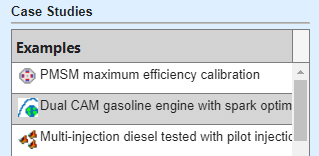
mbcmodel.In the case studies pane, select Duel CAM gasoline engine with spark optimized during testing.
On the home page of the MBC Model Fitting app, to open CAGE, select Generate Calibration.

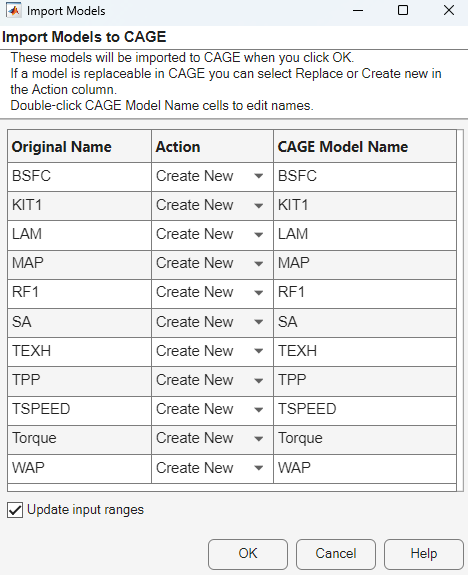
In the Import Models dialog box, to import the models, select OK. CAGE creates models.
Create Lookup Tables and Tradeoff from Model
In CAGE, use the Create Lookup Tables from Model wizard to create the tables and tradeoff. For example, create tables and a tradeoff for the duel CAM gasoline engine with spark models.
After you have imported the models for the dual CAM gasoline engine, on the CAGE homepage, select Lookup Tables and Tradeoff.

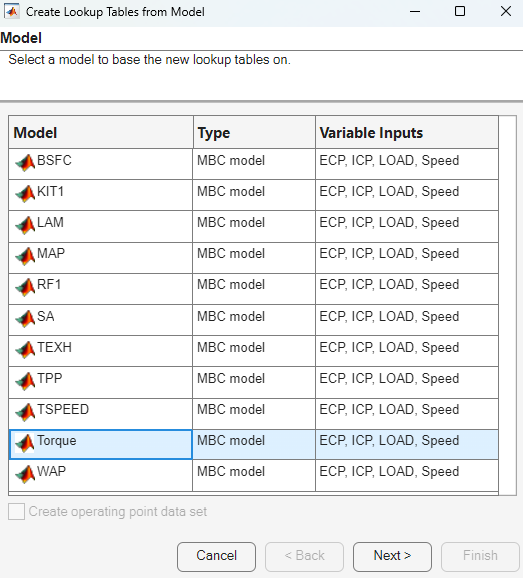
In the Create Lookup Tables from Model wizard:
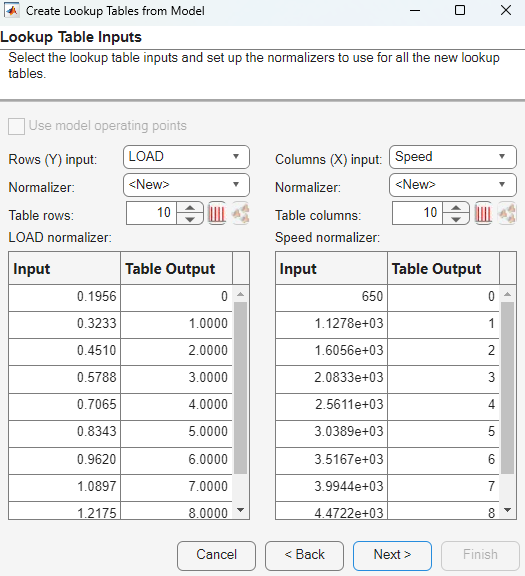
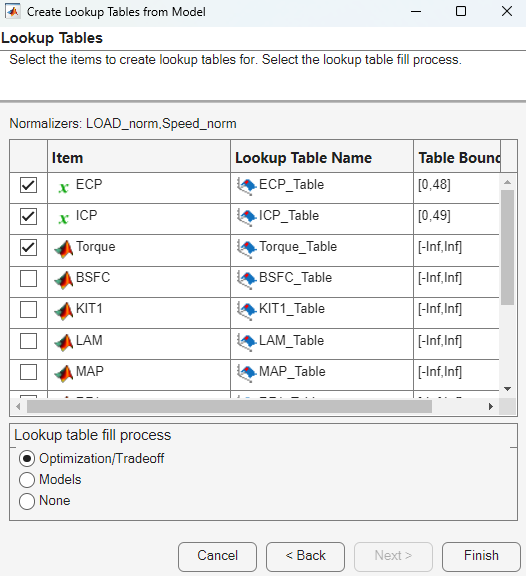
Base the new tables on the Torque model. Click Next.
Set up the normalizers for the tables. Select Next to accept the defaults.
Click Finish to create the tables. By default, the Optimization/Tradeoff fill process is on.
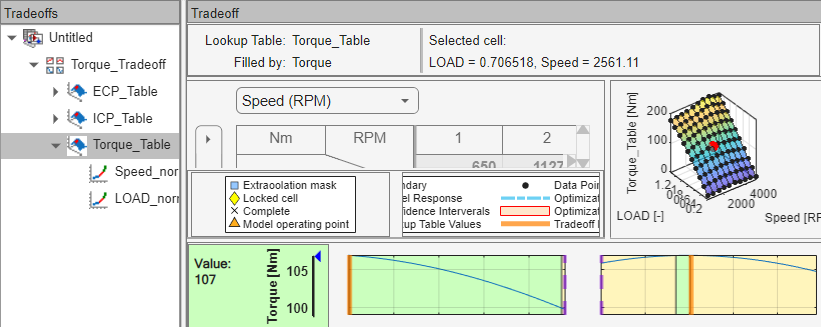
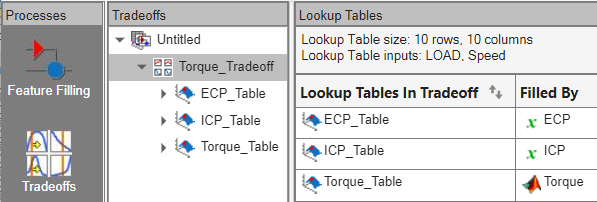
In the CAGE browser Tradeoffs view, confirm the tables in the tradeoff.
Create Optimization
In CAGE, use the Optimization Quick Start Tool to create the optimization. For example, create an optimization for the duel CAM gasoline engine with spark.
After you have created the tables and tradeoffs for the duel CAM gasoline engine, on the CAGE homepage, select Optimization.

In the Optimization Quick Start dialog box:
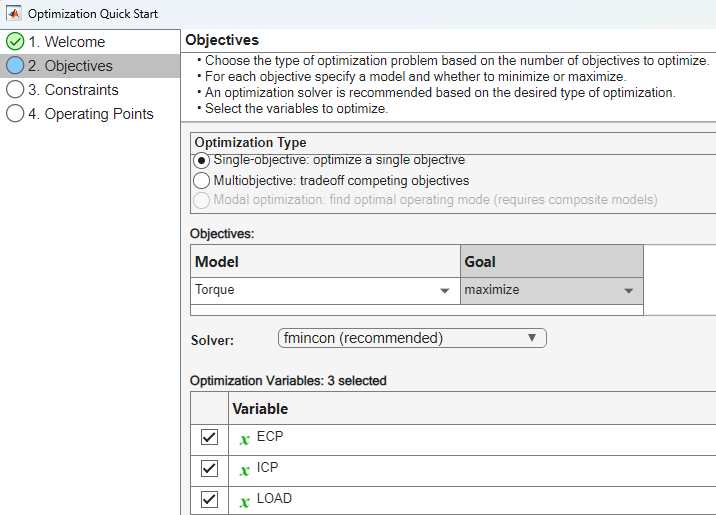
On the Objectives page:
Set Optimization type to
Single-objective: optimize a single objective.Set Model to
Torque.Set Goal to
maximize.Set Variable to
ECP,ICP, andLOAD.
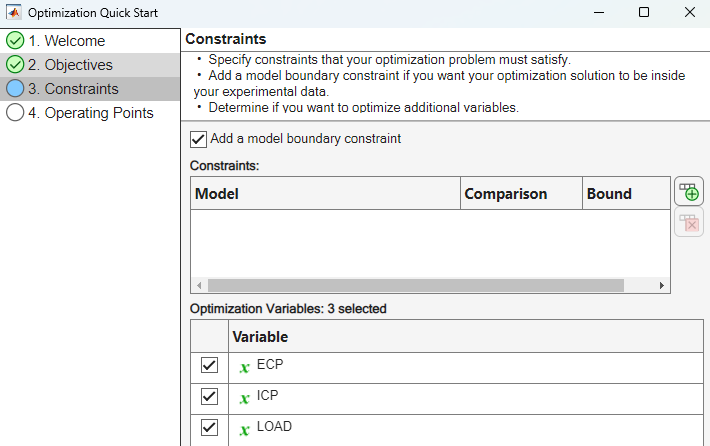
On the Constraints page:
Select Add a model boundary constraint.
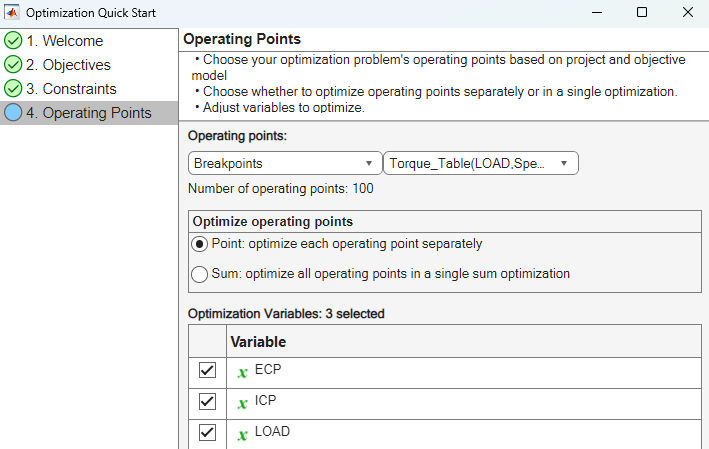
On the Operating Points page:
Set Operating points to
BreakpointsandTorque_Table(LOAD,Speed).Set Optimize operating points to
Point: optimize each operating point
                                                  separately
.
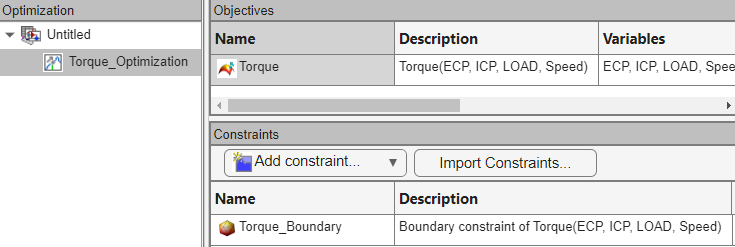
In the CAGE browser Optimization view, confirm the objectives and constraints.
Run Optimization
In CAGE, on the Common Tasks pane, click Run to run the optimization. For example, run the optimization for the duel CAM gasoline engine with spark.
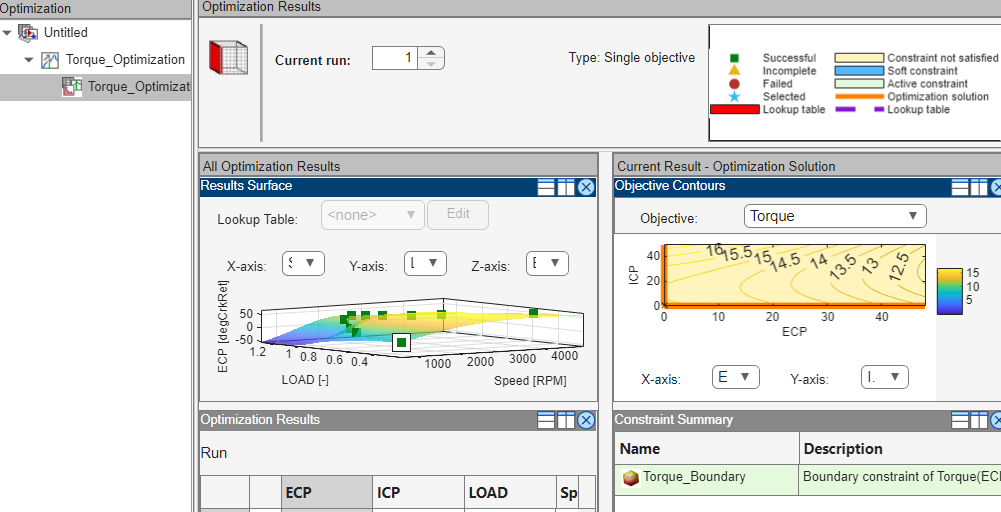
After you have set up the optimization for the duel CAM gasoline engine models, on the Common Tasks pane, click Run. View the progress.
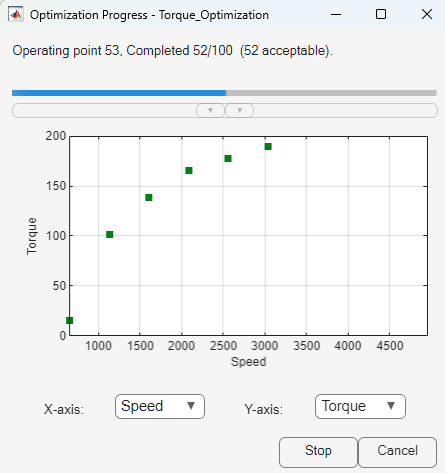
After the optimization completes, view the results.
Fill Lookup Tables
In CAGE, on the Common Tasks pane, click Fill Lookup Tables to fill the tables with the optimization results. For example, fill the tables with the duel CAM gasoline engine with spark optimization results.
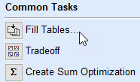
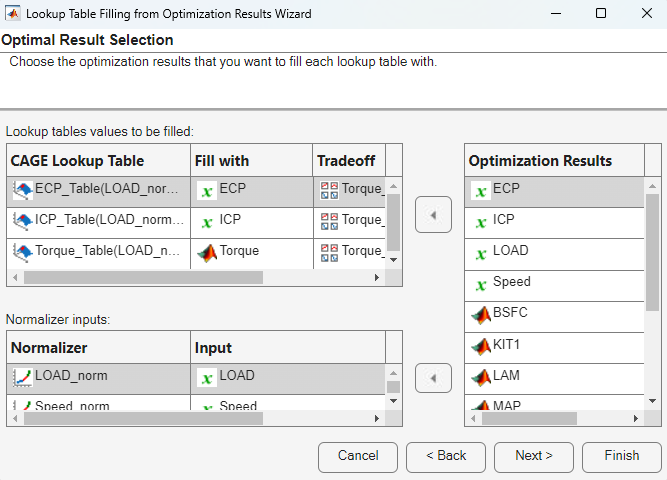
After you have run the optimization for the duel CAM gasoline engine models, on the Common Tasks pane, click Fill Lookup Tables. In the Lookup Table Filling from Optimization Results wizard, click Next.
In the Lookup Table Filling from Optimization Results wizard, select the optimization results that you want to fill each table with. Click Next to accept the defaults.
In the Lookup Table Filling from Optimization Results wizard, select the lookup table filling algorithm. Click Finish to accept the defaults.

Analyze Results
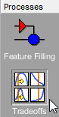
If the tradeoff view is not opened, on the Processes pane, select Tradeoffs to analyze the tradeoff tables.

In the tradeoff view, you can:
Select an optimization for comparison with the current table values.
Option Goal Open Open the optimization results
Run Set the initial values to the table values and rerun the optimization
Initialize Set all tradeoff points to the optimization solution
Double-click the table lines to set the tables and tradeoff.
Orange line updates tables to the tradeoff values.
Blue line sets the tradeoff value to the optimization solution at that operating point.
Purple line sets the tradeoff value to the table value at that operating point.
View the tradeoff points on the surface table view. Select the white dots to change the table operating point. Right-click the table surface to edit or print to a figure.
For example, after you have run the optimization for the duel CAM gasoline engine models, on the Processes pane, select Tradeoffs to analyze the tradeoff tables.