Import Lookup Tables from a Simulink Model
R2026bOn the CAGE browser home page, use Simulink lookup tables to import 1-D and 2-D lookup tables from a Simulink® model. After you import the lookup tables, you can fill them using statistical models or optimization results.
In the CAGE browser home page, select Simulink Lookup Tables.
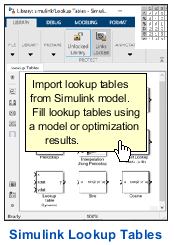
Use the browser to open the Simulink model with the lookup tables that you want to import.
For example, in the browser, navigate to
matlab\toolbox\mbc\mbctraining. Open thetorqueFeaturemodel.Use the MBC Simulink Lookup Table Importer to preview and import the 1-D and 2-D lookup tables in the model, including lookup tables in subsystems.
Click Import Tables to import tables into CAGE.
Tabs Description Lookup Table Preview Preview of the table that you select in the Lookup Tables pane.
Feature Details The inputs and outputs for subsystems in the model.
Model Reference List of model references in the model.
To import lookup tables in a model reference, double-click the model. The model reference opens. The table importer contains the model reference lookup tables.
For example, the MBC Simulink Lookup Table Importer provides this information for the
torqueFeaturemodel lookup tables.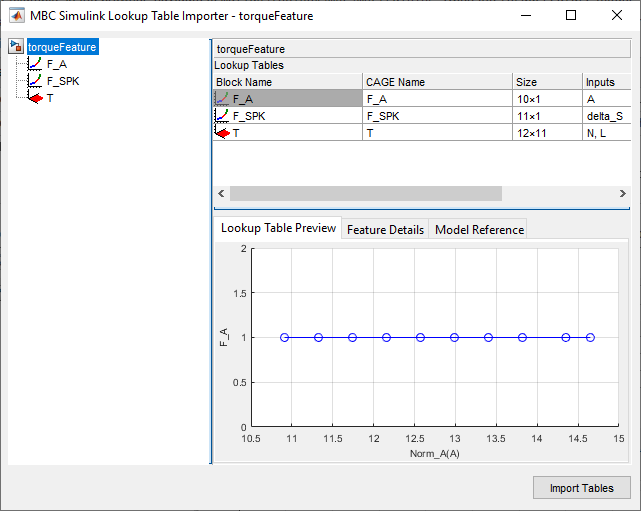
Note
The MBC Simulink Lookup Table Importer remains opened until you close CAGE or open another project.
In CAGE, you can fill the lookup tables using statistical models or optimization results.

