Lookup Table Properties
R2026bIn the Lookup Tables view, to reach the Table Properties dialog box:
Right-click a table node and select Properties.
Select a lookup table, then select Table > Properties
Table Properties: General Tab
The selected lookup table name, type and number of inputs are displayed.
Use the Table value limits edit boxes to set a range of values restricting the values in the lookup table.
When you are done, click OK.
Table Properties: Table Values Precision Tab
The Table Values Precision tab contains the same settings as the Edit Precision dialog box (reached by clicking the Edit Precision button in the Calibration Manager dialog box).
These settings allow you to edit the precision of the number in selected lookup tables and normalizers according to the way lookup tables are implemented in the electronic control unit (ECU). The ECU designer chooses the type of precision for each element to make best use of available memory or processor power.
To edit the precision of a lookup table or normalizer,
Clear the Read-only check box to make the precision writable.
Select the Precision type you require for the lookup table:
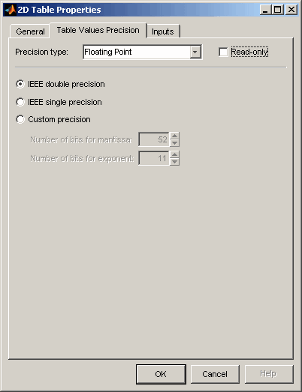
Floating PointPolynomial Ratio, Fixed PointLookup Table, Fixed Point
Floating-Point Precision
The advantage of using floating-point precision is the large range of numbers that you can use, but that makes the computation slower.
There are three types of floating-point precision that you can choose from:
IEEE double precision (64 bit)
IEEE single precision (32 bit)
Custom precision
If you choose Custom precision, you must specify the following:
Number of mantissa bits
Number of exponent bits
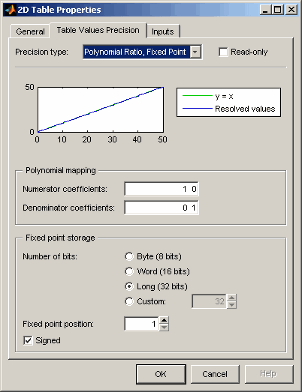
Polynomial Ratio, Fixed Point
The advantage of using fixed-point precision is the reduction in computation needed for such numbers. However, it restricts the numbers available to the user.
For example, the polynomial ratio is of the form (see the ratio shown)

To edit the polynomial ratio,
Select the Numerator Coefficients edit box and enter the coefficients. In the preceding example, enter
500.The number of coefficients determines the order of the polynomial, and the coefficients are ordered from greatest to least.
Select the Denominator Coefficients edit box and enter the coefficients. In the preceding example, enter
0255.To edit the size of the precision, choose from
BYTE (8 bits)
WORD (16 bits)
LONG (32 bits)
CUSTOM (Enter the number of bits in the edit box)
Select the Signed check box if you want the numbers to be negative and positive.
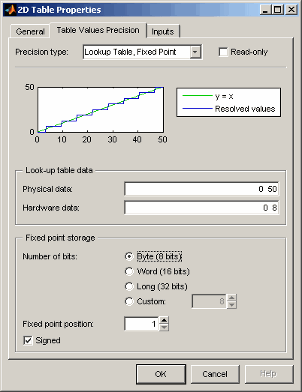
Lookup Table, Fixed Point
The advantage of using fixed-point precision is the reduction in computation needed for such numbers. However, it restricts the numbers available to the user.
For example, consider using a lookup table for the physical quantity spark advance for maximum brake torque (MBT spark). Typically, the range of values of MBT spark is 0–50 degrees. This is the physical data. The ECU can only store bytes of information and you want to restrict the hardware store to a range of 0–8, with at most one decimal place stored.
To adjust the fixed-point precision of the lookup table:
Select the Physical Data edit box and enter the range of the physical data.
Select the Hardware Data and enter the range to store.
To edit the size of the precision, choose from
BYTE (8 bits)
WORD (16 bits)
LONG (32 bits)
CUSTOM (Enter the number of bits in the edit box)
Select the Signed check box if you want the numbers to be negative and positive.
Table Properties: Inputs Tab
This tab displays the inputs and variable dependencies for the selected lookup table.
References
[1] Moler, C., Floating Points: IEEE Standard Unifies Arithmetic Model, The MathWorks Company Newsletter, 1996.

