Assess Boundary Models
R2026bDefault Boundary Models
Boundary models are nonparametric surfaces you can use as a visual aid to understanding complex operating envelopes. You can use boundaries to guide modeling and constrain optimizations. A boundary model describing the limits of the operating envelope can be useful when you are creating and evaluating designs, optimization results, and models.
Tip
You fit a boundary model by default when you use the Fit models common task button. Browse this page only if you want to assess a boundary model or try alternative boundary model types.
For one-stage models, the default boundary model is a Convex Hull fit to the inputs.
For two-stage models, the default boundary model is a Convex Hull fit to the global inputs and a two-stage boundary model for the local input.
For point-by-point models, the default is a separate boundary model of type Convex Hull to each operating point.
These boundary models are integrated with the rest of the toolbox. You can view them in the model plots and in CAGE in optimizations, tradeoff, model views, and the Surface Viewer. You can import boundary models into the Design Editor to use as constraints. You can also use them to clip models to view only the area of interest, to constrain models and designs to realistic engine operating envelopes, or to designate the most valid areas for optimization, tradeoff, and calibration.
To assess a boundary model, see Plotting Boundary Models.
To create alternative boundary models, see Explore Boundary Model Types.
Plotting Boundary Models
To edit existing boundary models or add new ones, from the test plan level, select TestPlan > Boundary Models, or the toolbar button Edit Boundary Models. The Boundary Editor appears.
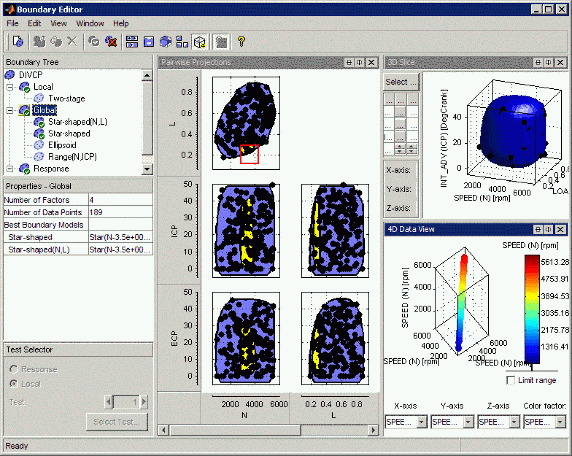
In the Boundary Editor, you can edit or construct boundary models from your data.
Use the following tools to plot and highlight boundary models and points:
 1-D Slice — Shows a 1-D slice through
your model and data. This function also appears in the
View menu.
1-D Slice — Shows a 1-D slice through
your model and data. This function also appears in the
View menu. You can select values for variables in the edit boxes. These values determine the point at which the slice through the boundary is plotted.
You can change the tolerance values in the Tolerance edit boxes next to each variable to set the width of the slice. Data points within the tolerances are displayed with the slice. This display is similar to the one in the Cross Section model selection view, where the Tolerance either side of the displayed model slice determines how near data points must be to the model slice to be displayed. See Cross Section View for comparison.
You can click and hold on data points to view the values of the inputs at that point, and the distance from the boundary. Double-click a data point to move the slice view to that point, or click Select Data Point to choose a particular point.
 2-D View — Shows a 2-D slice through your
model and data. This function also appears in the View
menu. You can choose which variables to plot on the
2-D View — Shows a 2-D slice through your
model and data. This function also appears in the View
menu. You can choose which variables to plot on the XandYdrop-down menus. Similarly to the 1-D Slice view, you can change the values and tolerances of the other variables in the edit boxes to determine where the boundary slice is plotted and how much data is also displayed.You can click and hold on data points to view the values of the inputs at that point, and the distance from the boundary. Double-click a data point to move the slice view to that point, or click Select Data Point to choose a particular point.
 3-D Slice — Shows a 3-D slice of your
model and data. This function also appears in the View
menu. You can choose which variables to use for the three axes using the drop-down
menus and set the resolution of the grid (number of points) to display in the
value edit boxes for each factor. You can set the value of other variables in the
edit boxes as for the 2-D view.
3-D Slice — Shows a 3-D slice of your
model and data. This function also appears in the View
menu. You can choose which variables to use for the three axes using the drop-down
menus and set the resolution of the grid (number of points) to display in the
value edit boxes for each factor. You can set the value of other variables in the
edit boxes as for the 2-D view.You can click and hold on data points to view the values of the inputs at that point, and the distance from the boundary. Double-click a data point to move the slice view to that point, or click Select Data Point to choose a particular point.
 Pairwise View — Shows a pairwise
projection of your boundary and data. This function also appears in the
View menu. Clicking this button displays a plot of
the entire range for each pair of variables in turn. You can click and drag to
select a region. Do not click points, instead, click in the blue or white regions
and then drag to define a region. The same region is then highlighted in yellow in
each projection, so you can see how your data is distributed in each
dimension.
Pairwise View — Shows a pairwise
projection of your boundary and data. This function also appears in the
View menu. Clicking this button displays a plot of
the entire range for each pair of variables in turn. You can click and drag to
select a region. Do not click points, instead, click in the blue or white regions
and then drag to define a region. The same region is then highlighted in yellow in
each projection, so you can see how your data is distributed in each
dimension.Note
If some points appear to be outside the boundary, select View > Set Resolution to increase the resolution of the pairwise plots. Increasing the number of evaluation points displays more detail, but takes longer to calculate.
 4–D Data Projection — A 3–D plot of the
data points colored by a fourth factor. You can use the drop-down menus to select
plot and color bar inputs. This function also appears in the
View menu.
4–D Data Projection — A 3–D plot of the
data points colored by a fourth factor. You can use the drop-down menus to select
plot and color bar inputs. This function also appears in the
View menu. Highlight Boundary Points — Highlights in
red all data points that are on the boundary surface. This highlighting applies to
all views. The points highlighted red (on the boundary) should have a
Highlight Boundary Points — Highlights in
red all data points that are on the boundary surface. This highlighting applies to
all views. The points highlighted red (on the boundary) should have a
Distancevalue of zero (distance to the boundary) when you click and hold on these points. Due to rounding errors, the value might not be exactly zero, although it is small. This button is only enabled for leaf nodes. Highlight Boundary Points is also in the View menu and the right-click context menu on views.Highlight Validation Points — If your testplan has validation data, plots all validation data as triangles, and highlights in red all validation points that outside the boundary surface. This highlighting applies to all views. Highlight Validation Points is also in the View menu and the right-click context menu on views.
In the View menu:
Under Current View and Split View there are submenus where you can select any of the views available in the toolbar—1D, 2D, 3D slices, the pairwise view, and the 4D data view.
You can select graph size (for views with multiple graphs).
You can set resolution for the pairwise view.
You can toggle boundary point highlighting on and off.
You can split the currently selected view horizontally and vertically, and close the current view, as in the Design Editor and Data Editor.
All these options are available in the right-click context menu on the views.
To create and compare alternative boundary models, and export boundary models, see Explore Boundary Model Types.

