Processor-in-the-Loop Verification of Vehicle Tracking Algorithm Using TI mmWave Radar Boards
R2026bThis example shows how to generate embedded code for a vehicle tracking algorithm and verify it using processor-in-the-loop (PIL) simulations on a Texas Instruments® mmWave radar board. In this example, you deploy a tracker object on the ARM® Cortex® processor of TI mmWave radar board and validate the application using PIL. You also perform execution time profiling using Embedded Coder to measure the execution time and memory usage of the generated code for the tracking algorithm as it runs on the TI mmWave radar board.
In this example, you configure a Joint probabilistic data association (JPDA) tracker to process detections from a radar sensor mounted in front of an ego vehicle in highway scenarios. The example is also configured to remove the static clutter while detections are being read. Removing the stationary objects (for example, guard rails, which are not the primary targets of interest in the driving environment) ensures more efficiency for the clustering and tracking algorithm. For PIL simulations, you use simulated detections to verify the tracking and computational performance of the generated code.
.
The tracking system in this example consists of three main components:
Radar Sensor Simulation - Generates point cloud detection from multiple vehicles
DBSCAN Clustering - Groups multiple reflections from same vehicle
JPDA Multi-Object Tracker - Maintains tracks of multiple vehicles simultaneously
Required Hardware
One of the supported TI mmWave Radar Evaluation Modules (EVM) (see Supported Boards)
USB Cable Type A to Micro B
Additional power adapter (if you are using the AWR1642BOOST, IWR1642BOOST, AWR1843BOOST or IWR1843BOOST boards)
Connect the TI Radar board to micro USB cable and power cable (if applicable).
Initialize the Scenario and Set Parameters for Different Blocks
This example provides a helper function to initialize an automotive scenario and to configure all necessary parameters for radar-based vehicle detection, tracking, and sensor fusion.
Run the setup script to configure the scenario and its parameters:
Highway scenario with six vehicles
Radar sensor configuration
Tracking parameters
helperAutomativeScenarioSetup();
Open Models
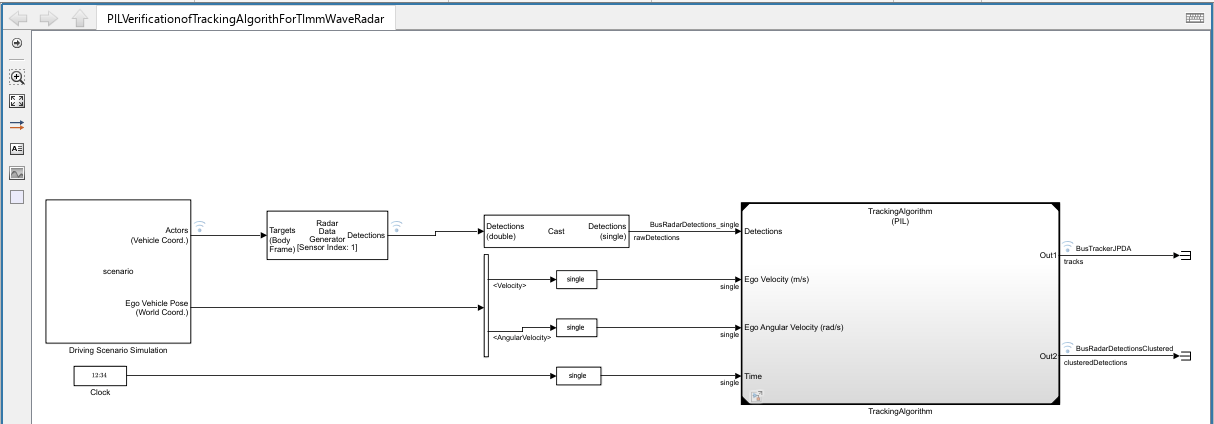
This example uses these Simulink models, which use the Workspace variables generated using the initialization. The PILVerificationofTrackingAlgorithForTImmWaveRadar model uses a pre-defined stop time to be used for PIL simulation.
open_system("TrackingAlgorithm.slx");
open_system("PILVerificationofTrackingAlgorithForTImmWaveRadar.slx");
set_param('PILVerificationofTrackingAlgorithForTImmWaveRadar','StopTime','scenario.StopTime')
Create Bus Objects
Run this helper script to create Simulink Bus objects for the models.
HelperCreateBusObject();
The below sections explain the model setup that is achieved by performing the initialization steps.
Set Up JPDATracker with Synthetic Scenario Data
Scenario Authoring
This example uses a pre-configured six-vehicle scenario created using the Driving Scenario Designer app, to create the highway environment and define the dynamic actors. The file AutomotiveScenario.m is a scenario that is exported from the app, and it includes:
Road geometry, lanes, and boundaries (for example, a two-lane highway with curves).
Ego Vehicle: Host vehicle (with sensors) and a trajectory.
Non-Ego Actors: Surrounding vehicles as actors, with their own specific paths and speeds.
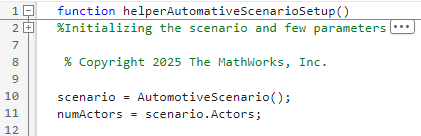
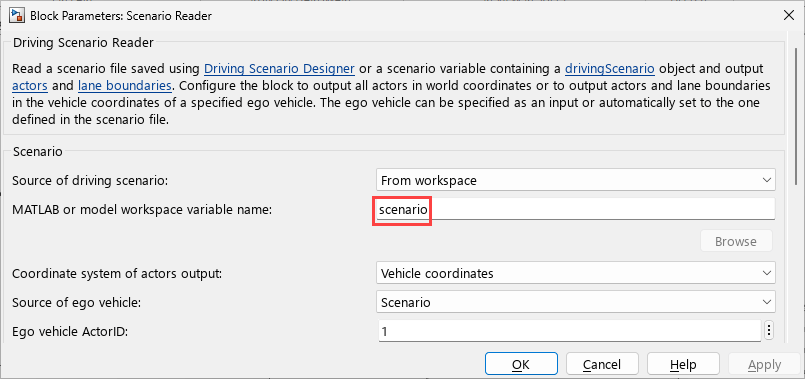
The Workspace variable scenario is generated using the helper function helperAutomativeScenarioSetup, and it used in the Scenario Reader block in the model.
Synthetic Detection Generation (Sensor Inputs)
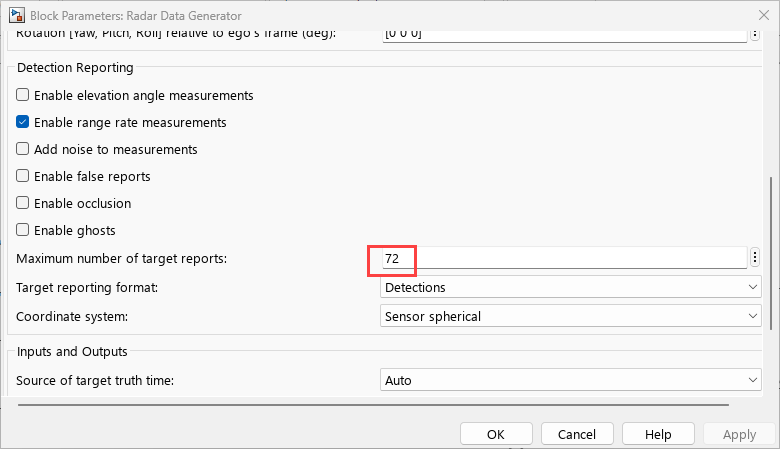
Instead of using a camera sensor object, you use sensor models designed to generate synthetic detections based on the ground truth. This example uses the Radar Data Generator block, which takes the ground truth actor poses from the scenario and simulates the radar's physical properties.
In this example, we use 72 detections per scan for the scenario, and the scenario also includes the guardrails.
Running the JPDA Tracker
The Joint Probabilistic Data Association Multi Object Tracker (Sensor Fusion and Tracking Toolbox) works best with object-level detections, where the input from each sensor is processed to represent one potential object, rather than a raw point cloud or pixel data. The pre-processing includes the clustering step, where multiple detections from the high-resolution radar are clustered into a single measurement for a vehicle. The helper function HelperDBScanCluster is used for clustering.
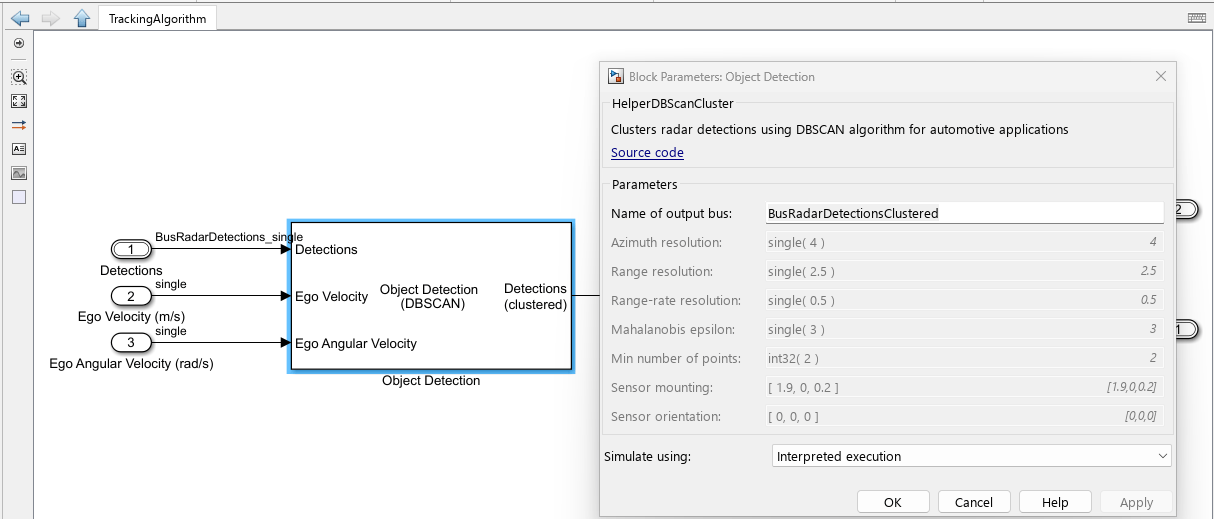
The helper function HelperDBScanCluster also removes the static clutter that is present in the scenario, so that the object-level detections also include velocity and angular velocity of the ego vehicle, and not the guard rails present in the scenario.
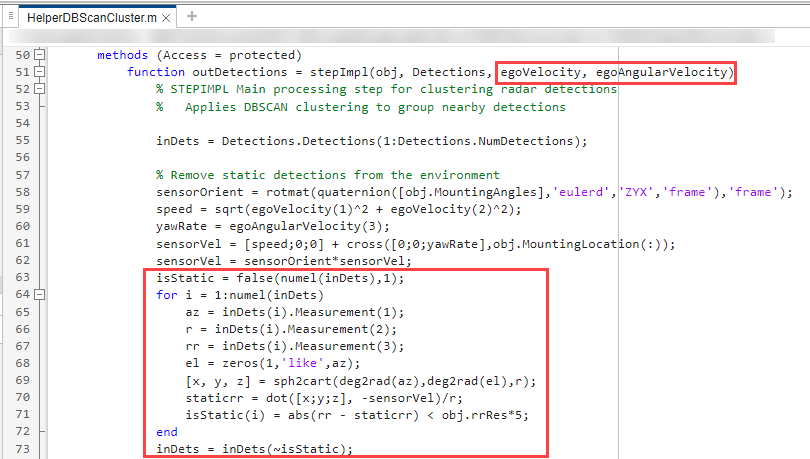
Once you have the simulated detections, you feed them directly into the Joint Probabilistic Data Association Multi Object Tracker Simulink block.
The input to the JPDA Tracker is clustered detections after removal of static clutter, in the form of bus. It predicts the state of existing tracks, performs data association based on joint probabilities, and outputs a list of confirmed tracks.
Note: By default, the example model includes few signals that are configured for logging. To add additional signals for logging, select the signal, and select Log Selected Signal from the context menu.

Run PIL Validation
The PIL workflow requires that the hardware board is connected to the host computer and the SIL/PIL configuration settings are correctly set in the Simulink model.
Connect the TI mmWave radar board to the COM port of the host computer.
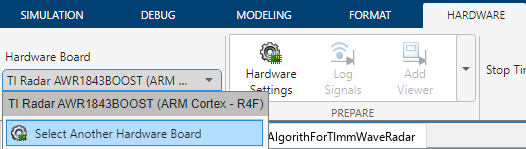
In the Hardware tab, select the same board from the list (click Select Another Hardware Board and select the supported board, if you are not using AWR1843BOOST). Ensure that you select the correct board in both
PILVerificationofTrackingAlgorithForTImmWaveRadar.slx(top model) and inTrackingAlgorithm.slx(referenced model).
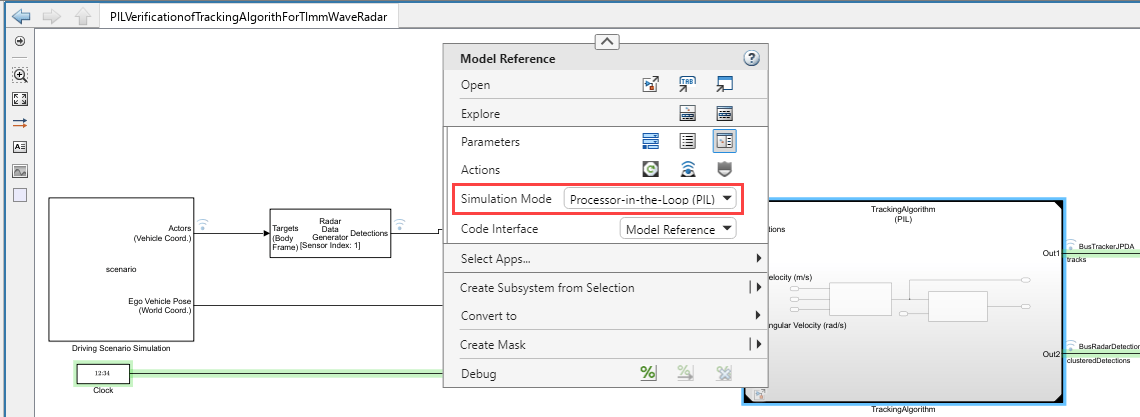
For the TrackingAlgorithm Model Block, ensure that the block parameter Simulation Mode is set to Processor-in-the-Loop (PIL).
You can use the SIL/PIL Manager app in Simulink Editor that provides a simplified workflow for verifying generated model code (in the Apps tab, click SIL/PIL Manager). The SIL/PIL tab displays the Run Automated Verification section. To run PIL simulation:
In the Stop Time field, specify the simulation time. By default, this example uses a stop time defined by the
scenario.StopTimeproperty (which you specify while creating the scenario). If you change the board, the default stop time in the model changes to 600s; in that case, manually specify the stop time asscenario.StopTime.Click Run Verification.

The setup process for PIL verification using also involves changing the switch positions on the connected TI mmWave board and flashing the binary file. The Hardware Setup window is launched automatically after you click Run Verification, and it guides you though the process of flashing the binary file on the target hardware. The hardware setup windows follows this sequence: Enable Flashing Mode ----> Flash Binary ----> Enable Functional Mode.
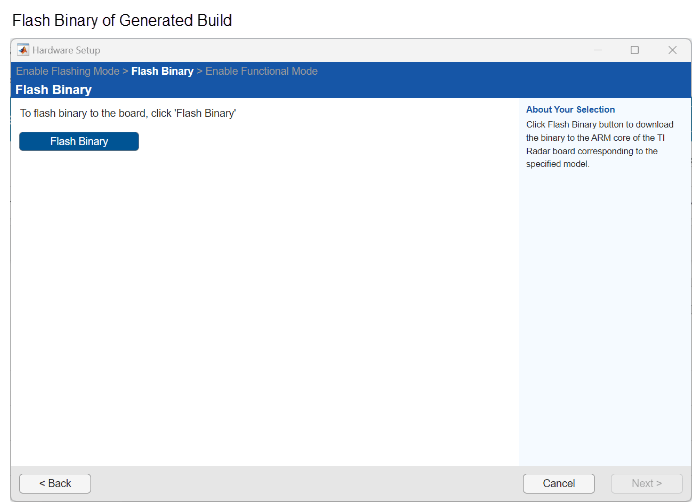
The Simulink model becomes non-interactive during the whole process while you navigate through Hardware Setup windows. In the final window (Step 3/3 of Enable Functional Mode), click Finish to complete the hardware setup.
During PIL workflow, the scenario and sensor models still run on the host computer, but the JPDA Tracker code is cross-compiled, downloaded, and executed on the ARM Cortex processor of TI mmWave radar board.
For details on obtaining and interpreting results after running PIL verification, refer to SIL/PIL Manager Verification Workflow (Embedded Coder).
Compare PIL with Bird's Eye Scope
You can also use the Bird's Eye Scope app to visualize the signals on the scope canvas, showing the driving scenario in real-time as you simulate.
In the Apps tab of the
PILVerificationofTrackingAlgorithForTImmWaveRadarmodel, click Bird's Eye Scope (available under Signal Processing and Wireless Communications).Click Find Signals or Update Signals. The scope updates the block diagram and automatically finds the signals in the model. The left pane lists all the signals that the scope found. These signals are grouped based on their sources within the model.
Create a new signal group under Detections group (for example,
Clustered Detections), and include theclusteredDetectionssignal in that group. For more information, refer to Visualize Sensor Data and Tracks in Bird's-Eye Scope (Automated Driving Toolbox).Simulate the model from within the Bird's-Eye Scope by clicking Run. The scope canvas displays the multiple detections, clustered detections, and tracks. To display the legend, on the scope toolstrip, click Legend.
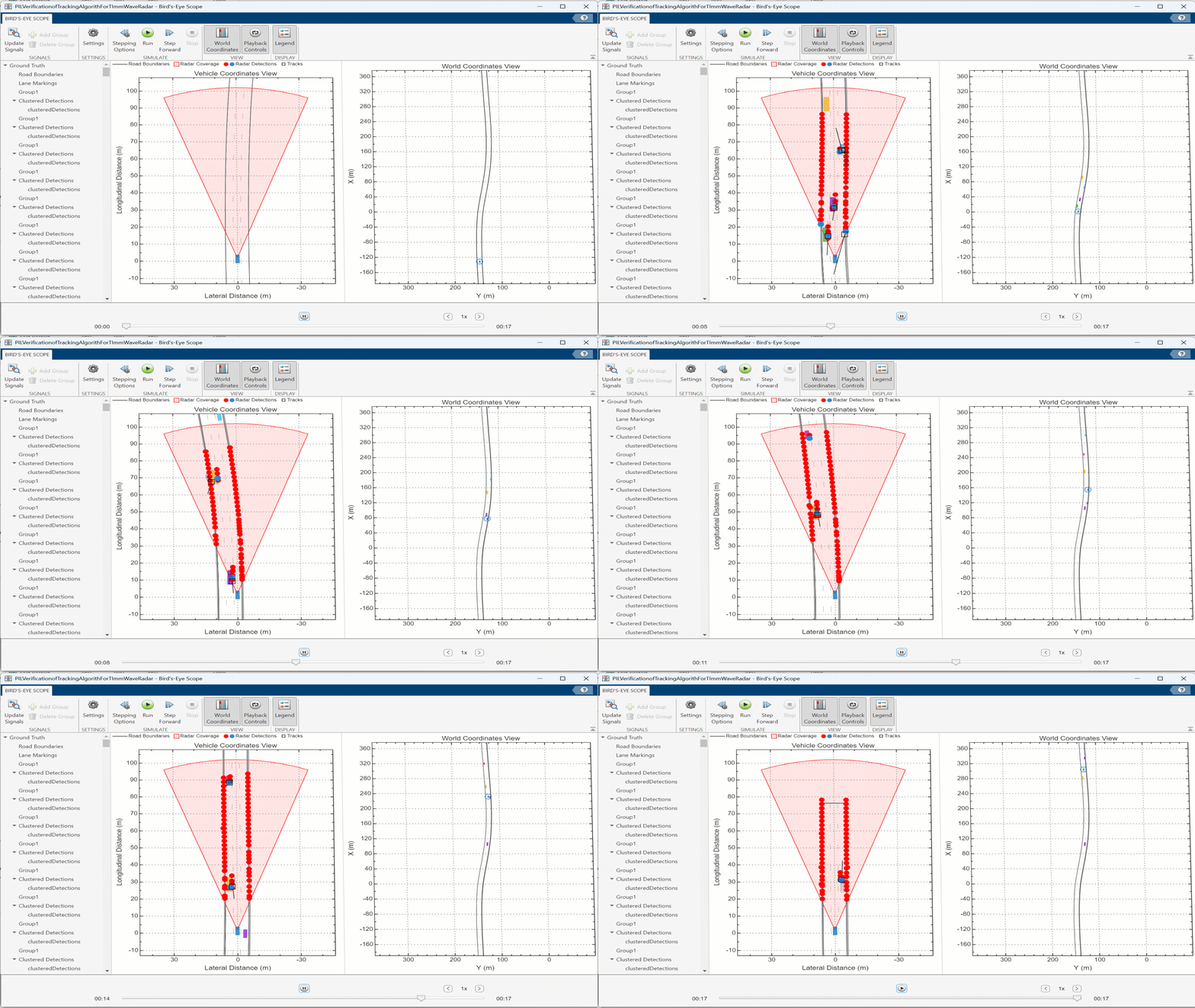
Performance Evaluation of PIL
You can compare the JPDA's output (tracks) against the simulation (clusteredDetections). At the end of the PIL simulation, the Simulation Data Inspector compares results from the model against results from generated code.
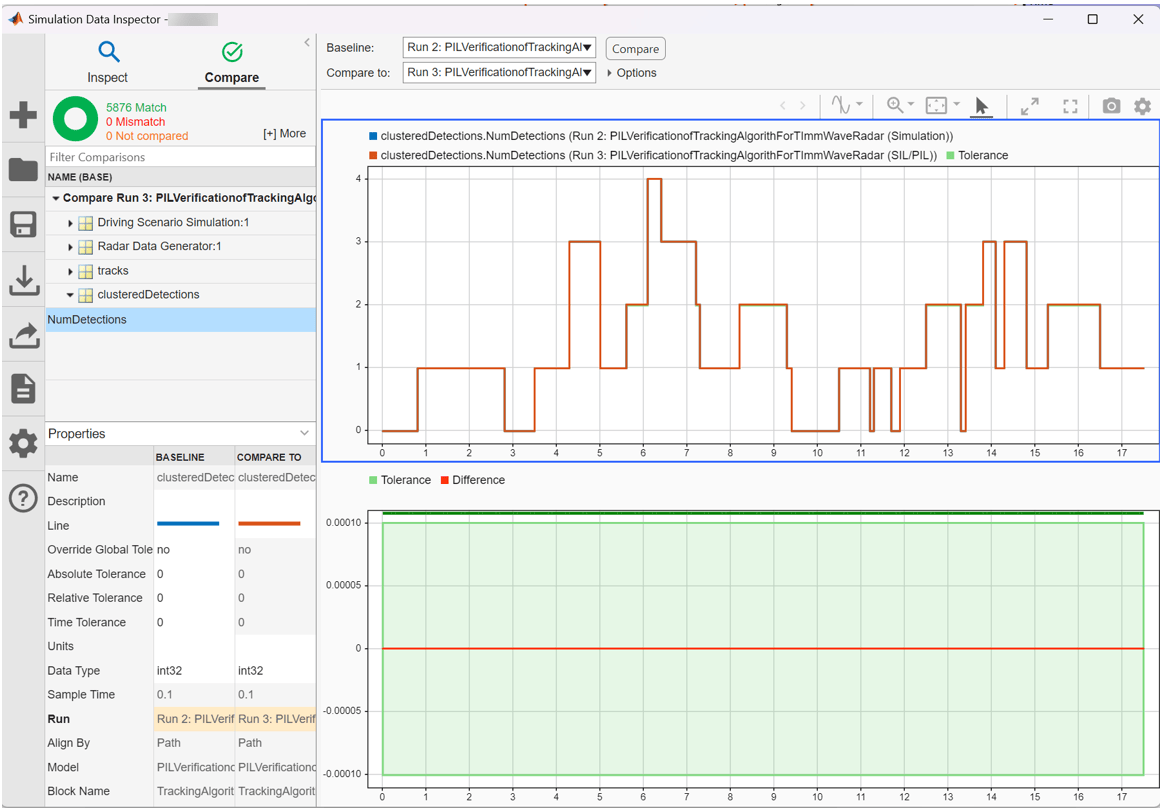
In this way, you can verify if the generated production code for the JPDA tracker using PIL behaves almost identically to the scenario when run on the target embedded hardware (ARM Cortex processor of TI mmWave radar board).
Note: In Simulation Data Inspector, you can compare the signals by specifying the Absolute and Relative tolerance values. For validating PIL simulation with single-precision values, the acceptable signal magnitude tolerance is 1.1921e-05 (as mentioned in Back-to-Back Test Status for Normal and PIL Mode (Simulink Check)). After specifying this tolerance, verify that there is no mismatch displayed in the results.
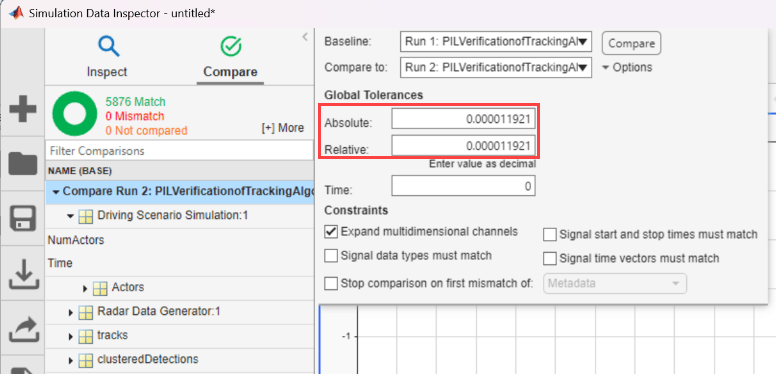
Instead of Simulink Data Inspector, you can also use metrics like the Generalized Optimal Subpattern Assignment (GOSPA) to quantitatively tune and evaluate performance. For this, use the Generalized Optimal Subpattern Assignment Metric block available in Sensor Fusion and Tracking Toolbox. At every time step, the GOSPA block can takes two inputs: Tracks (JPDA Tracker output) and Truth (Actors within radar coverage from scenario). You can use the helper functions helperComputeDistanceToTruth and HelperFilterWithinCoverage that are provided with this example to work with GOSPA metrics. The metric is comprised of the switching error, localization error, missed target error, and false track error components. For more details, refer to the example Automate PIL Testing for Forward Vehicle Sensor Fusion (Automated Driving Toolbox) (the block Evaluate Tracker Metrics in the example model shows an implementation of GOSPA metrics).
Code Profiling for Tracking Algorithm (Real-Time Verification)
Code profiling is typically integrated into the PIL process through the following steps:
Before the code is compiled and downloaded to the target, Embedded Coder inserts specific timing calls (start and stop timestamps) around the functions and sections of the tracking algorithm.
The instrumented code is executed on the target hardware (ARM Cortex processor TI mmWave radar board) during the PIL run.
The target hardware captures the execution times for the instrumented code sections and sends this profiling data back to the host computer.
After PIL simulation is complete, open the code execution profiling report by running
report(executionProfile)in the MATLAB Command Window.
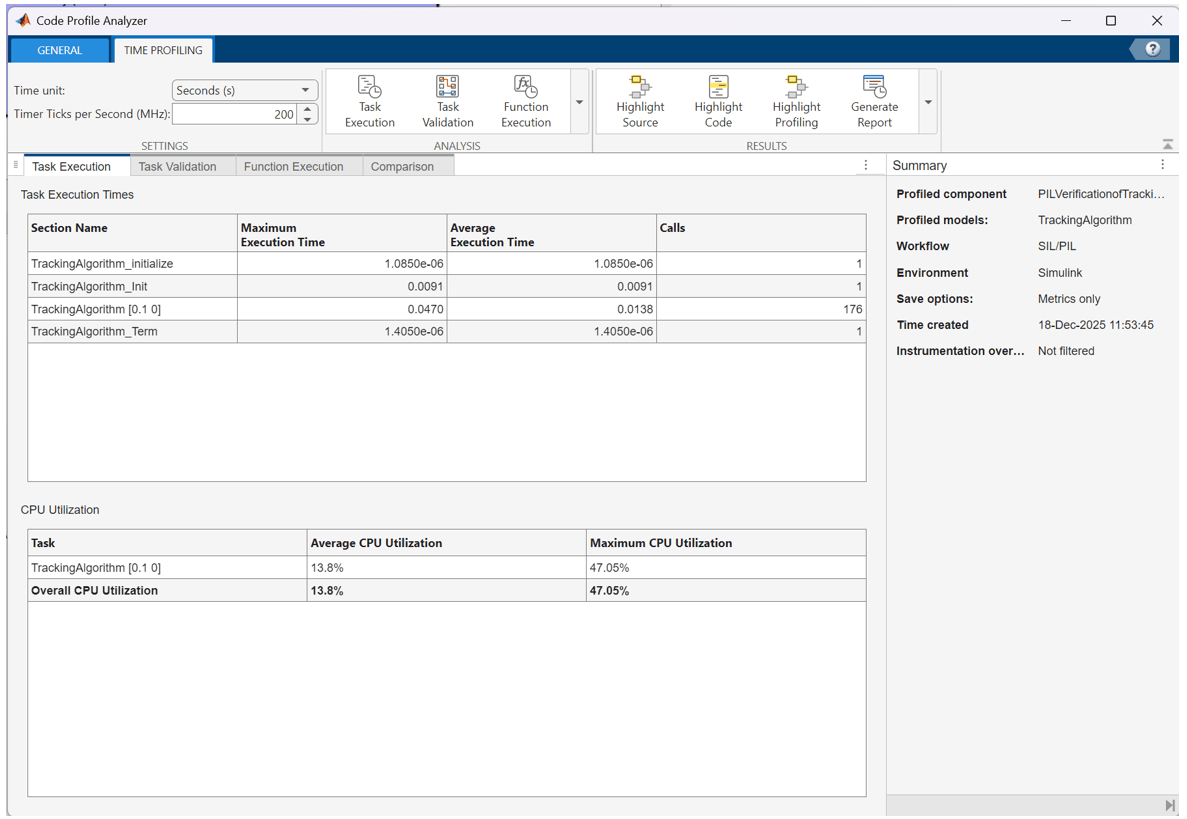
The CPU Utilization section in the profile report help you to decide whether you can run the generated code on the connected TI mmWave radar board without issues.
You can also look at the Task Execution Times in the report to verify real-time requirements of the tracking system:
Maximum Execution Time: Ensure that the tracking loop completes within its deadline.
Average Execution Time: Determine the typical load the algorithm puts on the processor. A low average time ensures the processor has sufficient free compute time for other critical tasks (e.g., control, communication).
Execution Time per Function: Identify the computational hotspots within the tracking algorithm (to know which parts of the algorithm are consuming the most CPU time).
Stack Usage: Verify that the memory requirements are met.
Summary
In this example, you learned how to generate code from a tracking algorithm for PIL simulations with TI mmWave radar board. You verified the generated code on the board using simulated data as well as direct data from highway driving scenarios. You further assessed the computational performance and real-time capability of the tracking algorithm in such scenarios when run on the chosen TI mmWave radar board.

