Create and Activate Variant Configurations
R2026bA model might contain several variant blocks or variant parameters, each with many variant choices. A variant configuration is used to represent a combination of such variant choices across the model hierarchy. For example, in a plant-controller system, a linear controller with a basic plant or a nonlinear controller with a trial plant represent two different variant configurations.
You can use Variant Manager to create and manage variant configurations for a model. Variant Manager defines a variant configuration as a set of variant control variables and their values that can activate a specific variation in the model hierarchy. For more information on variant configurations, see Variant Configurations. For an overview of Variant Manager, see Simulink Variant Manager.
Steps to Create Variant Configurations
You can create multiple named variant configurations for a model or you can create variant control variables in the data sources used by the model to use as a temporary variant configuration for the model.
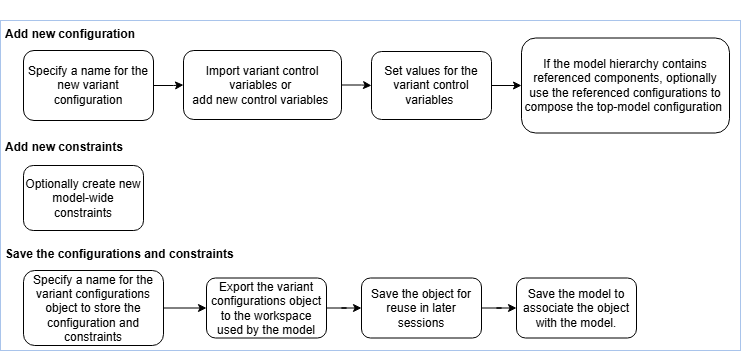
This image shows the high-level workflow to create and save a new named variant configuration for a model.
Open Variant Manager
Open the model for which you want to create new variant configurations. Here, open the
slexVariantManagement model using the following
command.
openExample('simulink_variants/VariantConfigurationObjectForAModelRefPageExample');
open_system('slexVariantManagement');
Configurations Tab in Variant Manager
View the Configurations tab in Variant Manager.
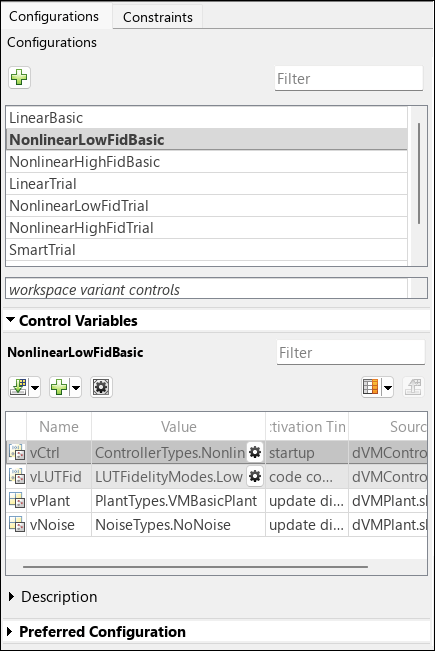
The table lists the named variant configurations created for the model. These configurations are stored in the variant configurations object (of type
Simulink.VariantConfigurations) associated with the model.The workspace variant controls read-only box indicates the variant control variables and their values currently defined in the data sources used by the model. This configuration is temporary because it is not saved to the variant configurations object associated with the model.
The table in the Control Variables section shows the variant control variables and their values defined in a selected configuration. All control variables are listed in the table, either when the variant configurations object for the model is loaded, or when you import them from the workspace.
In the Control Variables table of a top-level variant configuration, the control variables that are populated using a referenced component configuration are read-only and appear with a gray background color.
You can click the workspace variant controls box and then import the control variables currently defined in the data sources used by the model.
The Preferred Configuration section allows you to select a named configuration that is suitable for the model for common workflows.
Add New Variant Configuration
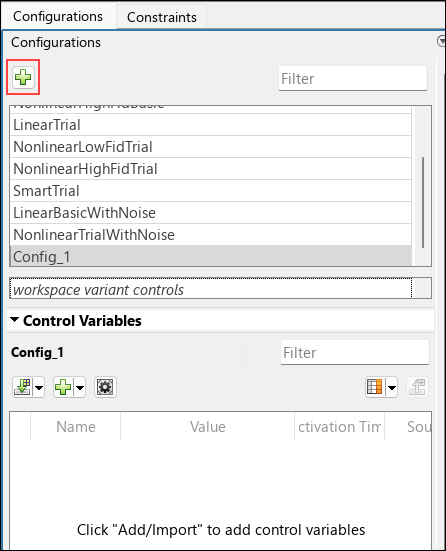
To add a new named variant configuration, click the Add variant configuration button
 in the Configurations tab. A new row
is added to the table of named configurations. Type a name for this configuration in the
box.
in the Configurations tab. A new row
is added to the table of named configurations. Type a name for this configuration in the
box.
Add, Import, or Export Control Variables in Variant Configuration
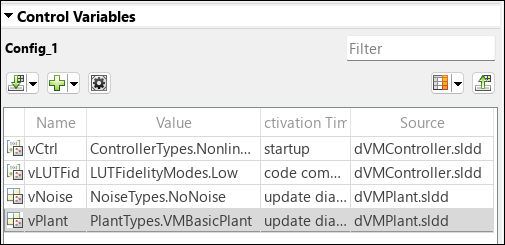
In the Configurations tab, scroll down to see the Control Variables section. The section shows the name of the currently selected variant configuration.
In this section, click the Import control variables across model hierarchy button
 to import any existing control variables used by the
model to the variant configuration.
to import any existing control variables used by the
model to the variant configuration.To import variant control variables of type
Simulink.VariantControldefined in the base workspace or a data dictionary linked to the model even if the variant control is not yet used by the model, click the down arrow on the Import control variables across model hierarchy button and select Import control variables from model data source.To add a new control variable to the variant configuration, click the Add control variable button
 . By default, this operation adds a new control variable
of type
. By default, this operation adds a new control variable
of type Simulink.VariantControlwith a normal MATLAB® variable as its value to the control variables table. To add other types of control variables, click the down arrow on the button. You can update the values in this table. For a list of actions that you can perform from the control variables table, see Edit Control Variables in Variant Configuration.To export the control variables to the data sources where they are stored, click the Export control variables to workspace(s) button
 .
.You can use the Description section to provide an optional description for the configuration.
Edit Control Variables in Variant Configuration
You can perform these operations from the Control Variables section.
| Operation | Action |
|---|---|
Add new control variables to a configuration | Click the Add control variable button The default type of a new control variable is
You can also add these types of variables. To see all the options, click the down arrow on the button.
|
| Import variant control variables used by the model hierarchy | Click the Import control variables across model hierarchy button
Note Control variables from blocks in |
| Import variant control variables of type Simulink.VariantControl from the base workspace or a data dictionary linked to the model even if the variant control is not yet used by the model | Click the down arrow on the Import control variables across model
hierarchy button. Select |
| Export control variables to the data sources where they are stored. | Click the Export control variables to workspace(s) button
|
| Filter content in the table | Enter the search term in the Filter text box. Press Esc to clear the text box. |
Show or hide the usage of control variables in a configuration |
Tip You can navigate the model hierarchy to understand the usage of control
variables in a configuration. After you activate a variant configuration,
enable Show usage for the required variant control
variables. Now select |
| Copy or delete a control variable | Right-click the variable and select Copy or Delete. |
Change the data type of a control variable in a configuration | Right-click the control variable. In the context menu, select Convert to to see the options for conversion. You can convert the control variables to any of these types:
|
Edit Simulink.Parameter or
AUTOSAR.Parameter control variables | Right-click the control variable. In the context menu, select Edit parameter. To specify
|

Set Up Variant Configurations for Referenced Components
Your model may consist of referenced models that have predefined variant configurations. The variant configurations for a top-level model must also define the variant control variables used by any referenced components in the model hierarchy, such as referenced models. This approach helps to maintain a single consistent definition for a variant control across the hierarchy.
If the referenced component has existing named variant configurations of its own, you can use them to set up the corresponding variant control variables in the top-level model configuration. You can use the Referenced Configurations view in Variant Manager to select the referenced component configurations to be used for the initialization. See Compose Variant Configurations and Constraints for Top Model Using Referenced Configurations.
Define Constraints for Variant Configurations
A constraint is a user-defined check that you can use to prevent invalid variant combinations in a model. You can define model-wide constraints that must be satisfied by all variant configurations created for the model. A model-wide constraint is represented as a condition expression created using variant control variables, referenced component configurations (since R2025a), or both. The expression must evaluate to true to satisfy the constraint. When you activate a variant configuration, Variant Manager validates the configuration against the applicable constraints.
Note
Variant Manager constraints are also validated when you compile the model for an
active configuration. However, these constraints are not validated post compilation, for
example, at startup variant activation time.
Click the Constraints tab in the Variant Manager window. The Constraints table lists any existing constraints created for the model.
To add a new constraint, click the Add constraint button
. A new row is added.Enter a name for the constraint in the box.
In the Constraint Definition section, in the Condition box, enter the boolean condition expression defined in terms of variant control variables. The condition must evaluate to true to satisfy the constraint.
In the Description box, enter an optional description for the constraint.
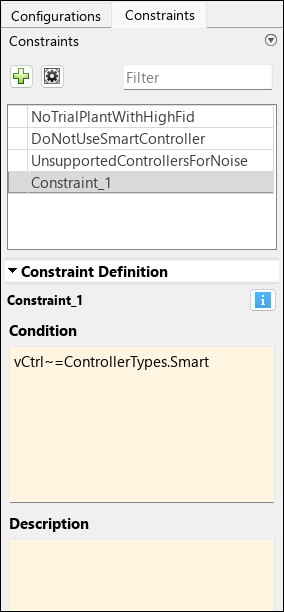
For more information on defining constraints using component configurations, see Compose Variant Configurations and Constraints for Top Model Using Referenced Configurations.
Tip
You can select multiple configurations or constraints simultaneously for bulk operations such as copy or delete. Hold down the Shift key as you click each row that you want to include in the multi-selection.
You can change the layout of the Variant Manager window to keep the Configurations and Constraints panes next to each other. This layout allows you to refer the Control Variables section when defining constraints. To move a pane, click at the top of the pane and drag.
Save Variant Configurations
You can use a variant configurations object of type
Simulink.VariantConfigurations to store all named variant configurations
and constraints for a model. You can define the object in the base workspace or in the
Design Data section of a data dictionary. If the model is not yet
associated with a variant configurations object, Variant Manager helps you to setup a new
variant configurations object.
Type a name for the variant configurations object in the Simulink.VariantConfigurations text box in the Variant Manager toolstrip.
To export the variant configurations object to the base workspace or Simulink® data dictionary used by the model, click Apply changes. This action also associates the object with the model.
To reload the object from the base workspace or data dictionary used by the model, click Reload object. This allows you to revert the changes that are not yet exported to the data sources used by the model.
When you export the variant control variables in a variant configuration or when you activate a variant configuration, the control variables are pushed to the data sources where the variables are stored. Reloading the variant configurations object from Variant Manager does not revert these changes.
To disassociate the variant configurations object from the model, set the Simulink.VariantConfigurations box to empty and click Apply changes.
To export the variant configurations object to a MAT file or MATLAB script, click Export to file.
If the variant configurations object is defined in the base workspace, this step allows you to save the object and reuse it later by importing it into Variant Manager. However, if the object is defined in a data dictionary, you need not export the object to a MAT file or MATLAB script. Instead, you must save changes to the data dictionary.
To load the variant configurations object saved in a file into Variant Manager, click Import from file.
Note
After you click Apply changes, save the model to save the changes made from Variant Manager.
Validate and Activate Variant Configuration
To activate the model using a named variant configuration or the workspace variant controls, select the corresponding entry from the Configurations tab and click Activate Configuration.
The operation validates the configuration and applies the selected configuration to the model. Activation also pushes control variables in the configuration to the data sources where they are stored.
Any errors related to the process are reported in the Diagnostics pane.
On successful activation, the model hierarchy table reflects the changes. You can:
Explore the active variant choices in the Blocks or System tab of the model hierarchy. You can also navigate the hierarchy using the Navigate filter to understand control variable usage, active choices, and invalid choices.
Compile or simulate the model for the active configuration.
To activate a model programmatically, see Simulink.VariantManager.activateModel.
For information on how the activation process differs from model compilation (update diagram), see Differences Between Variant Manager Activation and Update Diagram Process.
Use Model Compilation Information in Variant Manager
Since R2024b
You can obtain model compilation information in Variant Manager to produce more accurate
results for user workflows such as importing control variables to a configuration,
activation, and identifying variant parameters used by the model hierarchy. Click Update Model in the Variant Manager toolstrip or use the Simulink.VariantManager.updateModel function. For more information, see Obtain and Use Model Compilation Information in Variant Manager.
Apply Variant Configuration on Model
Once you have saved the validated variant configuration to a file, you might want to simulate your model for the configuration at a later time.
Open Variant Manager for the model.
If the variant configurations object is not loaded into Variant Manager, click Import from file to import the object from a file.
In the Configurations tab, click the required configuration.
The Control Variables section lists the control variables in the selected configuration. Click the Export control variables to workspace(s) button
.The operation exports the variant configurations object to workspace and applies the selected variant configuration to the model and any referenced components in the model hierarchy. This allows you to quickly switch the configuration without validating it. You can now simulate the model for this configuration.
To programmatically apply a configuration on your model before compiling or simulating
the model, use the Simulink.VariantManager.applyConfiguration method.
See Also
Simulink.VariantConfigurations | Simulink.VariantConfigurationAnalysis
Topics
- Simulink Variant Manager
- Variant Configurations
- Save and Reuse Variant Configurations Using Variant Configurations Object
- Generate Variant Configurations Automatically
- Variant Manager Workflow to Set Up Variant Configurations for Models
- Variant Manager Workflow to Manage Existing Variant Configurations in Models

