Simulink Variant Manager
R2026bIn Model-Based Design, Simulink® models that use variant blocks, variant parameters, and variant transitions represent multiple design alternatives within a single model. For example, in a product line of passenger cars, a single model can capture differences in motor type, fuel consumption, or emission standard using variant elements. For an introduction to variant design in Simulink, see Simulink Variants Overview. As models grow in scale, these variation points can number in the hundreds, spread across nested hierarchies and referenced components, making it difficult to manage individual choices, verify valid combinations, or identify which elements are active for a given configuration.
Simulink Variant Manager™ provides a centralized interface for managing variation points across the model hierarchy. You can visualize the hierarchy of variant elements, define named variant configurations that capture specific combinations of choices, validate configurations against constraints, and switch between configurations for simulation, testing, and coverage collection.
Variant Manager
Simulink Variant Manager includes these main capabilities:
Variant Manager — Visualize the model hierarchy, manage the usage of variant elements across the hierarchy, and create and manage variant configurations.
Variant Reducer — Generate a reduced model that contains only selected variant configurations.
Variant Analyzer — Compare and contrast variant configurations to identify errors or inconsistencies.
To understand licensing requirements for Simulink Variant Manager workflows, see License Requirements for Simulink Variant Manager.
Open Variant Manager
Use any of these methods to open Variant Manager:
Right-click the variant badge icon on any variant block and select Open in Variant Manager.
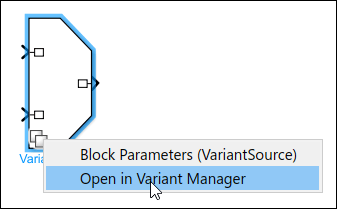
In Simulink, in the Apps tab, click Variant Manager.
In Simulink, on the Modeling tab, open the Design section and click Variant Manager.
Right-click a variant block, and then click the Variant Manager button
 .
.Select a variant block, for example, a Variant Subsystem block, and then in the Variant Subsystem tab of the Simulink toolstrip select Variant Manager.
Click Open block in Variant Manager available on the variant block’s Block Parameter dialog box.
Use the
Simulink.VariantManager.openfunction.
Tip
You can launch Variant Manager on Simulink models and subsystem files (since R2025a).
You can open Variant Manager without a Simulink model to manage variant configurations and constraints. See Manage Variant Configurations Without Simulink Model.
You can simulate models that have
variant configurations defined and stored in an associated
Simulink.VariantConfigurations object without installing
Simulink
Variant Manager. You can also open this object and view the
variant configurations and constraints saved in this object. (since R2026a)
Explore Variant Manager Window
This image shows the default view of the Variant Manager window for the
slexVariantManagement model. To open the model, run the below
command from the MATLAB® Command-Line.
openExample("simulink_variants/VariantManagementInSimulinkExample","supportingFile","slexVariantManagement.slx");
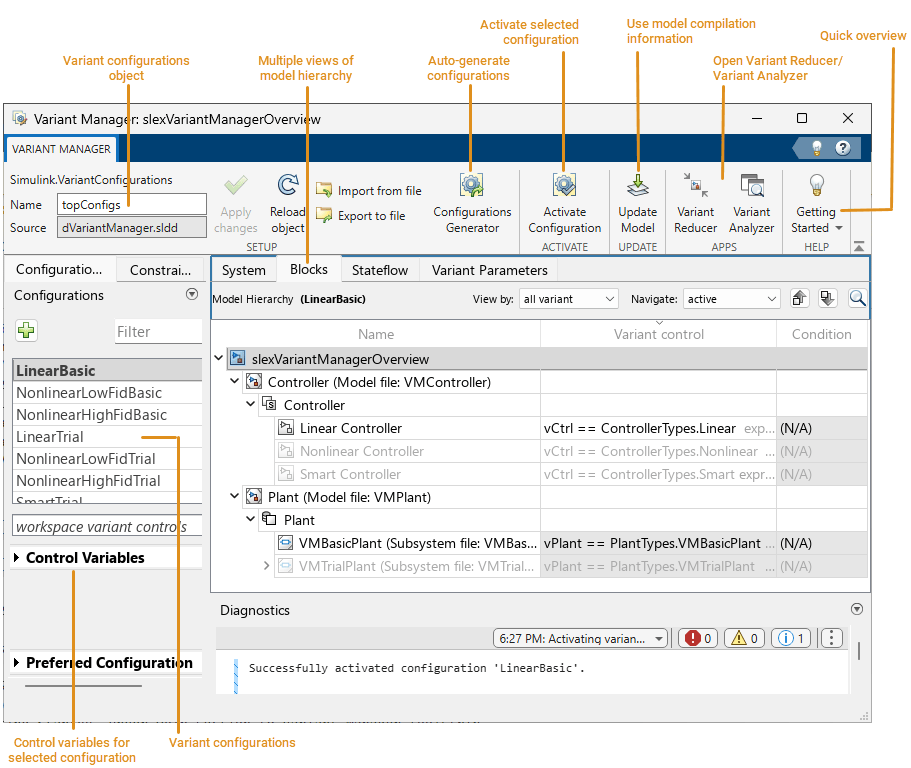
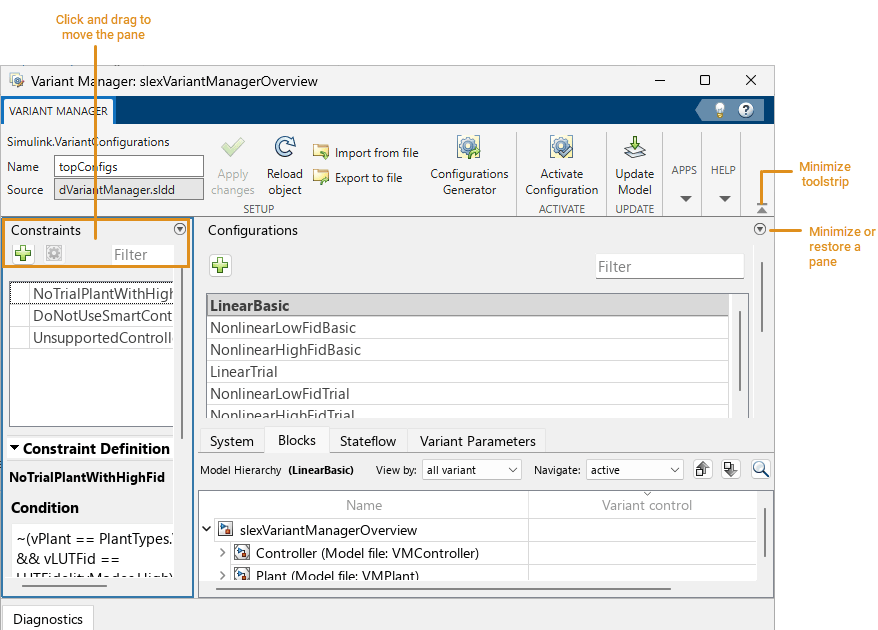
You can change the layout of the window according to your preference. To move a pane, click at the top of the pane and drag.
You can minimize unused panes. When you want to work on a minimized pane again, restore it to stop it from collapsing automatically.
Click the Getting Started button in the toolstrip to access a quick overview of the common workflows.
To access the documentation, click the Help button
 in the top right corner of the
Variant Manager window. Alternatively, in the toolstrip, select Getting Started > Help.
in the top right corner of the
Variant Manager window. Alternatively, in the toolstrip, select Getting Started > Help.The Diagnostics pane appears at the bottom of the window by default and displays messages, errors, and warnings related to the actions performed from the Variant Manager.
This image shows a custom layout of the window.
Manage Variant Elements
Visualize Model Hierarchy
The model hierarchy table presents a tree view of the model where each node represents a block or a referenced component. You can expand the nodes and navigate the hierarchy.
To get different views of the model hierarchy, use these tabs:
System — Displays all blocks
Blocks — Displays variant blocks
Stateflow — Displays variant transitions used in Stateflow® charts
Variant Parameters — Displays variant parameters defined in workspaces associated with the model hierarchy
Referenced Configurations — Displays available variant configurations for referenced components
Note
When you open the Variant Manager for a top-level model, variant elements inside referenced components such as Model blocks, Subsystem Reference blocks, and libraries are not loaded. The referenced components are loaded and activated only when you explicitly activate the model or expand them in the model hierarchy.
The Referenced Configurations tab is not shown by
default. To open the tab, in the Configurations tab,
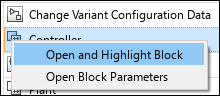
right-click a variant configuration or click the Open context menu button
 , and select Referenced
component configurations.
, and select Referenced
component configurations.
Interact with Model Hierarchy
You can perform these actions from the model hierarchy.
| Action | Model Hierarchy Interaction |
|---|---|
| Edit the variant condition expression for variant blocks and transitions | The Variant control expression column in the table is similar to the Variant control field in the block parameter dialog box of variant blocks. You can edit this field for variant elements in the hierarchy. For
variant elements, the field shows a list of
context-specific keywords that are allowed as the
variant control for a variant block. For example, for a
Variant Subsystem with Variant control
mode set to
|
| View variant parameters used by blocks in model hierarchy | Click Update Model in the Variant Manager toolstrip to obtain model compilation information. Then, open the System tab in the model hierarchy table. Variant parameters appear under the blocks that use them. Click
the Open context menu button |
| View variant parameters used by model hierarchy for a variant configuration | The Variant Parameters tab
shows all To view only the variant parameters used by the model hierarchy:
To find which blocks in the model hierarchy use a variant parameter, right-click the parameter and select Show block usage. For more information, see Manage Variant Parameters Using Variant Manager. |
View variant parameters individually or grouped by variant parameter bank | In the Variant Parameters tab, in the View by section, select Bank to switch to a view in which the parameters are grouped based on the variant parameter bank they belong to. The view shows parameters that are not part of any variant bank in a separate section and groups them by variant conditions. The Choice view shows variant parameter choices per row. |
Create | In the Variant Parameters tab,
in the Variant Parameters without a variant
bank section of the table, on the header
row of the required group, click the Create
For more information, see Create Variant Banks for Variant Parameters from Variant Manager. |
| Search | Use the Search in model hierarchy view button
 to search for any element in the
hierarchy. to search for any element in the
hierarchy. |
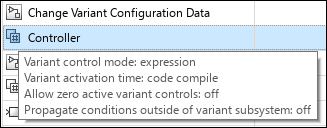
See block parameter values | Point to any variant block to see a tooltip with the block parameter values.
|
See context menu | Right-click an element in the table to find these context-specific options:
|
| Filter variant blocks by their Variant control mode | Use the View by list in the Blocks tab of the model hierarchy. |
Show or hide the usage of control variables in a configuration in the model hierarchy |
|
| Navigate the model hierarchy based on filters | Use the Navigate list along with the buttons to step through the model hierarchy based on these filters:
Note: This functionality is not supported for variant parameters. |
Identify active variant choices | The inactive choice appears grayed out.
|
Identify rows with errors | They are highlighted in red. |
| Identify type of block by the block icon | For the list of block icons, see Icons in Variant Manager. |



Manage Variant Configurations
Create and Activate Variant Configurations
A variant configuration represents a combination of variant choices across the model hierarchy. From Variant Manager, you can:
Create a named variant configuration.
Add, import, export, and edit control variables in a configuration.
Select referenced component configurations. If referenced components such as referenced models in the model hierarchy have existing variant configurations of their own, you can use them to set up the top-level configuration.
Add constraints applicable for all configurations.
Validate and activate a configuration on a model.
Set a preferred variant configuration for a model.
Apply a valid configuration on the model for simulation.
For an overview of variant configurations, see Variant Configurations.
For steps to create a variant configuration, see Create and Activate Variant Configurations.
For information on composing top-level configurations using referenced component configurations, see Compose Variant Configurations and Constraints for Top Model Using Referenced Configurations.
Obtain and Use Model Compilation Information in Variant Manager
Since R2024b
You can obtain and use model compilation information in Variant Manager to
produce more accurate results for user workflows such as importing control
variables to a configuration, activation, and identifying variant parameters
used by the model hierarchy. To obtain model compilation information, click
Update Model in the Variant Manager toolstrip or use
the Simulink.VariantManager.updateModel function. Variant Manager
uses the compilation information subsequently in these scenarios:
If a model defines variant control variables in the model or mask workspaces, Variant Manager supports them in these operations:
When you import variant control variables to a configuration, the operation adds any control variables defined in the mask workspace and model workspace to the configuration. When you activate such a configuration, activation results are based on the mask and model workspace control variable definitions in the configuration.
If the mask initialization code of a block defines variant control variables, Variant Manager verifies that the definitions of these variables within a configuration are consistent with those in the mask initialization code.
The variant control variable usage option shows the variable usage in the model hierarchy pane based on the model or mask workspace in which the variable is defined.
If a model's
InitFcncallback defines variant control variables in the base workspace or in a linked data dictionary, importing control variables adds these variables to a configuration. Variant Manager verifies that the definitions of these variables within a configuration are consistent with theInitFcncallback specifications.Variant Manager identifies the variant parameters used by the model hierarchy. It then considers only these parameters for subsequent activation and importing of variant control variable operations.
Once Variant Manager has the compilation information, it reuses the information until you update the model again.
Auto-generate Variant Configurations
Creating all possible variant configurations for a model manually can be time consuming. You must activate them individually to check if they are valid and if they satisfy necessary constraints. Instead, you can automatically generate variant configurations for a model using Variant Manager, which enables you to:
Consider all possible combinations of variant control variables while creating configurations.
Specify the value range that must be considered for each control variable, to generate only the required subset of configurations.
Specify preconditions to restrict the configurations to generate, and optionally export the preconditions as constraints.
Automatically validate generated configurations to identify invalid cases.
Generate valid, valid and unique, or all configurations.
Export the configurations to a variant configurations object. You can export valid configurations for which the model compiles successfully or all configurations including invalid ones.
For detailed steps to generate variant configurations, see Generate Variant Configurations Automatically.
Save Variant Configurations
You can use a variant configurations object of type Simulink.VariantConfigurations to
manage and reuse variant configurations for a model. The object stores all the variant
configurations and constraints created for a model. You can define the object in the base
workspace or in the Design Data section of a data dictionary. If the
model is not associated with a variant configurations object, Variant Manager helps you to
set up a new variant configurations object.
From the Manage tab in Variant Manager, you can:
Specify a name for the variant configurations object for the model.
Apply the changes made to the variant configurations object from Variant Manager to the base workspace or data dictionary used by the model.
Export the variant configurations object to a MAT file or MATLAB script file.
Import a variant configurations object from a MAT file or MATLAB script file into Variant Manager.
Reload the object from the base workspace or data dictionary used by the model. This allows you to revert the changes that are not yet exported to the data sources used by the model.
When you export the variant control variables in a variant configuration or when you activate a variant configuration, the control variables are pushed to the data sources where the variables are stored. Reloading the variant configurations object from Variant Manager does not revert these changes.
Disassociate the variant configurations object from the model.
For an example that shows how to perform these actions from Variant Manager, see Save and Reuse Variant Configurations Using Variant Configurations Object.
The Simulink.VariantConfigurations object has methods that enable you to
add or remove variant configurations, constraints, and control variables.
Use Variant Configurations in Simulation and Testing Workflows
Since R2024a
When you run simulations for your variant model programmatically, you can specify the
variant configuration to apply to the model during simulation. For simulation functions such
as sim, parsim, and batchsim,
you can set the VariantConfiguration property in the Simulink.SimulationInput object. For an example, see Run Simulations for Variant Models Using Variant Configurations.
You can specify the variant configuration to use when running a test case or a test iteration on a model from Simulink Test Manager (since R2024b) or by using the Simulink Test™ programmatic interface. For an example, see Run Tests for Variant Models Using Variant Configurations.
Manage Variant Configurations Without Simulink Model
You can define and edit variant configurations and constraints even before you
create your Simulink model. In such cases, you cannot use Variant Manager as it
requires a model. Instead, you can use the Simulink.VariantConfigurations object and its dialog box to
create and manage variant configurations and constraints independently of the
model.
Create a Simulink.VariantConfigurations object in the base
workspace or the Design Data section of a data
dictionary. To open the dialog box for the object, use one of these methods:
If the object is defined in the base workspace, double-click the object or use the
openfunction at the MATLAB command line. For example, in this command,vcdis the name of the variant configuration data object.open vcd;Select the object in the Model Explorer.
Use the
Simulink.VariantManager.openfunction.
From the dialog box, you can modify variant configurations, control variables, and constraints in the variant configurations object.
This dialog box opens in read-only mode if you have not installed Simulink Variant Manager. (since R2026a)
Additionally, in top-down variant management workflows, you might need to
define variant configurations before setting up variation points in the model.
You can still create variant control variables of type
Simulink.VariantControl in the base workspace or in a data
dictionary linked to the model. These control variables do not need to be
referenced by the model yet. To use these control variables when defining a
variant configuration, click the Import control variables from model data source
button  in the Control Variables
section of the dialog box.
in the Control Variables
section of the dialog box.
When your model is ready, you can associate this variant configurations object with the model using Variant Manager:
Open Variant Manager for the model.
If the object is defined in the base workspace or a data dictionary, enter the name of the object in the Name box for the Simulink.VariantConfigurations object.
If the object is stored in a MAT file or MATLAB script, click Import from file in the Variant Manager toolstrip to load the object from the file.
Click Apply Changes. This operation exports the changes to the workspace used by the model and also associates the object with the model.
To associate the Simulink.VariantConfigurations object
with the model programmatically, use the
VariantConfigurations model parameter. See Variant Configurations Object.
Note
The Simulink.VariantConfigurations dialog box does not
provide the full functionality of Variant Manager. For example, you cannot
activate a variant configuration to verify that it is set up correctly or
apply it to a model from this dialog box. To open Variant Manager for a
model, see Open Variant Manager.
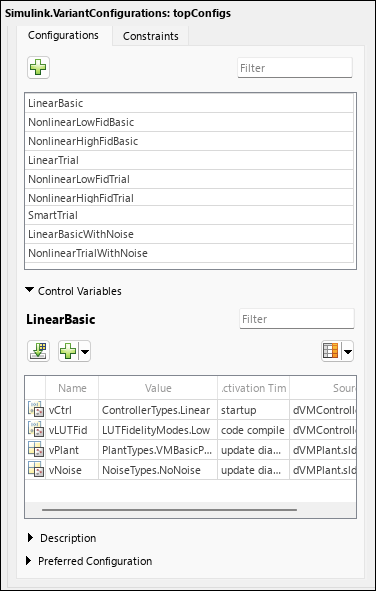
Reduce a Variant Model
You can use Variant Reducer to generate simplified, standalone models that contain only the specified set of variant configurations from the parent model. For example, you can generate a model that maps to a specific product from a product line (single configuration reduction), or one that corresponds to a product line from a product line family (multi-configuration reduction).
To open Variant Reducer, in the Variant Manager toolstrip, in the APPS section, click Variant Reducer.
Variant Reducer performs these high-level operations during the reduction process:
Removes inactive model components based on the variant configurations that you choose to retain in the reduced model.
Removes or modifies model components such as blocks, variant parameter objects, masks, model references, subsystem references, libraries, dependent files, and variables in the input model to create the reduced model.
Packages the reduced model and related artifacts into a user-specified output folder.
Generates a detailed summary of the reduction process that helps you to analyze these changes.
Analyze Variant Configurations
You can use Variant Analyzer to analyze and compare the variant configurations for a model. To open Variant Analyzer, in the Variant Manager toolstrip, in the APPS section, click Variant Analyzer.
You can analyze the named variant configurations created for a model or perform an analysis after setting values for the variant control variables. The variant analysis report generated by the app helps you to:
Compare different variant configurations for a model to understand the common and differing model elements used between them.
Check if all variant choices have been activated at least once and whether the model is covered completely for simulation and code generation.
Verify if the active, implemented model is different between different variant configurations.
Find the dependent model artifacts such as referenced models and libraries used by a particular variant configuration.
See, Analyze Variant Configurations in Models Containing Variant Blocks.
Icons in Variant Manager
| Context Menu | Description |
|---|---|
 | Show Referenced Configurations tab in the Model Hierarchy table. |
 | Delete a variant configuration. |
 | Copy a variant configuration. |
 | Apply the selected configuration on the model. |
 | Activate the selected configuration on the model. |
 | Update the model and then activate the selected configuration. |
This table lists the icons used to represent different types of control variables.
| Control Variable Icon | Type of Control Variable |
|---|---|
 | Normal MATLAB variable |
 | Simulink.Parameter or
AUTOSAR.Parameter |
 | Simulink.VariantControl with value as normal
MATLAB variable |
 |
|
This table lists the icons in the toolstrip of the Control Variables section of the Configurations tab.
| Toolstrip Button | Description |
|---|---|
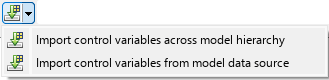 | Import control variables from the entire model
hierarchy by default. To import variant control variables of
type Note Control variables from blocks in
|
 | Add a control variable. |
| Show Referenced Configurations tab in the Model Hierarchy table. |
 | Show or hide the VAT and Source columns in the table. |
| Export control variables to data sources where the variables are stored. |
This table lists the icons used in the context menu of the Control Variables table.
| Context menu | Description |
|---|---|
 | Show usage of selected control variables. |
 | Hide usage of selected control variables. |
| Create a copy of a control variable. |
 | Delete a control variable. |
 | Edit Note To specify |
 | This icon appears next to the value of a control variable when the value is populated from a referenced component configuration. Click the icon to open the Referenced Configurations tab and view the name of the referenced configuration. |
| Icon | Element |
|---|---|
| Model block with Simulation
mode set to
|
| Model block with Simulation
mode set to
|
| Inline Variant Blocks (Variant Source and Variant Sink) |
| Variant Subsystem block |
| Subsystem block |
| Variant Model block |
| Subsystem Reference block |
| Simulink Function block |
| Trigger port block |
| Stateflow chart block |
| Variant Sink output port |
| Variant Source input port |
| Variant Connector block |
| Variant Subsystem block with Propagate conditions outside of variant subsystem option selected |
| Variant Subsystem block with
Variant activation time set to
|
| Variant Subsystem block with
Variant activation time set to
|
| Variant Subsystem block with
Variant activation time set to
|
| Variant Subsystem block with
Variant activation time set to
|
| Variant Subsystem block with
Variant activation time set to
|
| Variant Subsystem block with
Built-in empty choice or
Built-in passthrough choice
selected, and Variant activation time
set to |
| Variant Subsystem block with
Built-in empty choice or
Built-in passthrough choice
selected, and Variant activation time
set to |
| Variant Subsystem block with
Built-in empty choice or
Built-in passthrough choice
selected, and Variant activation time
set to |
| Variant Subsystem block with
Built-in empty choice or
Built-in passthrough choice
selected, and Variant activation time
set to |
| Variant Subsystem block with
Variant control mode set to
|
| Variant Subsystem block with
Variant control mode set to
|
| Variant Subsystem block with
Variant control mode set to
|
| Variant Subsystem block with
Propagate conditions outside of variant
subsystem and Variant activation
time set to |
| Variant Subsystem block with
Propagate conditions outside of variant
subsystem and Variant activation
time set to |
| Variant Subsystem block with
Propagate conditions outside of variant
subsystem and Variant activation
time set to |
| Variant Subsystem block with
Propagate conditions outside of variant
subsystem and Variant activation
time set to
|
| Variant Subsystem block with
Propagate conditions outside of variant
subsystem option selected. Also,
Variant control mode is set to
|
| Inline Variants Block (Variant Source and Variant Sink) with Allow zero active variant control option selected |
| Inline Variants Block (Variant Source
and Variant Sink) with Variant
control mode set to
|
| Inline Variants Block (Variant Source
and Variant Sink) with Variant
control mode set to |
| Inline Variants Block (Variant Source
and Variant Sink) with Variant
control mode set to |
| Inline Variants Block (Variant Source
and Variant Sink) with Variant
activation time set to |
| Inline Variants Block (Variant Source
and Variant Sink) with Variant
activation time set to |
| Inline Variants Block (Variant Source
and Variant Sink) with Variant
activation time set to |
| Inline Variants Block (Variant Source
and Variant Sink) with Variant
activation time set to
|
| Inline Variants Block (Variant Source
and Variant Sink) with Allow zero
active variant control and Variant
activation time set to |
| Inline Variants Block (Variant Source
and |
| Inline Variants Block (Variant Source
and Variant Sink) with Allow zero
active variant control and Variant
activation time set to |
| Inline Variants Block (Variant Source
and Variant Sink) with Allow zero
active variant control and Variant
activation time set to
|
| Variant Assembly Subsystem block with
Variant control mode set to
|
| Variant Assembly Subsystem block with
Variant control mode set to
|
| Variant Assembly Subsystem block with
Variant control mode set to
|
| Variant Assembly Subsystem block with
Variant control mode set to
|
| Variant Assembly Subsystem block with
Variant control mode set to
|
| Variant Assembly Subsystem block with
Propagate conditions outside of variant
subsystem option selected, Variant
control mode set to
|
| Variant Assembly Subsystem block with
Propagate conditions outside of variant
subsystem option selected, Variant
control mode set to
|
| Variant Assembly Subsystem block with
Propagate conditions outside of variant
subsystem option selected, Variant
control mode set to
|
| Variant Assembly Subsystem block with
Propagate conditions outside of variant
subsystem option selected, Variant
control mode set to
|
| Variant Start block with Variant
activation time set to update
diagram |
| Variant Start block with Variant
activation time set to update
diagram analyze all choices |
| Variant Start block with Variant
activation time set to code
compile |
| Variant Start block with Variant
activation time set to
startup |
| Variant Start block with Variant
control mode set to
label |
| Variant Start block with Variant
control mode set to sim codegen
switching and Variant activation
time set to update
diagram |
| Variant Start block with Variant
control mode set to sim codegen
switching and Variant activation
time set to update diagram analyze
all choices |
| Variant End block with Variant
activation time set to update
diagram |
| Variant End block with Variant
activation time set to update
diagram analyze all choices |
| Variant End block with Variant
activation time set to code
compile |
| Variant End block with Variant
activation time set to
startup |
| Variant End block with Variant
control mode set to
label |
| Variant End block with Variant
control mode set to sim codegen
switching and Variant activation
time set to update
diagram |
| Variant End block with Variant
control mode set to sim codegen
switching and Variant activation
time set to update diagram analyze
all choices |
| Initialize Function block |
| Event Listener block of Initialize Function block |
| Reset Function block |
| Event Listener block of Reset Function block |
| Terminate Function block |
| Event Listener block of Terminate Function block |
| Stateflow chart with Variant activation
time set to |
| Stateflow chart with Variant activation
time set to |
| Stateflow chart with Variant activation
time set to
|
| Stateflow transition with Treat as Variant Transition option selected |
◯ | Connective junction in a Stateflow chart |
• | Default transition in a Stateflow chart |
⬤ | Entry port in a Stateflow chart |
⭙ | Exit port in a Stateflow chart |


Note
For variant blocks with Variant activation time set
to Inherit from Simulink.VariantControl, the
variant manager activation process updates the variant badge for the block
in the model hierarchy to indicate the activation time that is computed from
the corresponding Simulink.VariantControl variables.
Access the Variant Manager Functionality Programmatically
The Simulink.VariantManager namespace provides a set of functions to
access Variant Manager functionality from the MATLAB Command Line.
The Simulink.VariantConfigurations object has methods to add or remove
variant configurations, constraints, and control variables programmatically.
The Simulink.VariantConfigurationAnalysis class has methods to analyze or
compare variant configurations programmatically.
Limitations
You cannot use Variant Manager with library files.
Variant Manager does not support these functionalities that require model compilation with Subsystem block diagrams from the user interface or from the MATLAB Command Window.
Generating variant configurations automatically
Obtaining compile-time information using Update Model
Using Variant Reducer and Variant Analyzer
The model hierarchy table does not show protected referenced models.
Variant Manager does not support workflows such as activation, viewing, or importing of control variables from variations inside a protected model. These variations are present when variant control variables of variant blocks with startup activation time are specified as
TunableParameters(Simulink Coder) while creating the protected model.For a variant block, you can define variant configurations only if the Variant control mode parameter of the block is set to
expression.Variant Manager reports errors and warnings related to variant elements only.
Variant Manager constraints are evaluated based on the values of variant control variables defined in the base workspace or data dictionaries linked to the model.
Variant Manager constraints are not validated post compilation, for example, at
startupvariant activation time.Variant Manager does not support creating or deleting variant parameter objects from the Variant Parameters tab.

