Overview of the Redesigned Simulink Test Manager (Tech Preview)
R2026bNote
The redesigned Simulink Test Manager is a tech preview in R2026b. The primary purpose of the tech preview is to provide early access to the most common testing workflows.
You can open the redesigned Simulink Test Manager tech preview from either the command line or from the current Test Manager:
On the command line, enter
sltest.stmv2.open.Open the current Test Manager by using
sltest.testmanager.view. Click New Test Manager.
The redesigned Simulink® Test Manager has new features, new file types, and uses new procedures to define and import tests.
Major New Features
The redesigned Simulink Test Manager includes these new features:
An improved user interface. The user interface has separate sections for test definitions, test configurations, and test execution settings. You can use the test execution settings across test cases.
Text-based, editable test files that are easier to diff and merge.
The ability to define and reuse local variables and test aliases.
Parameter sweep tests that you define manually or by specifying an Excel® file that contains the parameter values.
Enhanced test results, results persistence, and the ability to perform post-execution comparisons.
Improved support for fast restart and parallel execution, with fast restart turned on by default.
Execution trace logging.
A migration tool that you can use to import existing tests into the redesigned Test Manager.
For information about changed features, see Import Tests.
Supported File Types
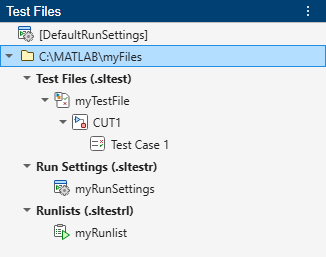
Instead of a single MLDATX test file, the redesigned Test Manager uses three separate file types. Test files contain the tests and settings for its test cases. Run settings files contain the settings that control how the test runs. Runlist files contain the combinations of test cases to run.
The Test Files pane contains three sections, Test Files (.sltest), Run Settings (.sltestr), and Runlists (.sltestrl), which appear under the folder in which they are saved. All test artifact files for a test must be in the same folder. Each of the file types has a corresponding tab in the center pane of the Test Manager.
Because the three file types are text-based, you can edit them. You can change the test settings using either the Test Manager or by editing the files. If you change the settings by editing the file, those settings are updated in the Test Manager and vice versa.
The first node in the Test Files pane is a default run settings file. You can use this file and settings without changing them or you can customize and save the default file. You can use a run settings file for multiple tests.
Note
If you use the same simulation mode to run all test cases for a component under test (CUT) or to run all CUTs for a test file, you do not need to use the run settings and runlist tabs. The Test Manager uses the default run settings file and does not need a runlist file.
Create a New Test
To create a test:
Create a test file. See Test File Tab.
Add a component under test (CUT) and select the model or component to test. See CUT Tab.
Add a test case and set its options. Test Case Tab.
Optionally, specify the run settings. If you don't specify the run settings, the Test Manager uses default settings. See Run Settings Tab.
Optionally, create a runlist and specify the test cases to run and the simulation modes to use. You need to specify a runlist only if your test includes more than one test file, more than one test case, or uses a simulation mode other than normal mode. See Runlist Tab.
Import Tests
To import a test:
Click Import, then Test File or Project..
In the dialog box, enter the folder where your existing project or MLDATX test file is, and the folder where you want to place the imported project or test artifact files. You can use the same folder for the original and imported files.
Click Import.
When the import completes, the MATLAB command line displays summary information and warning messages from the import.
The software imports the test file settings, parameters, test harnesses, and test sequences from the MLDATX test file into the appropriate file. In some cases, the import process does not convert all of the data to the three files. This table summarizes these exceptions:
| Imported Test Type or Parameter | Notes |
|---|---|
Equivalence test using Normal and SIL modes | The import process converts the MLDATX file into one test case and two run settings files that contain the settings for the normal simulation mode and SIL mode. |
Baseline test | The import process converts the MLDATX file into a baseline assessment that compares the runs. The setting is in the Baseline section of the test case tab. Tolerance settings are also in the Baseline section. |
Simulation test without assessment criteria | In the current Simulink Test Manager, a simulation test without assessment criteria appears as passed. The redesigned Test Manager lists these tests as untested. |
Test suites | The import process groups the test cases under CUTs , with one CUT for each unique harness in each model. |
Iterations | If the iterations vary only parameters, the import process creates a sweep test. If the iterations vary a setting other than a parameter, the import process creates multiple test cases. |
Scripted iterations | The import process converts the iterations into a setup callback. |
Test file and test suite callbacks | The import process converts the file and test suite callbacks into a runlist callback. |
Test case pre- and post-load callbacks | The import process converts the callbacks into a test case setup callback. |
Reserved variables in callbacks | The import process replaces the reserved variables with variables that serve the same purpose. |
The redesigned Simulink Test Manager tech preview does not import fault settings or requirements links. Add them manually after importing your test.
Note
You can open SLTEST, SLTESTR, or SLTESTRL files only in the redesigned Test Manager.
Limitations of the Tech Preview
The redesigned Simulink Test Manager tech preview does not support:
Requirements linking
Creating additional test cases using Simulink Design Verifier™
Real-time tests
ASAM XIL tests
Multi-release tests
IEC Certification and DO Qualification
Customizable reports
Fault settings

