Convert Variant Component to Variant Assembly Component
R2026bA variant component, represented by the Variant Component block, can hold multiple variant choices, or variants, that represent different structural or behavioral choices. Each choice represents a different design configuration for a subsystem. For more information, see Variant Components.
You can convert a Variant Component block to a Variant Assembly Component block to enable the addition or removal of variant choices from external sources without opening or modifying the model. In architecture models, a Variant Component block can contain choices that are either inline components or reference components linked to architecture models, architecture subsystem files, software architecture models, AUTOSAR architecture models, Simulink® models, or Simulink subsystem files.
Note
Reference components in software architecture models do not support linking to architecture model files, architecture subsystem files, or Simulink subsystem files.
After conversion to a Variant Assembly Component, the reference components remain unchanged while inline components are converted to reference components with the appropriate type. For example, in an architecture model, an inline component of type Simulink subsystem is converted to a Simulink subsystem reference component. In a software architecture model, all inline components are converted to software architecture reference components.
Convert Variant Component Block in Label Mode to Variant Assembly Component Block Interactively
This example shows how to convert a Variant Component block in label mode to a Variant Assembly Component block through the Block Parameters dialog box.
1. Open the mobileRobotAPI architecture model.
modelName = "mobileRobotAPI";
open_system(modelName);
Consider the Motion block in the mobileRobotAPI model. The Motion block is a Variant Component block that is to be converted to a Variant Assembly Component block.
2. Open the Block Parameters dialog box of the Motion block. Note that the Variant control mode parameter is set to label. The variant choice that corresponds to the control label selected in the Label mode active choice list is the current active choice and remains the active choice after conversion. In this case, of the two variant choices, Motion and MotionAlt, Motion is the active choice.
3. Click the Convert to Variant Assembly button. The Convert Variant Component to Variant Assembly Component dialog box opens.
4. In the Reference component type list, specify the type of resultant components after conversion to a Variant Assembly Component block. These are the possible choices:
Subsystem Reference— After conversion, inline components are converted to architecture subsystem reference components or Simulink subsystem reference components. An inline component is converted to a Simulink subsystem reference component if it has a Simulink behavior with artifact type as subsystem. For more information, see Create Simulink Behavior Using Subsystem Component.Model Reference— After conversion, inline components are converted to architecture model reference components.
Note: In software architecture models, System Composer converts inline software components to Software Architecture model reference components only. The Reference Component Type field is set to Model Reference by default and cannot be changed.
5. Configure these parameters for the conversion:
Location of new reference files — Specify the name of the folder where the new model or subsystem files are to be created. To change the location of the model or subsystem files, specify a path relative to your current working folder or specify an absolute path. You can also select a folder from the file system by clicking the Browse folder button.
Absolute path to the folder for new subsystem files — Absolute path to the folder specified by the Location of new reference files parameter.
List of new reference filenames — Names of the new model or subsystem files to be created for inline components. The names of the new model or subsystem files are the same as the inline components in the Variant Component block. System Composer does not convert reference components to model or subsystem files because they already exist.
Check the read-only table at the bottom of the dialog box that lists the names of all variant choices in the block along with its corresponding label in the Name and Variant control label columns, respectively. If all variants are reference components, then only this table is displayed.
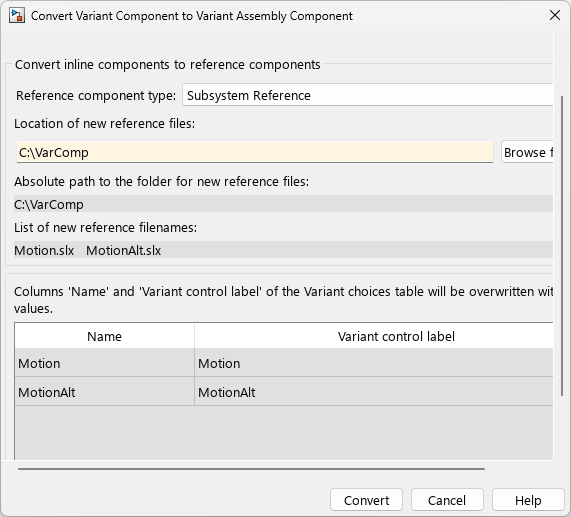
6. Click the Convert button. System Composer takes these set of actions if certain conditions are not met:
If the specified folder exists in the file system but not on the MATLAB path, a dialog box appears and prompts you to add the folder to the MATLAB path. Click Add to path.
If the specified folder does not exist in the file system, System Composer creates the folder by using
mkdircommand and adds it to the MATLAB path.If the specified folder contains a file with the same name as one of the new model or subsystem files, you must determine if you want to replace it.
Then, the Motion block is converted to a Variant Assembly Component block. The reference components do not change.
If you set Reference component type to Subsystem Reference, System Composer converts an inline component with architecture type composition to an architecture subsystem reference component, and an inline component with architecture type Simulink® behavior to a Simulink subsystem reference component. In this example, the Subsystem choices Motion and MotionAlt are converted to subsystem reference choices and saved in the subsystem files Motion``.slx and MotionAlt``.slx.
If you set the Reference component type to Model Reference instead, then the inline components are converted to architecture model reference components.
Note: In software architecture models, when the Reference component type is set to Model Reference, the inline components are converted to software architecture model reference components.
Observe the Variant choices specifier parameter in the Block Parameters dialog box after conversion. Its value is of the form {'Motion', '``MotionAlt``'}, where Motion and MotionAlt are the variant choices of the converted block. The active variant choice continues to be Motion after conversion.
If you want to change the active variant choice, set the value of Label mode active choice to MotionAlt and run the model.
Convert Variant Component Block in Label Mode to Variant Assembly Component Block Programmatically
This example shows how to convert a Variant Component block in label mode to a Variant Assembly Component block using the makeVariantAssembly function.
1. Open the mobileRobotAPI architecture model.
modelName = 'mobileRobotAPI';
open_system(modelName);
Consider the Motion block. Open the Block Parameters dialog box of the Motion block. The Motion block is a Variant Component block that is to be converted to a Variant Assembly Component block. Note that the Variant control mode parameter of the Motion block is set to label.
2. Create a systemcomposer.arch.VariantComponent object named varCompObj that represents the Motion Variant Component block.
scModel = systemcomposer.loadModel(modelName);
varCompBlkPath = [modelName,'/Motion'];
varCompObj = lookup(scModel,Path=varCompBlkPath);
3. Convert the Motion block to a Variant Assembly Component block. During the conversion, the subsystem choices Motion and MotionAlt are converted to subsystem reference components, and saved as architecture subsystem files Motion.slx and MotionAlt.slx in the folder that you specify in the current working directory.
makeVariantAssembly(varCompObj,ReferenceFilesFolderPath=fullfile(pwd,"ConvertVC"),ReferenceComponentType="ModelReference");
Here, ReferenceFilesFolderPath is the absolute path containing the new subsystem files and ReferenceComponentType is the type of the newly created reference files. For architecture models, these are the possible values for the ReferenceComponentType argument:
"
ModelReference" — System Composer converts the variant choices to architecture model reference files."
SubsystemReference" — System Composer converts the variant choices to architecture subsystem reference components or Simulink subsystem reference components, depending on the type of the inline component.
For more information about the ReferenceComponentType argument, see makeVariantAssembly.
Note: For software architecture models, the reference component type is set to ModelReference by default and cannot be changed by using the makeVariantAssembly function because software architecture models do not support subsystem files.
If the variant component has no inline components, that is, all the variant choices are either model reference components or subsystem reference components, then you can call the makeVariantAssembly function without the ReferenceFilesFolderPath argument because the model or subsystem files already exist in the MATLAB path.
4. Open the folder ConvertVC and view the newly created architecture model reference files, Motion.slx and MotionAlt.slx.
You can open the Block Parameters dialog box of the Variant Component block, Motion, to check the Variant choices specifier parameter. The parameter value is {'Motion', '``MotionAlt``'}, where Motion and MotionAlt are the variant choices of the converted block. The active variant choice continues to be Motion after conversion.
If you want to change the active variant choice, set the value of Label mode active choice to MotionAlt and run the model.
Convert Variant Component Block in Expression Mode to Variant Assembly Component Block Interactively
This example shows how to convert a Variant Component block in expression mode to a Variant Assembly Component block through the Block Parameters dialog box.
1.Open the mobileRobotAPI architecture model.
modelName = 'mobileRobotAPI_expression';
open_system(modelName);
2. Consider the Motion block. The Motion block is a Variant Component block that is to be converted to a Variant Assembly Component block. Open the Block Parameters dialog box of the Motion block. Note that expression is selected in the Variant control mode list.
3. Click the Convert to Variant Assembly button. The Convert Variant Component to Variant Assembly Component dialog box opens.
4. Configure or observe these parameters for the conversion:
Name of the variant control variable — Specify a valid variable name that adheres to the rules in Valid Names or specify a valid structure field name that adheres to the rules in Generate Field Names from Variables. During the conversion, System Composer™ creates the variable or the structure field to use as a variant control variable. The value of the variant control variable determines the active choice of the converted block.
Name of the enumeration class to be created — Specify a valid enumeration class name. During the conversion, System Composer creates the specified enumeration class with the
MotionandMotionAltchoices as the members of the class. You can specify a folder to contain this enumeration class by clicking the Browse button. The Absolute path to the folder of the enumeration file parameter displays the absolute path to the folder of that enumeration class.Absolute path to the folder of the enumeration file — Displays the absolute path to the folder of the enumeration file to be created.
Reference Component Type — Specify type of the resultant components after conversion to a Variant Assembly Component block. If you select
Subsystem Reference, inline components are converted to architecture subsystem reference components or Simulink® subsystem reference components. An inline component is converted to a Simulink subsystem reference component if it has a Simulink behavior with artifact type as subsystem. For more information, see Create Simulink Behavior Using Subsystem Component. If you selectModel Referenceinstead, inline components are converted to architecture model reference components.
Note: In software architecture models, the Reference Component Type field is set to Model Reference by default and cannot be changed.
Location of new subsystem files — Displays the name of the folder where the model or subsystem files are to be created. To change the location of the subsystem files, specify a path relative to your current working folder or specify an absolute path. You can also select a folder from the file system by clicking the Browse folder button.
Absolute path to the folder for new subsystem files — Displays the absolute path to the folder of the subsystem files to be created, based on the location you entered for the new subsystem files.
List of new subsystem filenames — Lists the names of the subsystem files to be created. The names of the subsystem files are the same as the names of the Subsystem choices.
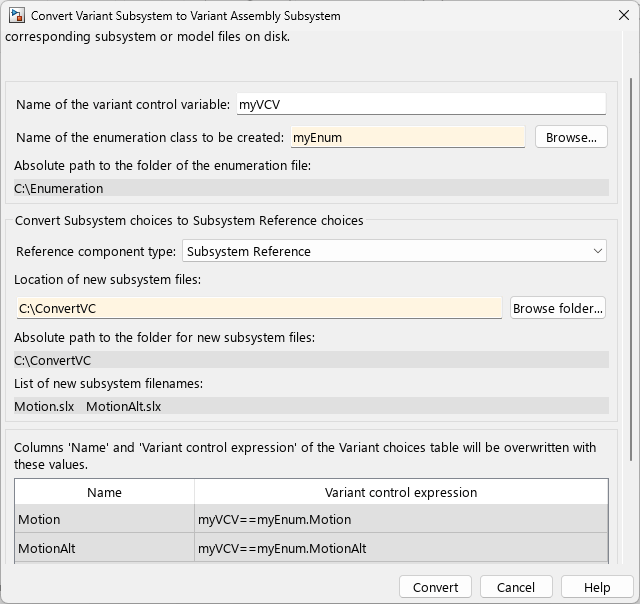
The Variant choices (table of variant systems) table lists the names of the variant choices in the converted block. For each variant choice, System Composer generates a Variant control expression. The variant control variable is on the left side and the members of the variant enumeration class are on the right side of the generated expressions. Both sides of the expression are related by ==. When an expression evaluates to true during simulation, the corresponding variant choice becomes active.
5. Click the Convert button. If these validations pass, System Composer converts the Motion block to a Variant Assembly Component block:
If the specified folder exists in the file system but not on the MATLAB® path, a dialog box appears and prompts you to add the folder to the MATLAB path. Click Add to path.
If the specified folder does not exist in the file system, System Composer creates the folder by using
mkdircommand and adds it to the MATLAB path.If the specified folder contains a file with the same name as one of the new model or subsystem files, you must determine if you want to replace it.
During conversion, System Composer validates the variant choices in the Motion block. The Reference Components do not change. The inline components are converted to model or subsystem files that are saved on the MATLAB path.
System Composer converts an inline component with architecture type composition to a Subsystem Reference component with composition, and an inline component with architecture type Simulink® behavior to a Subsystem Reference component with Simulink behavior. In this example, the Subsystem choices Motion and MotionAlt are converted to Subsystem Reference choices and are saved in the subsystem files Motion.slx and MotionAlt.slx.
If you set the Reference Component Type to Model Reference instead, then the inline components are converted to architecture model reference components.
Note: In software architecture models, when the Reference Component Type is set to Model Reference, the inline components are converted to software architecture model reference components.
6. To simulate the architecture model with the Motion variant choice, specify the value of V as myEnum.Motion. During simulation, the control expression V == myEnum.Motion evaluates to true and the Motion variant choice becomes active.
Convert Variant Component Block in Expression Mode to Variant Assembly Component Block Programmatically
This example shows how to convert a Variant Component block in expression mode to a Variant Assembly Component by using the makeVariantAssembly function.
1. Open the mobileRobotAPI architecture model.
modelName = 'mobileRobotAPI_expression';
open_system(modelName);
Consider the Motion block. The Motion block is a Variant Component block that is to be converted to a Variant Assembly Component block. Note that the variant control mode of the Motion block is set to expression.
2. Create a systemcomposer.arch.VariantComponent object named varCompObj that represents the Motion Variant Component block:
scModel = systemcomposer.loadModel(modelName);
varCompBlkPath = [modelName,'/Motion'];
varCompObj = lookup(scModel,Path=varCompBlkPath);
3. Create a variant control variable, V, and give it an initial value of 0. The variant control variable determines the active choice for the converted block, and is later assigned to one of the members of an enumeration class that defines all variant choices. This member then becomes the active choice.
V = 0;
4. Convert the Motion block to a Variant Assembly Component block. If the variant component has model or subsystem reference components as variant choices, then you can call the function without specifying the path to the target folder because the model or subsystem files already exist.
If the Variant Component block contains variant choices that are not model or subsystem reference components, that is, if it contains inline components, you must specify the path to the target folder in the current working directory.
makeVariantAssembly(varCompObj,VariantControlVariableName="V",EnumerationClassFilePath="testEnum.m",ReferenceFilesFolderPath=fullfile(pwd,"ConvertVC_Expression"));
Here, the value of VariantControlVariable is the variant control variable that determines the active choice for the converted block and the value of EnumerationClassFilePath is a name for the enumeration class generated by System Composer. The enumeration class contains the choices of the Variant Component block. The enumeration class will contain Motion and MotionAlt variant choices as its members. For now, set the active choice to testEnum.Motion.The argument ReferenceFilesFolderPath is the path to the target folder where the newly created model or subsystem files reside.
Note: The value of the EnumerationClassFilePath argument must include the .m extension of the enumeration class file.
5. Assign the variant control variable, V, to one of the members of the enumeration class. The chosen member, testEnum.Motion, then becomes the active choice.
V = testEnum.Motion;
Observe the expressions in the Variant control expression column of the table containing variant choices. System Composer generates each expression with the variant control variable on the left side of the expression and a member of the variant enumeration class on the right side. Both sides of the expression are related by ==. When one of the expressions evaluate to true during simulation, the corresponding variant choice becomes active. In this case, the variant control variable is set to testEnum.Motion which then becomes the active choice.
Simulate the model for MotionAlt or Motion by changing the value of the variant control variable V to testEnum.MotionAlt or testEnum.Motion, respectively, and running the model.

