reset
R2026bSyntax
Description
reset( resets the internal state of
the optical flow estimation object, flowModel)flowModel. The previous frame is
reset to its initial value which is a uniform image of intensity value 0.
To reuse an opticalFlowRAFT object for a new video, call
reset to clear cached frame information from a previously processed
video.
Examples
Create a RAFT optical flow object.
flowModel = opticalFlowRAFT;
Create an object to read the input video file.
vidReader = VideoReader("visiontraffic.avi",CurrentTime=11);Create a custom figure window to visualize the optical flow vectors.
h = figure;
movegui(h);
hViewPanel = uipanel(h, Position=[0 0 1 1], Title="Plot of Optical Flow Vectors");
hPlot = axes(hViewPanel);
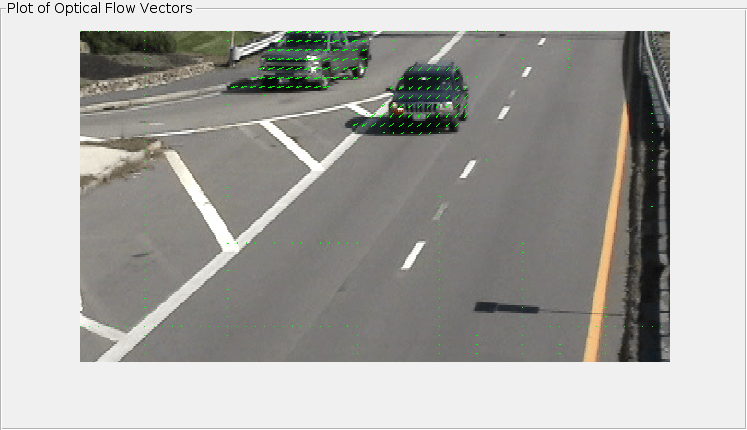
Read consecutive image frames to estimate optical flow. Display the current frame and overlay optical flow vectors using a quiver plot. The estimateFlow function calculates the optical flow between two consecutive frames.
Note that the function internally stores the previous frame and utilizes it implicitly for optical flow estimation. Consequently, when the function is called for the first time on a sequence of frames, it will return a zero flow. This is because, in the absence of a genuine previous frame, the initial frame is treated as both the current and previous frame, leading to no detectable motion between the two. This is consistent with the argument structure and behavior of established optical flow estimation methods, such as opticalFlowFarneback.
while hasFrame(vidReader)
    frame = readFrame(vidReader);
    flow = estimateFlow(flowModel,frame);

    imshow(frame)
    hold on
    plot(flow,DecimationFactor=[10 10],ScaleFactor=0.45,Parent=hPlot,color="g");
    hold off
    pause(10^-3)
end
Reset the opticalFlowRAFT object after the video processing has completed. This clears the internal state of the object, including the saved previous frame.
reset(flowModel);
RAFT provides accurate optical flow estimation, but it can be memory-intensive when applied to large images or run on GPUs with limited memory. In such cases, processing high-resolution frames directly may lead to out-of-memory (OOM) errors. A practical solution is to downscale the input images before passing them to the RAFT model, compute optical flow at the reduced resolution, and then rescale the resulting flow field back to the original size of the imagery. This example demonstrates how to apply this memory-efficient strategy, allowing you to use RAFT on larger images or resource-constrained hardware while preserving meaningful flow estimates.
Load Image Pair
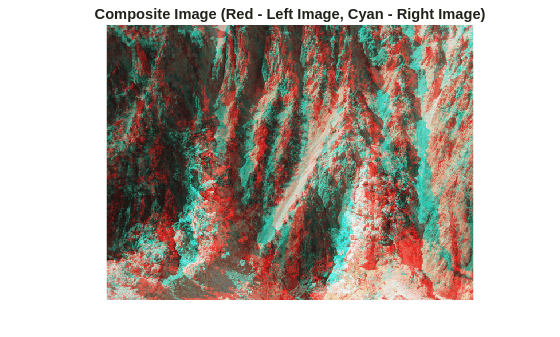
Load two images and visualize their pixel-wise differences due to camera motion using a red-cyan composite image.
I1 = imread("yellowstone_left.png");
I2 = imread("yellowstone_right.png");

figure
imshow(stereoAnaglyph(I1, I2))
title("Composite Image (Red - Left Image, Cyan - Right Image)")
Display the spatial dimensions of the images.
disp(size(I1, [1 2]))
480 640
Create opticalFlowRAFT Object
Create an opticalFlowRAFT object for computing optical flow between two images.
raft = opticalFlowRAFT;
Estimate Optical Flow on Full Resolution Images
Estimate optical flow on the images at original resolution. This gives the most accurate result but may cause into slow runtime and high memory consumption.
estimateFlow(raft, I1);
flowFull = estimateFlow(raft, I2);
Estimate Optical Flow on Downsampled Images
Create Downscaled Images
Scale the image dimensions by a factor of 0.5 for illustrative purpose. A small resolution image can result in faster optical flow computation and less memory consumption.
I1Small = imresize(I1, 0.5);
I2Small = imresize(I2, 0.5);
Display the resized image dimensions.
disp(size(I1Small, [1 2]))
240 320
Estimate Flow on Downscaled Images
Compute optical flow on downscaled images. Use the same opticalFlowRAFT model instantiated earlier after resetting it.
reset(raft);
estimateFlow(raft, I1Small);
flowLowRes = estimateFlow(raft, I2Small);
Scale Estimated Flow to Original Resolution
Upsample and scale the lower resolution optical flow back to the original image resolution.
origDims = size(I1, [1 2]);
scaleX = origDims(2) / size(flowLowRes.Magnitude, 2);
scaleY = origDims(1) / size(flowLowRes.Magnitude, 1);

flowX = imresize(flowLowRes.Vx, origDims, "bilinear") * scaleX;
flowY = imresize(flowLowRes.Vy, origDims, "bilinear") * scaleY;

flowUpscaled = opticalFlow(flowX, flowY);
Compare Optical Flow at Original and Downscaled Resolutions
Visually compare optical flow computed directly on the original high-resolution images with optical flow computed on downscaled images and then rescaled back to the original size. This comparison illustrates how the downscale-upscale workflow approximates the original flow while reducing memory usage.
figure
subplot(1,2,1)
imshow(I1)
hold on
plot(flowFull, DecimationFactor=[40 40], ScaleFactor=0.75, Color="g");
hold off
title("Optical Flow at Full Resolution")

subplot(1,2,2)
imshow(I1)
hold on
plot(flowUpscaled, DecimationFactor=[40 40], ScaleFactor=0.75, Color="g");
hold off
title("Optical Flow at Half Resolution")
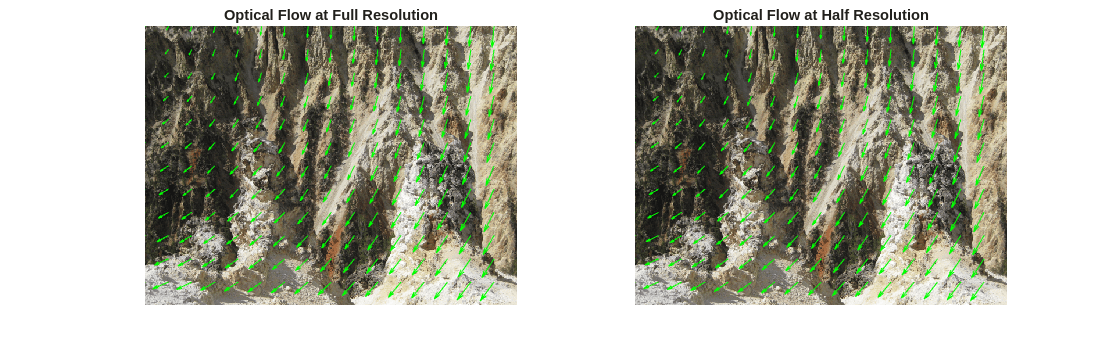
The bilinear interpolation in the image resizing operations can introduce numerical inaccuracies and overly-smoothed results in the upscaled optical flow. This reduced accuracy is a trade-off against the lower memory consumption when optical flow computation is performed on lower resolution imagery.

