Tips & Tricks
Public Channel最新贡献

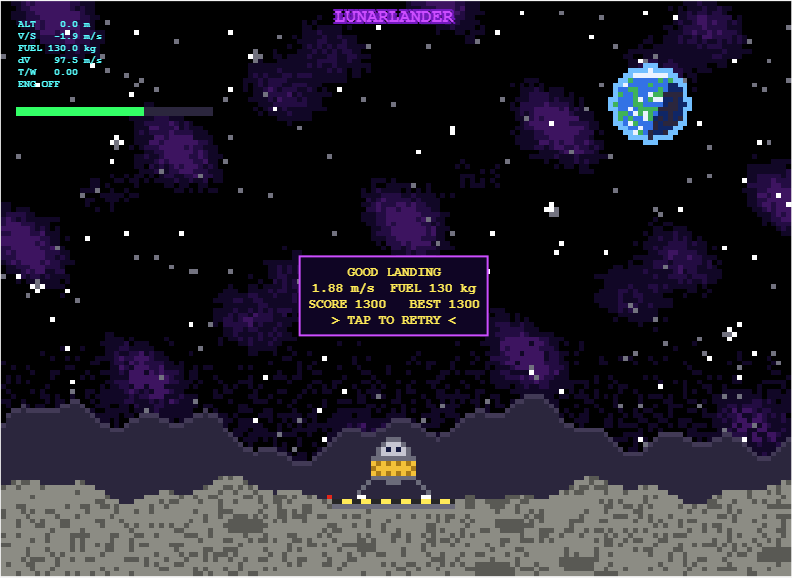
My entry for the one-button game mini hack Lunar Lander - Tap to Burn, is a one-button powered descent. You start 500 m above the surface, falling at 10 m/s, with 200 kg of propellant. One tap turns on the engine, and the next tap stops it.
How scoring works
- Crash: landing at 3 m/s or faster scores 0.
- Abort: rising above 750 m scores 0.
- Safe landing: below 3 m/s scores 10 points per kilogram of fuel remaining.
- Perfect touchdown: below 1 m/s doubles the reward to 20 points per kilogram of fuel remaining.
Physics in the game
- Fuel mass decreases as propellant is burned.
- Gravity continuously accelerates the lander downward.
- The engine does not reach full thrust instantly, so timing matters.
- The display turning red indicates when a full thrust landing burn becomes possible.
Display readouts
- ALT [m]: Height above the surface.
- V/S [m/s]: Vertical speed.
- FUEL [kg]: Remaining propellant.
- dV [m/s]: remaining velocity change the fuel can provide, from the rocket equation Δv=Isp·g₀·ln(m/m_dry).
- T/W: Thrust to weight ratio.
My best so far is 1300. Has anyone managed a sub 1m/s landing?

I started my game for this contest, Stack OverDad, one month before the contest began. Dad tells programming jokes at the dinner table, and you have to laugh at the right moment. I was very happy with it. It had a dog, a little brother with a spoon, a window with a sun that goes down, fifty jokes, and many small animations.
Then the contest started, and I read the rules again. One line said: each entry is limited to 10,000 characters of MATLAB code.
My code had more than 70,000 characters.
So, as you can guess, the next hourse were cut, test, cut, test, cut... In this post, I will tell you what I learned on the way (from my AI friend!). Some of it surprised me.
Step 1: Cut What the Player Does Not Feel
For every part of the game, I asked: "Does the player really feel this?"
The dog: cute, but no. The brother: funny, but no. The sunset: nobody looks at the window when Dad tells a joke. Forty jokes: a game only uses ten anyway.
This was the biggest step, and the hardest, because I liked all of these things. But the game did not get worse. It got clearer. After this, my file had about 9,800 characters. I was done!
Step 2: The Surprise
The contest project has a command to check the game before you submit it:
minihackContest.validate
I ran it, and it said:
Validation failed: game.m exceeds the character limit (16145 / 10000, comments excluded).
16,145? My file had 9,800 characters. I counted again. It still had 9,800.
So I opened the validator to see how it counts. This is the line:
charCount = strlength(char(tree2str(mtree(gameFile, '-file'))));
mtree reads the code into a tree, and this removes the comments. Then tree2str writes the code again, in a clean, standard layout. The validator counts that text, not my file.
And the clean layout is not short at all. For example, this one line of mine:
if p,pr(s.T);end
comes back from tree2str like this:
if p
pr( s.T );
end
Every statement gets its own line. Every line gets indentation. Every f(a,b) becomes f( a, b ), and every [1 2 3] becomes [ 1, 2, 3 ]. My short style was not short anymore.
The good news: now I knew the real rule, so I could play by it.
Step 3: What Is Cheap and What Is Expensive
- Expensive: many statements, deep nesting, and long lists of numbers.
- Cheap: text inside a string. tree2str does not change a string at all.
So the plan was: fewer statements, less nesting, and move numbers into strings.
Example 1: Many Values in One Statement
s.st = 3;
s.t0 = t;
s.la = -1;
becomes one statement with deal:
[s.st, s.t0, s.la] = deal(3, t, -1);
Example 2: A Small if Without if
if n == 1
s.fl = "TEN?!";
end
With logical indexing, it is one line. If the condition is false, nothing changes:
s.fl(n == 1) = "TEN?!";
Example 3: Many Strings in One String
A list like ["PERFECT!", "GOOD!", "TOO LATE..."] pays for every ", ". One string with a separator is cheaper:
B = split("PERFECT!|GOOD!|TOO LATE...", "|");
All fifteen jokes are now one string too.
Example 4: Numbers Inside a String
This was the biggest trick. My scene (the table, the chairs, Dad, the family) is made of rectangles, ellipses, and polygons. That is hundreds of numbers.
So I stored each number as one character in a string. A character is really a number (its code), so I can turn it back:
v = double(char(z))/20 - 1025; % every character of z becomes one number again
I chose codes from a big block of normal, printable characters. They look like Chinese characters, but they are not words. I only use their codes. One small loop reads the string and draws all the shapes with patch. Now the whole scene costs about one character per number.
One warning from my own mistake: use double(char(z)), not double(z). If z is a string, double(z) gives NaN. My first test showed an empty table because of this.
I kept the readable list of shapes in a separate file, and it writes the packed strings for me.
I Had Help
I worked with an AI assistant the whole way. It read the validator with me, tested many small ideas fast, measured which part of the code cost the most, and rewrote code again and again without getting tired.
But the AI did not decide what the game is. It could tell me that the dog costs 1,700 characters. It could not tell me if the dog is worth it. Every "keep" or "cut" was my choice. I think this is the best way to work with AI: let it do the heavy lifting, and keep the decisions for yourself.
The Result
The validator now says 9,936 characters. The game still has Dad, THE LOOK, Mom's warnings, the family walking out, the ranks, and fifteen jokes.
My advice: run minihackContest.validate early. Do not count the characters yourself, because the validator does not count your file. It counts the clean version of your file.
I hope you have found this helpful. Thank you for reading.

Hi everyone,
I made Ember Fox: Outrun the Stone Guardian for the One-button Game Mini Hack. A fox runs forward, and a stone guardian rolls behind it and chases it. You must hop over obstacles to stay ahead.
Play it here: https://www.mathworks.com/matlabcentral/communitycontests/contests/10/entries/16448
(Click Play Game, then Run this App.)
The whole game fits in less than 10,000 characters. Below are the main tricks I used. I hope they help you with your own games.
How the game works
- One button does everything: tap to hop, tap again in the air to dive.
- If you hit an obstacle, the stone guardian gets closer. If it catches you, the game ends.
- Diving onto a flying enemy gives bonus points.
- Power-ups give a shield, slow motion, or push the guardian back.
- Passing obstacles builds a combo multiplier.
- The game gets faster the longer you play, and the sky changes from day to night.
Trick 1: Draw pixel-art sprites from text
I draw each sprite as a grid of characters. A # means a filled pixel:
A=['######';'#.##.#';'######';'.####.'];
[X,Y]=spr(A,0.6);
My helper function spr turns each row into rectangles. It uses diff to find where every run of # starts and ends. One run becomes one rectangle, not one rectangle per pixel. This keeps the number of graphics objects low and the code short.
Trick 2: Create graphics once, then only update them
In init I create every patch, line and text object one time. In renderFrame I only change them with set:
set(s.hd,'XData',s.DS{k}+DX,'YData',s.DT{k}+G+s.dy)
Creating new objects every frame makes a game slow. Updating existing ones is much faster. To hide an object, I set its data to NaN instead of deleting it.
Trick 3: Update only what changed
The day and night colours depend on how far you have run. I turn the cycle into a small number of steps and change the colours only when the step changes:
nn=.5-.5*cos(2*pi*s.dist/3200);
q=round(nn*40);
if ~isequal(s.ax.UserData,q)
s.ax.UserData=q; % change all colours here
end
I do the same for text. I only set the text when the new text is different:
if ~strcmp(h.String,t), h.String=t; end
Trick 4: One button, different actions
The game state decides what the button does:
- On the start or game-over screen, it starts the game.
- On the ground, it makes the fox hop.
- In the air, it makes the fox dive down faster.
This gives the player more choices without adding more buttons.
Trick 5: Smooth difficulty and simple collisions
The speed grows quickly at first, then slows down, so the game stays fair:
s.spd=55+90*(1-exp(-s.sc/900));
Collisions are simple rectangle checks. After a hit, the fox is safe for a short time, so one mistake does not cause many hits in a row.
Trick 6: Fit the character limit
- Use short variable names.
- Use loops and shared code instead of repeating lines.
- Run minihackContest.validate often to check the character count.
Known problem: the game runs smoothly in desktop MATLAB, but it can lag in MATLAB Online. For the best experience, run it on your computer with minihackContest.play.
Thank you for reading! If you have questions or ideas to make it better, please write a comment. I would love to see how you solve these problems in your own games.

If you are as excited as me to play these games but somehow something is stopping you from doing just that, you are at the right place. Follow the steps below and you will be playing in no time (maybe some time depending on your browser, network speed, etc.):
- Click on the game you like the look of (let's say, something that is transformative).
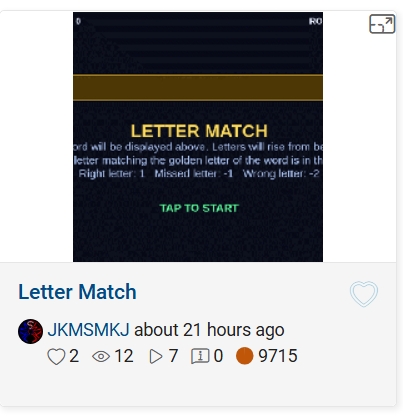
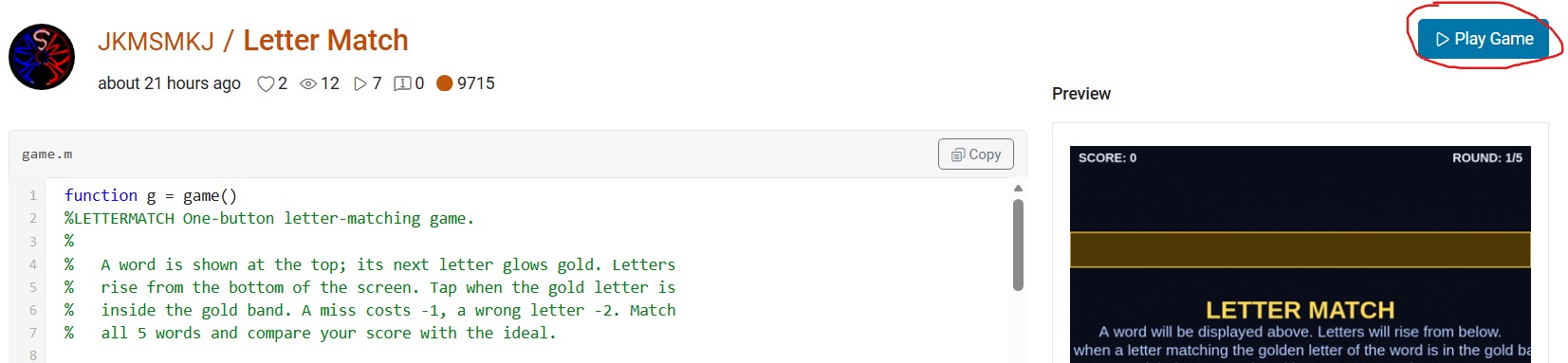
- This will open up its details page with the game code, preview video and the "Play Game" button. Click the video or the button.
- This will open up "MATLAB Drive" in a new browser window with a preview screenshot of a half-played game and a "Run this App" button. Click this button and nothing will seem to happen at first. And nothing will happen at any other subsequent tries. But don't worry, that's why you're here.
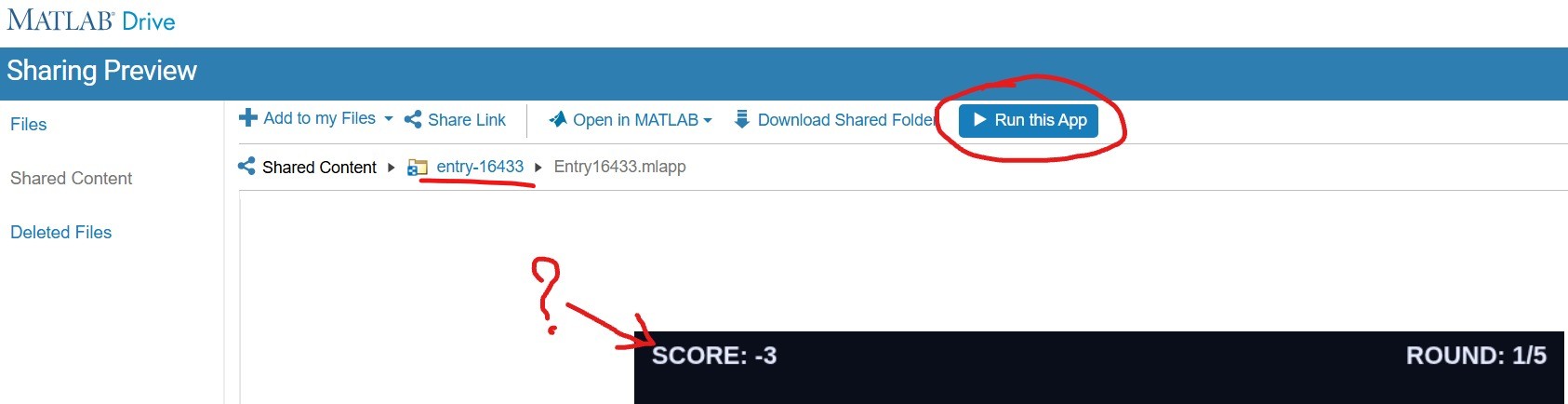
- Click on the "entry-×××××" blue hyperlink just above the preview area (underlined in red above). This will take you to a list of two files but hide the crucial blue button. Click on the "Entry×××××.mlapp" file to resurface the blue button.
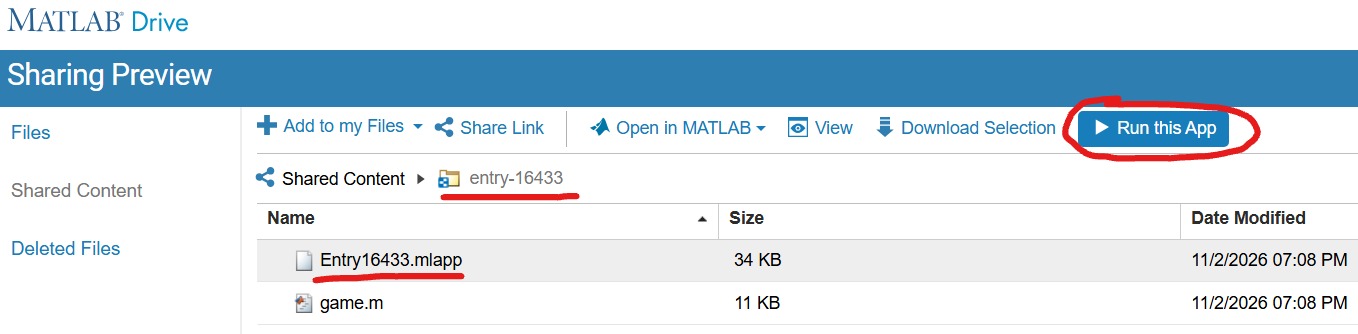
- With expectant hands, click the "Run this App" button. This time it will reload the "MATLAB Drive" and put it in the mode to run your chosen game.
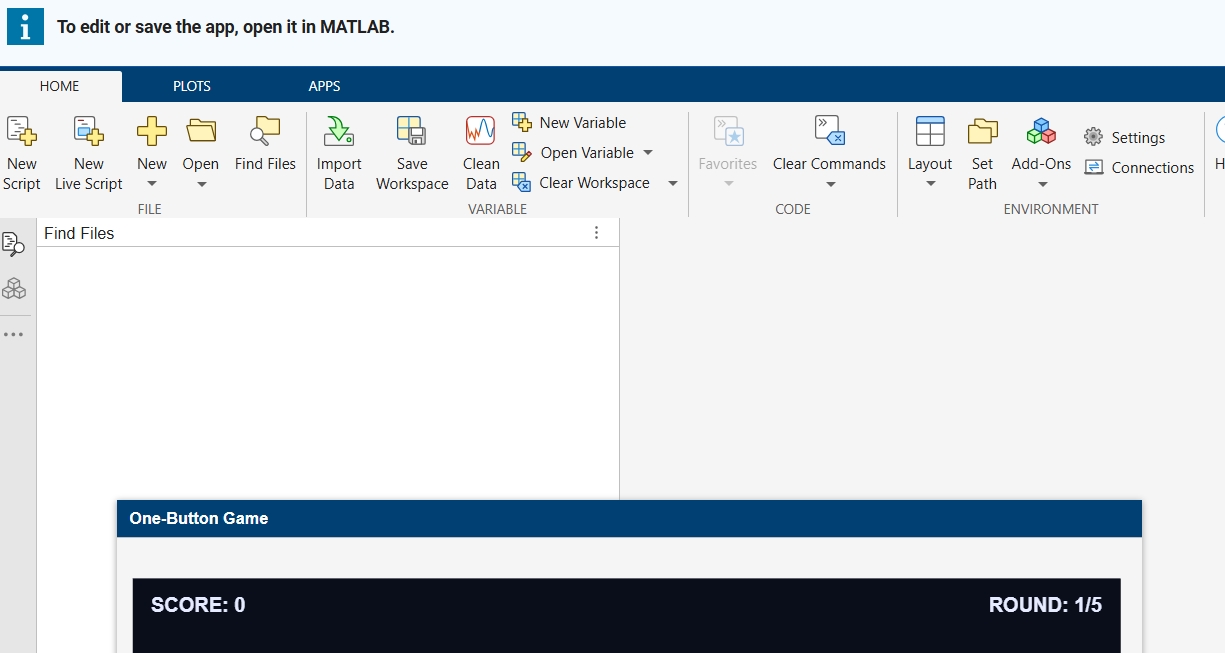
- Finally, you are where you expected to be in the point 3! Enjoy your game.🥳

I have MATLAB R2026b, the MATLAB Agentic Toolkit, and Claude Code installed.
In the first session, I asked Claude (Opus 5.5, High effort) to review the game rules, suggest MATLAB Agentic Toolkit skills, install them inside the project folder, and create a CLAUDE.md file.
In the second session, I asked Claude to create a combat game in which the player controls a simple stick figure wielding a club; clicking makes the figure swing the club. Simple monsters approach the player and drain the player’s health on contact, while hitting a monster with the club eliminates it. The game has an old-school 2D look, with a dark blue, star-filled background and light blue characters.
That's it. You can see result here: CLUB NIGHT
My best score until now is 2060.
Let me know your best score in the comments.

All the graphics objects (patches, lines and text) are created one time, when the game starts. After that, the render function only changes their data with set:
set(s.hd,'XData',s.DS{k}+DX,'YData',s.DT{k}+G+s.dy)
Creating new objects on every frame is a common reason MATLAB games feel slow. Updating objects that already exist is much cheaper. To hide an object, I set its data to NaN instead of deleting it:
set(s.ho(m),'XData',NaN,'YData',NaN)
The day and night colours depend on how far the fox has run. Instead of recolouring everything on every frame, I turn the cycle into a small number of steps and only recolour when the step changes:
nn=.5-.5*cos(2*pi*s.dist/3200);
q=round(nn*40);
if ~isequal(s.ax.UserData,q)
s.ax.UserData=q;
% recolour the background, ground, text and obstacles here
end
The current step is stored in the axes UserData, so the check is cheap. Text works the same way. I only set a text string when the new string is different from the old one:
if ~strcmp(s.sct.String,t), s.sct.String=t; end
Setting properties that have not changed still costs time in every frame, so skipping them helps a lot in a game that redraws many times per second.
Check against your code: the first block is simplified from your renderFrame. Your real code also adds +100*(s.st==2) to q so the colours change on the game-over screen, and I left that out to keep the tip simple. The strcmp line is from your score text. Both matc
The day and night colours depend on how far the fox has run. Instead of recolouring everything on every frame, I turn the cycle into a small number of steps and only recolour when the step changes:
nn=.5-.5*cos(2*pi*s.dist/3200);
q=round(nn*40);
if ~isequal(s.ax.UserData,q)
s.ax.UserData=q;
% recolour the background, ground, text and obstacles here
end
The current step is stored in the axes UserData, so the check is cheap. Text works the same way. I only set a text string when the new string is different from the old one:
if ~strcmp(s.sct.String,t), s.sct.String=t; end
Setting properties that have not changed still costs time in every frame, so skipping them helps a lot in a game that redraws many times per second.
Disclosure: the game code was written with Claude (an AI assistant). I tested the game in MATLAB and checked the details myself.
For the One-button Game Mini Hack, the code limit is 10,000 characters. I made a game called Ember Fox, where a fox runs and a stone guardian chases it, and you have one button. These are the techniques in the code that I found most useful.
Tip 1: Draw pixel-art sprites from text
Each sprite is stored as a grid of characters, where # is a filled pixel and . is empty:
A=['######';'#.##.#';'######';'.####.'];
[X,Y]=spr(A,0.6);
A helper function, spr, turns the grid into rectangles. For each row it uses diff to find where every run of # starts and ends, and each run becomes one rectangle instead of one rectangle per pixel. This keeps the sprite data small and the number of graphics objects low. All the sprites are built once, when the game starts.

Recently, I encountered an issue where solve returned no solution for a system of equations, even though the system obviously has solutions. This can be easy to overlook.
For example:
syms a b c x
equs = [a*x^2+b*x+c==0;
a==1];
St = solve(equs,x)
St is returned as an empty set, suggesting that there is no solution???
However, since a is constrained by the equation a == 1, the correct way is:
S = solve(equs,[x,a])
disp(S.x)
disp(S.a)
Here, a must also be included in the list of variables to solve for. Only then will solve treat a as an unknown, apply the constraint a == 1, and substitute it into the equation during the solving process.
symvar(equs)
Based on the output of the symvar function, a is already identified as one of the symbolic variables (unknowns) in the system of equations. However, the actual behavior of solve appears to contradict this expectation. In practice, a must still be explicitly included in the variable list passed to solve; otherwise, it is treated as a symbolic parameter rather than a variable to be solved for.
Takeaway: When using solve for a system of equations, any symbol that appears in the equations and is constrained by additional equations (such as a == 1) should generally be included in the variable list. Otherwise, solve may treat it as a symbolic parameter rather than an unknown, which can lead to an empty solution set or unexpected results.
Am I missing something here? I'd love to hear your thoughts.

The example code below shows how to write version 7.3 MAT files directly from C++ using the HDF5 library (libhdf5) and HighFive, a header-only C++ wrapper for libhdf5. Version 7.3 MAT files are HDF5-based, but contain a proprietary header in the first 512 bytes of the file.
The implementation performs three primary tasks:
First, it creates an HDF5 file with a 512-byte userblock. After data has been added into the file, the file is closed. Then a 128-byte header is written into the userblock so that the file is recognized by MATLAB as a valid version-7.3 MAT file. This is done in function “makeMatHeader”.
Second, MATLAB-specific metadata attributes are added to each dataset. Attributes such as “MATLAB_class” and “MATLAB_int_decode” inform MATLAB how each dataset should be interpreted.
Third, MATLAB-compatible complex datasets are created by overriding HighFive's default complex-number layout. HighFive uses the field names `r` and `i` by default, while MATLAB expects `real` and `imag`. A Highfive custom compound type is therefore registered for `std::complex<double>` using the MATLAB field names.
With these changes in place, C++ code can write scalar values, vectors, structs, complex arrays, and character arrays to a file that MATLAB can read as a version 7.3 MAT file.
#include <iostream>
#include <vector>
#include <complex>
#include <cstddef>
#include <fstream>
#include <string>
#include <cstdint>
#include <utility>
#include <bitset>
#include <highfive/highfive.hpp>
#include "hdf5.h"
// Modify the 512-byte userblock at the front of the HDF5 file to make it compatible with MATLAB's v7.3 MAT file format.
void makeMatHeader(std::string filename)
{
char header[512]; // MATLAB-style header for HDF5 file
memset(header, 0, sizeof(header)); // Initialize header to all zeros
// Example header content
snprintf(header, sizeof(header), "MATLAB 7.3 MAT-file, Platform: HDF5");
header[124] = 0;
header[125] = 2;
// I/M indicate little-endian format (Intel Mac/Windows)
header[126] = 'I';
header[127] = 'M';
// Write the header to the beginning of the file
std::ofstream outFile(filename, std::ios::binary | std::ios::in | std::ios::out);
outFile.seekp(0);
outFile.write(header, sizeof(header));
outFile.close();
}
// https://www.geeksforgeeks.org/dsa/inplace-m-x-n-size-matrix-transpose/
void MatrixInplaceTranspose(int *A, int rows, int cols)
{
// Moves elements in-place to achieve the transpose.
// A is a pointer to a 2D array, rows is the number of rows, and cols is the number of columns.
int size = rows*cols - 1;
int t; // holds element to be replaced, eventually becomes next element to move
int next; // location of 't' to be moved
int cycleBegin; // holds start of cycle
int i; // iterator
const int HASH_SIZE = 8192; // define a suitable hash size for the bitset. Must be at least as large as the number of elements in the matrix.
std::bitset<HASH_SIZE> b; // hash to mark moved elements. Must be large enough to cover all indices.
if (rows <= 0 || cols <= 0) {
throw std::invalid_argument("Matrix dimensions must be positive");
}
else if ((rows * cols) > HASH_SIZE)
{
throw std::invalid_argument("Matrix size exceeds hash size for in-place transpose. Increase the HASH_SIZE constant.");
}
b.reset();
b[0] = b[size] = 1;
i = 1; // Note that A[0] and A[size-1] won't move
while (i < size)
{
cycleBegin = i;
t = A[i];
do
{
// Input matrix [rows x cols]
// Output matrix [cols x rows]
// i_new = (i*rows)%(N-1)
next = (i*rows)%size;
std::swap(A[next], t);
b[i] = 1;
i = next;
}
while (i != cycleBegin);
// Get Next Move (what about querying random location?)
for (i = 1; (i < size) && b[i]; i++)
;
}
}
template <typename T>
std::vector<std::vector<T>> transpose(const std::vector<std::vector<T>>& matrix)
{
// Performs a nonconjugate transpose on a vector of vectors
// The input matrix is a vector of vectors, where each inner vector represents a row of the matrix.
// Handle empty matrix edge case
if (matrix.empty() || matrix[0].empty()) {
return {};
}
size_t rows = matrix.size();
size_t cols = matrix[0].size();
// Initialize the transposed matrix with flipped dimensions: cols x rows
std::vector<std::vector<T>> transposed(cols, std::vector<T>(rows));
for (size_t i = 0; i < rows; ++i) {
for (size_t j = 0; j < cols; ++j) {
transposed[j][i] = matrix[i][j];
}
}
return transposed;
}
// Creates a HighFive compound type for representing MATLAB-style complex numbers
// HighFive by default uses r/i but that is not compatible with MATLAB's complex number representation, which uses real/imag.
HighFive::CompoundType matlabComplexDouble () {
return {
{"real", HighFive::AtomicType<double>{}},
{"imag", HighFive::AtomicType<double>{}}
};
}
// Register the CompoundType to represent std::complex<double>
HIGHFIVE_REGISTER_TYPE(std::complex<double>, matlabComplexDouble);
int main()
{
const std::string filename = "test.mat";
// Needed for the complex number literal suffix 'i'
using namespace std::literals;
/*
* MATLAB vs C++ array layout
*
* MATLAB stores arrays in column-major order, meaning values in the same column are
* laid out next to each other in memory. Typical C++ containers such as nested std::vector and arrays
* are written in row-major order, where values in the same row are adjacent in memory.
*
* That difference matters when something such as a 2D dataset is exchanged from C++ to MATLAB. A 2x3
* matrix written from C++ in row-major order will be interpreted by MATLAB as a 3x2 matrix, transposed relative
* to the original C++ layout. The user will have to transpose the array to view the original C++ layout
* correctly.
*
* C++ developers need to be aware of the memory layout when
* exchanging multidimensional arrays with MATLAB. To maintain the structure,
* one will need to transpose the array before writing it to the mat file.
*/
// Test data
// 2x3 Array of complex double
std::vector<std::vector<std::complex<double>>> dataComplex = {{10.0 + 1.0i, 20.0 + 2.0i, 30.0 + 3.0i},
{40.0 + 4.0i, 50.0 + 5.0i, 60.0 + 6.0i}};
// 1x3 Vector of double
std::vector<double> dataDoubleVec = {1.1, 2.2, 3.3};
// 1x5 Array of integers
int dataIntArray[5] = {1, 2, 3, 4, 5};
// 2x4 Array of integers
int dataIntArray2x4[2][4] = {{1, 2, 3, 4},
{5, 6, 7, 8}};
int dataInt = 79;
double dataDouble = 3.14;
std::string dataString = "Hello, MATLAB!!!!!";
{
// Put the highfive related code into its own block so that the file gets closed when the file object is no longer in scope.
// Create a highfive file create property, get the underlying HDF5 property ID, and set a userblock size
HighFive::FileCreateProps fcp = HighFive::FileCreateProps::Empty();
hid_t fcpl_id = fcp.getId();
H5Pset_userblock(fcpl_id, 512);
HighFive::File file(filename, HighFive::File::Truncate, fcp);
// Storing a double to the file
// For something that is only a single value, must create a 1x1 dataspace
HighFive::DataSpace scalarDoubleSpace({1, 1});
// This creates a variable in the MATLAB workspace with the name "double_value"
HighFive::DataSet doubleField = file.createDataSet<double>("double_value", scalarDoubleSpace);
doubleField.write(dataDouble);
// Metadata for MATLAB compatibility
doubleField.createAttribute("MATLAB_class", std::string("double"));
// Storing an integer to the file
// For something that is only a single value, must create a 1x1 dataspace
HighFive::DataSpace scalarIntSpace({1, 1});
// This creates a variable in the MATLAB workspace with the name "int_value"
HighFive::DataSet intField = file.createDataSet<int>("int_value", scalarIntSpace);
intField.write(dataInt);
// Metadata for MATLAB compatibility
intField.createAttribute("MATLAB_class", std::string("int32"));
// Storing a C-style 1x5 array of integers to the file
// Since it is a single dimension, there is no need to move the data, just reinterpret it as a 5x1 row-major array.
// When Matlab imports it, it will perceive it as a 1x5 column-major array.
// This line casts the 1x5 array to a 5x1 array to match MATLAB's column-major order
int (*numArrayTrans5x1)[1] = reinterpret_cast<int (*)[1]>(dataIntArray);
HighFive::DataSpace intArray5x1Space({5, 1});
// This creates a variable in the MATLAB workspace with the name "int_array"
HighFive::DataSet intArrayField = file.createDataSet<int>("int_array", intArray5x1Space);
intArrayField.write(numArrayTrans5x1);
intArrayField.createAttribute("MATLAB_class", std::string("int32"));
// Storing a C-style 2x4 array of integers to the file
// For something that is a multi-dimensional array, we need to transpose the array and create a dataspace with the dimensions swapped
// so that the data is stored in column-major order.
MatrixInplaceTranspose((int*)dataIntArray2x4, 2, 4);
// After moving the values around, we need to cast the array with the new dimensions to match the new layout
// Cast the transposed 2x4 array to a 4x2 array to match MATLAB's column-major order
int (*numArrayTrans)[2] = reinterpret_cast<int (*)[2]>(dataIntArray2x4);
HighFive::DataSpace intArray2x4Space({4, 2});
// This creates a variable in the MATLAB workspace with the name "int_array_2x4"
HighFive::DataSet intArray2x4Field = file.createDataSet<int>("int_array_2x4", intArray2x4Space);
intArray2x4Field.write(numArrayTrans);
intArray2x4Field.createAttribute("MATLAB_class", std::string("int32"));
// Creating a Matlab struct (HDF5 group)
HighFive::Group my_struct = file.createGroup("my_struct");
my_struct.createAttribute("MATLAB_class", std::string("struct"));
// The only difference between storing data into a struct or as a normal variable in the MAT file is the
// the parent object you use when you do "createDataSet".
// file.createDataSet would create a normal variable, my_struct.createDataSet creates it within the "my_struct" struct.
// Storing a string to the struct so that it will be accessible as a character array in MATLAB
// For something that is a string, we create a dataspace with dimensions [string_length, 1] and save the character data accordingly
// We create a vector that has dataString.size() elements, each of which is a char vector of size 1 to store individual characters.
std::vector<std::vector<char>> text_bytes(dataString.size(), std::vector<char>(1));
// MATLAB expects character arrays to be a row vector so we reshape it accordingly since dimensions are swapped between C++ and MATLAB
for (int i = 0; i < dataString.size(); ++i) {
text_bytes[i][0] = dataString[i];
}
HighFive::DataSpace charSpace({dataString.size(), 1});
// uint16_t is required for MATLAB character arrays
HighFive::DataSet textField = my_struct.createDataSet<uint16_t>("text_value", charSpace);
textField.write(text_bytes);
// Metadata for MATLAB compatibility
textField.createAttribute("MATLAB_class", std::string("char"));
// Tell MATLAB to interpret the data as characters rather than integers
textField.createAttribute("MATLAB_int_decode", 2);
// Storing a vector to the struct
// In order to transpose the vector correctly, we first wrap it in another vector to make it a 2D array.
std::vector<std::vector<double>> transposableDoubleVec = { dataDoubleVec };
// For vectors, we let HighFive infer the dataspace from the data itself
// Transpose the vector to match MATLAB's column-major order
HighFive::DataSet doubleVectorField = my_struct.createDataSet("double_vector", transpose(transposableDoubleVec));
// Metadata for MATLAB compatibility
doubleVectorField.createAttribute("MATLAB_class", std::string("double"));
// Storing a complex (and multi-dimensional) vector to the struct
// For multi-dimensional vectors, we need to perform a noncojugate transpose on the array to match
// MATLAB's column-major order so the data layout is consistent between C++ and MATLAB.
// For vectors, we let HighFive infer the dataspace from the data itself
HighFive::DataSet complexField = my_struct.createDataSet("complex_vector", transpose(dataComplex));
// Metadata for MATLAB compatibility
complexField.createAttribute("MATLAB_class", std::string("complex"));
}
// Finalize the MATLAB-compatible HDF5 file by writing the MATLAB header into the userblock
makeMatHeader(filename);
return 0;
}

For those using Matlab and ecountering difficulty with mex and Xcode v27
Fix for Xcode 27 breaking MATLAB MEX C++ compilation:
matlab
edit(fullfile(prefdir,'mex_C++_maca64.xml'))
% Set LINKEXPORTCPP=""
% Then rebuild normally

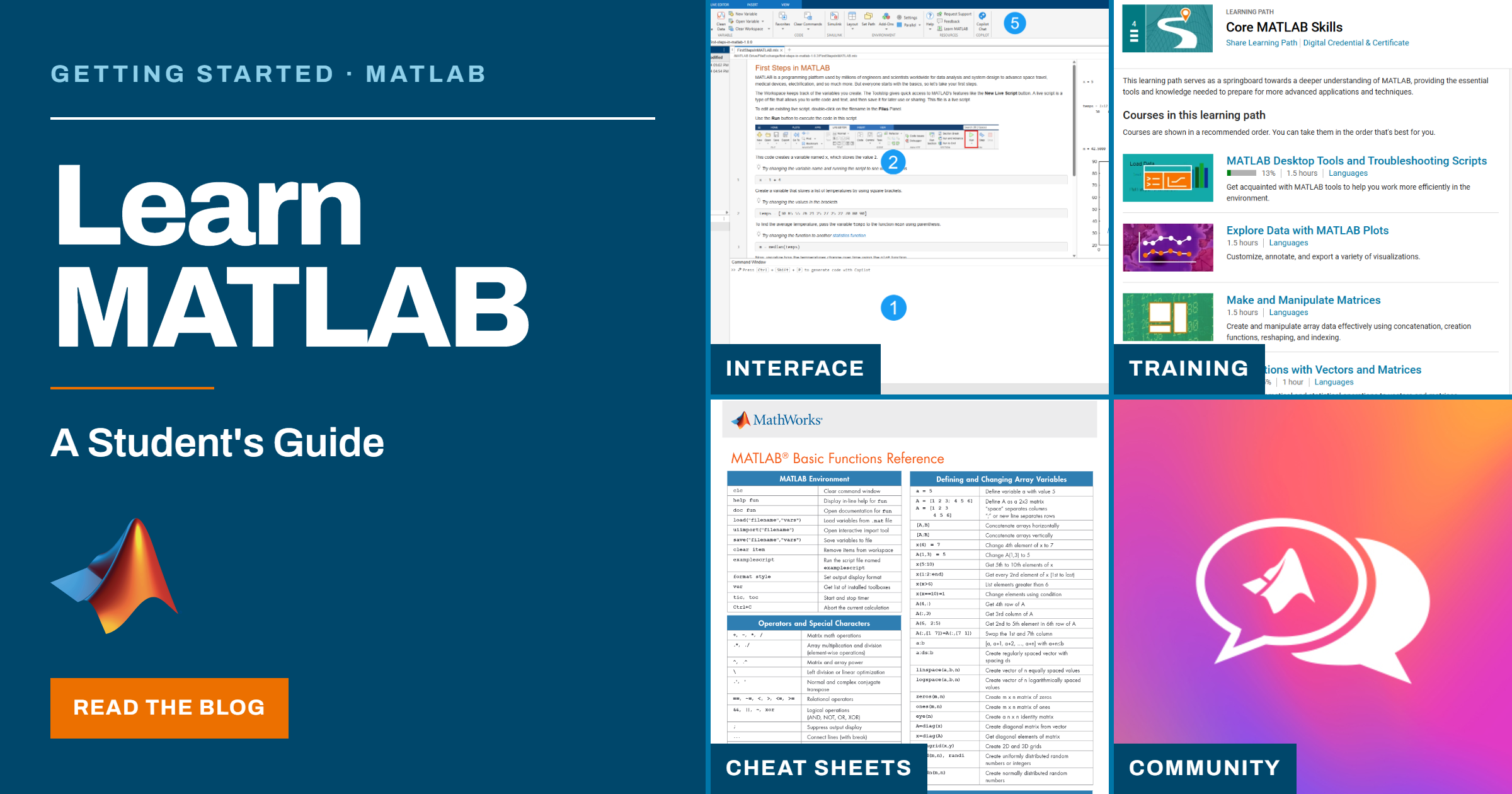
If you're a student looking for tips, resources, or guidance for learning MATLAB, check out my new blog: Learn MATLAB – A Student’s Guide
The blog highlights a variety of student resources, including getting started guides, cheat sheets, learning materials, and other helpful tools to make learning MATLAB easier. I hope you find it useful!

Summary:
Dynamically accessing variable names can negatively impact the readability of your code and can cause it to run slower by preventing MATLAB from optimizing it as well as it could if you used alternate techniques. The most common alternative is to use simple and efficient indexing.
Explanation:
Sometimes beginners (and some self-taught professors) think it would be a good idea to dynamically create or access variable names, the variables are often named something like these:
- matrix1, matrix2, matrix3, matrix4, ...
- test_20kmh, test_50kmh, test_80kmh, ...
- nameA, nameB, nameC, nameD,...
Good reasons why dynamic variable names should be avoided:
- Slow
- Buggy
- Security Risk
- Difficult to Work With
- Obfuscated Code Intent
- Confuses Data with Code
- Code Helper Tools do not Work
- Magically Making Variables Appear in a Workspace is Risky
There are much better alternatives to accessing dynamic variable names:
- Indexing into Cell Array or ND-Array
- Non-scalar Structures (with Indexing)
- Dynamic Field-Names in a Structure
- load into a Structure, not into the Workspace
- save the Fields of a Scalar Structure
- Use a table or timetable Array
- Use more Efficient Ways to Pass Variables Between Workspaces
Note that avoiding eval (and assignin, etc.) is not some esoteric MATLAB restriction, it also applies to many other programming languages as well:
MATLAB Documentation:
If you are not interested in reading the answers below then at least read MATLAB's own documentation on this topic Alternatives to the eval Function, which states "A frequent use of the eval function is to create sets of variables such as A1, A2, ..., An, but this approach does not use the array processing power of MATLAB and is not recommended. The preferred method is to store related data in a single array." Data in a single array can be accessed very efficiently using indexing.
Note that all of these problems and disadvantages also apply to functions load (without an output variable), assignin, evalin, and evalc, and the MATLAB documentation explicitly recommends to "Avoid functions such as eval, evalc, evalin, and feval(fname)".
The official MATLAB blogs explain why eval should be avoided, the better alternatives to eval, and clearly recommend against magically creating variables. Using eval comes out at position number one on this list of Top 10 MATLAB Code Practices That Make Me Cry. Experienced MATLAB users recommend avoiding using eval for trivial code, and have written extensively on this topic.

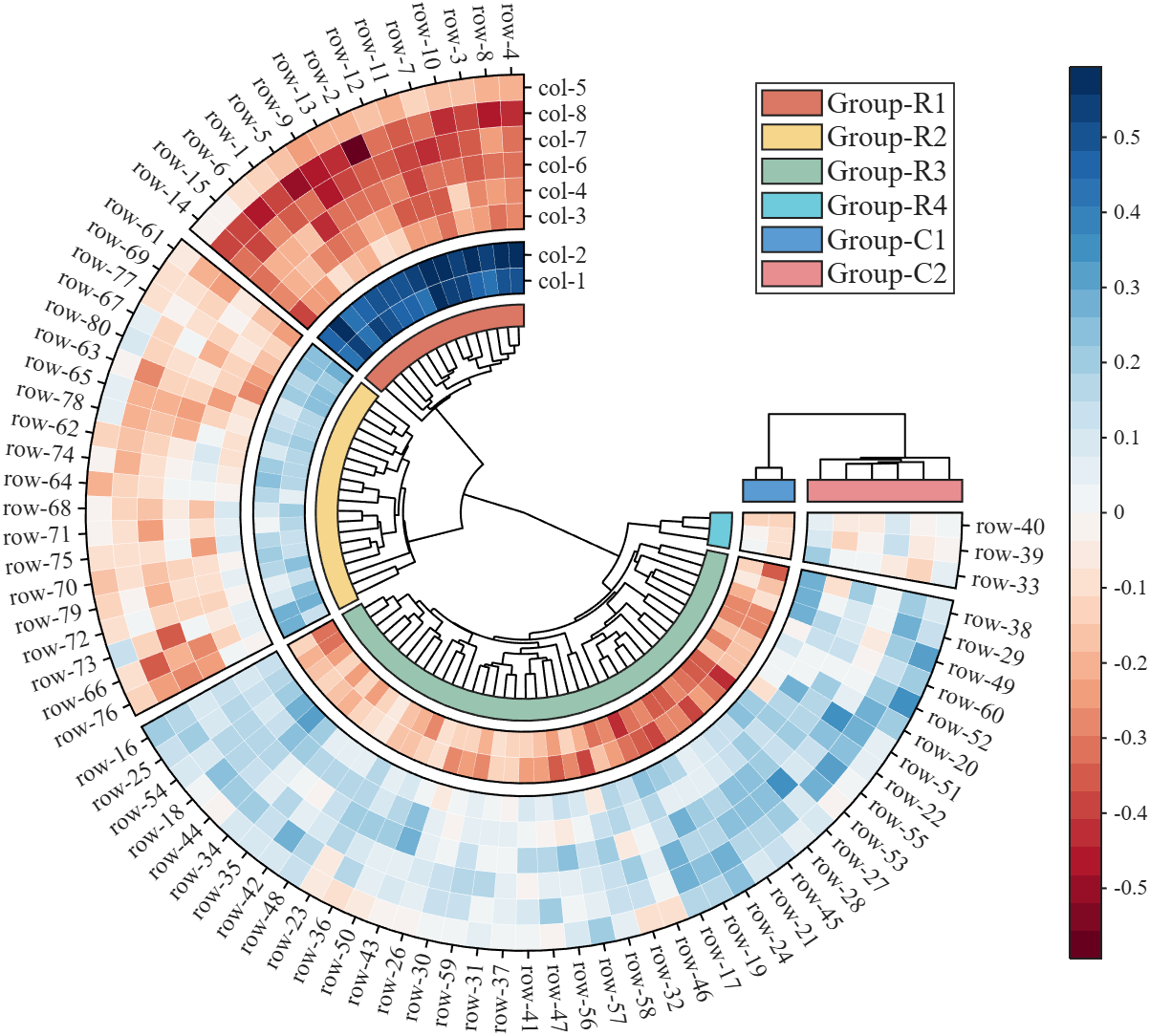
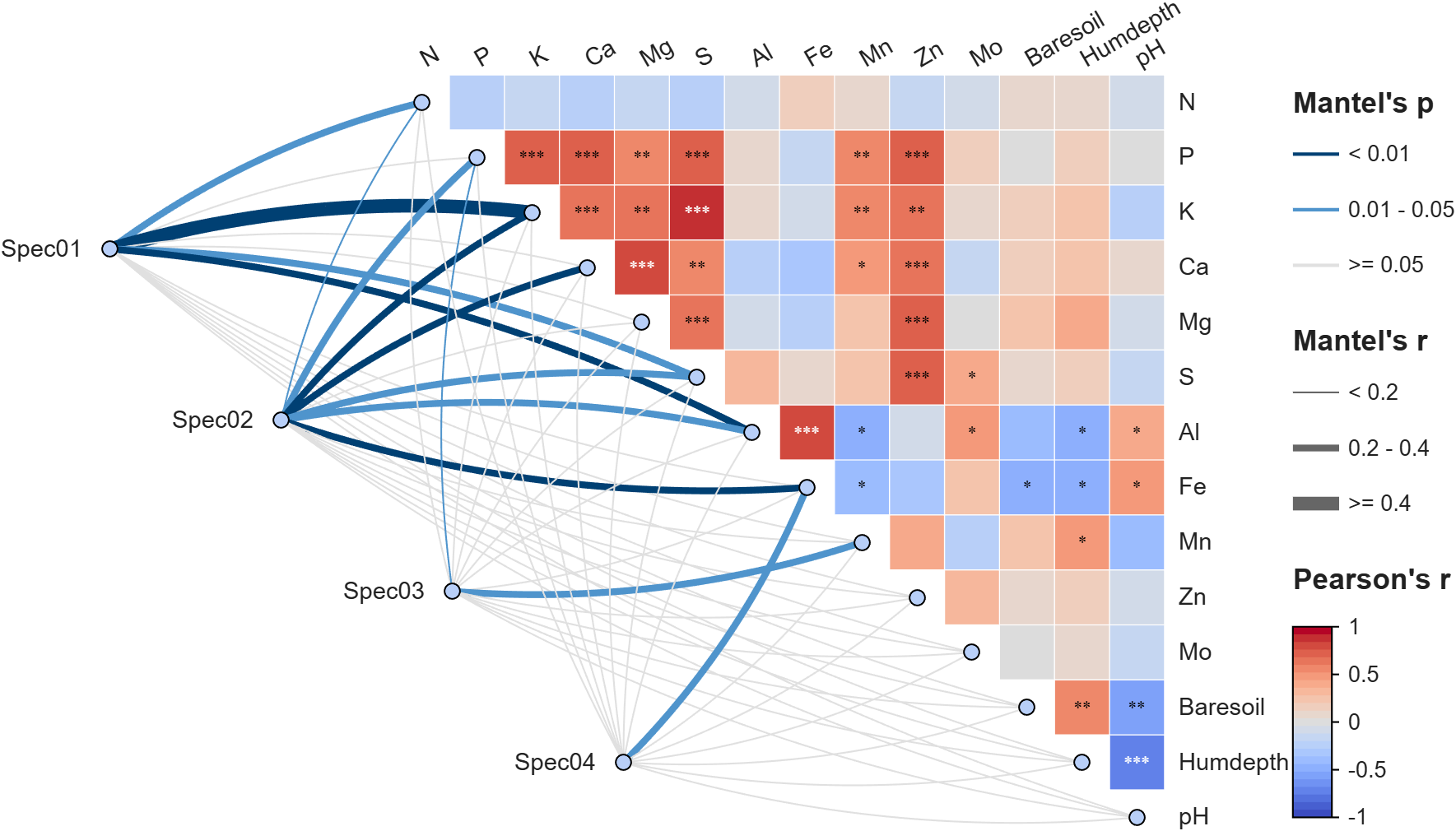
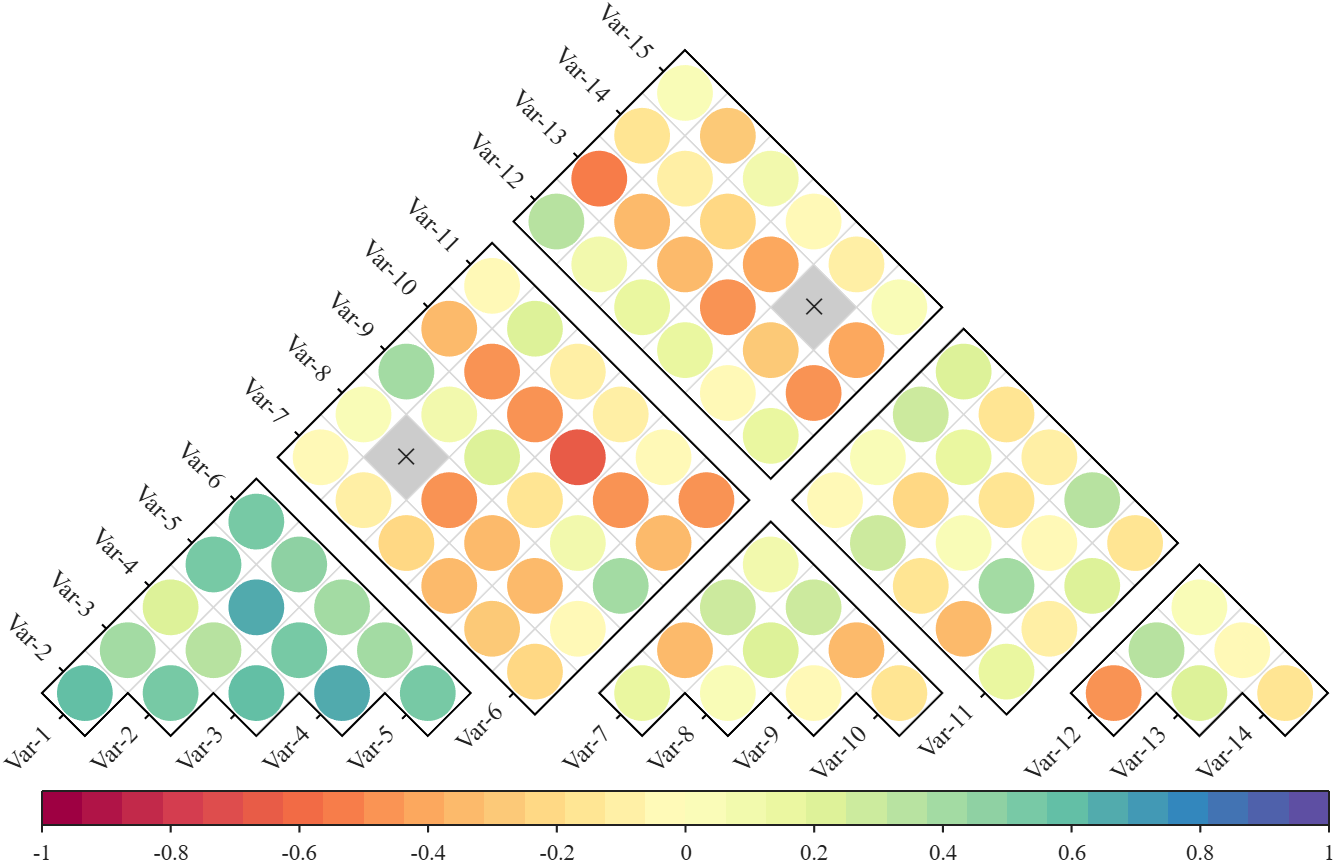
Annular, sector, triangular, and cluster heatmaps can all be produced by this tool:https://www.mathworks.com/matlabcentral/fileexchange/125520-special-heatmap
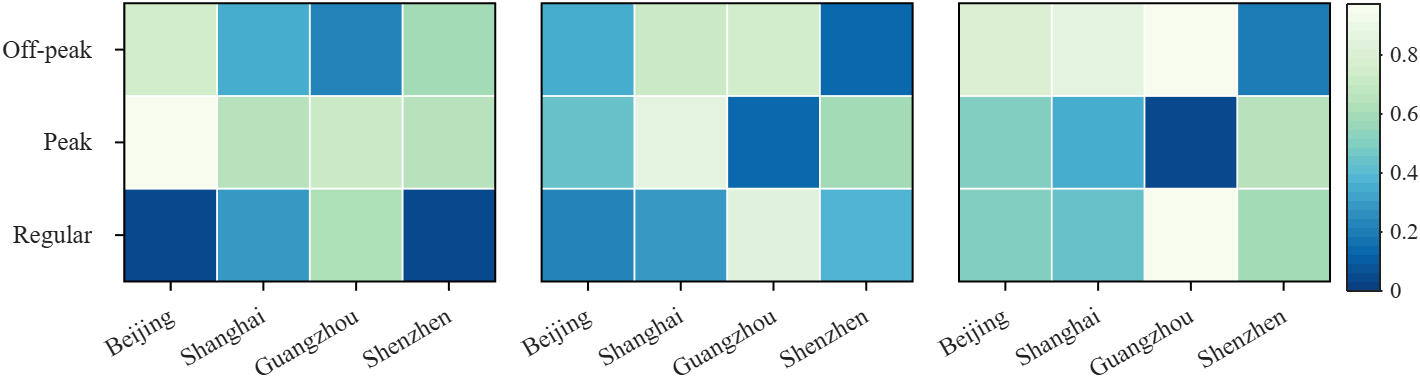
Demo: Group Sep with non-square matrix
Data = rand(3, 12);
SHM = SHeatmap(Data, 'Format','sq');
SHM.RowName = {'Off-peak', 'Peak', 'Regular'};
SHM.ColName = {'Beijing', 'Shanghai', 'Guangzhou', 'Shenzhen'};
SHM.ColGroup = [1,1,1,1, 2,2,2,2, 3,3,3,3];
SHM.draw().setFrame()
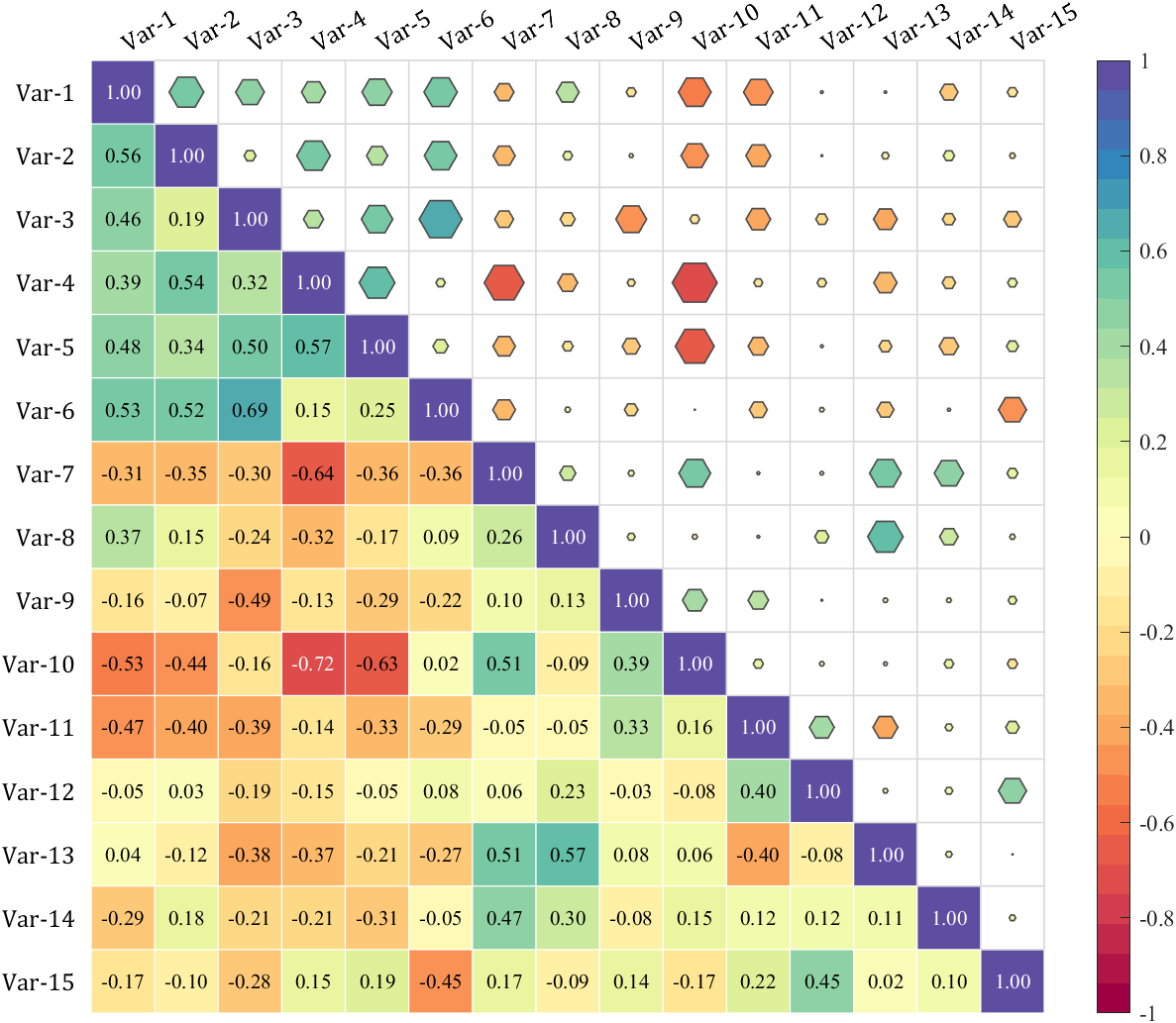
Demo: Merge two triangle heatmaps
% Made up some data casually (随便捏造了点数据)
X = randn(20,15) + [(linspace(-1,2.5,20)').*ones(1, 6), (linspace(.5,-.7,20)').*ones(1, 5), (linspace(.9,-.2,20)').*ones(1, 4)];
% Get the correlation matrix (求相关系数矩阵)
Data = corr(X);
figure()
SHM_m1 = SHeatmap(Data, 'Format','sq').draw().setType('tril');
SHM_m1.setColLabel('Visible','off').setText()
SHM_m2 = SHeatmap(Data, 'Format','hex').draw().setType('triu0');
SHM_m2.setRowLabel('Visible','off').setColLabel('Visible','on') % Show the hidden Var-1 label (显示隐藏的 Var-1 标签)
Demo: Circular heatmap with Group Block and GroupSep
% Circular heatmap is currently supported only for
% SHeatmap with 'sq' Format and 'full' Type.
rng(1)
Data = randn(100, 5);
rowName = compose('row-%d', 1:100);
colName = compose('col-%d', 1:5);
rowGroup = [ones(1, 25), 2.*ones(1, 15), 3.*ones(1, 20), 4.*ones(1, 20), 5.*ones(1, 20)];
rowColor = [187,207,232; 222,236,247; 253,253,253; 251,225,216; 231,184,192]./255;
rgnames = {'Group-R1','Group-R2','Group-R3','Group-R4','Group-R5'};
% create figure (图窗创建)
fig = figure('Units','normalized', 'Position',[.1,.05,.5,.72]);
ax = axes('Parent',fig, 'Position',[.1,.1,.75,.75]);
% Draw group block (绘制分组方块)
SCB_L = SClusterBlock(ax, rowGroup, 'Orientation','left', 'ColorList',rowColor, 'Group',rowGroup, 'GroupSep',2.5);
SCB_L.draw(); SCB_L.setXYTLim('XLim',[1.65,1.95], 'YLim',[0, 1], 'TLim',[-3*pi/2, pi/3]);
% Draw circular heatmap (绘制环形热图)
SHM = SHeatmap(ax, Data, 'Format','sq', 'RowGroup',rowGroup, 'GroupSep',2.5);
SHM.TickLength = .3;
SHM.draw();
SHM.setRowName(rowName)
SHM.setColName(colName)
SHM.setRowLabelLocation('right')
SHM.setColLabelLocation('top')
% YLim(1) -> TLim(1), YLim(2) -> TLim(2)
SHM.setXYTLim('XLim',[2, 3], 'YLim',[0, 1], 'TLim',[-3*pi/2, pi/3]);
SHM.Colorbar.Position(1) = SHM.Colorbar.Position(1) + .1;
gHdl = text(ax, SCB_L.X, SCB_L.Y, rgnames, 'FontSize',14, 'FontName','Times New Roman');
setTextPerpRadial(gHdl)
colormap(slanCM(97, 32))
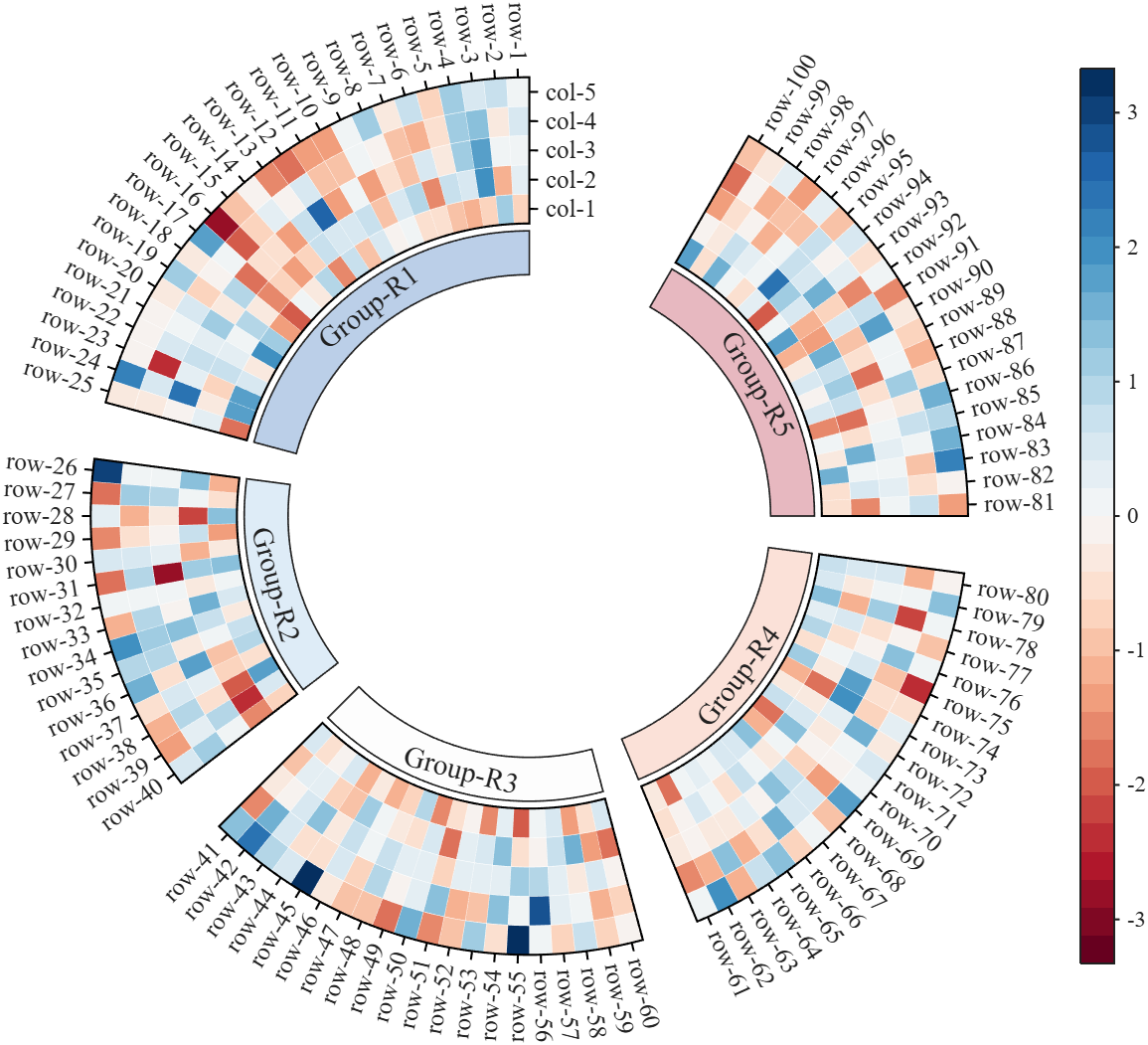
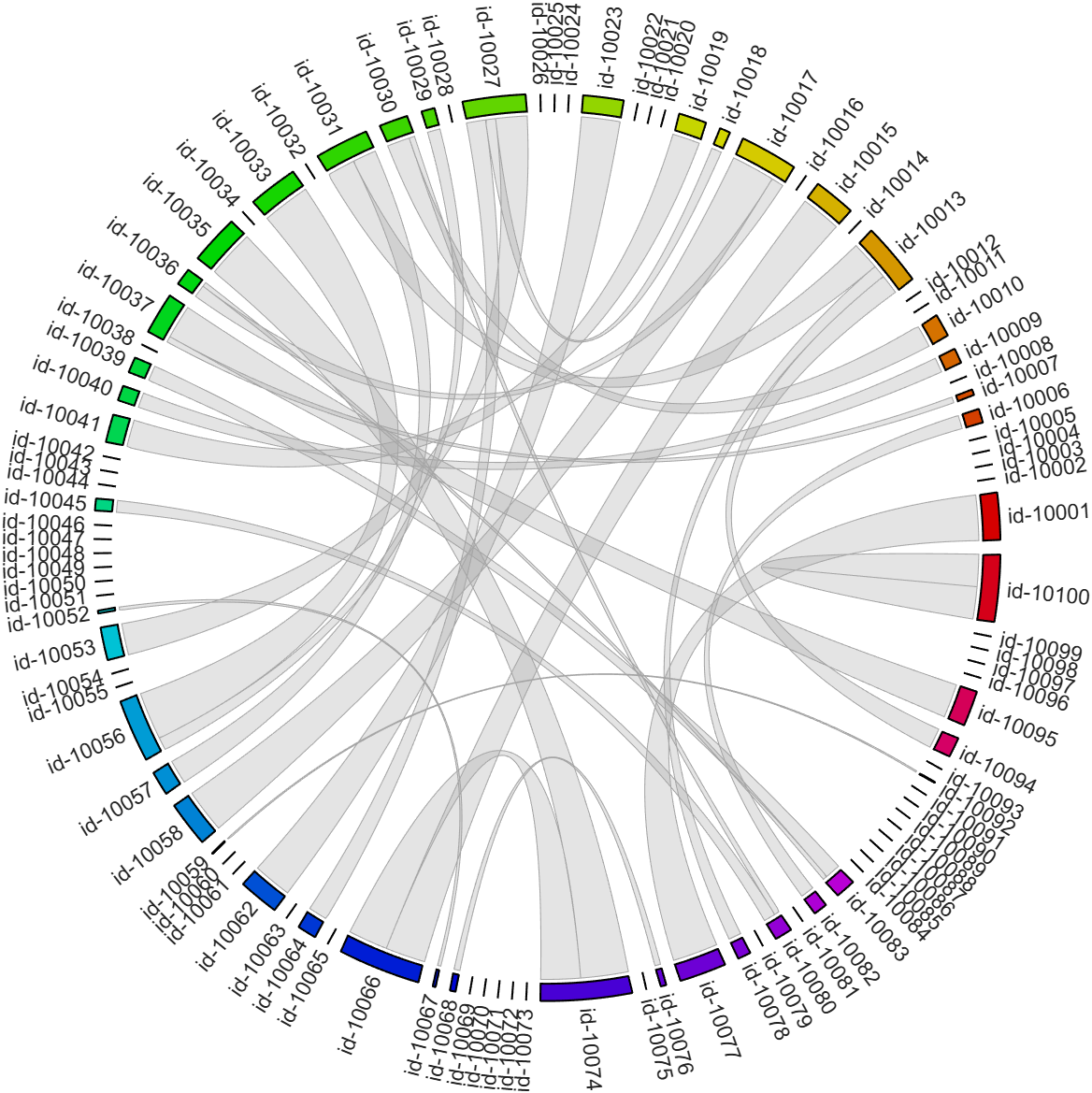
More than 50 examples are incorporated into this tool:
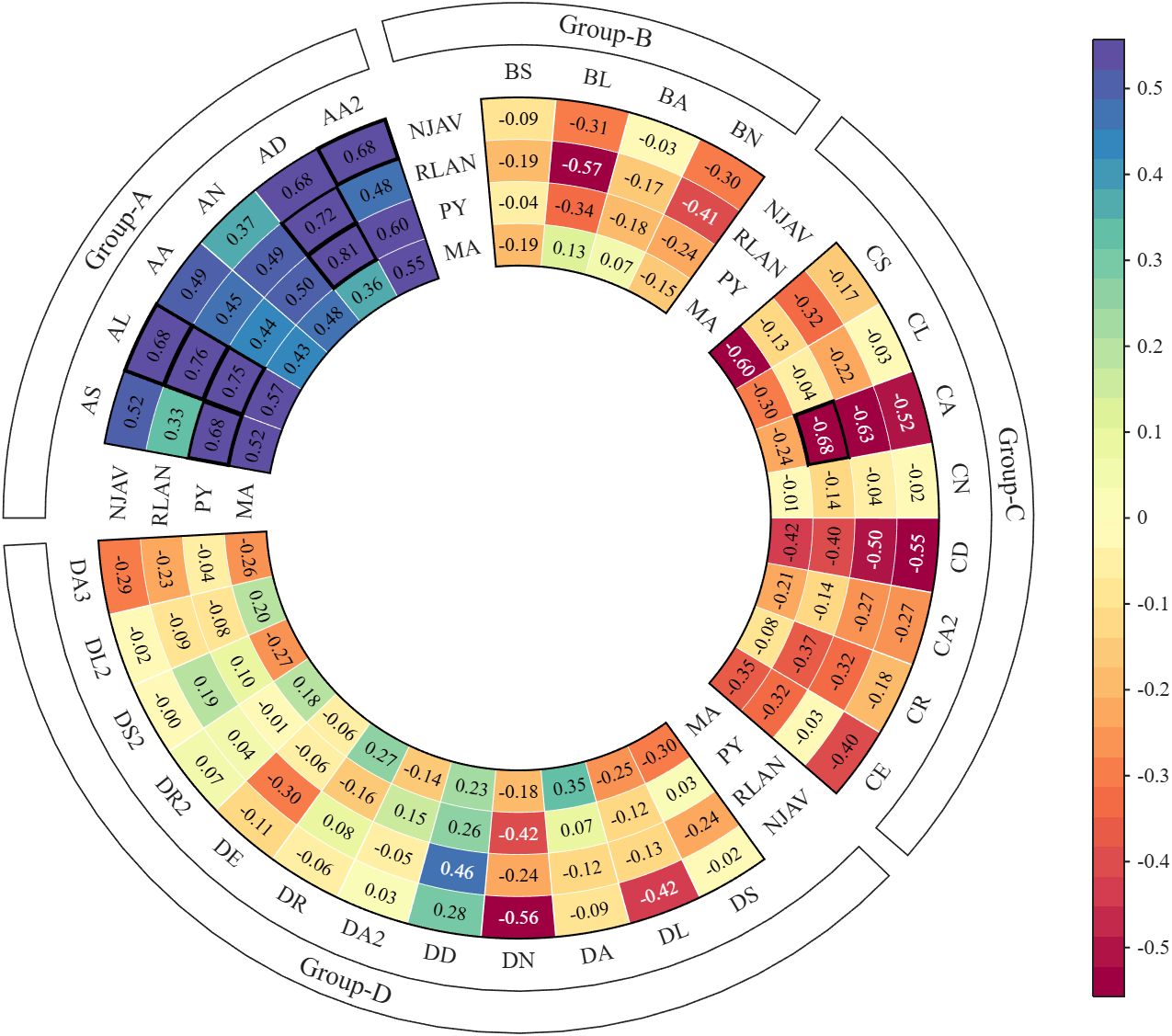
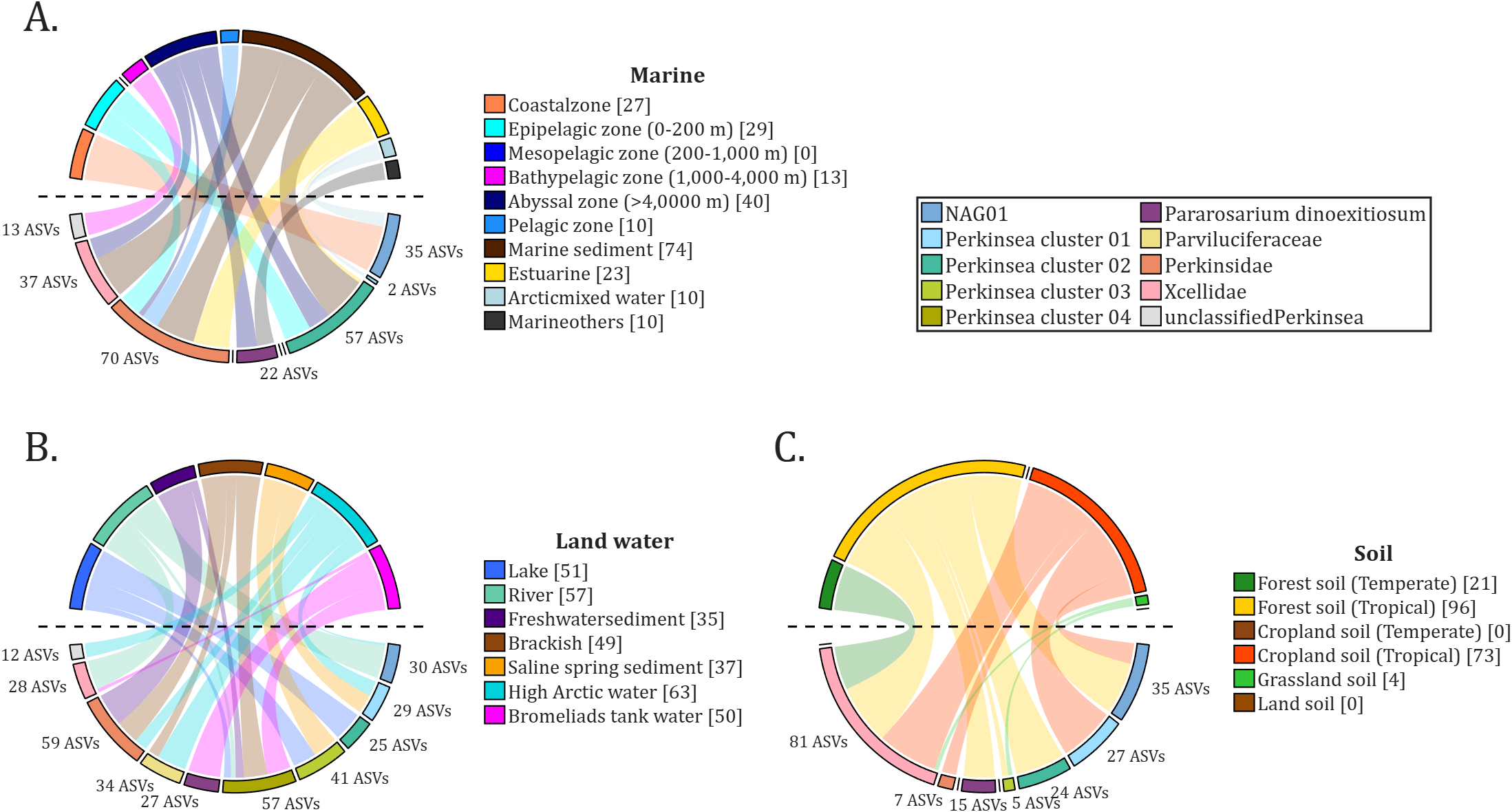
All figures presented in this Discussion were generated using MATLAB.
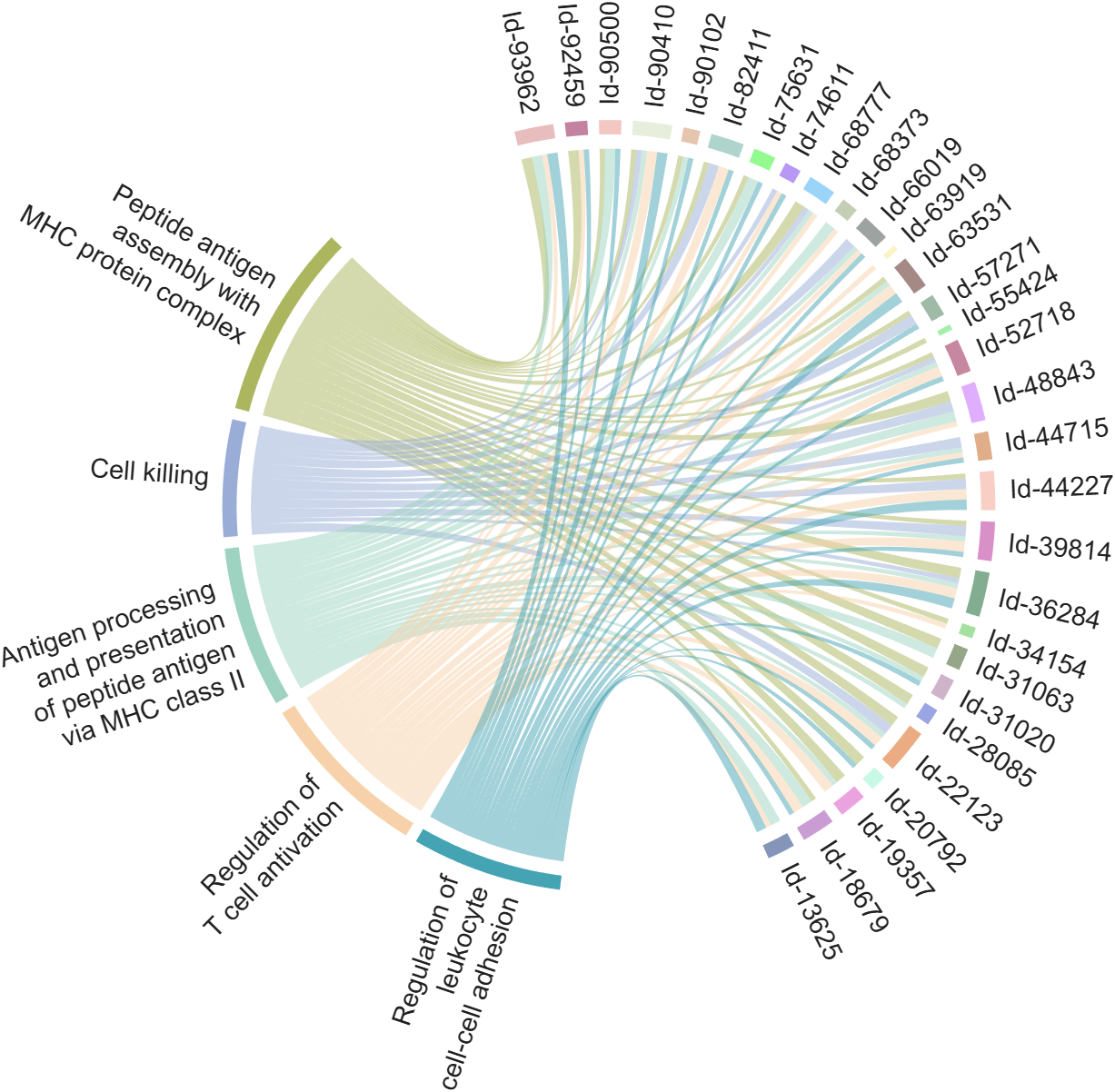
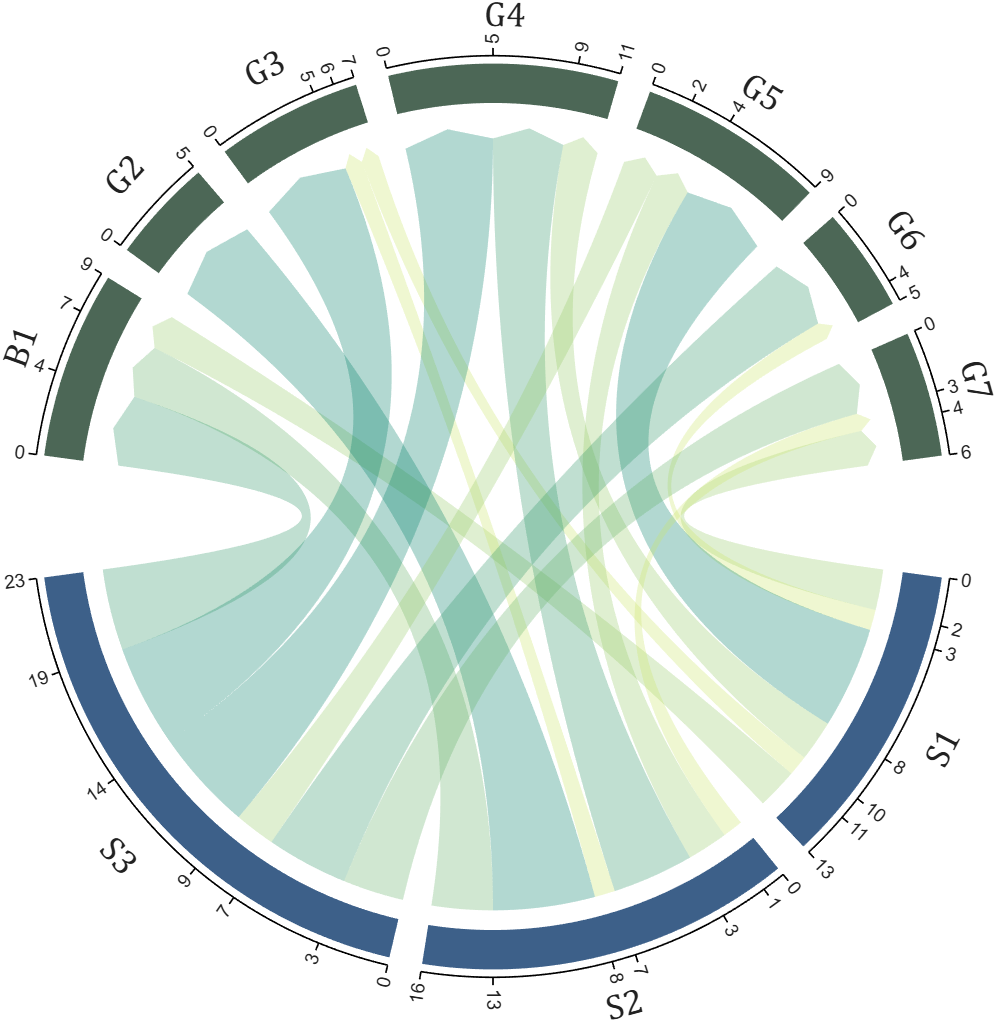
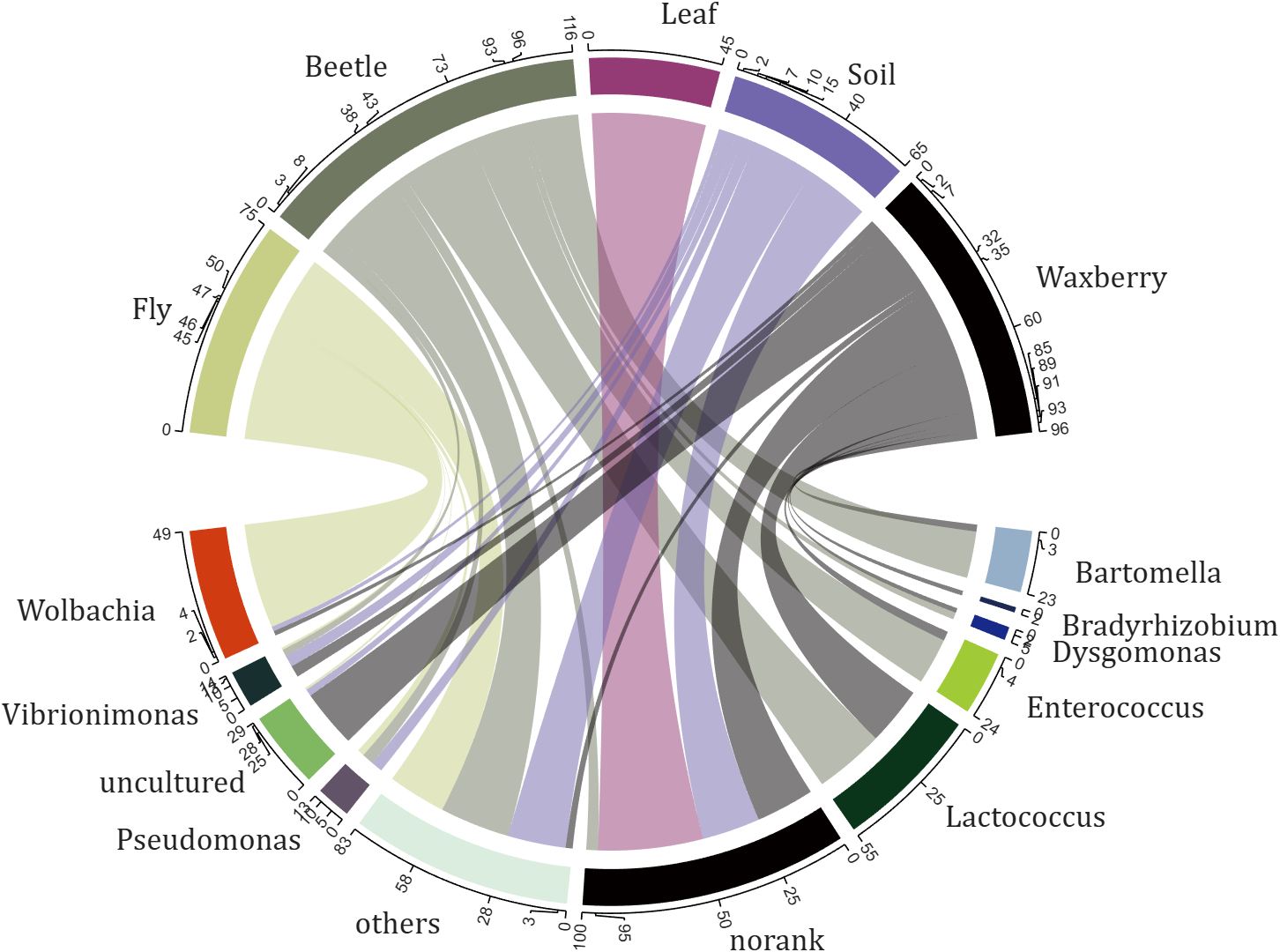
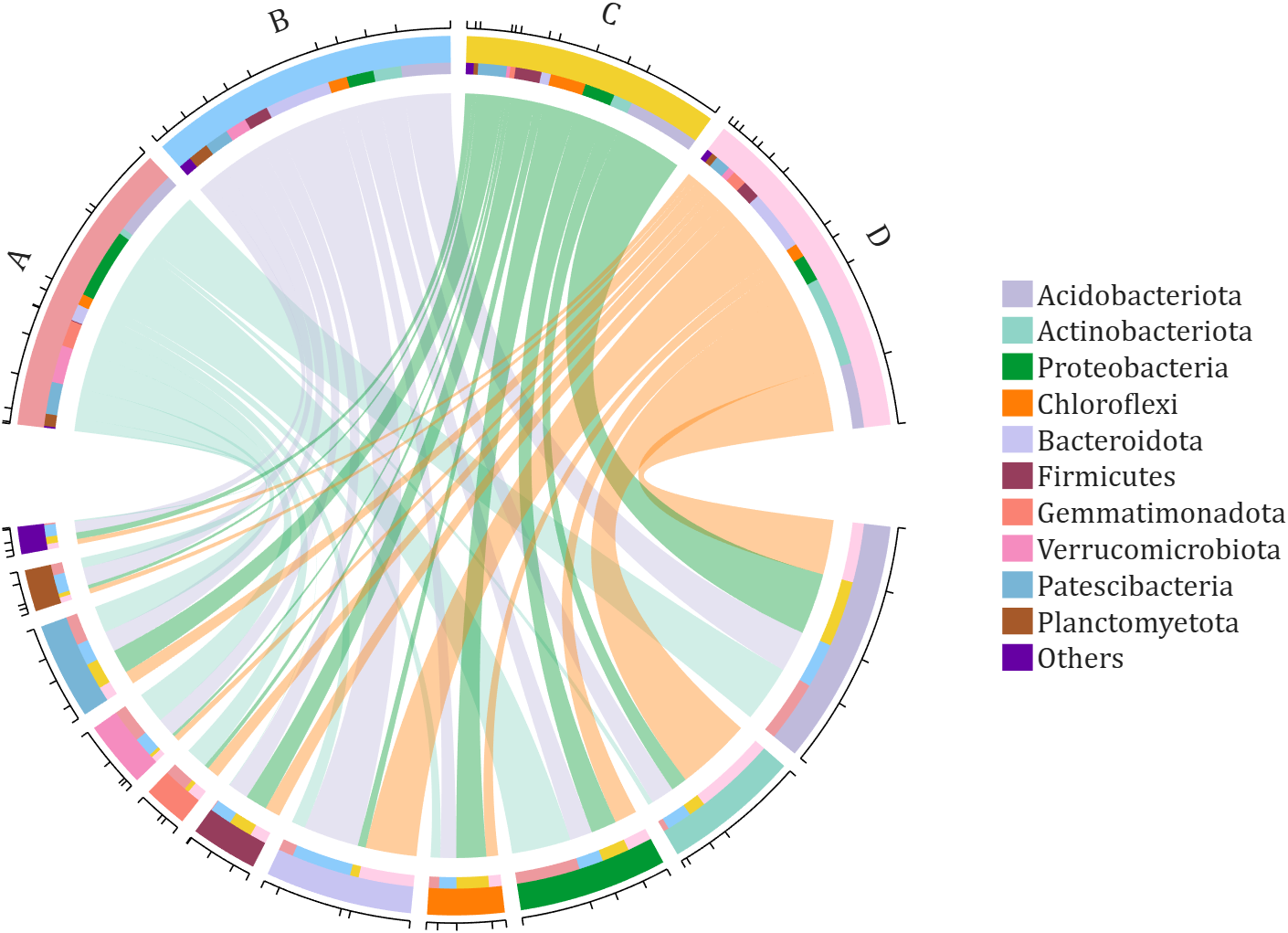
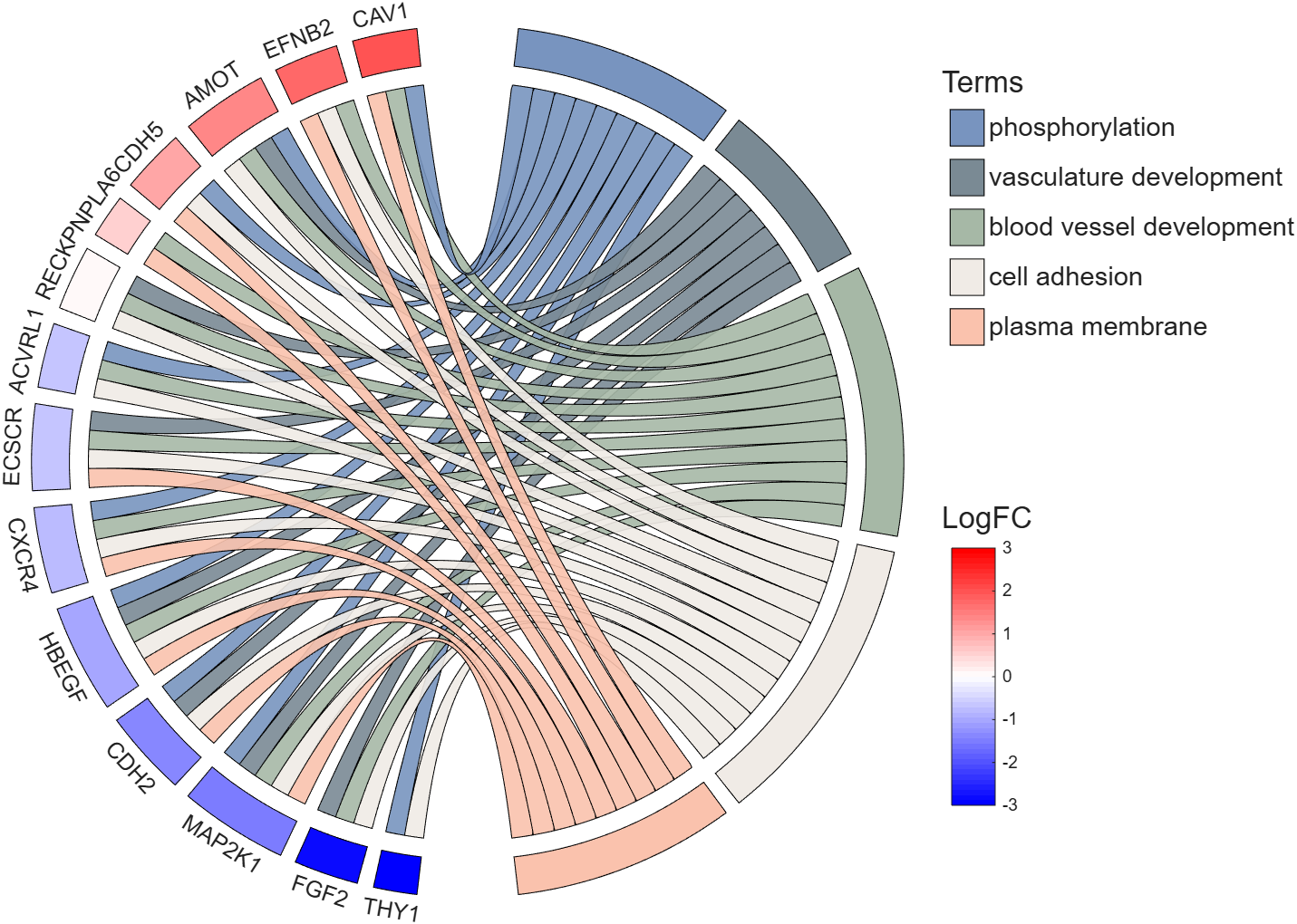
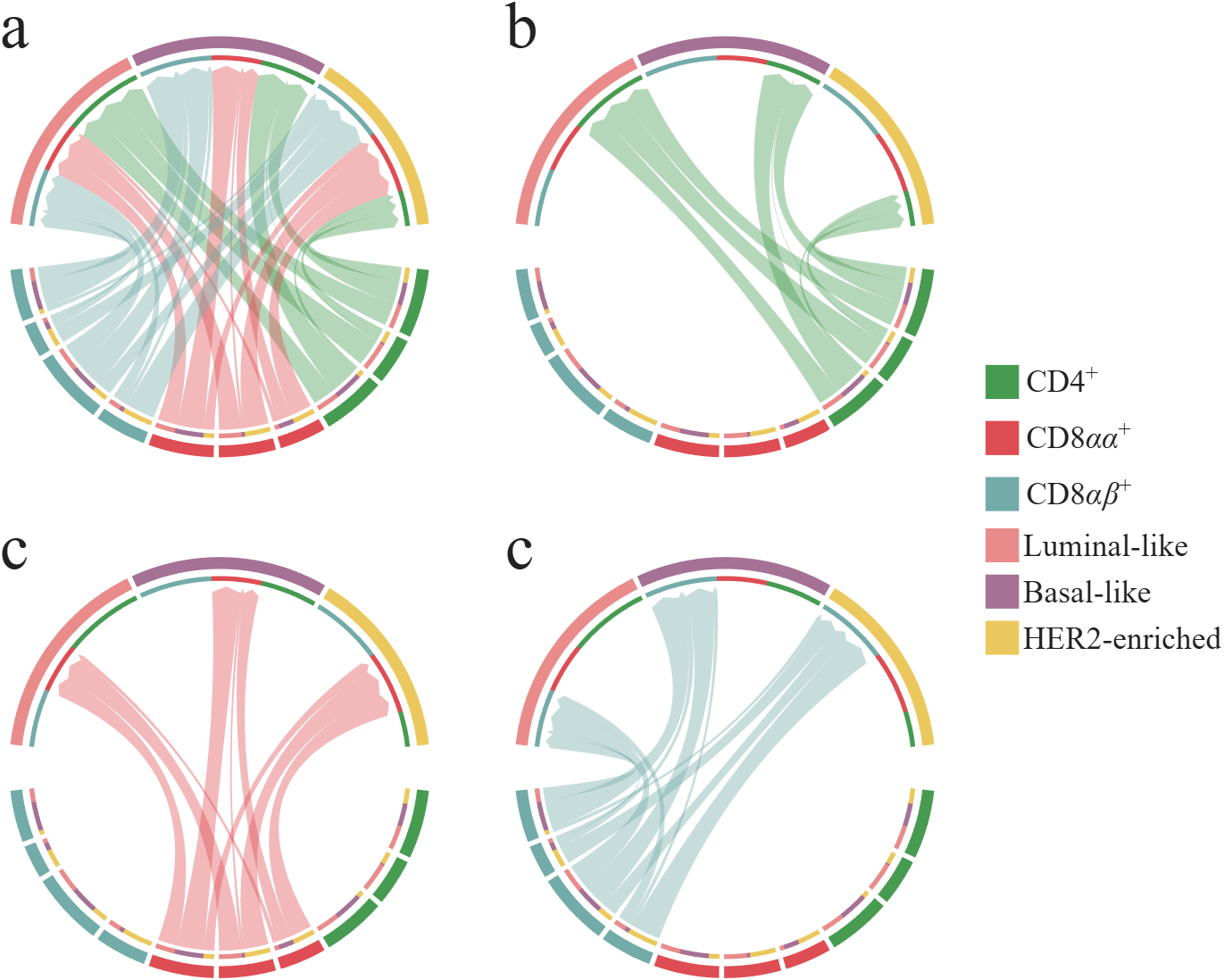
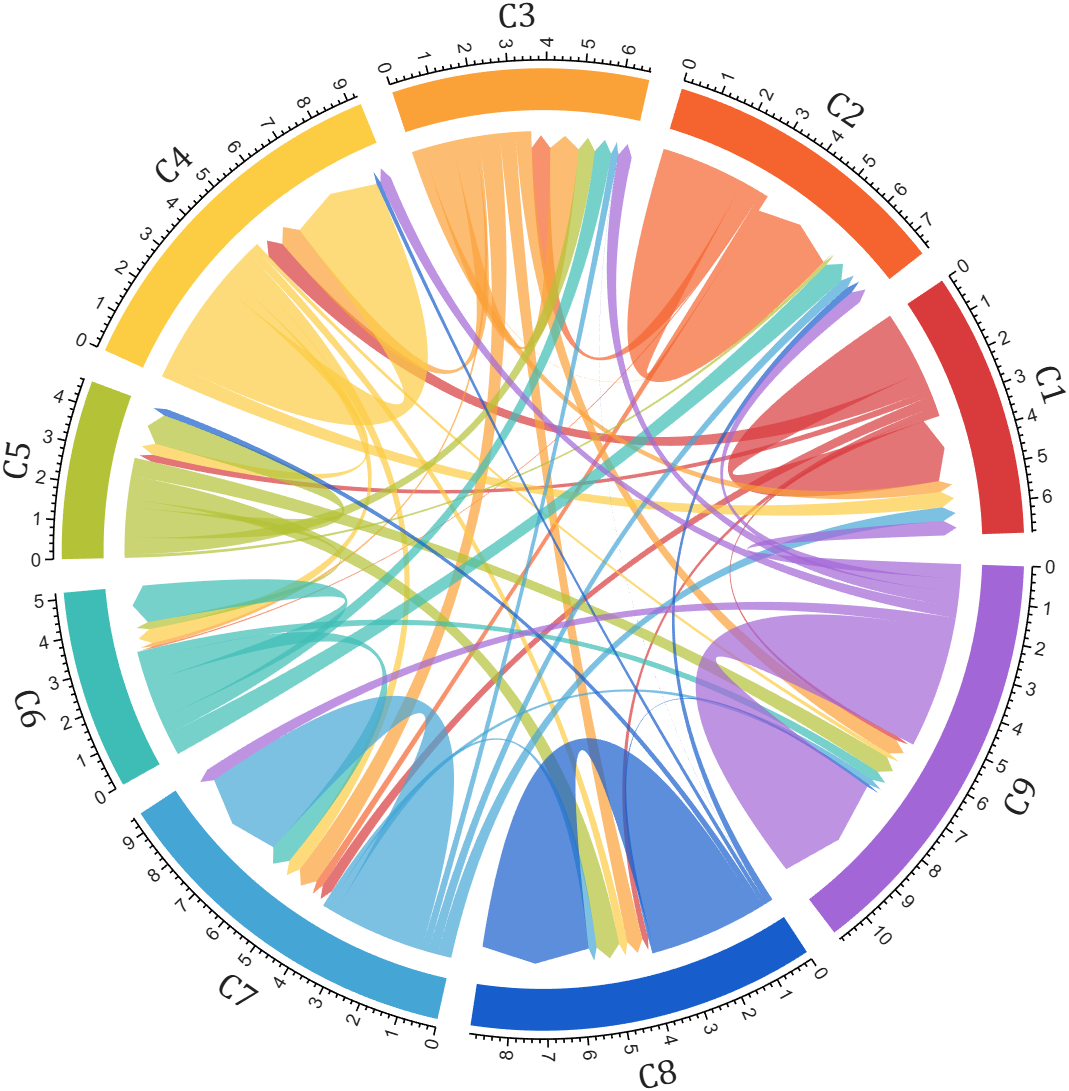
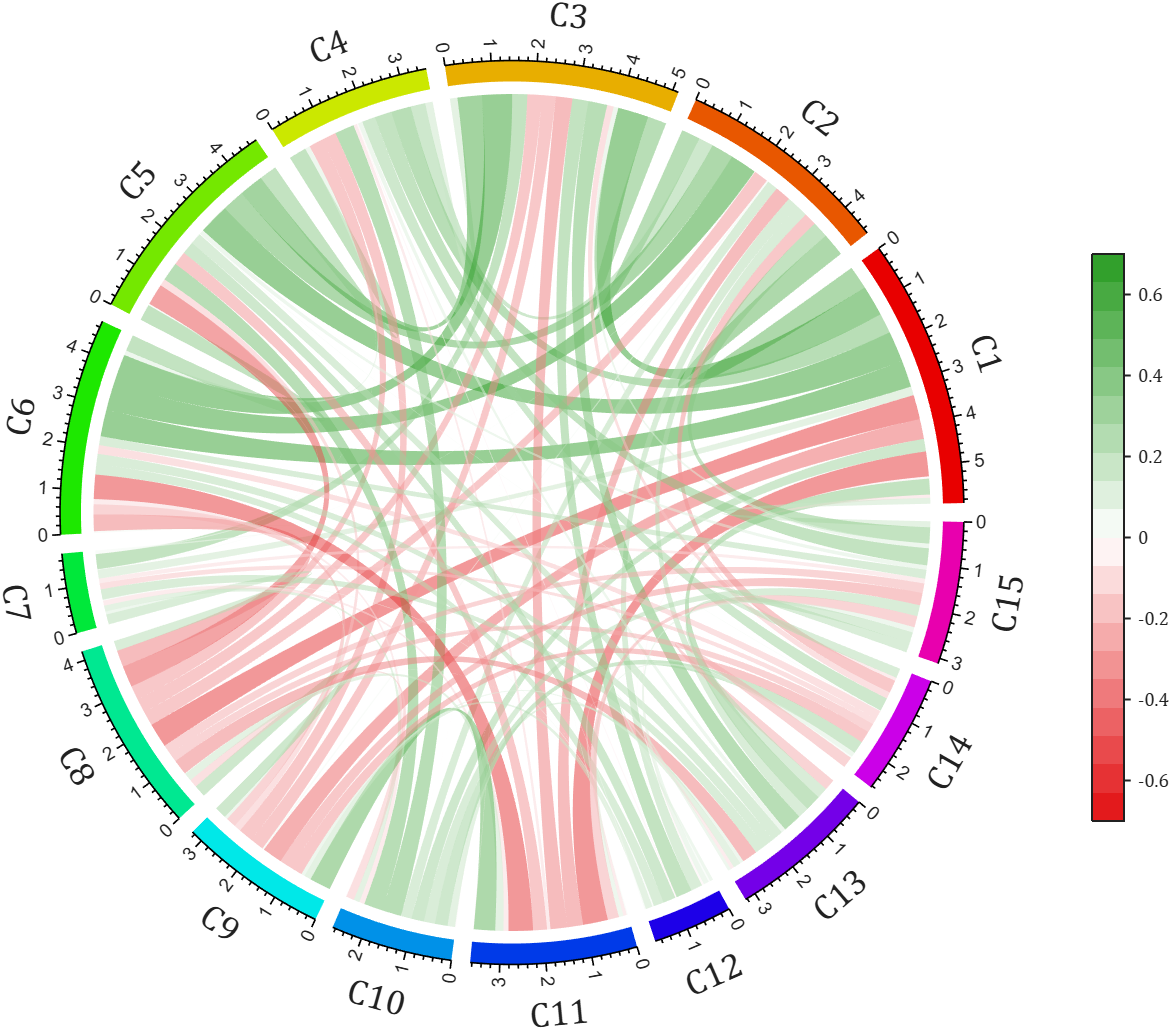
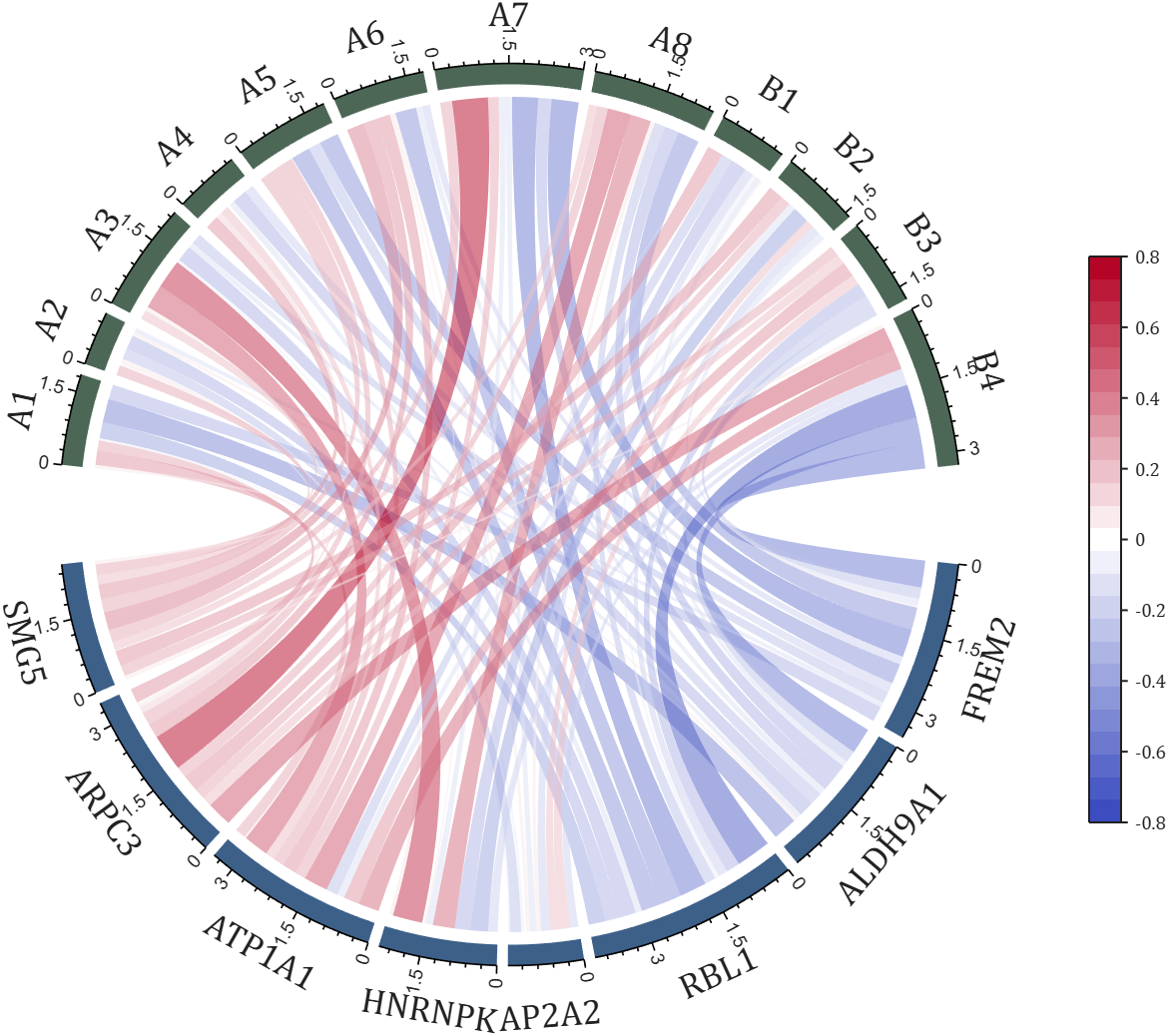
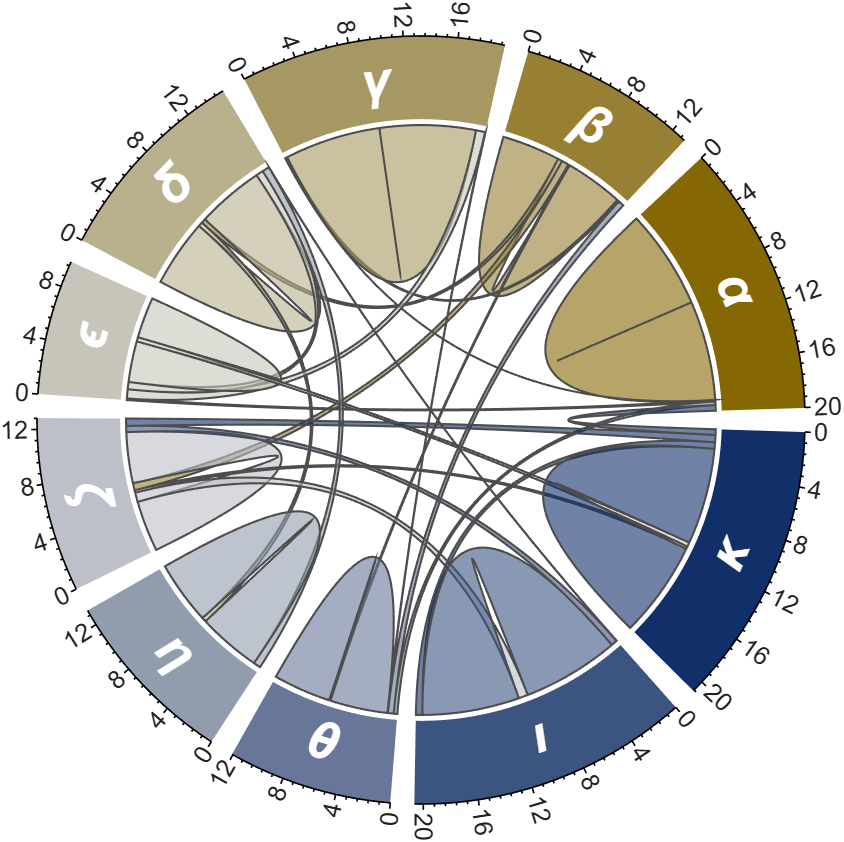
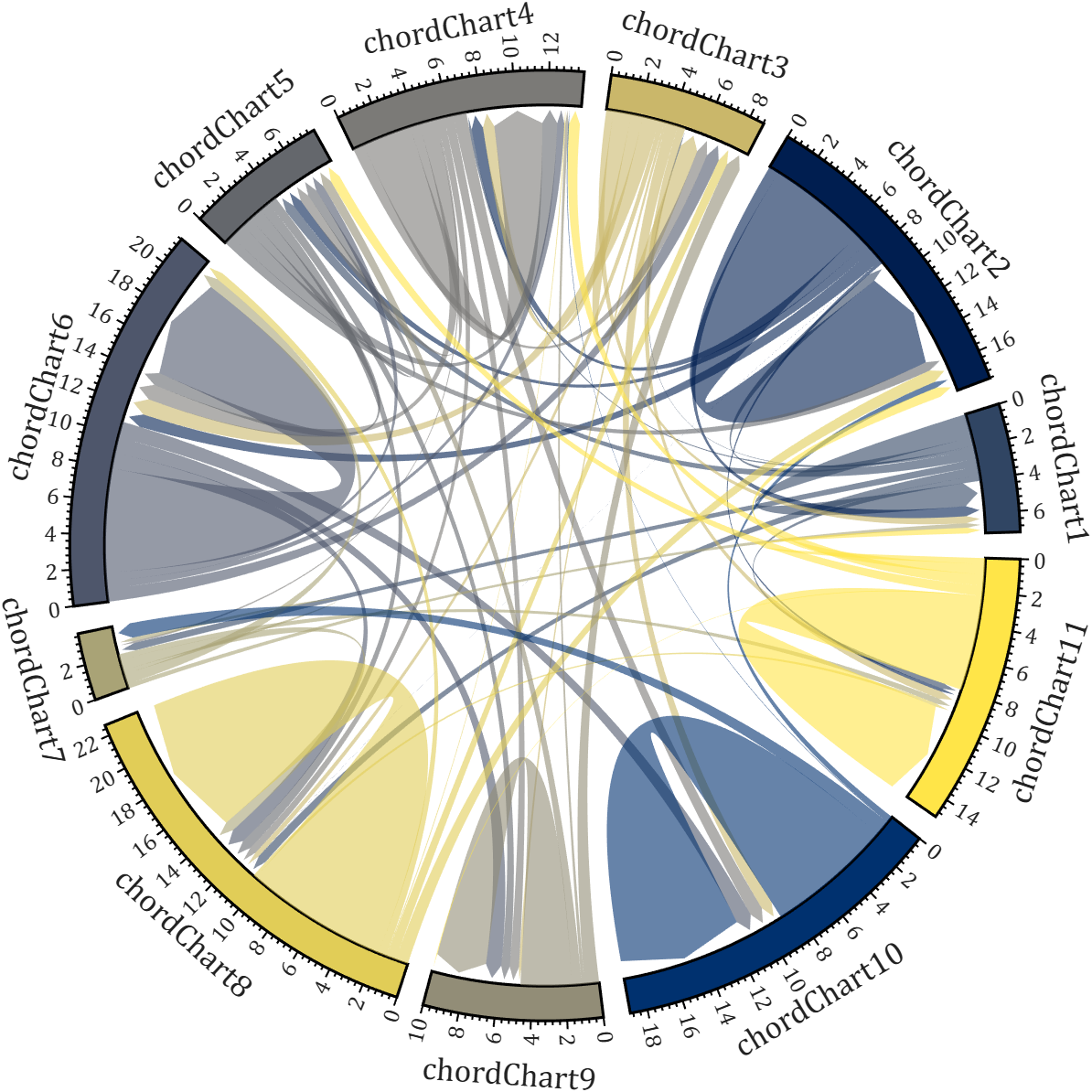
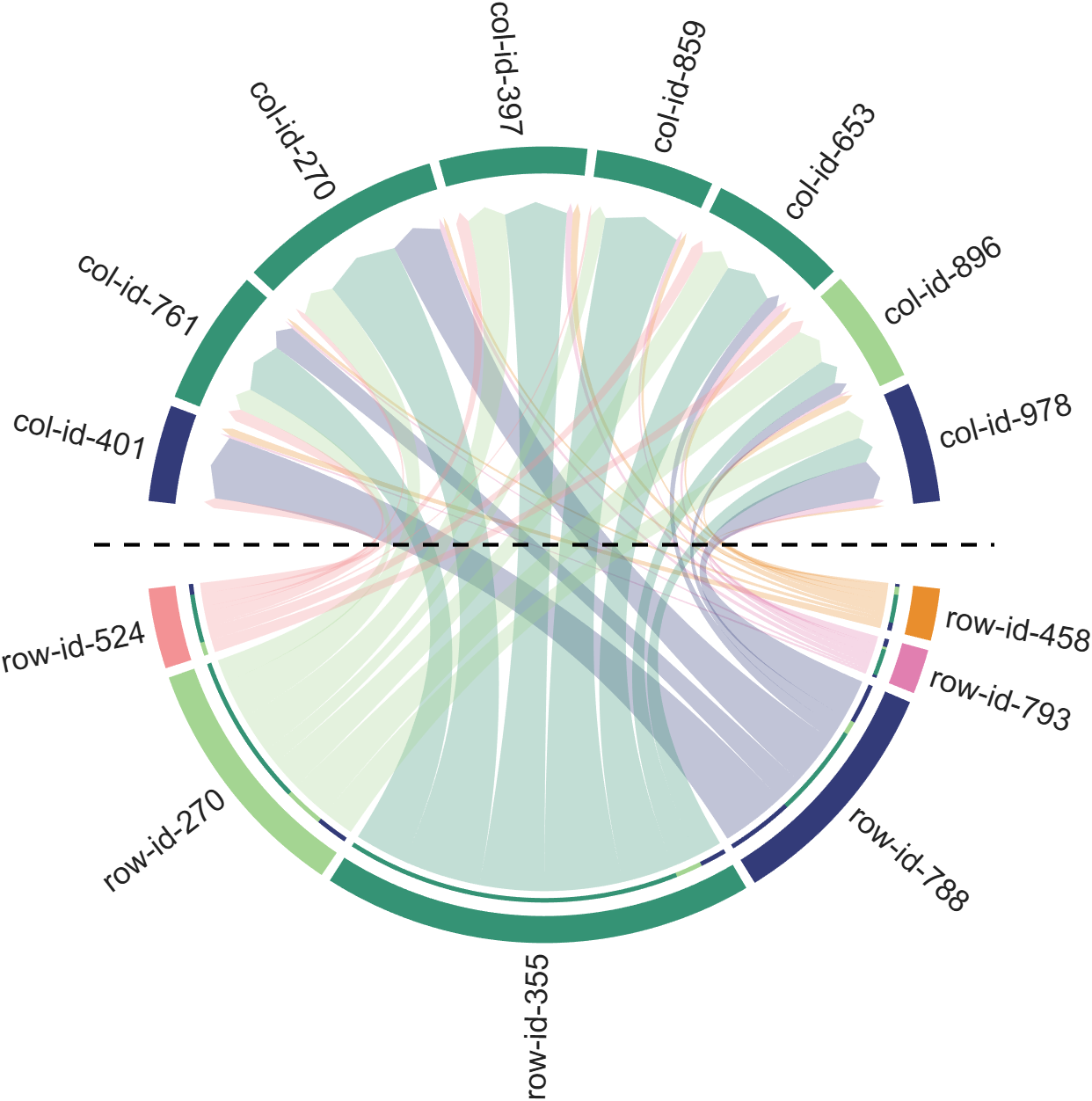
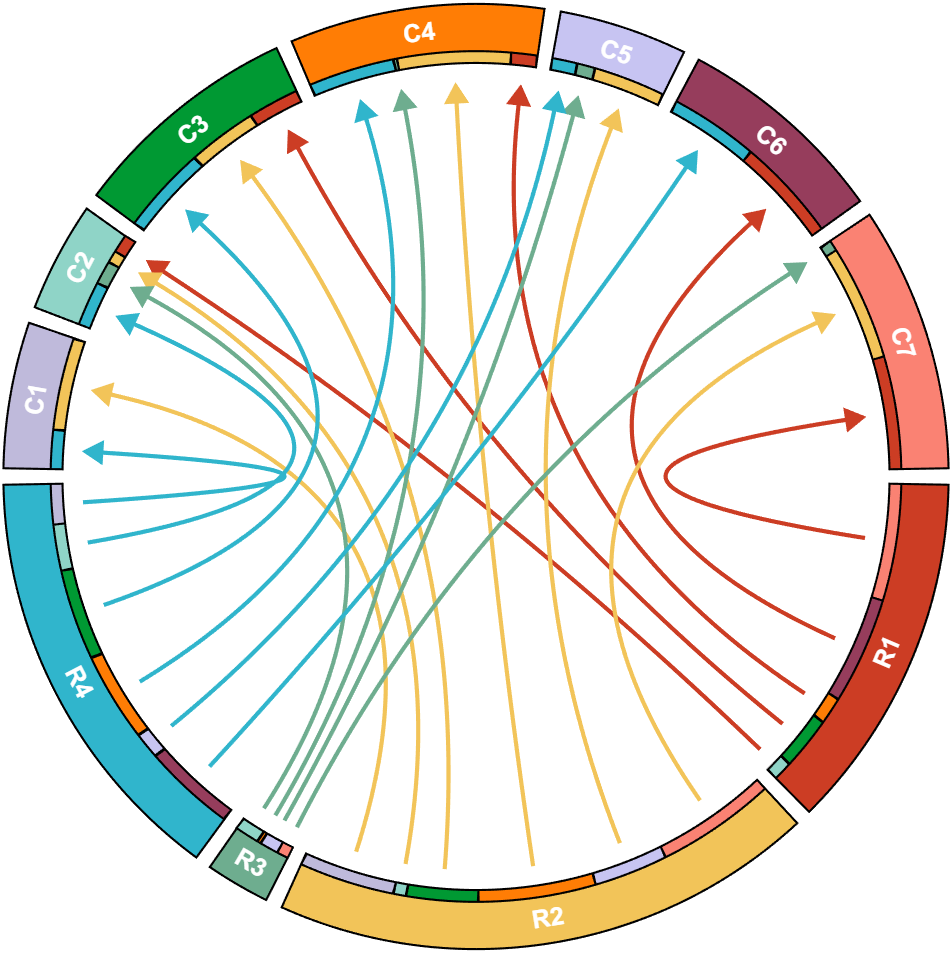
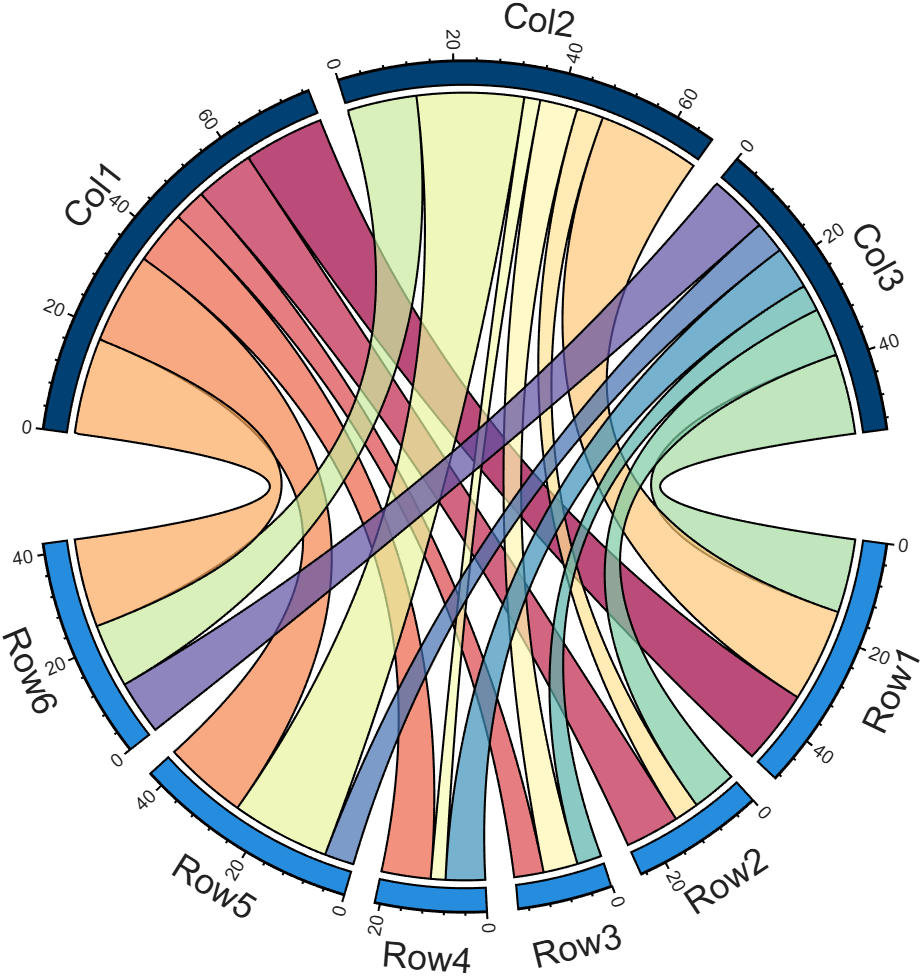
I developed two functions: one for plotting chord diagrams without self-loops, and the other for plotting chord diagrams with self-loops.
chordChart : basic usage
plotting chord diagrams without self-loops : https://www.mathworks.com/matlabcentral/fileexchange/116550-chordchart-chord-diagram
dataMat = [2 0 1 2 5 1 2;
3 5 1 4 2 0 1;
4 0 5 5 2 4 3];
colName = {'B1','G2','G3','G4','G5','G6','G7'};
rowName = {'S1','S2','S3'};
% Create and render chord diagram object (创建弦图对象并渲染)
CC = chordChart(dataMat, 'RowName',rowName, 'ColName',colName, 'Arrow','on');
CC.LinearMinorTick = 'on';
CC.draw();
% Set Font for labels and show ticks (调整字体并显示刻度)
CC.setFont('FontSize',17, 'FontName','Cambria')
CC.tickState('on')
CC.tickLabelState('on')
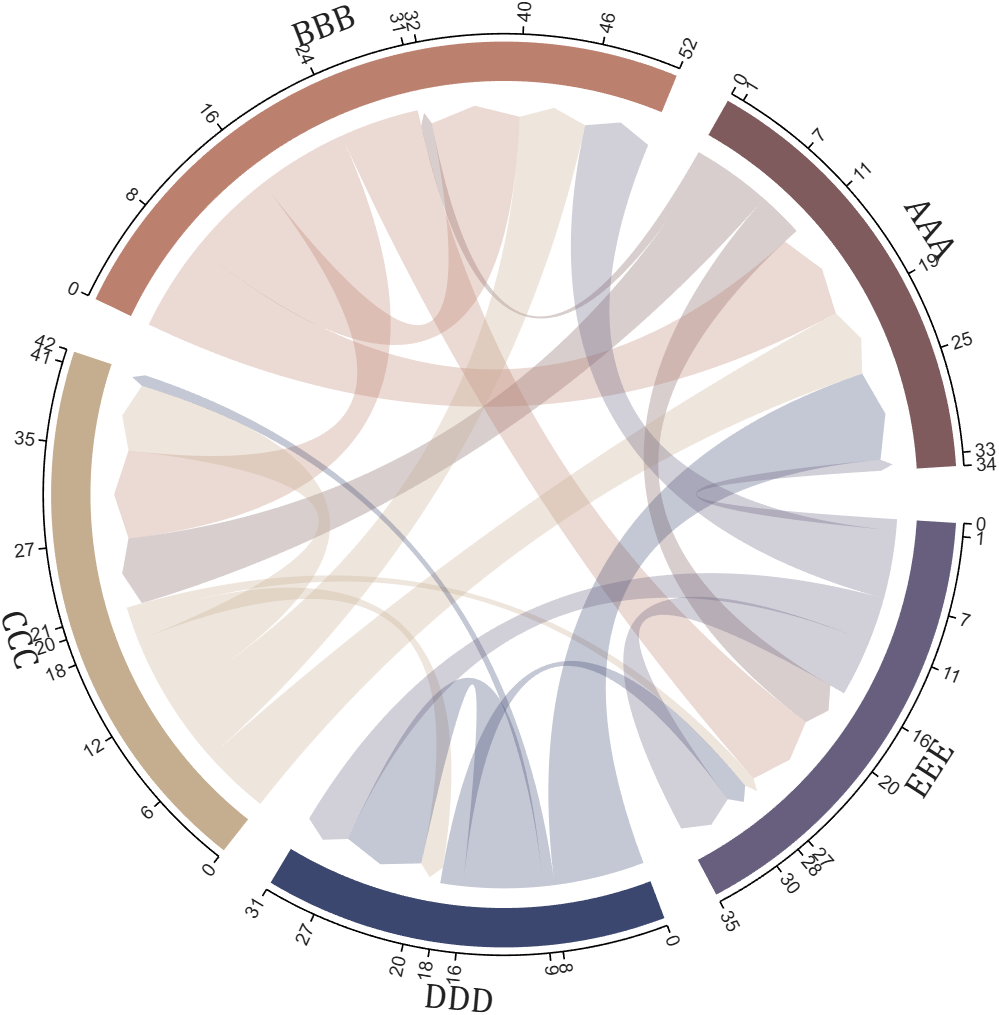
biChordChart : basic usage
plotting chord diagrams with self-loops : https://www.mathworks.com/matlabcentral/fileexchange/121043-bichordchart-bidirectional-chord-diagram
dataMat = randi([0,8], [5,5]);
nameList = {'AAA','BBB','CCC','DDD','EEE'};
% Create bichord chart object and draw (创建并绘制双向弦图对象)
BCC = biChordChart(dataMat, 'Arrow','on', 'Label',nameList);
BCC = BCC.draw();
% Show ticks and tick labels (添加刻度)
BCC.tickState('on')
BCC.tickLabelState('on')
% Set font properties (修改字体,字号及颜色)
BCC.setFont('FontName','Cambria','FontSize',17)
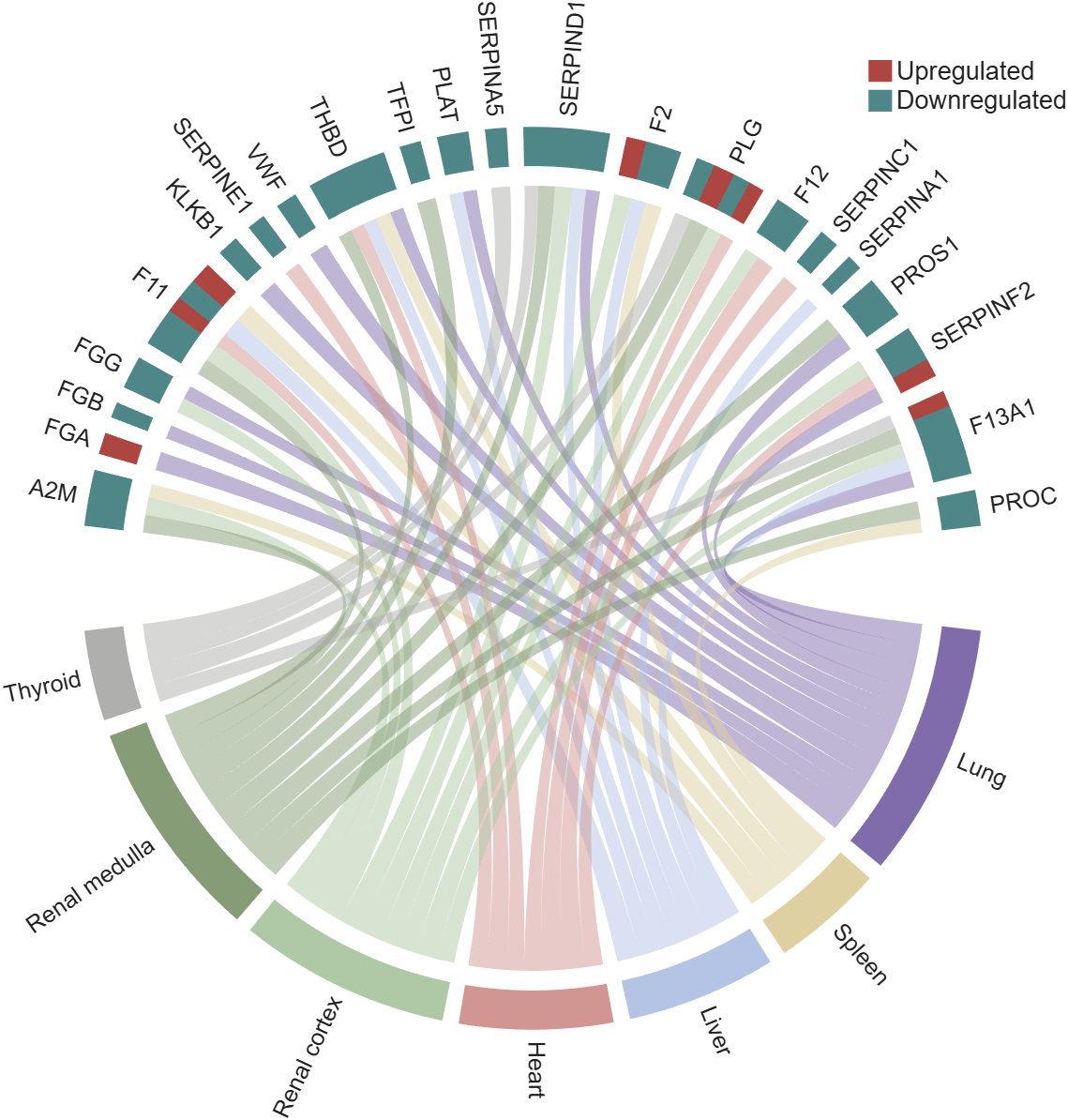
The two File Exchange submissions each provide more than a dozen basic examples. In addition, the GitHub repository listed below provides nearly 40 elaborate customized demonstration cases.
Did you know that function double with string vector input significantly outperforms str2double with the same input:
x = rand(1,50000);
t = string(x);
tic; str2double(t); toc
tic; I1 = str2double(t); toc
tic; I2 = double(t); toc
isequal(I1,I2)
Recently I needed to parse numbers from text. I automatically tried to use str2double. However, profiling revealed that str2double was the main bottleneck in my code. Than I realized that there is a new note (since R2024a) in the documentation of str2double:
"Calling string and then double is recommended over str2double because it provides greater flexibility and allows vectorization. For additional information, see Alternative Functionality."

n= input('Escolhe um número inteiro postivo. ')
primo=true;
i=2;
while i<n
if mod(n,i)==0;
primo=false;
end
i= i+1;
end
if primo && n>1;
disp('É primo')
else
disp('Não é primo')
end
anterior= n-1;
while true
primo=true;
i=2;
while i< anterior
if mod(anterior,i)==0;
primo= false;
end
i= i+1;
end
if primo && anterior>1;
end
anterior= anterior-1;
end
disp(anterior)
seguinte= n+1;
while true;
primo= true;
i=2;
while i<seguinte;
if mod(seguinte,i)==0;
primo=false;
end
i=i+1;
end
if primo && seguinte>1;
end
seguinte= seguinte+1;
end
disp(seguinte)
Any ideas? It is in portuguese if you intend to translate it.
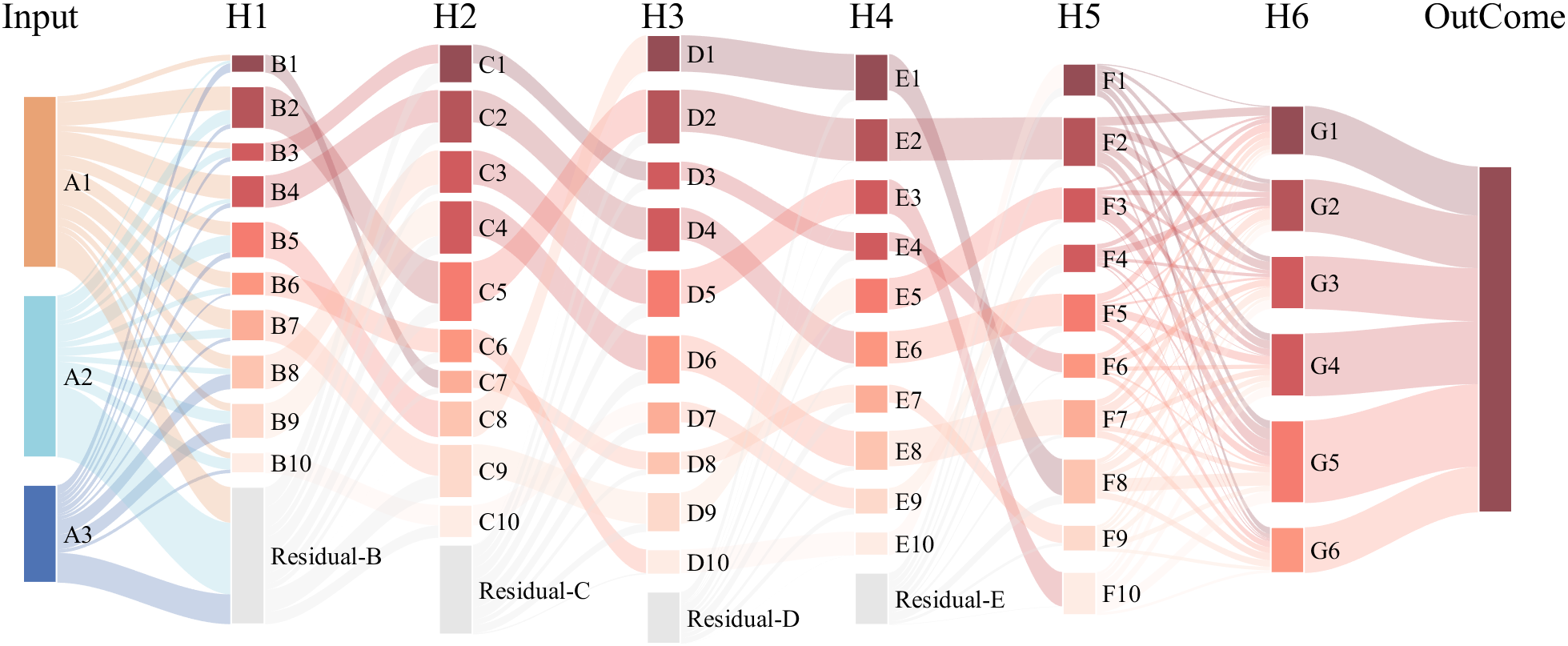
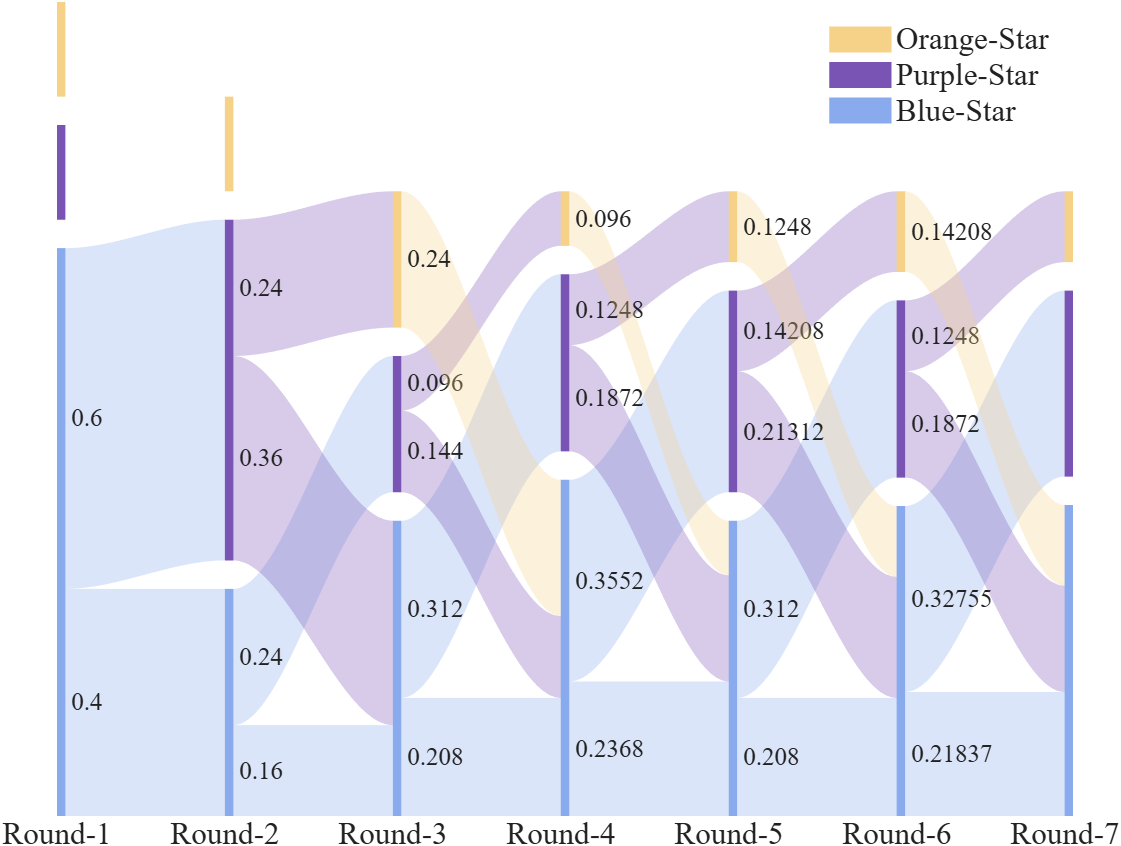
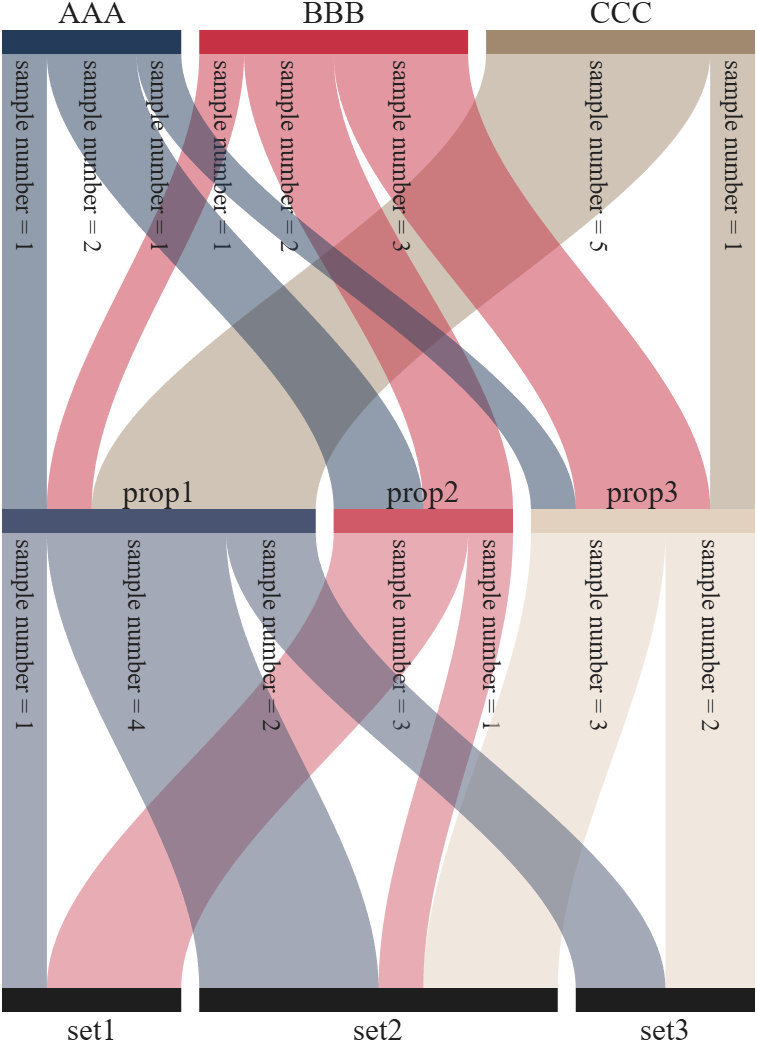
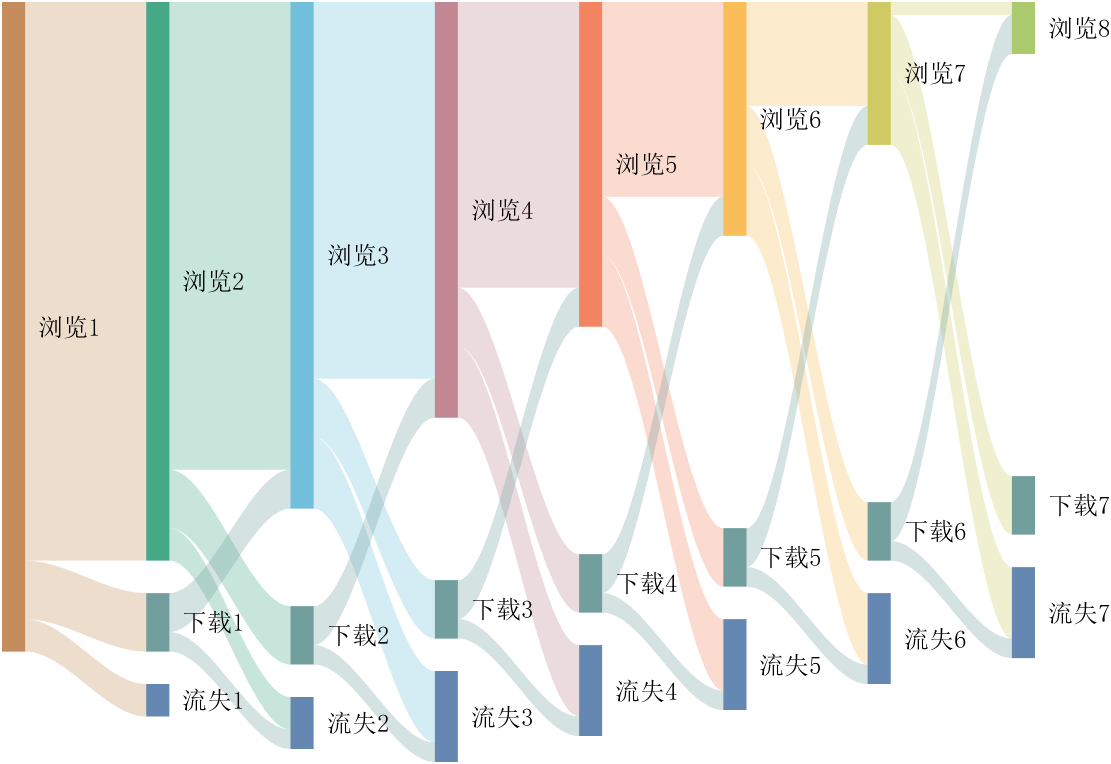
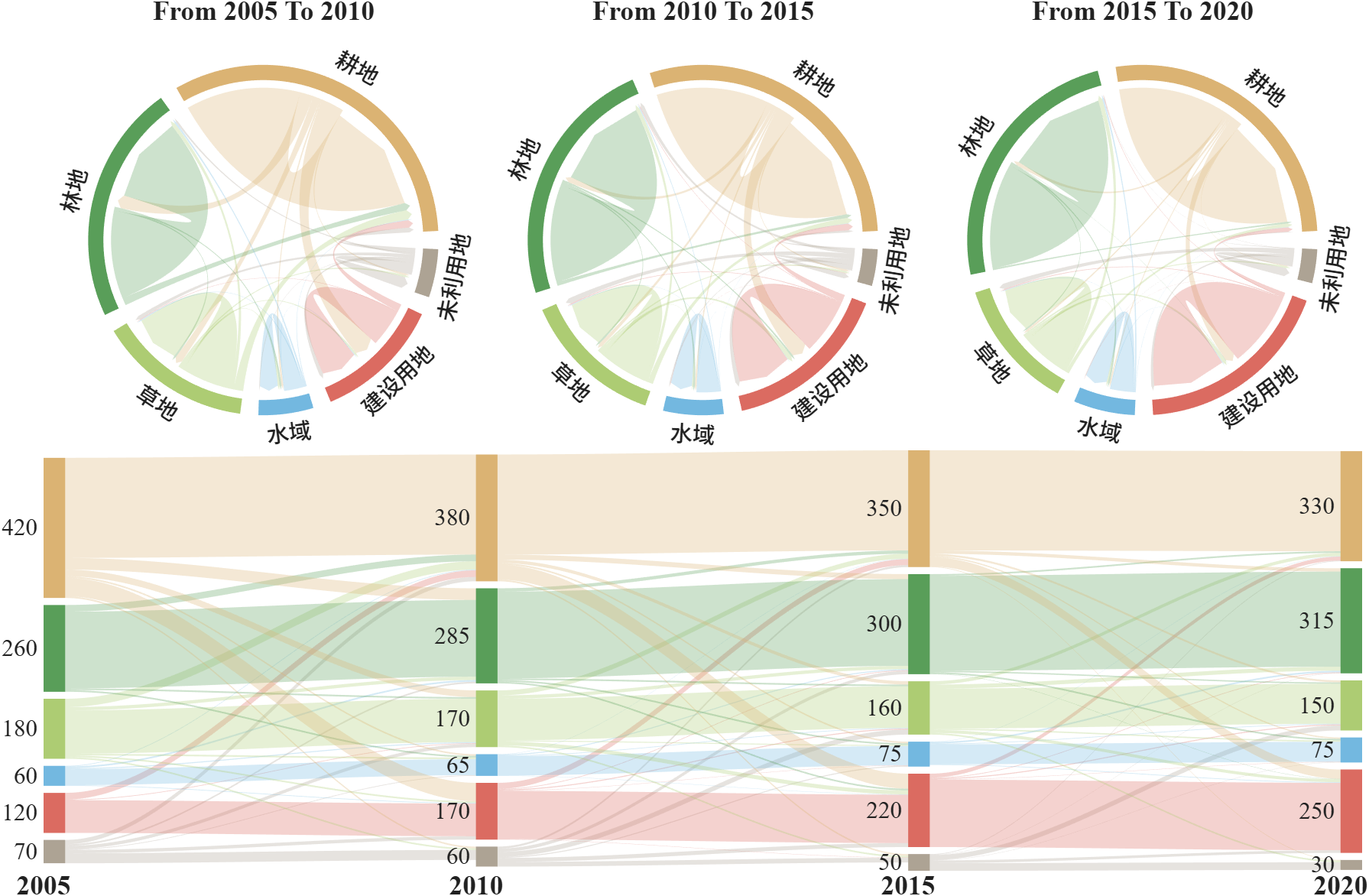
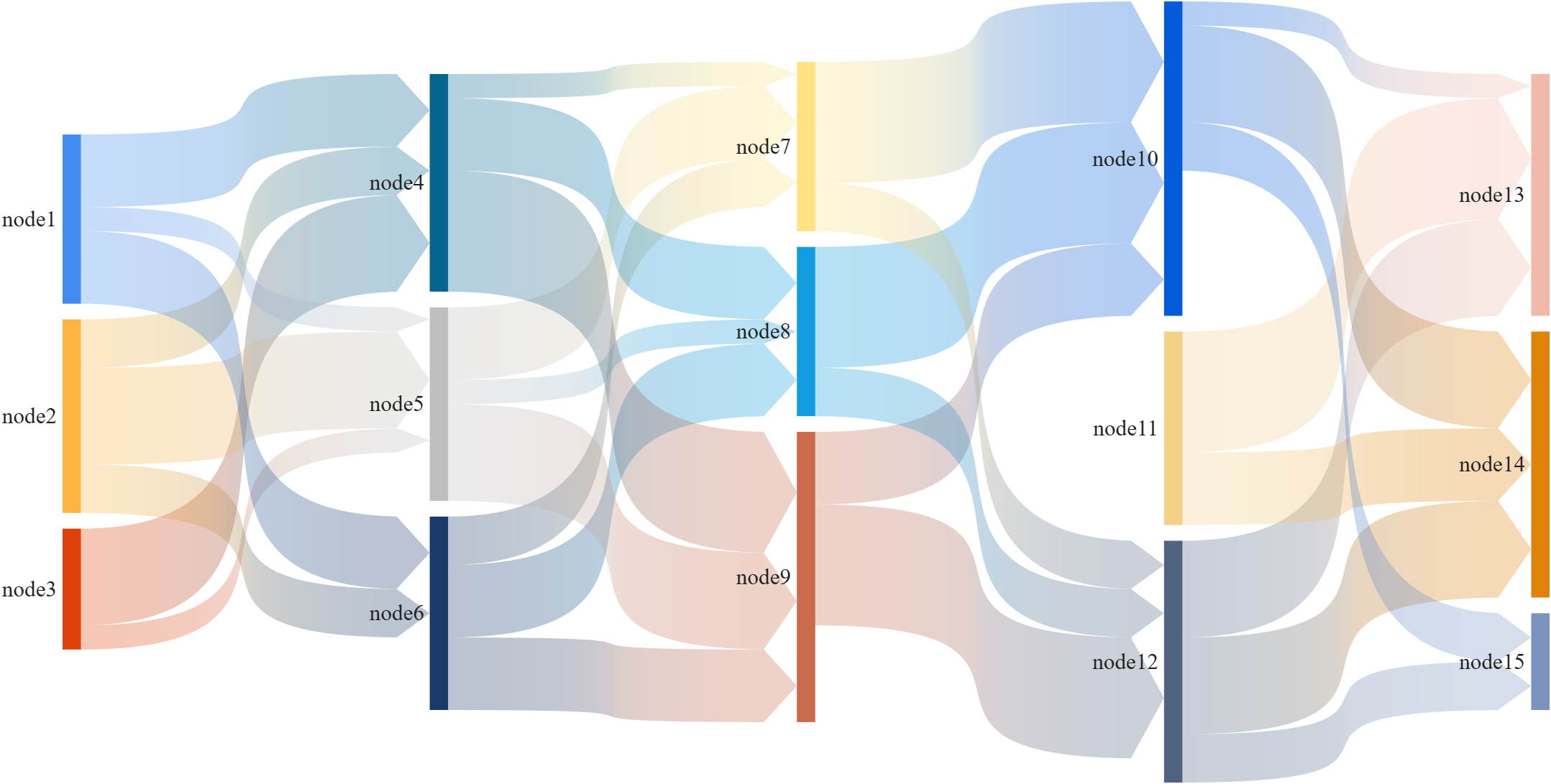
This is a brief introduction and recommendation of a Sankey diagram plotting tool:
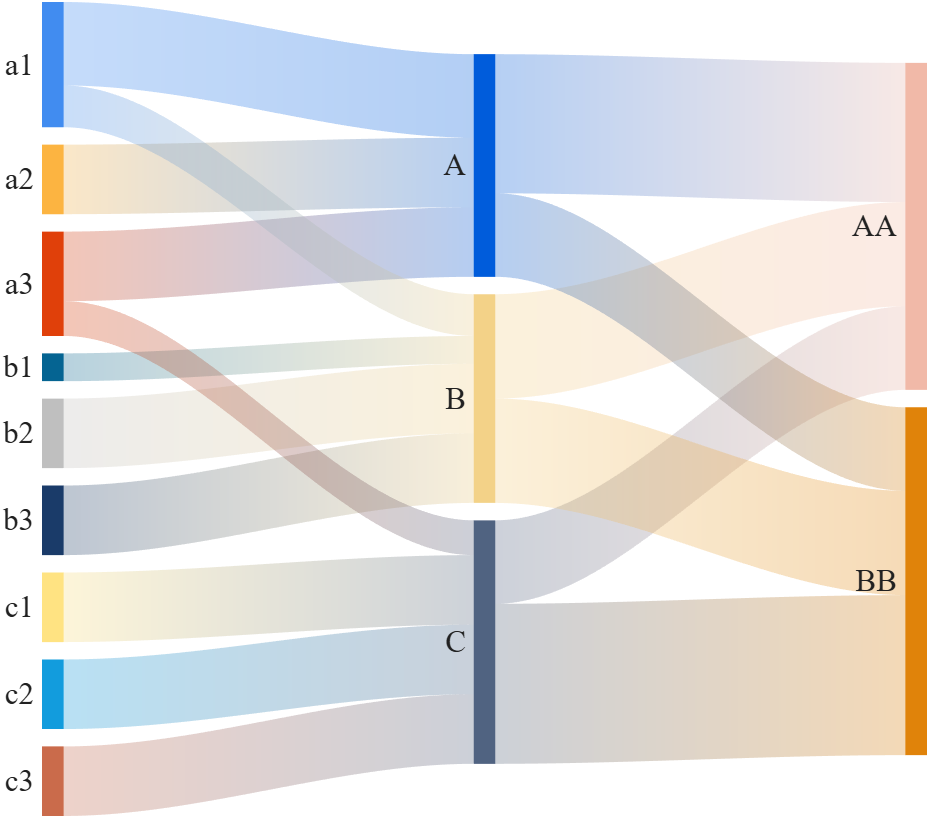
Basic usage - links
links={'a1','A',1.2;'a2','A',1;'a1','B',.6;'a3','A',1; 'a3','C',0.5;
'b1','B',.4; 'b2','B',1;'b3','B',1; 'c1','C',1;
'c2','C',1; 'c3','C',1;'A','AA',2; 'A','BB',1.2;
'B','BB',1.5; 'B','AA',1.5; 'C','BB',2.3; 'C','AA',1.2};
% 创建桑基图对象(Create a Sankey diagram object)
SK=SSankey(links(:,1),links(:,2),links(:,3));
% 开始绘图(Start drawing)
SK.draw()
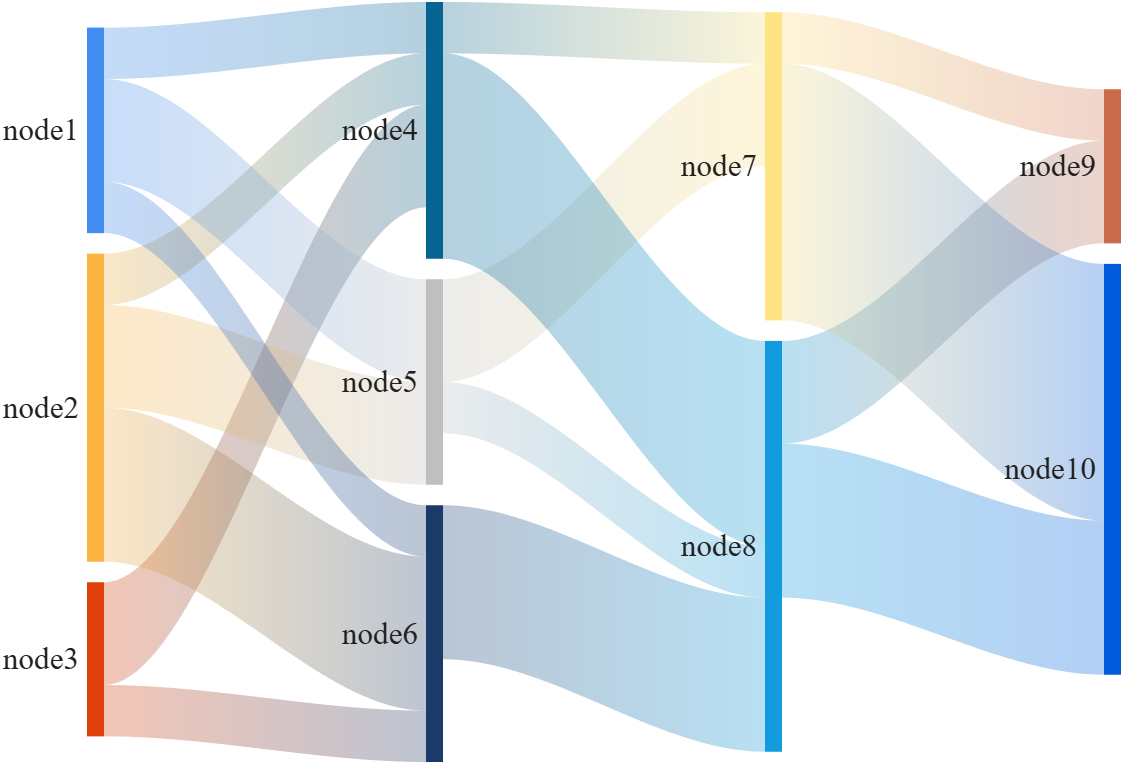
Basic usage - adjMat
% Define inter-layer adjacency matrices
% 定义层间邻接矩阵
A12 = [1,2,1; 1,2,3; 2,0,1];
A23 = [1,4; 2,1; 0,3];
A34 = [1,5; 2,3];
% Assemble global block matrix (main diagonal = zero, super-diagonal = A12, A23, A34)
% 组装全局分块矩阵(主对角线为零,上对角线为 A12, A23, A34)
adjMat = mergeAdjMat({A12, A23, A34});
SK = SSankey([],[],[], 'AdjMat',adjMat);
SK.draw()
Further usage examples can be found in the demos included in the compressed package:

I've been confused trying to write (or have an AI write) the .m (Live) text format from scratch for various reasons using .mlx format exported with the IDE as .m (old) and .m (LIve). Of course, one problem is the .m and .m (Live) files have the same name,causing confusion and requiring renaming, but repeatedly, after sussing out and following all conventions for headings and latex etc in .m (LIve), my .m (Live) files would not open as .mlx in the IDE. I think I've found the answer by trial and error and comparison and don't know it is documented. Add at the end
%[appendix]{"version":"1.0"} %--- %[metadata:view] % data: {"layout":"inline"} %---
This seems to trigger the IDE to recognize this is a .m (Live). Woohoo! This is a LOT easier than writing .mlx zip packages from scratch.

Have you ever wondered what it takes to send live audio from one computer to another? While we use apps like Discord and Zoom every day, the core technology behind real-time voice communication is a fascinating blend of audio processing and networking. Building a simple walkie-talkie is a perfect project for demystifying these concepts, and you can do it all within the powerful environment of MATLAB.
This article will guide you through creating a functional, real-time, push-to-talk walkie-talkie. We won't be building a replacement for a commercial radio, but we will create a powerful educational tool that demonstrates the fundamentals of digital signal processing and network communication.
The Purpose: Why Build This?
The goal isn't just to talk to a colleague across the office; it's to learn by doing. By building this project, you will:
Understand Audio I/O: Learn how MATLAB interacts with your computer’s microphone and speakers.
Grasp Network Communication: See how to send data packets over a local network using the UDP protocol.
Solve Real-Time Challenges: Confront and solve issues like latency, choppy audio, and continuous data streaming.
The Core Components
Our walkie-talkie will consist of two main scripts:
Sender.m: This script will run on the transmitting computer. It listens to the microphone when a key is pressed, sending the audio data in small chunks over the network.
Receiver.m: This script runs on the receiving computer. It continuously listens for incoming data packets and plays them through the speakers as they arrive.
Step 1: Getting Audio In and Out
Before we touch networking, let's make sure we can capture and play audio. MATLAB's built-in audiorecorder and audioplayer objects make this simple.
Problem Encountered: How do you even access the microphone?
Solution: The audiorecorder object gives us straightforward control.
code
% --- Test Audio Capture and Playback ---
Fs = 8000; % Sample rate in Hz
nBits = 16; % Number of bits per sample
nChannels = 1; % Mono audio
% Create a recorder object
recObj = audiorecorder(Fs, nBits, nChannels);
disp('Start speaking for 3 seconds.');
recordblocking(recObj, 3); % Record for 3 seconds
disp('End of Recording.');
% Get the audio data
audioData = getaudiodata(recObj);
% Play it back
playObj = audioplayer(audioData, Fs);
play(playObj);
Running this script confirms that your microphone and speakers are correctly configured and accessible by MATLAB.
Step 2: Sending Voice Over the Network
Now, we need to send the audioData to another computer. For real-time applications like this, the UDP (User Datagram Protocol) is the ideal choice. It’s a "fire-and-forget" protocol that prioritizes speed over perfect reliability. Losing a tiny packet of audio is better than waiting for it to be re-sent, which would cause noticeable delays (latency).
Problem Encountered: How do you send data continuously without overwhelming the network or the receiver?
Solution: We'll send the audio in small, manageable chunks inside a loop. We need to create a UDP Port object to handle the communication.
Here's the basic structure for the Sender.m script:
code
% --- Sender.m ---
% Define network parameters
remoteIP = '192.168.1.101'; % <--- CHANGE THIS to the receiver's IP
remotePort = 3000;
localPort = 3001;
% Create UDP Port object
udpSender = udpport("LocalPort", localPort, "EnablePortSharing", true);
% Configure audio recorder
Fs = 8000;
nBits = 16;
nChannels = 1;
recObj = audiorecorder(Fs, nBits, nChannels);
disp('Press any key to start transmitting. Press Ctrl+C to stop.');
pause; % Wait for user to press a key
% Start the Push-to-Talk loop
disp('Transmitting... (Hold Ctrl+C to exit)');
while true
recordblocking(recObj, 0.1); % Record a 0.1-second chunk
audioChunk = getaudiodata(recObj);
% Send the audio chunk over UDP
write(udpSender, audioChunk, "double", remoteIP, remotePort);
end
And here is the corresponding Receiver.m script:
code
Matlab
% --- Receiver.m ---
% Define network parameters
localPort = 3000;
% Create UDP Port object
udpReceiver = udpport("LocalPort", localPort, "EnablePortSharing", true, "Timeout", 30);
% Configure audio player
Fs = 8000;
playerObj = audioplayer(zeros(Fs*0.1, 1), Fs); % Pre-buffer
disp('Listening for incoming audio...');
% Start the listening loop
while true
% Wait for and receive data
[audioChunk, ~, ~] = read(udpReceiver, Fs*0.1, "double");
if ~isempty(audioChunk)
% Play the received audio chunk
play(playerObj, audioChunk);
else
disp('No data received. Still listening...');
end
end
Step 3: Solving Real-World Hurdles
Running the code above might work, but you'll quickly notice some issues.
Problem 1: Choppy Audio and High Latency
The audio might sound robotic or delayed. This is because of the buffer size and the processing time. Sending tiny chunks frequently can cause overhead, while sending large chunks causes delay.
Solution: The key is to find a balance.
Tune the Chunk Size: The 0.1 second chunk size in the sender (recordblocking(recObj, 0.1)) is a good starting point. Experiment with values between 0.05 and 0.2. Smaller values reduce latency but increase network traffic.
Use a Buffered Player: Instead of creating a new audioplayer for every chunk, we create one at the start and feed it new data. Our receiver code already does this, which is more efficient.
Problem 2: No Real "Push-to-Talk"
Our sender script starts transmitting and doesn't stop. A real walkie-talkie only transmits when a button is held down.
Solution: Simulating this in a script requires a more advanced technique, ideally using a MATLAB App Designer GUI. However, we can create a simple command-window version using a figure's KeyPressFcn.
Here is an improved concept for the Sender that simulates radio push-to-talk, e.g. https://www.retevis.com/blog/ptt-push-to-talk-walkie-talkies-guide
% --- Advanced_Sender.m ---
function PushToTalkSender()
% -- Configuration --
remoteIP = '192.168.1.101'; % <--- CHANGE THIS
remotePort = 3000;
localPort = 3001;
Fs = 8000;
% -- Setup --
udpSender = udpport("LocalPort", localPort);
recObj = audiorecorder(Fs, 16, 1);
% -- GUI for key press detection --
fig = uifigure('Name', 'Push-to-Talk (Hold ''t'')', 'Position', [100 100 300 100]);
fig.KeyPressFcn = @KeyPress;
fig.KeyReleaseFcn = @KeyRelease;
isTransmitting = false; % Flag to control transmission
disp('Focus on the figure window. Hold the ''t'' key to transmit.');
% --- Main Loop ---
while ishandle(fig)
if isTransmitting
% Non-blocking record and send would be ideal,
% but for simplicity we use short blocking chunks.
recordblocking(recObj, 0.1);
audioChunk = getaudiodata(recObj);
write(udpSender, audioChunk, "double", remoteIP, remotePort);
disp('Transmitting...');
else
pause(0.1); % Don't burn CPU when idle
end
drawnow; % Update figure window
end
% --- Callback Functions ---
function KeyPress(~, event)
if strcmp(event.Key, 't')
isTransmitting = true;
end
end
function KeyRelease(~, event)
if strcmp(event.Key, 't')
isTransmitting = false;
disp('Transmission stopped.');
end
end
end
Conclusion and Next Steps
You've now built the foundation of a real-time voice communication tool in MATLAB! You've learned how to capture audio, send it over a network using UDP, and handle some of the fundamental challenges of real-time streaming.
This project is the perfect starting point for more advanced explorations:
Build a Full GUI: Use App Designer to create a user-friendly interface with a proper push-to-talk radio button.
Implement Noise Reduction: Apply a filter (e.g., a simple low-pass or a more advanced spectral subtraction algorithm) to the audioChunk before sending it.
Add Channels: Modify the code to use different UDP ports, allowing users to select a "channel" to talk on.
关于 Tips & Tricks
Looking to improve your skills and efficiency? Reach your coding goals quickly and more easily with how-tos, tutorials, and shortcuts posted by our staff and community power users.Do you have your own tips and tricks to share? Help other community users with your insights and experience.