Generate Trajectory
Description
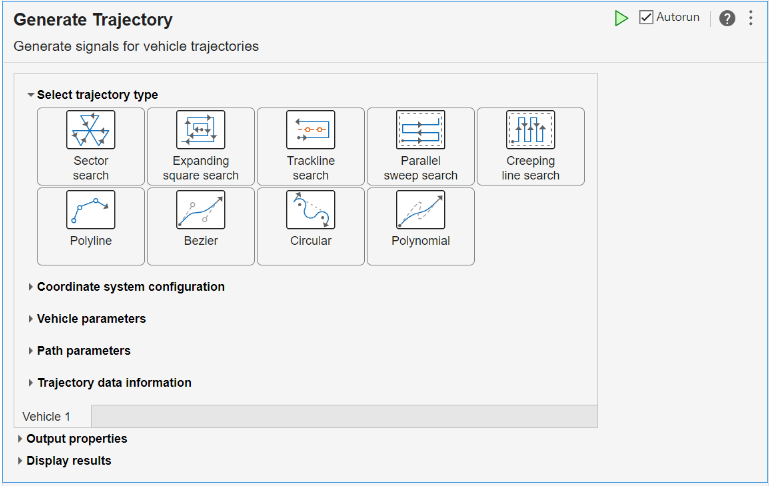
The Generate Trajectory task enables you to interactively create standard trajectories using three different unit systems, generate corresponding reference signals, and add events to the generated trajectory.
You can specify the trajectory start time and choose to output the data in either
timeseries or timetable format.
The task automatically generates MATLAB® code, allowing for further modification and integration into your workflow.
For general information about Live Editor tasks, see Add Interactive Tasks to a Live Script.
By default, the live task creates a workspace variable,
Vehicle1Trajectory.
Related Functions
Generate Trajectory generates code that uses these functions:
Open the Task
To add the Generate Trajectory task to a live script in the MATLAB Editor:
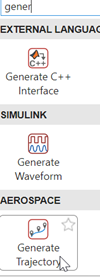
On the Live Editor tab, select Task > Generate Trajectory.
In a code block in the script, type a relevant keyword, such as
generateortrajectory. From the selected completions, select Generate Trajectory.
Examples
This example shows how to use the Generate
Trajectory Live Editor task to create reference signals for a bezier
trajectory. By default, Generate Trajectory creates a
variable named Vehicle1Traj in the workspace that outputs data in the
timeseries format.
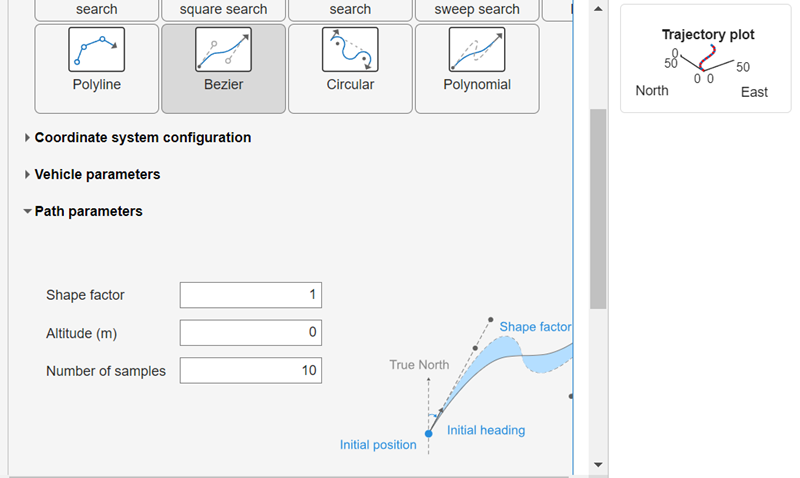
From Select trajectory type, select
Bezier.
In Vehicle parameters section, set Initial
position to [10 0].
In Path parameters section, set the Shape
factor to 1.
The live task prepopulates with default values.
In the Display results section, click 3D Plot.
To the upper right, a plot of the waveform displays.
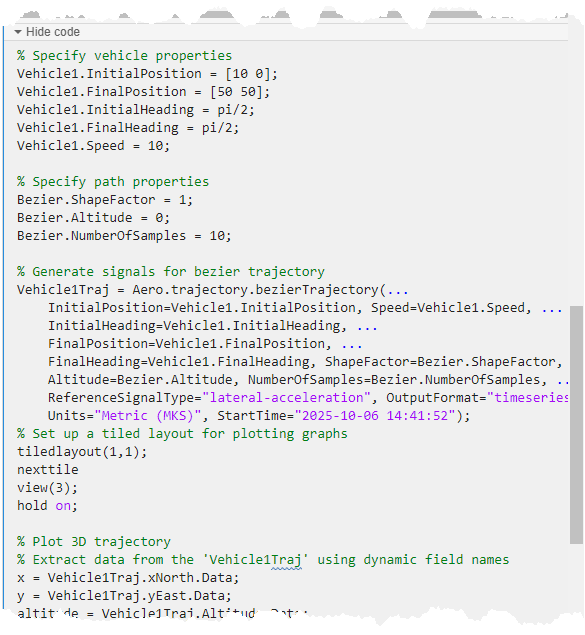
To see the code that this task generates, expand the task display by clicking
at the bottom of the task parameter area.
You can use the data from the Vehicle1Trajectory
timeseries object in many cases where you want to input data, for
example, to import to Signal Editor for modeling trajectories. To save this task, save
the live script.
This example shows how to use the Generate
Trajectory Live Editor task to create reference signals for a bezier
trajectory. By default, Generate Trajectory creates a
variable named Vehicle1Traj in the workspace that outputs data in the
timeseries format.
From the Select trajectory type, select
Bezier.
In the Vehicle parameters section, set Initial
position to [10 0].
In the Path parameters section, set the Shape
factor to 2.
Leave the other parameters at their default values.
From the MATLAB Command Window, create a model and add a Signal Editor block.
In the Signal Editor block, click the Open Signal Editor button. The Signal Editor tool opens.
In the Signal Editor tool, on the Signal Editor tab, click Import.
In the Import dialog box, under Select signals to import,
select Vehicle1Traj, and then click OK.
In the Signal Editor, drag the Vehicle1Traj bus to
the active Scenario.

Save the updates to a new MAT file, such as C:\work\veh1traj.mat.
Close the Signal Editor tool.
In the Signal Editor block, set File name to the name of the new MAT file.
Use the output signals from the Signal Editor block in your aerospace application.
Related Examples
Parameters
Specify properties for each vehicle.
Type of trajectory, specified as Sector search,
Expanding square search, Trackline
search, Parallel sweep search,
Creeping line search, Polyline,
Bezier, Circular, or
Polynomial.
| Trajectory Type | Description | |
|---|---|---|
| Generate reference signals for a sector search trajectory | |
| Generate reference signals for an expanding square search pattern. | |
| Generate reference signals for trackline search patterns. | Trackline trajectory with return: Trackline trajectory with no return: |
| Generate reference signals for a parallel sweep search trajectory. | |
| Generate trajectory reference signals for a creeping line search pattern. | |
| Generate trajectory reference signals for a polyline flight trajectory. | |
| Generate reference signals for tracing Bezier trajectories. | |
| Generate reference signals for tracing a trajectory that consists of multiple circular arcs. | |
| Generates reference signals for tracing a polynomial trajectory. | |
Coordinate system configuration
Input and output units, specified as one of these values:
Units | Position | Altitude | Speed |
|---|---|---|---|
| Meters | Meters | Meters per second |
| Feet | Feet | Feet per second |
| Nautical miles | Feet | Knots |
Coordinate plane of trajectory, specified as Flat,
Spherical, or
Ellipsoidal.
Dependencies
To enable this parameter, set Select trajectory type to
Polyline.
Vehicle parameters
Initial position of trajectory, specified as a 1-by-2 or 2-by-1 vector in the units specified in Units.
Data Types: double
Final position of trajectory, specified as a 1-by-2 or 2-by-1 vector in the units specified in Units.
Dependencies
To enable this parameter, set Select trajectory type to
Bezier, Circular, or
Polynomial.
Data Types: double
Initial heading of trajectory, specified as a finite real double scalar between
0 and 2*pi, in radians.
Dependencies
When Select trajectory type is set to
Bezier, Circular, or
Polynomial, Initial heading
default is pi/2. For all other trajectory types, default is
0.
Data Types: double
Final heading of trajectory, specified as a finite real double scalar between
0 and 2*pi, in radians.
Dependencies
To enable this parameter, set Select trajectory type to
Bezier, Circular, or
Polynomial.
Data Types: double
Initial altitude of trajectory, specified as a scalar in the units specified in Units.
Dependencies
To enable this parameter, set Select trajectory type to
Sector search, Expanding square
search, Trackline search,
Parallel sweep search, Creeping line
search, or Polyline.
Data Types: double
Initial speed of trajectory, specified as a finite real double scalar in the units specified in Units.
Data Types: double
Path parameters
Shape factor constant, specified as a scalar or 2-element vector, depending on the
trajectory type. The shape factor constant ShapeFactor provides
additional control over the trajectory, with its effect depending on the specific
trajectory type. For more information on shape factors according to trajectory type,
see:
Dependencies
To enable this parameter, set Select trajectory type to
Bezier, Circular, or
Polynomial.
When Select trajectory type is set to
Circular,Shape factordefault is0. The value must be a nonnegative scalar and between0and1.When Select trajectory type is set to
Bezier, default is1. The value must be a positive scalar between0and10or a 2-element vector.When Select trajectory type is set to
Polynomial, default is1. The value must be a positive scalar between0and10.
Data Types: double
Altitude of trajectory, specified as a finite real scalar double in the units specified in Units. This value is constant throughout the vehicle path.
Dependencies
The default value depends on the trajectory type:
If Select trajectory type is set to
Sector search,Expanding square search,Trackline search,Parallel sweep search, orCreeping line search, the default value is100If Select trajectory type is set to
Bezier,Circular,Polynomial, orPolylinethe default value is0
Data Types: double
Number of samples in the output signals, specified as a scalar.
Dependencies
To enable this parameter, set Select trajectory type to
Bezier, Circular, or
Polynomial.
Data Types: double
Radius of trajectory, specified as a positive scalar in the units specified in Units.
Dependencies
To enable this parameter, set Select trajectory type to
Sector search.
Data Types: double
Bearing, specified as a finite real scalar double between 0 and
2*pi, in radians.
Dependencies
To enable this parameter, set Select trajectory type to
Sector search, Expanding square
search, Parallel sweep search, or
Creeping line search.
Data Types: double
Number of legs in the expanding square, specified as a nonnegative integer in the units specified in Units.
Dependencies
To enable this parameter, set Select trajectory type to
Expanding square search.
Data Types: double
Spacing between tracks, specified as a scalar.
Dependencies
To enable this parameter, set Select trajectory type to
Creeping line search, Expanding square
search, Trackline search, or
Parallel sweep search.
The default value depends on the trajectory type:
If Select trajectory type is set to
Parallel sweep searchorCreeping line search, the default value is1.If Select trajectory type is set to
Expanding square search, the default value is3.If Select trajectory type is set to
Trackline search, the default value is5.
Data Types: double
Trackline search type, specified as Return (TSR) or No
return (TSN).
Dependencies
To enable this parameter, set Select trajectory type to
Trackline search.
Data Types: char | string
First track point, specified as a 1-by-2 or 2-by-1 vector as finite real doubles in the units specified in Units.
Dependencies
To enable this parameter, set Select trajectory type to
Trackline search.
Data Types: double
Second track point, specified as a 1-by-2 or 2-by-1 vector as finite real doubles in the units specified in Units.
Dependencies
To enable this parameter, set Select trajectory type to
Trackline search.
Data Types: double
Field length, specified as a scalar in the units specified in Units.
Dependencies
To enable this parameter, set Select trajectory type to
Parallel sweep search.
Data Types: double
Field width, specified as a positive scalar in the units specified in Units.
Dependencies
To enable this parameter, set Select trajectory type to
Parallel sweep search or Creeping line
search.
Data Types: double
Field center, specified as a 1-by-2 or 2-by-1 vector of finite real doubles in the units specified in Units.
Dependencies
To enable this parameter, set Select trajectory type to
Parallel sweep search or Creeping line
search.
Data Types: double
Current position of vehicle, specified as a 1-by-2 or 2-by-1 vector finite real doubles.
Dependencies
To enable this parameter, set Select trajectory type to
Polyline.
Data Types: double
Current heading of vehicle, specified between 0 and
2*pi as a scalar in the units specified in Units.
Dependencies
To enable this parameter, set Select trajectory type to
Polyline.
Data Types: double
Segment distance in a trajectory, specified as a positive scalar in the units specified in Units.
Dependencies
To enable this parameter, set Select trajectory type to
Polyline.
Data Types: double
Absolute bearing, specified as a scalar between 0 and
2*pi, in the units specified in Units. This value is
the angle measured clockwise from true north to the direction of travel along the
trajectory. Specify either AbsoluteBearing or
RelativeBearing. Do not specify both properties.
Dependencies
To enable this parameter, set Select trajectory type to
Polyline.
Data Types: double
Relative bearing, specified as a scalar between 0 and
2*pi, in the units specified in Units. This value is
the angle measured clockwise from true north to the direction of travel along the
trajectory. Specify either AbsoluteBearing or
RelativeBearing. Do not specify both properties.
Dependencies
To enable this parameter, set Select trajectory type to
Polyline.
Data Types: double
Minimum turn radius limit, specified as a finite real double scalar in the units
specified in Units.
Minimum turn radius must be less than or equal to
Maximum turn radius.
Dependencies
To enable this parameter, set Select trajectory type to
Circular.
Data Types: double
Maximum turn radius limit, specified as a positive real double scalar in the units
specified in Units.
Maximum turn radius must be greater than or equal to
Minimum turn radius.
Dependencies
To enable this parameter, set Select trajectory type to
Circular.
Data Types: double
Vehicle coordination mode, specified as 1-1 Coordination,
1-2 v, or 1-3 Coordination.
Dependencies
To enable this parameter, set Select trajectory type to
Creeping line search.
Search direction, specified as Counterclockwise or
Clockwise.
Dependencies
To enable this parameter, set Select trajectory type to
Sector search or Expanding square
search.
The default value depends on the trajectory type:
If Select trajectory type is set to
Sector search, the default value isCounterclockwise.If Select trajectory type is set to
Expanding square search, the default value isClockwise.
Trajectory data information
Event name, specified as a scalar string, a nondimensional, comma-separated string array, or an event or variable name. Enter the event or variable name and then click Update table. The new name appears on the associated table with a check box corresponding to each point. To indicate that an event occurs at a particular point for an event name, select an associated check box. Clear the check box to indicate that no event occurs.
To specify an event name as a MATLAB variable, define the variable in the MATLAB Command Window, and then enter the variable in the live task. The live task replaces the variable name with the definition in the text box parameter.
Example: ["Event1","Event2"]
Example: In the Command Window, specify
Events=["Event1","Event2"] and enter
["Events"] in the live task Event
names. Observe that the live task replaces Event
names with ["Event1", "Event2"].
Data Types: string
Additional reference signal, specified as Lateral
acceleration or Turn rate.
Dependencies
To enable this parameter, set Select trajectory type to
Bezier, Circular, or
Polynomial.
Output properties
Data type of trajectory data, specified as Timeseries or
Timetable.
Initial time of trajectory operation, specified as the current day and time.
Display results
Visualize results as a 3D plot or heading versus time plot.
Select this parameter to generate a 3D plot of the results.
Select this parameter to generate a heading versus time plot of the results.
Select this parameter to generate a turn rate versus time plot of the results.
Select this parameter to generate a lateral rate versus time plot of the results.
Dependencies
To enable this parameter, set Select trajectory type to
Bezier, Circular, or
Polynomial.
Version History
Introduced in R2026a
See Also
Functions
Aero.trajectory.addEvent|Aero.trajectory.bezierTrajectory|Aero.trajectory.tracklineTrajectory|Aero.trajectory.circularTrajectory|Aero.trajectory.creepingTrajectory|Aero.trajectory.expandingSquareTrajectory|Aero.trajectory.parallelSweepTrajectory|Aero.trajectory.polylineTrajectory|Aero.trajectory.polynomialTrajectory|Aero.trajectory.sectorTrajectory
Tools
MATLAB Command
You clicked a link that corresponds to this MATLAB command:
Run the command by entering it in the MATLAB Command Window. Web browsers do not support MATLAB commands.
选择网站
选择网站以获取翻译的可用内容,以及查看当地活动和优惠。根据您的位置,我们建议您选择:。
您也可以从以下列表中选择网站:
如何获得最佳网站性能
选择中国网站(中文或英文)以获得最佳网站性能。其他 MathWorks 国家/地区网站并未针对您所在位置的访问进行优化。
美洲
- América Latina (Español)
- Canada (English)
- United States (English)
欧洲
- Belgium (English)
- Denmark (English)
- Deutschland (Deutsch)
- España (Español)
- Finland (English)
- France (Français)
- Ireland (English)
- Italia (Italiano)
- Luxembourg (English)
- Netherlands (English)
- Norway (English)
- Österreich (Deutsch)
- Portugal (English)
- Sweden (English)
- Switzerland
- United Kingdom (English)