Import AUTOSAR Adaptive Composition from ARXML to Architecture
R2026bAfter you create an AUTOSAR architecture model, develop the top-level AUTOSAR software design. If you have an ARXML description of an AUTOSAR software composition, you can import the composition into an AUTOSAR architecture model. The import creates a Simulink® representation of the composition at the top level of the architecture model.
Importing a composition requires an open AUTOSAR architecture model with no functional
content. To import a composition, open the AUTOSAR Importer app or call the architecture
function importFromARXML.
If you do not have an ARXML description to import, you can use the composition editor to add and connect AUTOSAR software compositions and components. See Add and Connect AUTOSAR Components and Compositions.
Import AUTOSAR Composition Using AUTOSAR Importer App
The example shows how to import AUTOSAR Adaptive software composition descriptions from ARXML files to a software architecture model.
Create or open an AUTOSAR Adaptive software architecture model that has no functional content.
archModel = autosar.arch.createModel("myArchModel",platform="Adaptive");
By default,
autosar.arch.createModelcreates an AUTOSAR architecture model for the Classic Platform. Create an AUTOSAR Adaptive software architecture by settingplatformto"Adaptive". Creating AUTOSAR software architectures with both AUTOSAR Classic and Adaptive software components is not supported.On the Modeling tab of the Simulink Toolstrip, in the Platform section, note the platform kind for the architecture model.
On the Modeling tab of the toolstrip, in the Component section, select Import from ARXML .
In the AUTOSAR Importer App, in the Select ARXML pane, in the ARXML Files box, enter these filenames, separated by commas,:
Sensors_composition.arxmladaptive_SensorSWC_component.arxmladaptive_SensorSWC_datatype.arxmladaptive_sensorSWC_interface.arxml
You can open a folder with these files by entering this command in your MATLAB® Command Window:
openExample("autosarblockset/ImportAUTOSARAdaptiveSoftwareDescriptionsExample");
Click Next. The app parses the specified ARXML files.
The Composition name drop-down list shows the compositions found in the parsed ARXML file. Select the composition
/Components/Sensors.Optionally, to view additional modeling options for composition creation, select Configure Modeling Options.
When you select Configure Modeling Options you can specify these options:
An existing Simulink data dictionary, or create a new data dictionary, in which to place data objects for imported AUTOSAR data types.
Names of existing Simulink models that you would like to link to the automatically created Adaptive Component blocks in the architecture.
Select Configure Modeling Options. Create a data dictionary by entering
InterfacesAndTypes.slddin the Data Dictionary box.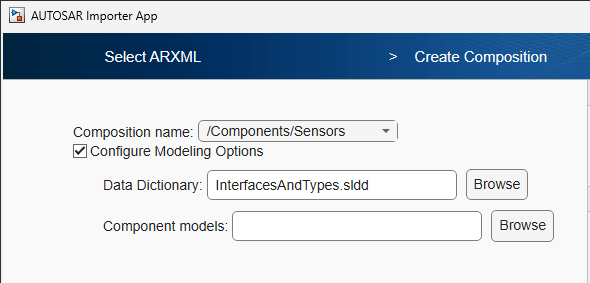
For more information about modeling options and behavior, see
importFromARXML.To finish importing the composition into the architecture model, click Finish. The Diagnostic Viewer displays the progress of the composition creation.
On completion, the imported composition appears, with Adaptive Component blocks for each component, in the software architecture canvas.
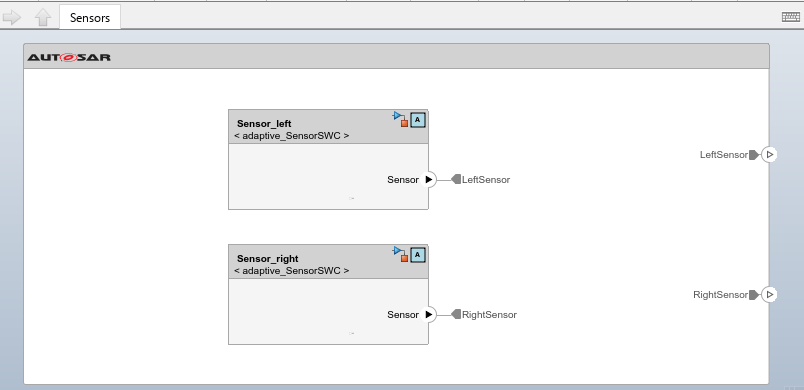
Next you develop each component in the composition. For each component model, you refine the AUTOSAR configuration and create algorithmic model content. For an example of developing component algorithms, see Import AUTOSAR Adaptive Components to Simulink.
Programmatically Import AUTOSAR Adaptive Software Descriptions to Software Architecture
This example shows how to import AUTOSAR Adaptive software component and composition ARXML descriptions programmatically to software architecture and component models in Simulink®.
To programmatically import an AUTOSAR software composition from ARXML files into an architecture model, call the importFromARXML function. This example:
Creates AUTOSAR architecture model
myArchModelImports the ARXML description of software component
LaneGuidanceand creates a Simulink modelImports software composition
/Components/Sensorsfrom AUTOSAR example fileSensors_composition.arxmlinto a software architecture modelAdds an Adaptive Component block to an existing software architecture model and links the imported
LaneGuidancesoftware component Simulink model
Create a software architecture model configured for the AUTOSAR Adaptive Platform.
modelName = "myArchModel";
archModel = autosar.arch.createModel(modelName,platform="Adaptive");
Import ARXML descriptions of software component LaneGuidance and a software composition of Sensors.
arComponent = arxml.importer("autosar_LaneGuidance.arxml");
arComposition = arxml.importer({"Sensors_composition.arxml","adaptive_SensorSWC_component.arxml", ...
    "adaptive_SensorSWC_datatype.arxml","adaptive_SensorSWC_interface.arxml"});
Create a Software Composition block in an empty software architecture model, and construct it based on imported ARXML software composition descriptions.
composition = addComposition(archModel,"Sensors");
importFromARXML(composition,arComposition,"/Components/Sensors",DataDictionary="autoInterfaces.sldd");
Data dictionary 'autoInterfaces.sldd' created.
Created model 'adaptive_SensorSWC' for component 1 of 1: /Components/adaptive_SensorSWC
Importing composition 1 of 1: /Components/Sensors
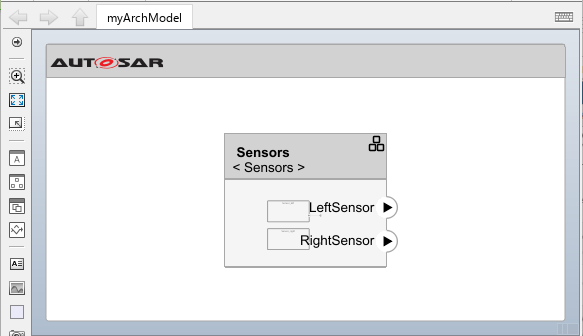
When you specify the DataDictionary name-value argument, interfaces and data types are imported to the Architectural Data section of the specified data dictionary. In this example data dictionary autoInterfaces.sldd. You can programmatically view these imported types by using the Simulink.dictionary.ArchitecturalData programmatic interface, or the Architectural Data Editor.
Create AUTOSAR Adaptive Software Component Model from ARXML
In this section you import AUTOSAR Adaptive software component LaneGuidance from an ARXML file. Then you create a Simulink® model from the imported ARXML software component description, and link this Simulink model to an Adaptive Component block in a software architecture model.
Create a Simulink model representing the LaneGuidance software component, with a service interface based on the imported ARXML description.
createComponentAsModel(arComponent,"/CompanyName/Powertrain/LaneGuidance",DataDictionary="guidanceInterfaces.sldd");
Data dictionary 'guidanceInterfaces.sldd' created.
component = addComponent(archModel,"LaneGuidanceSWC");
save_system("LaneGuidance")
linkToModel(component,"LaneGuidance");
Setting 'XML Options Source' of model 'LaneGuidance' to 'Inherit' so that it inherits XML option settings from architecture model. Resave the model to preserve the setting change.
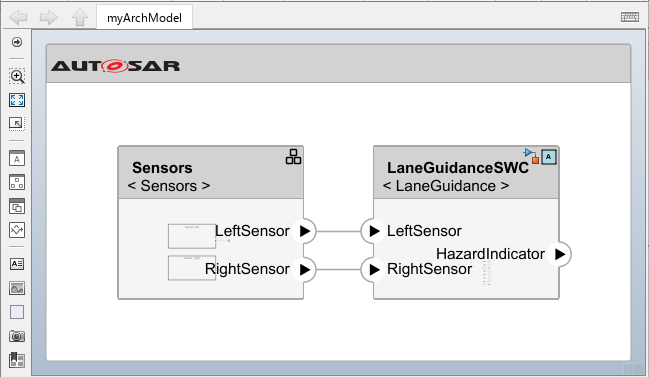
Connect the sensor software component blocks to the LaneGuidance model by using the programmatic software component objects and their ports.
laneGuidanceSWC = archModel.Components(1);
sensors = archModel.Compositions(1);
connect(archModel,sensors.Ports(1),laneGuidanceSWC.Ports(1));
connect(archModel,sensors.Ports(2),laneGuidanceSWC.Ports(2));
Import AUTOSAR Package into AUTOSAR Adaptive Software Architecture
In this section you update existing AUTOSAR Adaptive software architectures and their referenced component models with shared property descriptions from an ARXML file. When developing AUTOSAR Adaptive software architectures, you can import AUTOSAR element definitions that are common to software components referenced by the architecture model. After you create an AUTOSAR Adaptive software architecture model with defined algorithmic behavior for referenced software components, you import shared data definitions from ARXML files that contain packages of AUTOSAR elements.
Import shared AUTOSAR elements definitions from ARXML file Adaptive_PlatformTypes.arxml to Simulink® by using the arxml.importer object.
ar = arxml.importer("Adaptive_PlatformTypes.arxml");Update AUTOSAR Adaptive software architecture Sensors by using the updateAUTOSARProperties function.
updateAUTOSARProperties(ar,"Sensors")### Updating model adaptive_SensorSWC ### Saving original model as adaptive_SensorSWC_backup.slx ### Creating HTML report adaptive_SensorSWC_update_report.html ### Updating model adaptive_SensorSWC ### Saving original model as adaptive_SensorSWC_backup_1.slx ### Creating HTML report adaptive_SensorSWC_update_report.html
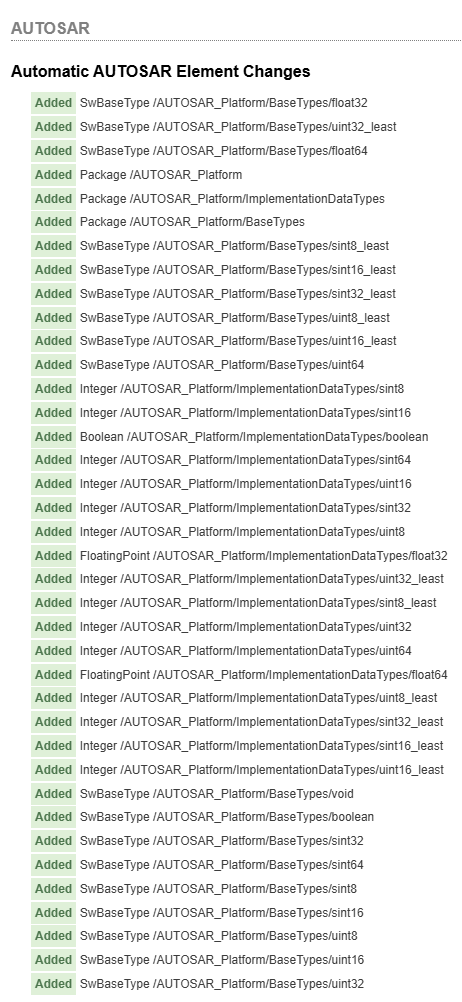
The updateAUTOSARProperties function copies the elements in the specified ARXML files to the AUTOSAR Dictionary of the referenced software component models. If you import data types, the function also creates data objects for the imported types in a data dictionary (if available) or in the base workspace. The function generates an HTML report for each software component model impacted by the updated AUTOSAR elements. The HTML reports list the workspace changes and element additions to the AUTOSAR information in the model. The figure below shows the automatic AUTOSAR element changes for software component model LaneGuidanceSWC. Based on the imported AUTOSAR Adaptive Platform types, the function populated the package with AUTOSAR software base types and AUTOSAR implementation data types.
If you have Simulink® Coder™ and Embedded Coder® software, you can generate C++ code compliant with the AUTOSAR Adaptive Platform and export ARXML descriptions from the AUTOSAR Adaptive software component model. The C++ code reflects references from model blocks to the imported adaptive elements. Export preserves the file structure and content of the shared descriptions files from which you imported definitions. In ARXML files other than the shared description files, ARXML descriptions reference the shared element definitions where required.

