Build Transformer Network for Time Series Regression
R2026bThis example shows how to interactively build and train a transformer network to predict engine torque using the Time Series Modeler app. You can use the Time Series Modeler app to build, train, and compare models for time series forecasting.
A transformer is a network architecture that uses attention layers to learn long-distance temporal correlations. While transformers are often used at large scale for language modeling, they are also effective at modeling conventional time series.
By default, the app trains the network using a GPU if one is available and if you have Parallel Computing Toolbox™.
Load Data
Load and display the engine data timetable.
load SIEngineData.mat IOData
stackedplot(IOData)
title("SI Engine Signals")
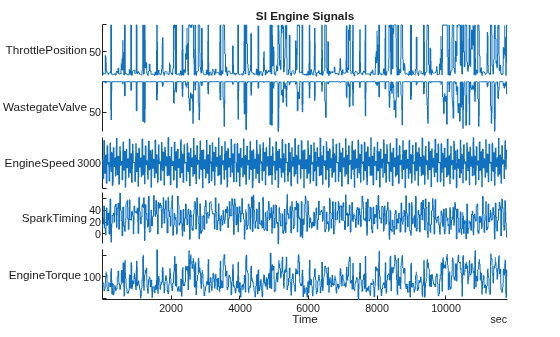
The raw data contains over one hundred thousand observations of engine torque (the response) as a function of these predictor variables, measured at 10 Hz:
Throttle position (degrees)
Wastegate valve area (aperture percentage)
Engine speed (RPM)
Spark timing (degrees)
Preprocess Data
To improve the performance of the transformer networks, divide the engine torque data into a cell array with windows of 40 seconds each. This division lets you build networks with fewer learnable parameters (for example, in the position encoding), reduces memory requirements for the transformer, and speeds up training. This division also moves the data from the time dimension to the batch dimension. In the batch dimension, the data is processed in parallel. As a result, the network sees more data at any given time during training, further speeding up training. The Time Series Modeler app can split a single time series into windows but in this example, the data has multiple time series, so you must manually split the data.
To speed up model training, downsample the time series from 10 Hz to 2 Hz. This also ensures that each timetable is regularly sampled, which is necessary when using Time Series Modeler.
windowLength = 400;
numWindows = floor(size(IOData,1)/windowLength);
reducedSampleRate = 2;
for i=1:numWindows
    windowIdx = 1 + (i-1)*windowLength:i*windowLength;
    data = IOData(windowIdx,:);
    windowedData{i} = retime(data,"regular","linear",SampleRate=reducedSampleRate);
end
Train Transformer Network in Time Series Modeler App
Import Data
Open the Time Series Modeler app.
timeSeriesModeler
To import the predictors and responses into the app, click the New button on the toolstrip. The Import Data dialog box opens.
In the Import Data dialog box, select Import responses and predictors from the same variable and import the windowedData variable. Select Response for the EngineTorque feature, and verify that Predictor is selected for all other features. To use the last 20% of the time series as validation data, keep the default value of 20% in the Percentage of data to use for validation box. Click Import.
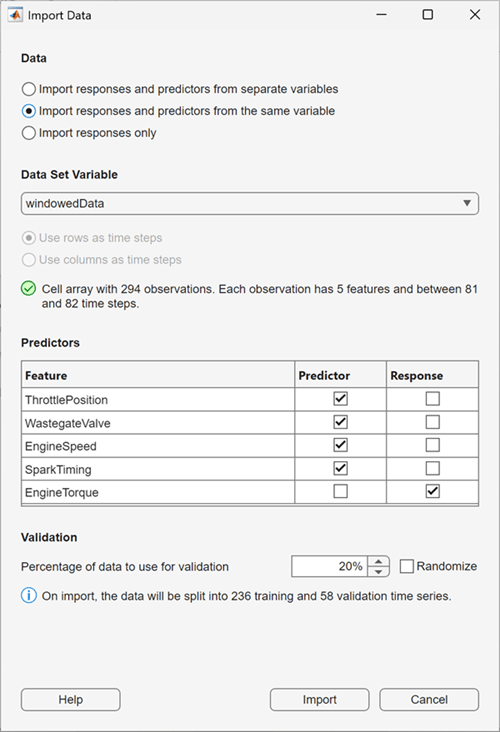
To verify that the data is correct, on the Data tab, view the Observation Preview pane. To display the predictor channels, in the Observation Preview pane, set the Type to Predictor. The app displays four predictor channels, each corresponding to one of the predictors, such as ThrottlePosition.
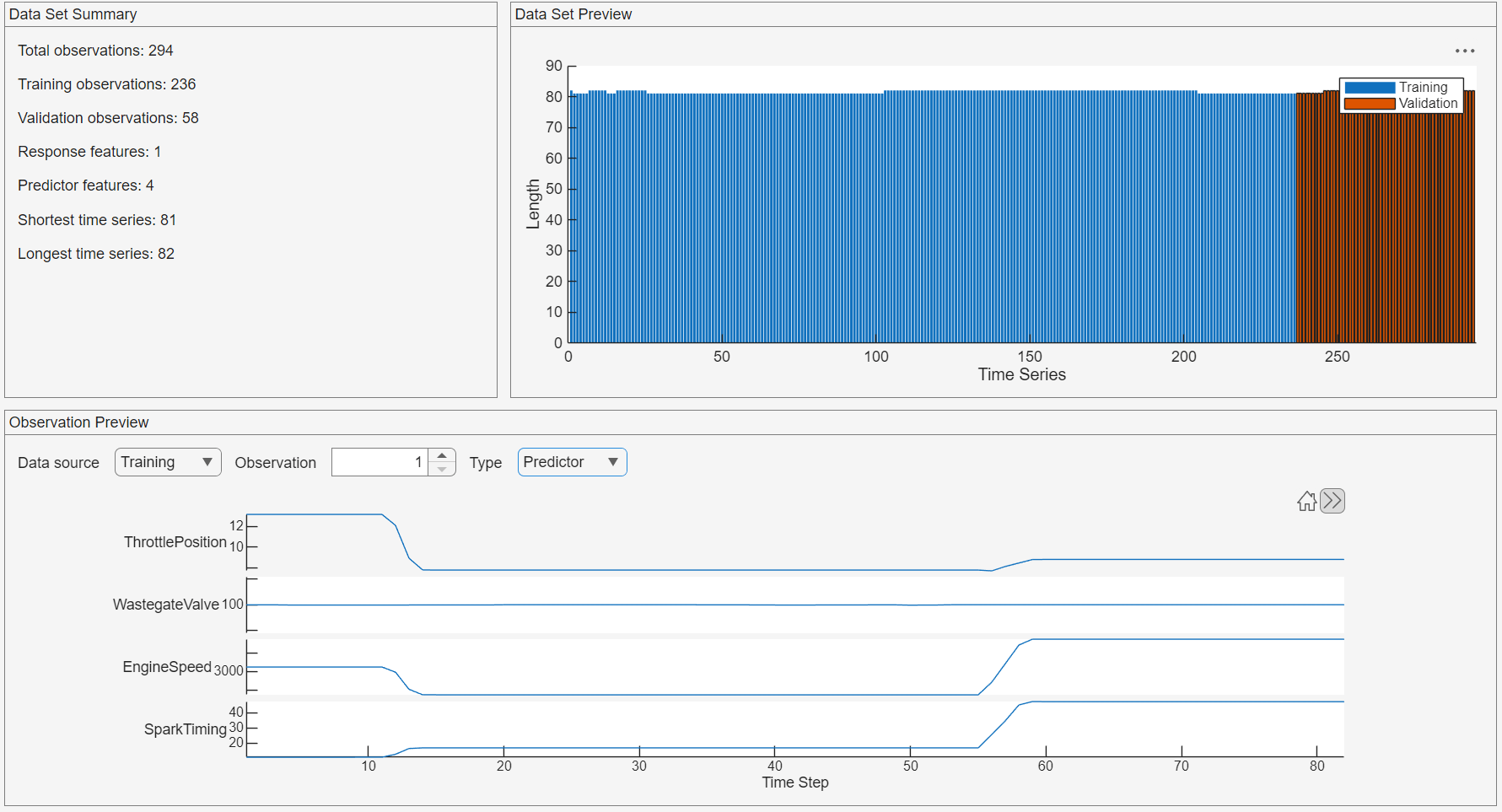
In the Data Set Summary panel, observe that the longest time series has a length of 82 time steps. This length is an important parameter for configuring the transformer network.
Build Transformer Network
This section shows you how to build a self-attention-based transformer with sinusoidal position encoding and Gaussian error linear unit (GeLU) activation layers. This transformer is based on the original transformer architecture in the "Attention is All You Need" paper [1]. To train the network faster, limit the number of learnable parameters by using an output size of 32 in fully connected layers and 32 query channels in self-attention layers.
To load a prebuilt network instead of creating the network, skip to the Load Prebuilt Network section.
These steps show you how to create the network. Expand the Models gallery, select Blank Network.
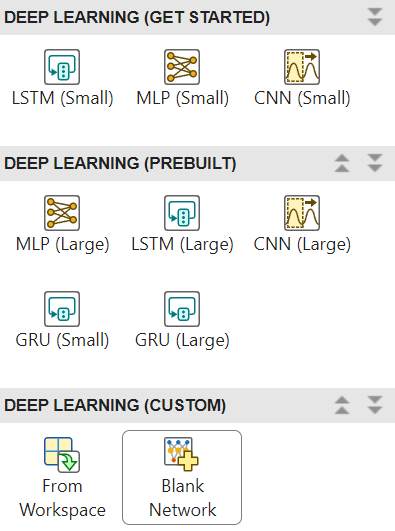
The Customize Network dialog box opens. Keep the default settings and click Create. The Customize Network window opens.
The Customize Network window shows the sequence input layer, the output fully connected layer, and the output inverse normalization layer. The output fully connected layer has an output size of 1, which corresponds to the response you are trying to predict (the engine torque).
Build the rest of the transformer architecture. First, build the position encoding block:
Add a fully connected layer. Set the output size of this layer to 32.
Add a parallel branch with a sinusoidal position encoding layer. Set the output size of this layer to 32.
Connect the sequence input layer to both of these layers in parallel.
Connect the outputs of the fully connected layer and the sinusoidal position encoding layer to an addition layer, which sums the outputs.
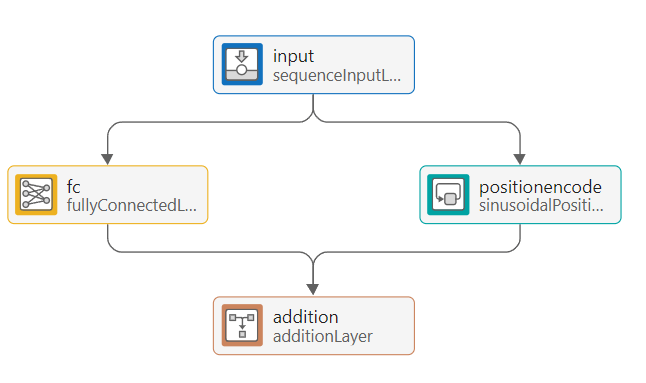
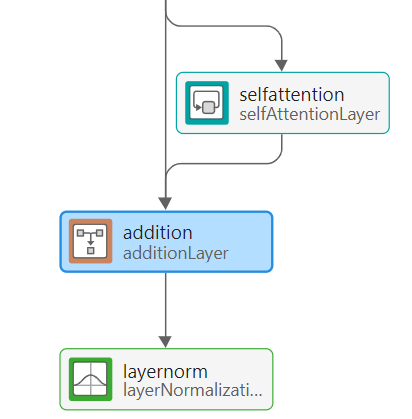
Next, build the self-attention block:
Add a self-attention layer. Set its number of query channels to 32.
Add another addition layer.
Add a layer normalization layer.
Connect the output of the self-attention layer to the input of the second addition layer.
Connect the output of the first addition layer to both the input of the second addition layer and the self-attention layer, so that there is a connection bypassing the self-attention layer.
Connect the layer normalization layer in series after the new addition layer.
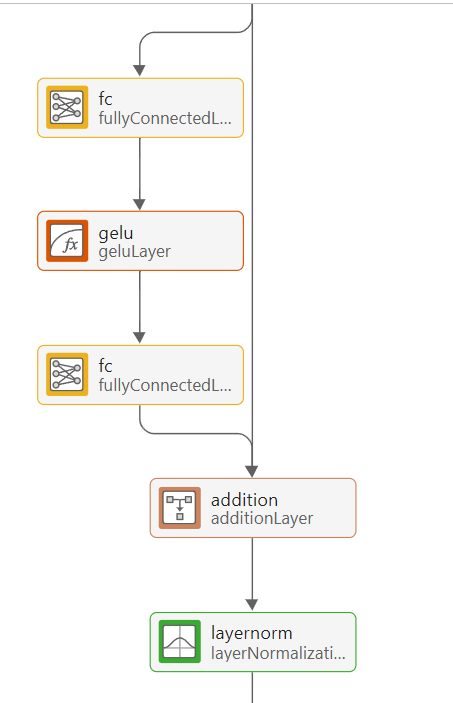
Add the fully connected block after the layer normalization layer:
Add 2 fully connected layers separated by a GeLU activation layer. Set the output sizes of both fully connected layers to 32.
Add an addition layer after the new layers, followed by a layer normalization layer.
As before, add a bypassing connection from the previous layer normalization layer output to the addition layer.
Finally, add the regression head:
Add a fully connected layer with output size 32, followed by GeLU activation.
Connect the output of the GeLU layer to the input of the output fully connected layer.
Ensure that the output of the output fully connected layer is connected to the inverse normalization layer, which reverses the data normalization applied by the sequence input layer.
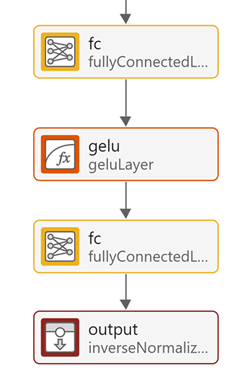
Your final transformer network must look like this network.
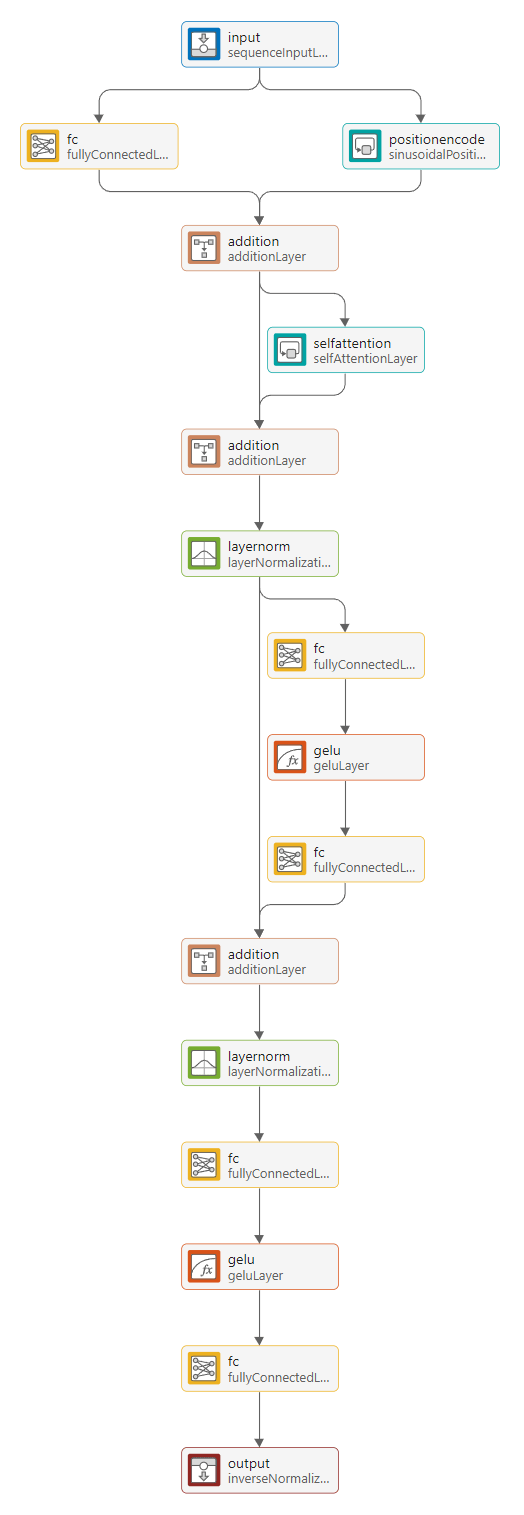
Check that all internal fully connected layers have an output size of 32, that the position encoding has an output size of 32, and that the self-attention layer has 32 query channels.
Load Prebuilt Network
Instead of building your own network, you can use the prebuilt network provided as a supporting file with this example. To use this prebuilt network, load the network and import it in the Time Series Modeler app.
load transformer_model.mat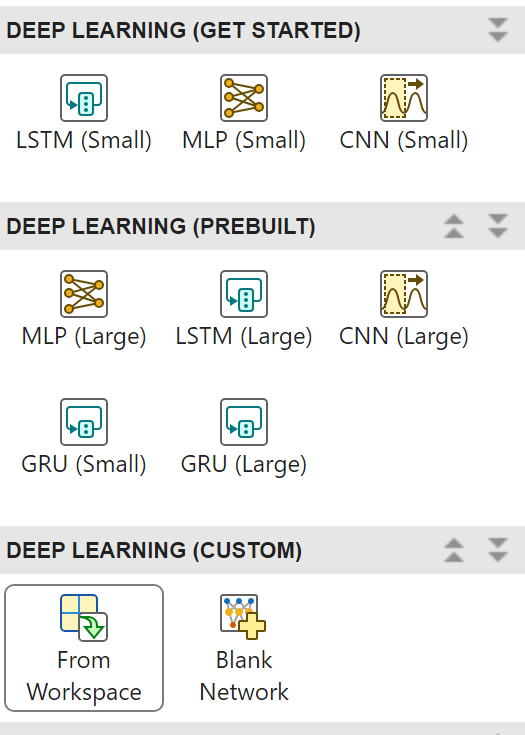
Analyze Network
To verify that you have constructed the network correctly, select Architecture Analysis. This transformer network is small and has only 7.7k learnable parameters.
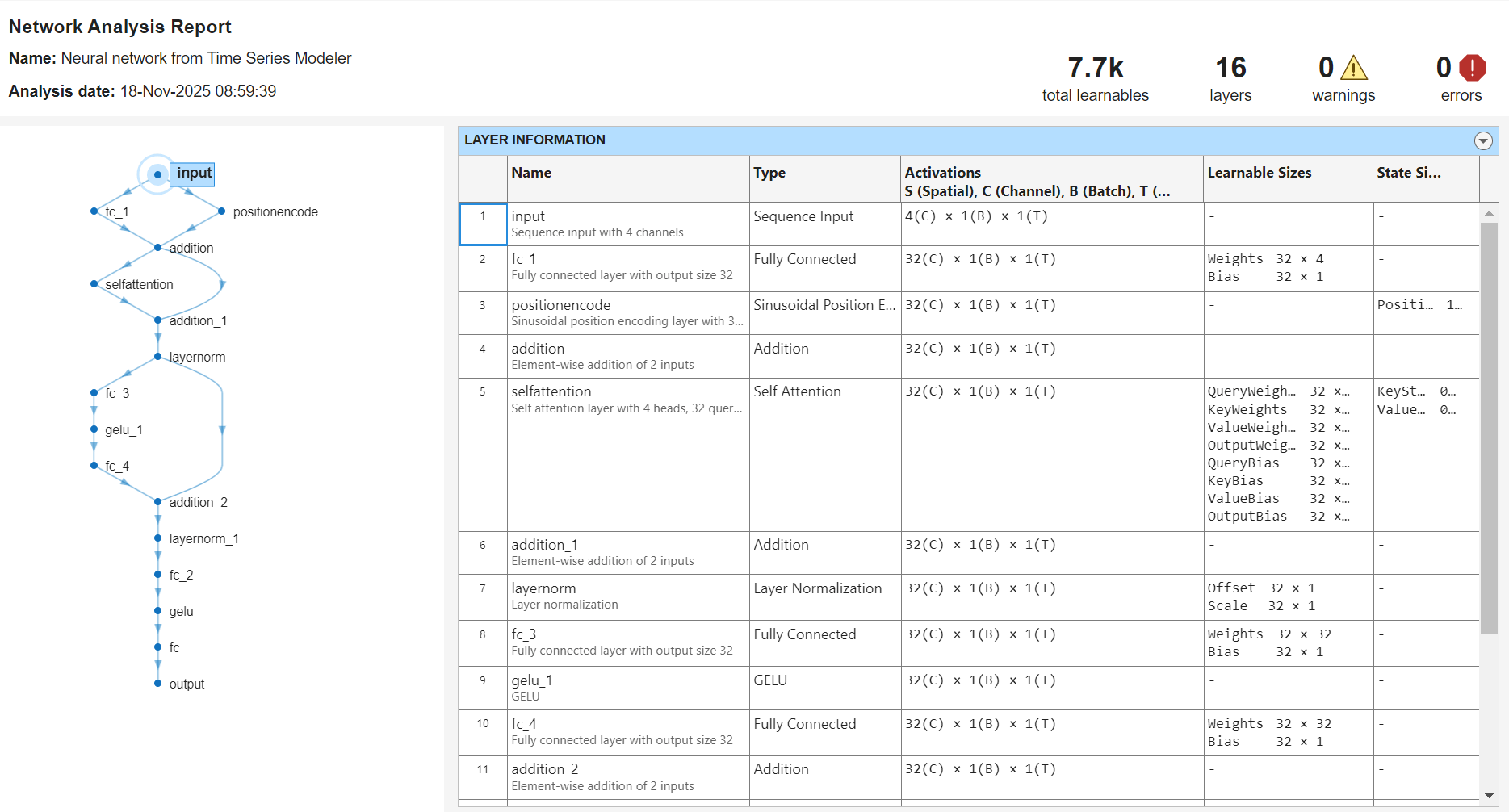
To accept the changes to the network, click Accept Changes.
Train Transformer Network
In Time Series Modeler, Click Train. The network will train on your GPU if one is available. Training on a GPU takes a couple of minutes.
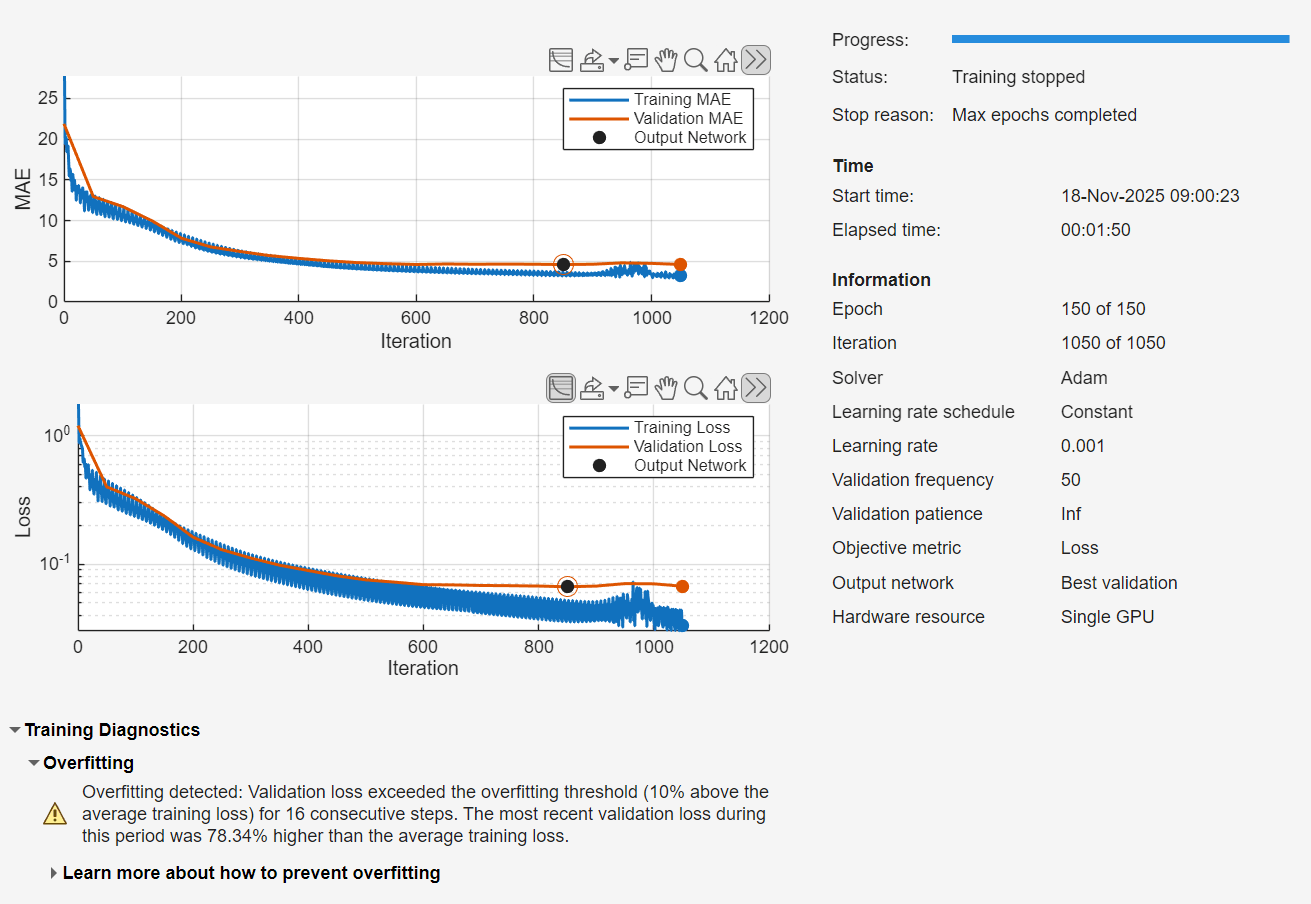
Reduce Overfitting
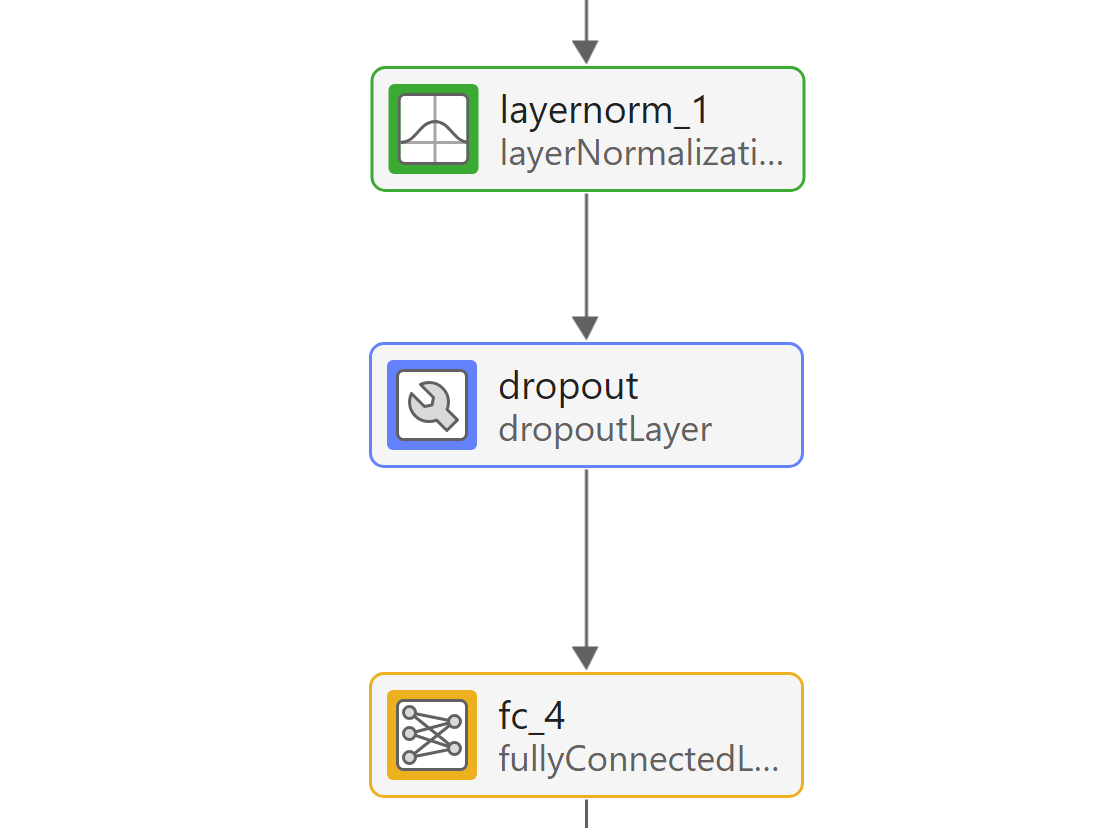
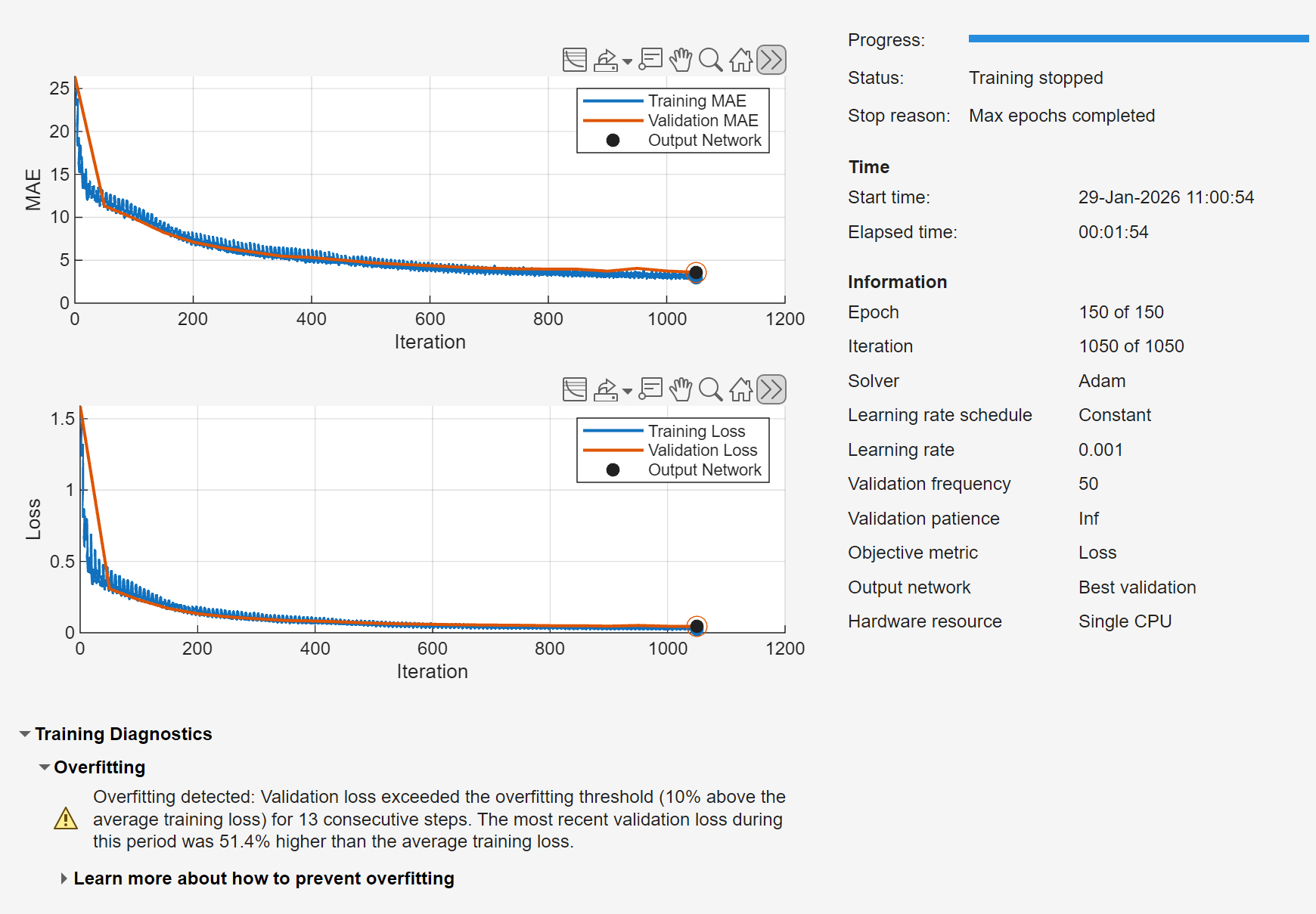
The transformer model overfits the training data, resulting in a high validation error. To reduce validation error and overfitting, use a causal mask for the attention layer and a dropout layer. Causal masking ensures the attention layer in the transformer network only uses past values of the time series. Dropout randomly zeros out inputs at training time and forces the network to learn features that generalize to unseen data.
To create an untrained copy of the transformer network, right-click the trained custom network in the model list on the left, and select Duplicate. Select Customize Network and make these changes to the network:
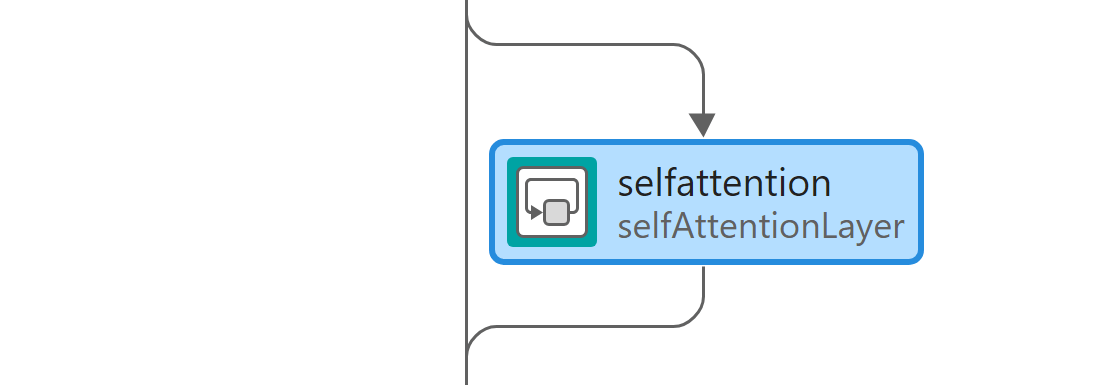
Set the AttentionMask of the self-attention layer to
'causal'.

Add a dropout layer between the second normalization layer and the next fully connected layer. Set Probability to 0.1.

Accept the changes, and train the network.
The causal mask and the dropout layer have improved the performance of the network. The transformer no longer overfits, and the validation and training loss match closely.
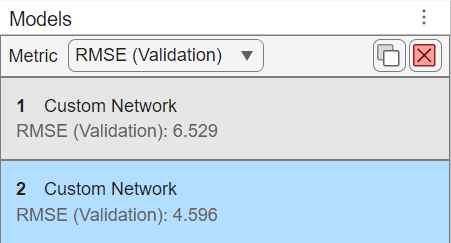
Small transformers, like the one used in this example, train fast on a GPU. This custom network also has a better validation root mean squared error (RMSE) compared to the default LSTM. If you have sufficient amount of data, use a transformer network as it usually outperforms simpler options such as MLP or LSTM, and is usually faster to train than an LSTM.
References
[1] Vaswani, Ashish, Noam Shazeer, Niki Parmar, Jakob Uszkoreit, Llion Jones, Aidan N. Gomez, Łukasz Kaiser, and Illia Polosukhin. "Attention is all you need." In Advances in Neural Information Processing Systems, Vol. 30. Curran Associates, Inc., 2017. https://papers.nips.cc/paper/7181-attention-is-all-you-need.
See Also
Apps
Functions
Topics
- Time Series Forecasting Using Deep Learning
- Compare Deep Learning and ARMAX Models for Time Series Modeling
- Build Custom Network for Time Series Modeling of a Virtual Sensor
- Autoregressive Time Series Prediction Using Deep Learning
- Denoise ECG Signals Using Deep Learning
- Create Virtual Sensors Interactively Using Deep Learning and Generate C Code for Deployment

