主要内容

trainingOptions

R2026b

Options for training deep learning neural network

Description

options = trainingOptions(solverName) returns training options for the specified solver. Use the training options object with deep learning training functions such as the trainnet function.

options = trainingOptions(solverName,Name=Value) specifies options using one or more name-value arguments. For example, traininrgOptions("adam",Plots="training-progress") specifies to train with the Adam solver and display the training progress in a plot.

example

Examples

collapse all

Create a set of options for training a network using stochastic gradient descent with momentum. Reduce the learning rate by a factor of 0.2 every 5 epochs. Set the maximum number of epochs for training to 20, and use a mini-batch with 64 observations at each iteration. Turn on the training progress plot.

options = trainingOptions("sgdm", ...
    LearnRateSchedule="piecewise", ...
    LearnRateDropFactor=0.2, ...
    LearnRateDropPeriod=5, ...
    MaxEpochs=20, ...
    MiniBatchSize=64, ...
    Plots="training-progress");

Input Arguments

collapse all

Solver for training neural network, specified as one of these values:

Stochastic Solvers

Stochastic solvers iterate over mini-batches of data and update the neural network learnable parameters each iteration. Stochastic solvers are well suited for large data sets. For additional training options, see Stochastic Solver Options.

ValueSolver NameMore Information
"sgdm"Stochastic gradient descent with momentum (SGDM)

Stochastic Gradient Descent with Momentum.

"rmsprop"Root mean square propagation (RMSProp)

Root Mean Square Propagation.

"adam"Adaptive moment estimation (Adam)

Adaptive Moment Estimation.

Batch Solvers

Batch solvers process the entire data set each iteration. Batch solvers are well suited for small networks and data sets that you can process in a single batch. For additional training options, see Batch Solver Options.

ValueSolver NameMore Information
"lbfgs" (since R2023b)Limited-memory Broyden–Fletcher–Goldfarb–Shanno (L-BFGS)

Limited-Memory BFGS.

"lm" (since R2024b)Levenberg–Marquardt (LM)

The lossFcn argument of the trainnet function must be "mse" or "l2loss".

For more information, see Levenberg–Marquardt.

Name-Value Arguments

expand all

Specify optional pairs of arguments as Name1=Value1,...,NameN=ValueN, where Name is the argument name and Value is the corresponding value. Name-value arguments must appear after other arguments, but the order of the pairs does not matter.

Example: trainingOptions("adam",Plots="training-progress") specifies to train with the Adam solver and display the training progress in a plot.

Monitoring

expand all

Plots to display during neural network training, specified as one of these values:

  • "none" — Do not display plots during training.

  • "training-progress" — Plot training progress.

The contents of the plot depends on the solver that you use.

  • When the solverName argument is "sgdm", "adam", or "rmsprop", the plot shows the mini-batch loss, validation loss, training mini-batch and validation metrics specified by the Metrics option, and additional information about the training progress.

  • When the solverName argument is "lbfgs" or "lm", the plot shows the training and validation loss, training and validation metrics specified by the Metrics option, and additional information about the training progress.

To programmatically open and close the training progress plot after training, use the show and close functions with the second output of the trainnet function. You can use the show function to view the training progress even if the Plots training option is specified as "none".

To switch the y-axis scale to logarithmic, use the axes toolbar. Training plot axes toolbar with log scale enabled and the tooltip "Log scale y-axis".

For more information about the plot, see Monitor Deep Learning Training Progress.

Since R2023b

Metrics to monitor, specified as one or more of these:

  • Built-in metric name or object, specified as a string scalar, character vector, or metric object.

  • Built-in loss function name, specified as a string scalar or character vector.

  • Custom metric, specified as a function handle, metric object, or custom deep learning function object.

To specify multiple metrics, use a string array or cell array.

For more information about deep learning metrics and loss functions, see Deep Learning Metrics.

Built-in Metrics

Built-in metrics work well for most workflows. You can specify the name of a built-in metric like "accuracy". If you want to customize the metrics further, you can specify more options using the corresponding metric object like an AccuracyMetric object. When you use a built-in metric object, you can specify additional options such as the averaging type and whether the task is single-label or multilabel.

MetricString OptionObject for Customization
Accuracy (also known as top-1 accuracy)"accuracy"AccuracyMetric
Area under ROC curve (AUC)"auc"AUCMetric
F-score (also known as F1-score)"fscore"FScoreMetric
Precision"precision"PrecisionMetric
Recall"recall"RecallMetric
Root mean squared error"rmse"RMSEMetric

Mean absolute percentage error (MAPE) (since R2024b)

"mape"MAPEMetric

R2 (R-squared or coefficient of determination) (since R2025a)

"rsquared"RSquaredMetric

Loss Functions

Specify loss function when you want to monitor additional loss values during training.

MetricString OptionNotes

Cross-entropy loss for classification tasks (since R2024b)

"crossentropy"

Setting the loss function as "index-crossentropy" and specifying "crossentropy" as a metric is not supported.

Index cross-entropy loss for classification tasks (since R2024b)

"indexcrossentropy"

Setting the loss function as "crossentropy" and specifying "index-crossentropy" as a metric is not supported.

Binary cross-entropy loss for binary and multilabel classification tasks (since R2024b)

"binary-crossentropy" 

Mean absolute error for regression tasks (since R2024b)

"mae" / "mean-absolute-error" / "l1loss" 

Mean squared error for regression tasks (since R2024b)

"mse" / "mean-squared-error" / "l2loss" 

Huber loss for regression tasks (since R2024b)

"huber" 

Custom Metrics

If the built-in metrics and loss functions do not provide the functionality that you need for your task, then you can specify your own custom metrics as a function handle, metric object, or custom deep learning function object.

If you specify a metric as a function handle, a custom metric object, or a custom function object, and train the neural network using the trainnet function, then the layout of the targets that the software passes to the metric depends on the data type of the targets. The loss function that you specify in the trainnet function and the other metrics that you specify have these effects on the software:

  • If the targets are numeric arrays, then the software passes the targets to the metric directly.

  • If the loss function is "index-crossentropy" and the targets are categorical arrays, then the software automatically converts the targets to numeric class indices and passes them to the metric.

  • For other loss functions, if the targets are categorical arrays, then the software automatically converts the targets to one-hot encoded vectors and then passes them to the metric.

ObjectDescription
Custom function

Function handle with metric = metricFunction(Y,T), where Y corresponds to the network predictions and T corresponds to the target responses. For networks with multiple outputs, the syntax must be metric = metricFunction(Y1,...,YN,T1,...,TM), where N is the number of outputs and M is the number of targets.

When you have data in mini-batches, the software computes the metric for each mini-batch and then returns the average of those values. For some metrics, this behavior can result in a different metric value than if you compute the metric using the whole data set at once. In most cases, the values are similar. To use a custom metric that is not batch-averaged for the data, you must create a custom metric object. For more information, see Define Custom Deep Learning Metric Object.

For more information, see Define Custom Metric Function.

Custom metric object

Metric object with custom initialization, reset, update, aggregation, and evaluation functions. For an example that shows how to create a custom metric, see Define Custom Metric Object.

For general information about creating custom metrics, see Define Custom Deep Learning Metric Object.

Deep learning function object with custom backward function (since R2024a)

Deep learning function object with custom backward function. For an example showing how to define a custom deep learning function object, see Specify Custom Operation Backward Function.

For categorical targets, the software automatically converts the categorical values to one-hot encoded vectors and passes them to the metric function.

For more information, see Define Custom Deep Learning Operations.

Since R2024a

Name of objective metric to use for early stopping and returning the best network, specified as a string scalar or character vector.

The metric name must be "loss" or match the name of a metric specified by the Metrics argument. Metrics specified using function handles are not supported. To specify the ObjectiveMetricName value as the name of a custom metric, the value of the Maximize property of the custom metric object must be nonempty. For more information, see Define Custom Deep Learning Metric Object.

For more information about specifying the objective metric for early stopping, see ValidationPatience. For more information about returning the best network using the objective metric, see OutputNetwork.

Data Types: char | string

Flag to display training progress information in the command window, specified as a numeric or logical 1 (true) or 0 (false).

The content of the verbose output depends on the type of solver.

For stochastic solvers (SGDM, Adam, and RMSProp), the table contains these variables:

VariableDescription
IterationIteration number.
EpochEpoch number.
TimeElapsedTime elapsed in hours, minutes, and seconds.
LearnRateLearning rate.
TrainingLossTraining loss.
ValidationLossValidation loss. If you do not specify validation data, then the software does not display this information.

For batch solvers (L-BFGS and LM), the table contains these variables:

VariableDescription
IterationIteration number
TimeElapsedTime elapsed in hours, minutes, and seconds
TrainingLossTraining loss
ValidationLossValidation loss. If you do not specify validation data, then the software does not display this information.
GradientNormNorm of the gradients
StepNormNorm of the steps

If you specify additional metrics in the training options, then they also appear in the verbose output. For example, if you set the Metrics training option to "accuracy", then the information includes TrainingAccuracy and ValidationAccuracy variables.

When training stops, the verbose output displays the reason for stopping.

Number of iterations between printing verbose output to the Command Window, specified as a positive integer.

If you validate the neural network during training, then the software also prints to the Command Window every time validation occurs.

Data Types: single | double | int8 | int16 | int32 | int64 | uint8 | uint16 | uint32 | uint64

Functions to call during training, specified as a function handle or cell array of function handles. The software calls the functions once before the start of training, after each iteration, and once when training is complete.

The functions must have the syntax stopFlag = f(info), where info is a structure containing information about the training progress, and stopFlag is a scalar that indicates to stop training early. If stopFlag is 1 (true), then the software stops training. Otherwise, the software continues training.

The trainnet function passes the structure info to the output function.

For stochastic solvers (SGDM, Adam, and RMSProp), info contains these fields:

FieldDescription
EpochEpoch number
IterationIteration number
TimeElapsedTime since start of training
LearnRateIteration learn rate
TrainingLossIteration training loss
ValidationLossValidation loss, if specified and evaluated at iteration.
StateIteration training state, specified as "start", "iteration", or "done".

For batch solvers (L-BFGS and LM), info contains these fields:

FieldDescription
IterationIteration number
TimeElapsedTime elapsed in hours, minutes, and seconds
TrainingLossTraining loss
ValidationLossValidation loss. If you do not specify validation data, then the software does not display this information.
GradientNormNorm of the gradients
StepNormNorm of the steps
StateIteration training state, specified as "start", "iteration", or "done"

If you specify additional metrics in the training options, then they also appear in the training information. For example, if you set the Metrics training option to "accuracy", then the information includes the TrainingAccuracy and ValidationAccuracy fields.

If a field is not calculated or relevant for a certain call to the output functions, then that field contains an empty array.

For an example showing how to use output functions, see Custom Stopping Criteria for Deep Learning Training.

Data Types: function_handle | cell

Data Layout

expand all

Since R2025a

Encoding of categorical inputs, specified as one of these values:

  • "integer" — Convert categorical inputs to their integer value. In this case, the network must have one input channel for each of the categorical inputs.

  • "one-hot" — Convert categorical inputs to one-hot encoded vectors. In this case, the network must have numCategories channels for each of the categorical inputs, where numCategories is the number of categories of the corresponding categorical input.

Since R2025a

Encoding of categorical targets, specified as one of these values:

  • "auto" — If you train using the "index-crossentropy" loss function, then convert categorical targets to their integer value. Otherwise, convert categorical targets to one-hot encoded vectors.

  • "integer" — Convert categorical targets to their integer value and pass the integer-encoded values to the loss and metric functions.

  • "one-hot" — Convert categorical targets to one-hot encoded vectors and pass the one-hot encoded values to the loss and metric functions.

Since R2023b

Description of the input data dimensions, specified as a string array, character vector, or cell array of character vectors.

If InputDataFormats is "auto", then the software uses the formats expected by the network input. Otherwise, the software uses the specified formats for the corresponding network input.

A deep learning data format is a string of characters, where each character describes the type of the corresponding data dimension. The characters are:

  • "S" — Spatial

  • "C" — Channel

  • "B" — Batch

  • "T" — Time

  • "U" — Unspecified

For example, suppose you have an array that represents a batch of sequences where the first, second, and third dimensions correspond to channels, observations, and time steps, respectively. You can describe the data as having the format "CBT" (channel, batch, time).

You can specify multiple dimensions labeled "S" or "U". You can use the labels "C", "B", and "T" at most once each. The software ignores singleton trailing "U" dimensions after the second dimension.

For a neural network with multiple inputs net, specify an array of input data formats, where InputDataFormats(i) corresponds to the input net.InputNames(i).

For more information, see Deep Learning Data Formats.

Data Types: char | string | cell

Since R2023b

Description of the target data dimensions, specified as one of these values:

  • "auto" — If the target data has the same number of dimensions as the input data, then the trainnet function uses the format specified by InputDataFormats. If the target data has a different number of dimensions from the input data, then the trainnet function uses the format expected by the loss function.

  • String array, character vector, or cell array of character vectors — The trainnet function uses the data formats you specify.

A deep learning data format is a string of characters, where each character describes the type of the corresponding data dimension. The characters are:

  • "S" — Spatial

  • "C" — Channel

  • "B" — Batch

  • "T" — Time

  • "U" — Unspecified

For example, suppose you have an array that represents a batch of sequences where the first, second, and third dimensions correspond to channels, observations, and time steps, respectively. You can describe the data as having the format "CBT" (channel, batch, time).

You can specify multiple dimensions labeled "S" or "U". You can use the labels "C", "B", and "T" at most once each. The software ignores singleton trailing "U" dimensions after the second dimension.

For more information, see Deep Learning Data Formats.

Data Types: char | string | cell

Stochastic Solver Options

expand all

Maximum number of epochs (full passes of the data) to use for training, specified as a positive integer.

This option supports stochastic solvers only (when the solverName argument is "sgdm", "adam", or "rmsprop").

Data Types: single | double | int8 | int16 | int32 | int64 | uint8 | uint16 | uint32 | uint64

Number of samples in each mini-batch, specified as a positive integer.

The training function splits the data into mini-batches and loops over them. The function updates the neural network learnable parameters using the loss function gradients for each mini-batch.

If the number of training samples is smaller than the specified mini-batch size, then the software uses a single mini-batch that contains all of the training data. Otherwise, if the mini-batch size does not evenly divide the number of training observations, then the software discards the final partial mini-batch. To prevent discarding the same data every epoch, set the Shuffle training option to "every-epoch".

This option supports stochastic solvers only (when the solverName argument is "sgdm", "adam", or "rmsprop").

Tip

For best performance, if you are training a network using a datastore with a ReadSize property, such as an imageDatastore, then set the ReadSize property and MiniBatchSize training option to the same value. If you are training a network using a datastore with a MiniBatchSize property, such as an augmentedImageDatastore, then set the MiniBatchSize property of the datastore and the MiniBatchSize training option to the same value.

Data Types: single | double | int8 | int16 | int32 | int64 | uint8 | uint16 | uint32 | uint64

Option for data shuffling, specified as one of these values:

  • "once" — Shuffle the training and validation data once before training.

  • "never" — Do not shuffle the data.

  • "every-epoch" — Shuffle the training data before each training epoch, and shuffle the validation data before each neural network validation.

If the number of training samples is smaller than the specified mini-batch size, then the software uses a single mini-batch that contains all of the training data. Otherwise, if the mini-batch size does not evenly divide the number of training observations, then the software discards the final partial mini-batch. To prevent discarding the same data every epoch, set the Shuffle training option to "every-epoch".

This option supports stochastic solvers only (when the solverName argument is "sgdm", "adam", or "rmsprop").

Initial learning rate used for training, specified as a positive scalar.

If the learning rate is too low, then training can take many iterations to converge. If the learning rate is too high, then training might converge to a suboptimal result or diverge.

This option supports stochastic solvers only (when the solverName argument is "sgdm", "adam", or "rmsprop").

When solverName is "sgdm", the default value is 0.01. When solverName is "rmsprop" or "adam", the default value is 0.001.

Data Types: single | double | int8 | int16 | int32 | int64 | uint8 | uint16 | uint32 | uint64

Learning rate schedule, specified as a character vector or string scalar of a built-in learning rate schedule name, a string array of names, a built-in or custom learning rate schedule object, a function handle, or a cell array of names, metric objects, and function handles.

This option supports stochastic solvers only (when the solverName argument is "sgdm", "adam", or "rmsprop").

You can combine multiple learning rate schedules by specifying a string or cell array (since R2024b). In this case, the software applies the schedules in order, starting with the first element. At most one of the schedules can be infinite (schedules that continue indefinitely, such as "cyclical" and objects with the NumSteps property set to Inf) and the infinite schedule must be the last element of the array.

Built-in Learning Rate Schedules

Specify learning rate schedules as a string scalar, character vector, or a string or cell array of one or more of these names:

ScheduleStringObjectPlot
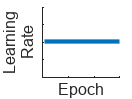
No learning rate schedule"none" — Keep the learning rate constant.NA

Plot with x and y axes showing epoch and learning rate, respectively. The learning rate is constant for each epoch.

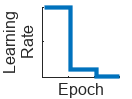
Piecewise learning rate schedule"piecewise" — Every 10 epochs, drop the learning rate by a factor of 10.

piecewiseLearnRate (since R2024b) — Customize the drop factor and period of the piecewise schedule.

Before R2024b: Customize the piecewise drop factor and period using the LearnRateDropFactor and LearnRateDropPeriod training options, respectively.

Plot with x and y axes showing epoch and learning rate, respectively. Every 10 epochs, the learning rate drops by a factor of 10.

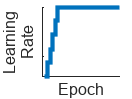
Warm-up learning rate schedule (since R2024b)"warmup" — For 5 iterations, ramp up the learning rate to the base learning rate.warmupLearnRate — Customize the initial and final learning rate factors and the number of steps of the warm-up schedule.

Plot with x and y axes showing epoch and learning rate, respectively. For 5 iterations, the learning rate ramps up to the base learning rate and then remains constant.

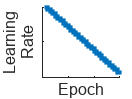
Polynomial learning rate schedule (since R2024b)"polynomial" — Every epoch, drop the learning rate using a power law with a unitary exponent.polynomialLearnRate — Customize the initial and final learning rate factors, the exponent, and the number of steps of the polynomial schedule.

Plot with x and y axes showing epoch and learning rate, respectively. The learning rate decreases linearly from the base learning rate towards zero.

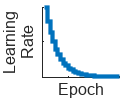
Exponential learning rate schedule (since R2024b)"exponential" — Every epoch, decay the learning rate by a factor of 10.exponentialLearnRate — Customize the drop factor and period of the exponential schedule.

Plot with x and y axes showing epoch and learning rate, respectively. Every epoch, the learning rate decays by a factor of 10.

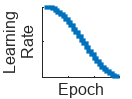
Cosine learning rate schedule (since R2024b)"cosine" — Every epoch, drop the learning rate using a cosine formula.cosineLearnRate — Customize the initial and final learning rate factors, the period, and the period growth factor of the cosine schedule.

Plot with x and y axes showing epoch and learning rate, respectively. The learning rate decreases following a cosine curve from the base learning rate towards zero.

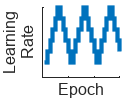
Cyclical learning rate schedule (since R2024b)"cyclical" — For periods of 10 epochs, increase the learning rate from the base learning rate for 5 epochs and then decrease the learning rate for 5 epochs.cyclicalLearnRate — Customize the maximum factor, period, and step ratio of the cyclical schedule.

Plot with x and y axes showing epoch and learning rate, respectively. For periods of 10 epochs, the learning rate increases from the base learning rate for 5 epochs and then decreases for 5 epochs.

Custom Learning Rate Schedule (since R2024b)

For additional flexibility, you can define a custom learning rate schedule as a function handle or custom class that inherits from deep.LearnRateSchedule.

ScheduleDescription
Custom learning rate schedule functionFunction handle with the syntax learningRate = f(baseLearningRate,epoch), where baseLearningRate is the base learning rate, and epoch is the epoch number.
Custom learning rate schedule object

Custom learning rate schedule class that inherits from deep.LearnRateSchedule. Use this option when you need additional flexibility than what function handles provide.

For more information, see Define Custom Learning Rate Schedule.

Contribution of the parameter update step of the previous iteration to the current iteration of stochastic gradient descent with momentum, specified as a scalar from 0 to 1.

A value of 0 means no contribution from the previous step, whereas a value of 1 means maximal contribution from the previous step. The default value works well for most tasks.

This argument supports the SGDM solver only (when the solverName argument is "sgdm").

For more information, see Stochastic Gradient Descent with Momentum.

Data Types: single | double | int8 | int16 | int32 | int64 | uint8 | uint16 | uint32 | uint64

Decay rate of gradient moving average for the Adam solver, specified as a nonnegative scalar less than 1. The gradient decay rate is denoted by β1 in the Adaptive Moment Estimation section.

This argument supports the Adam solver only (when the solverName argument is "adam").

For more information, see Adaptive Moment Estimation.

Data Types: single | double | int8 | int16 | int32 | int64 | uint8 | uint16 | uint32 | uint64

Decay rate of squared gradient moving average for the Adam and RMSProp solvers, specified as a nonnegative scalar less than 1. The squared gradient decay rate is denoted by β2 in [4].

Typical values of the decay rate are 0.9, 0.99, and 0.999, corresponding to averaging lengths of 10, 100, and 1000 parameter updates, respectively.

This option supports the Adam and RMSProp solvers only (when the solverName argument is "adam" or "rmsprop").

The default value is 0.999 for the Adam solver. The default value is 0.9 for the RMSProp solver.

For more information, see Adaptive Moment Estimation and Root Mean Square Propagation.

Data Types: single | double | int8 | int16 | int32 | int64 | uint8 | uint16 | uint32 | uint64

Denominator offset for Adam and RMSProp solvers, specified as a positive scalar.

The solver adds the offset to the denominator in the neural network parameter updates to avoid division by zero. The default value works well for most tasks.

This option supports the Adam and RMSProp solvers only (when the solverName argument is "adam" or "rmsprop").

For more information, see Adaptive Moment Estimation and Root Mean Square Propagation.

Data Types: single | double | int8 | int16 | int32 | int64 | uint8 | uint16 | uint32 | uint64

Factor for dropping the learning rate, specified as a scalar from 0 to 1. This argument is valid only when the LearnRateSchedule argument is "piecewise".

LearnRateDropFactor is a multiplicative factor to apply to the learning rate every time a certain number of epochs passes. Specify the number of epochs using the LearnRateDropPeriod argument.

This option supports stochastic solvers only (when the solverName argument is "sgdm", "adam", or "rmsprop").

Tip

To customize the piecewise learning rate schedule, use a piecewiseLearnRate object (since R2024b). A piecewiseLearnRate object is recommended over the LearnRateDropFactor and LearnRateDropPeriod training options because it provides additional control over the drop frequency.

Data Types: single | double | int8 | int16 | int32 | int64 | uint8 | uint16 | uint32 | uint64

Number of epochs for dropping the learning rate, specified as a positive integer. This argument is valid only when the LearnRateSchedule value is "piecewise".

The software multiplies the global learning rate with the drop factor every time the specified number of epochs passes. Specify the drop factor using the LearnRateDropFactor argument.

This option supports stochastic solvers only (when the solverName argument is "sgdm", "adam", or "rmsprop").

Tip

To customize the piecewise learning rate schedule, use a piecewiseLearnRate object (since R2024b). A piecewiseLearnRate object is recommended over the LearnRateDropFactor and LearnRateDropPeriod training options because it provides additional control over the drop frequency.

Data Types: single | double | int8 | int16 | int32 | int64 | uint8 | uint16 | uint32 | uint64

Batch Solver Options

expand all

Since R2023b

Maximum number of iterations to use for training, specified as a positive integer.

The L-BFGS solver is a full-batch solver, which means that it processes the entire training set in a single iteration.

This option supports batch solvers only (when the solverName argument is "lbfgs" or "lm").

Data Types: single | double | int8 | int16 | int32 | int64 | uint8 | uint16 | uint32 | uint64

Since R2023b

Relative gradient tolerance, specified as a positive scalar.

Relative gradient tolerance, specified as one of these values:

  • Positive scalar — Stop training when the relative gradient is less than or equal to the specified value.

  • 0 (since R2025a) — Do not stop training based on the relative gradient.

This option supports batch solvers only (when the solverName argument is "lbfgs" or "lm").

Data Types: single | double | int8 | int16 | int32 | int64 | uint8 | uint16 | uint32 | uint64

Since R2023b

Step size tolerance, specified as one of these values:

  • Positive scalar — Stop training when the step that the algorithm takes is less than or equal to the specified value.

  • 0 (since R2025a) — Do not stop training based on the step size.

This option supports batch solvers only (when the solverName argument is "lbfgs" or "lm").

Data Types: single | double | int8 | int16 | int32 | int64 | uint8 | uint16 | uint32 | uint64

Since R2023b

Method to find suitable learning rate, specified as one of these values:

  • "weak-wolfe" — Search for a learning rate that satisfies the weak Wolfe conditions. This method maintains a positive definite approximation of the inverse Hessian matrix.

  • "strong-wolfe" — Search for a learning rate that satisfies the strong Wolfe conditions. This method maintains a positive definite approximation of the inverse Hessian matrix.

  • "backtracking" — Search for a learning rate that satisfies sufficient decrease conditions. This method does not maintain a positive definite approximation of the inverse Hessian matrix.

This option supports the L-BFGS solver only (when the solverName argument is "lbfgs").

Since R2023b

Number of state updates to store, specified as a positive integer. Values between 3 and 20 suit most tasks.

The L-BFGS algorithm uses a history of gradient calculations to approximate the Hessian matrix recursively. For more information, see Limited-Memory BFGS.

This option supports the L-BFGS solver only (when the solverName argument is "lbfgs").

Data Types: single | double | int8 | int16 | int32 | int64 | uint8 | uint16 | uint32 | uint64

Since R2023b

Initial value that characterizes the approximate inverse Hessian matrix, specified as a positive scalar.

To save memory, the L-BFGS algorithm does not store and invert the dense Hessian matrix B. Instead, the algorithm uses the approximation Bkm1λkI, where m is the history size, the inverse Hessian factor λk is a scalar, and I is the identity matrix. The algorithm then stores the scalar inverse Hessian factor only. The algorithm updates the inverse Hessian factor at each step.

The initial inverse hessian factor is the value of λ0.

For more information, see Limited-Memory BFGS.

This option supports the L-BFGS solver only (when the solverName argument is "lbfgs").

Data Types: single | double | int8 | int16 | int32 | int64 | uint8 | uint16 | uint32 | uint64

Since R2023b

Maximum number of line search iterations to determine the learning rate, specified as a positive integer.

This option supports the L-BFGS solver only (when the solverName argument is "lbfgs").

Data Types: single | double | int8 | int16 | int32 | int64 | uint8 | uint16 | uint32 | uint64

Since R2024b

Initial step size, specified as one of these values:

  • [] — Do not use an initial step size to determine the initial Hessian approximation.

  • "auto" — Determine the initial step size automatically. The software uses an initial step size of s0=12W0+0.1, where W0 are the initial learnable parameters of the network.

  • Positive real scalar — Use the specified value as the initial step size s0.

If InitialStepSize is "auto" or a positive real scalar, then the software approximates the initial inverse Hessian using λ0=s0J(W0), where λ0 is the initial inverse Hessian factor and J(W0) denotes the gradients of the loss with respect to the initial learnable parameters. For more information, see Limited-Memory BFGS.

This option supports the L-BFGS solver only (when the solverName argument is "lbfgs").

Data Types: single | double | int8 | int16 | int32 | int64 | uint8 | uint16 | uint32 | uint64 | char | string

Since R2024b

Initial damping factor, specified as a positive scalar.

This option supports the LM solver only (when the solverName argument is "lm").

Data Types: single | double | int8 | int16 | int32 | int64 | uint8 | uint16 | uint32 | uint64

Since R2024b

Maximum damping factor, specified as a positive scalar.

This option supports the LM solver only (when the solverName argument is "lm").

Data Types: single | double | int8 | int16 | int32 | int64 | uint8 | uint16 | uint32 | uint64

Since R2024b

Factor for increasing the damping factor, specified as a positive scalar greater than 1.

This option supports the LM solver only (when the solverName argument is "lm").

Data Types: single | double | int8 | int16 | int32 | int64 | uint8 | uint16 | uint32 | uint64

Since R2024b

Factor for decreasing the damping factor, specified as a positive scalar less than 1.

This option supports the LM solver only (when the solverName argument is "lm").

Data Types: single | double | int8 | int16 | int32 | int64 | uint8 | uint16 | uint32 | uint64

Validation

expand all

Data to use for validation during training.

Specify the validation predictors and targets in a form that the training function supports. If the training function supports specifying the training predictors and targets as a single object (for example, the trainnet function supports data specified as a single datastore), then you can specify the validation data in the same way. For validation predictors and targets are in separate in-memory arrays, you can specify the cell array {predictors,targets}, where predictors and targets are the validation predictors and targets in a layout that the training function supports, respectively. For more information, see the input arguments for the training function.

During training, the software uses the validation data to calculate the validation loss and metric values. To specify the validation frequency, use the ValidationFrequency training option. You can also use the validation data to stop training automatically when the validation objective metric stops improving. By default, the objective metric is set to the loss. To turn on automatic validation stopping, use the ValidationPatience training option.

If ValidationData is [], then the software does not validate the neural network during training.

If your neural network has layers that behave differently during prediction than during training (for example, dropout layers), then the validation loss can be lower than the training loss.

The software shuffles the validation data according to the Shuffle training option. If Shuffle is "every-epoch", then the software shuffles the validation data before each neural network validation.

Frequency of neural network validation in number of iterations, specified as a positive integer.

The ValidationFrequency value is the number of iterations between evaluations of validation metrics. To specify validation data, use the ValidationData training option.

Data Types: single | double | int8 | int16 | int32 | int64 | uint8 | uint16 | uint32 | uint64

Patience of validation stopping of neural network training, specified as a positive integer or Inf.

ValidationPatience specifies the number of times that the objective metric on the validation set can be worse than or equal to the previous best value before neural network training stops. If ValidationPatience is Inf, then the values of the validation metric do not cause training to stop early. The software aims to maximize or minimize the metric, as specified by the Maximize property of the metric. When the objective metric is "loss", the software aims to minimize the loss value.

The returned neural network depends on the OutputNetwork training option. To return the neural network with the best validation metric value, set the OutputNetwork training option to "best-validation".

Before R2024a: The software computes the validation patience using the validation loss value.

Data Types: single | double | int8 | int16 | int32 | int64 | uint8 | uint16 | uint32 | uint64

Neural network to return when training completes, specified as one of these values:

  • "auto" – If ValidationData specifies validation data, use "best-validation". Otherwise, use "last-iteration".

  • "best-validation" – Return the neural network that corresponds to the training iteration with the best validation metric value, where the metric to optimize is specified by the ObjectiveMetricName argument. If training stops before any validation steps occur (for example, if you click the Stop button in the training progress plot), then the training function does not perform a validation step and returns the neural network that corresponds to the last training iteration.

  • "last-iteration" – Return the neural network that corresponds to the last training iteration.

Normalization and Regularization

expand all

Since R2026a

Flag to normalize targets, specified as one of these values:

  • Numeric or logical 1 (true) — Normalize the targets. The neural network that you train must have an inverseNormalizationLayer object. The software uses the normalization method specified by the Normalization property of the inverse normalization layer.

  • Numeric or logical 0 (false) — Do not normalize the targets.

Mode to evaluate the statistics in batch normalization layers, specified as one of the following:

  • "population" — Use the population statistics. After training, the software finalizes the statistics by passing through the training data again and uses the resulting mean and variance.

  • "moving" — Approximate the statistics during training using a running estimate given by update steps

    μ*=λμμ^+(1λμ)μσ2*=λσ2σ2^+(1-λσ2)σ2,

    where μ* and σ2* denote the updated mean and variance, respectively, λμ and λσ2 denote the mean and variance decay values, respectively, μ^ and σ2^ denote the mean and variance of the layer input, respectively, and μ and σ2 denote the latest values of the moving mean and variance values, respectively. After training, the software uses the most recent value of the moving mean and variance statistics. This option supports CPU and single GPU training only.

  • "auto" — Use the "moving" option.

Flag to reset input layer normalization statistics, specified as one of these values:

  • Numeric or logical 1 (true) — Reset the input layer normalization statistics and recalculate them at training time.

  • Numeric or logical 0 (false) — Use the normalization statistics given by the input layer properties at training time. When the layer properties are [], the software initializes the statistics with the default value for the corresponding statistic.

Since R2026a

Flag to reset inverse normalization layer statistics, specified as one of these values:

  • Numeric or logical 1 (true) — Reset the inverse normalization layer statistics and recalculate them at training time.

  • Numeric or logical 0 (false) — Calculate inverse normalization layer statistics at training time when they are empty.

Factor for L2 regularization (weight decay), specified as a nonnegative scalar. For more information, see L2 Regularization.

This option does not support the LM solver (when the solverName argument is "lm").

Data Types: single | double | int8 | int16 | int32 | int64 | uint8 | uint16 | uint32 | uint64

Gradient Clipping

expand all

Gradient threshold, specified as Inf or a positive scalar. If the gradient exceeds the value of GradientThreshold, then the gradient is clipped according to the GradientThresholdMethod argument.

For more information, see Gradient Clipping.

This option does not support the LM solver (when the solverName argument is "lm").

Data Types: single | double | int8 | int16 | int32 | int64 | uint8 | uint16 | uint32 | uint64

Gradient threshold method used to clip gradient values that exceed the gradient threshold, specified as one of the following:

  • "l2norm" — If the L2 norm of the gradient of a learnable parameter is larger than GradientThreshold, then scale the gradient so that the L2 norm equals GradientThreshold.

  • "global-l2norm" — If the global L2 norm, L, is larger than GradientThreshold, then scale all gradients by a factor of GradientThreshold/L. The global L2 norm considers all learnable parameters.

  • "absolute-value" — If the absolute value of an individual partial derivative in the gradient of a learnable parameter is larger than GradientThreshold, then scale the partial derivative to have magnitude equal to GradientThreshold and retain the sign of the partial derivative.

For more information, see Gradient Clipping.

This option does not support the LM solver (when the solverName argument is "lm").

Sequence

expand all

Option to pad or truncate input sequences, specified as one of these values:

  • "longest" — Pad sequences in each mini-batch to have the same length as the longest sequence. This option does not discard any data, though padding can introduce noise to the neural network.

  • "shortest" — Truncate sequences in each mini-batch to have the same length as the shortest sequence. This option ensures that no padding is added, at the cost of discarding data.

To learn more about the effect of padding and truncating sequences, see Sequence Padding and Truncation.

Direction of padding or truncation, specified as one of these options:

  • "right" — Pad or truncate sequences on the right. The sequences start at the same time step and the software truncates or adds padding to the end of each sequence.

  • "left" — Pad or truncate sequences on the left. The software truncates or adds padding to the start of each sequence so that the sequences end at the same time step.

Recurrent layers process sequence data one time step at a time, so when the recurrent layer outputs the last time step only, any padding in the final time steps can negatively influence the layer output. Left padding helps prevent this issue by ensuring that padding doesn't appear in the final time steps.

For sequence-to-sequence neural networks (when the recurrent layers output the full sequence), any padding in the first time steps can negatively influence the predictions for the earlier time steps. Right padding helps prevent this issue by ensuring that padding doesn't appear in the initial time steps.

To learn more about the effects of padding and truncating sequences, see Sequence Padding and Truncation.

Value for padding the input sequences, specified as a scalar.

Do not pad sequences with NaN, because doing so can propagate errors through the neural network.

Data Types: single | double | int8 | int16 | int32 | int64 | uint8 | uint16 | uint32 | uint64

Hardware and Acceleration

expand all

Hardware resource for training neural network, specified as one of these values:

  • "auto" – Use a local GPU if one is available. Otherwise, use the local CPU.

  • "cpu" – Use the local CPU.

  • "gpu" – Use the local GPU.

  • "multi-gpu" – Use multiple GPUs on one machine, using a local parallel pool based on your default cluster profile. If there is no current parallel pool, the software starts a parallel pool with pool size equal to the number of available GPUs.

  • "parallel-auto" – Use a local or remote parallel pool. If there is no current parallel pool, the software starts one using the default cluster profile. If the pool has access to GPUs, then only workers with a unique GPU perform training computation and excess workers become idle. If the pool does not have GPUs, then training takes place on all available CPU workers instead (since R2024a).

    Before R2024a: Use "parallel" instead.

  • "parallel-cpu" – Use CPU resources in a local or remote parallel pool, ignoring any GPUs. If there is no current parallel pool, the software starts one using the default cluster profile (since R2023b).

  • "parallel-gpu" – Use GPUs in a local or remote parallel pool. Excess workers become idle. If there is no current parallel pool, the software starts one using the default cluster profile (since R2023b).

The "gpu", "multi-gpu", "parallel-auto", "parallel-cpu", and "parallel-gpu" options require Parallel Computing Toolbox™. To use a GPU for deep learning, you must also have a supported GPU device. For information on supported devices, see GPU Computing Requirements (Parallel Computing Toolbox). If you choose one of these options and Parallel Computing Toolbox or a suitable GPU is not available, then the software returns an error.

For more information on when to use the different execution environments, see Scale Up Deep Learning in Parallel, on GPUs, and in the Cloud.

To see an improvement in performance when training in parallel, try scaling up the MiniBatchSize and InitialLearnRate training options by the number of GPUs.

The "multi-gpu", "parallel-auto", "parallel-cpu", and "parallel-gpu" options support stochastic solvers only (when the solverName argument is "sgdm", "adam", or "rmsprop").

Since R2024a

Environment for fetching and preprocessing data from a datastore during training, specified as one of these values:

  • "serial" – Fetch and preprocess data in serial.

  • "background" – Fetch and preprocess data using the background pool.

  • "parallel" – Fetch and preprocess data using parallel workers. The software opens a parallel pool using the default profile, if a local pool is not currently open. Non-local parallel pools are not supported. Using this option requires Parallel Computing Toolbox. This option is not supported when training in parallel (when the ExecutionEnvironment option is "parallel-auto", "parallel-cpu", "parallel-gpu", or "multi-gpu").

The "background" and "parallel" options are not supported when the Shuffle option is "never".

If you use the "background" and "parallel" options, then training is non-deterministic even if you use the deep.gpu.deterministicAlgorithms function.

Use the "background" option when your mini-batches require significant preprocessing. If your preprocessing is not supported on threads, or if you need to control the number of workers, use the "parallel" option. For more information about the preprocessing environment, see Preprocess Data in the Background or in Parallel.

This option supports stochastic solvers only (when the solverName argument is "sgdm", "adam", or "rmsprop").

Before R2024a: To preprocess data in parallel, set the DispatchInBackground training option to logical 1 (true).

Since R2026b

Floating-point precision for GPU training, specified as one of these values:

  • "prioritize-single" — Training computations use default MATLAB® floating-point data type propagation rules. Training computations use single-precision floating-point arithmetic unless both the learnable and state parameters and the training data are of type double. For more information about floating-point data types in MATLAB, see Floating-Point Numbers.

  • "automatic-mixed" — Training computations use half-precision floating-point arithmetic where possible for best performance. The software chooses between single and half precision for each operation to enhance performance and maintain numerical stability. This option supports training on GPUs with compute capability of 8.0 or higher only (Ampere architecture or later).

Using automatic mixed precision can also reduce GPU memory usage, which allows you to increase the mini-batch size. Increasing the mini-batch size usually results in a decrease in training time. However, larger mini-batch sizes can negatively impact the final accuracy of the trained network.

The performance benefit from using automatic mixed precision is greater for larger networks. If your network contains multiple custom layers, use "prioritize-single", as automatic mixed precision might slow down training.

This option supports stochastic solvers only (when the solverName argument is "sgdm", "adam", or "rmsprop").

Note

If you use automatic mixed precision, then the trainnet function returns a network with single-precision learnable and state parameters, so this option does not affect prediction, export to Simulink®, or code generation.

Since R2024a

Performance optimization, specified as one of these values:

  • "auto" – Automatically apply a number of optimizations suitable for the input network and hardware resources.

  • "none" – Disable all optimizations.

Using the "auto" acceleration option can offer performance benefits, but at the expense of an increased initial run time. Subsequent calls with compatible parameters are faster. Use performance optimization when you plan to call the function multiple times using different input data with the same size and shape.

Checkpoints

expand all

Path for saving the checkpoint neural networks, specified as a string scalar or character vector.

  • If you do not specify a path (that is, you use the default ""), then the software does not save any checkpoint neural networks.

  • If you specify a path, then the software saves checkpoint neural networks to this path and assigns a unique name to each neural network. You can then load any checkpoint neural network and resume training from that neural network.

    If the folder does not exist, then you must first create it before specifying the path for saving the checkpoint neural networks. If the path you specify does not exist, then the software throws an error.

Data Types: char | string

Frequency of saving checkpoint neural networks, specified as a positive integer.

If solverName is "lbfgs" or CheckpointFrequencyUnit is "iteration", then the software saves checkpoint neural networks every CheckpointFrequency iterations. Otherwise, the software saves checkpoint neural networks every CheckpointFrequency epochs.

When solverName is "sgdm", "adam", or "rmsprop", the default value is 1. When solverName is "lbfgs" or "lm", the default value is 30.

This option only has an effect when CheckpointPath is nonempty.

Data Types: single | double | int8 | int16 | int32 | int64 | uint8 | uint16 | uint32 | uint64

Checkpoint frequency unit, specified as "epoch" or "iteration".

If CheckpointFrequencyUnit is "epoch", then the software saves checkpoint neural networks every CheckpointFrequency epochs.

If CheckpointFrequencyUnit is "iteration", then the software saves checkpoint neural networks every CheckpointFrequency iterations.

This option only has an effect when CheckpointPath is nonempty.

This option supports stochastic solvers only (when the solverName argument is "sgdm", "adam", or "rmsprop").

Output Arguments

collapse all

Training options, returned as a TrainingOptionsSGDM, TrainingOptionsRMSProp, TrainingOptionsADAM, TrainingOptionsLBFGS, TrainingOptionsLM object.

To train a neural network, use the training options as an input argument to the trainnet function.

Tips

  • For most deep learning tasks, you can use a pretrained neural network and adapt it to your own data. For an example showing how to use transfer learning to retrain a convolutional neural network to classify a new set of images, see Retrain Neural Network to Classify New Images. Alternatively, you can create and train neural networks from scratch using the trainnet and trainingOptions functions.

    If the trainingOptions function does not provide the training options that you need for your task, then you can create a custom training loop using automatic differentiation. To learn more, see Train Network Using Custom Training Loop.

    If the trainnet function does not provide the loss function that you need for your task, then you can specify a custom loss function to the trainnet as a function handle. For loss functions that require more inputs than the predictions and targets (for example, loss functions that require access to the neural network or additional inputs), train the model using a custom training loop. To learn more, see Train Network Using Custom Training Loop.

    If Deep Learning Toolbox™ does not provide the layers you need for your task, then you can create a custom layer. To learn more, see Define Custom Deep Learning Layers. For models that cannot be specified as networks of layers, you can define the model as a function. To learn more, see Train Network Using Model Function.

    For more information about which training method to use for which task, see Train Deep Learning Model in MATLAB.

Algorithms

collapse all

References

[1] Bishop, C. M. Pattern Recognition and Machine Learning. Springer, New York, NY, 2006.

[2] Murphy, K. P. Machine Learning: A Probabilistic Perspective. The MIT Press, Cambridge, Massachusetts, 2012.

[3] Pascanu, R., T. Mikolov, and Y. Bengio. "On the difficulty of training recurrent neural networks". Proceedings of the 30th International Conference on Machine Learning. Vol. 28(3), 2013, pp. 1310–1318.

[4] Kingma, Diederik, and Jimmy Ba. "Adam: A method for stochastic optimization." arXiv preprint arXiv:1412.6980 (2014).

[5] Liu, Dong C., and Jorge Nocedal. "On the limited memory BFGS method for large scale optimization." Mathematical programming 45, no. 1 (August 1989): 503-528. https://doi.org/10.1007/BF01589116.

[6] Marquardt, Donald W. “An Algorithm for Least-Squares Estimation of Nonlinear Parameters.” Journal of the Society for Industrial and Applied Mathematics 11, no. 2 (June 1963): 431–41. https://doi.org/10.1137/0111030.

Version History

Introduced in R2016a

expand all