Set Up Python Environment for Deep Learning with PyTorch Workflows
R2026bIf you want to call PyTorch® models directly from MATLAB® or Simulink®, you must configure MATLAB to work with a Python® environment that has PyTorch installed. For help choosing between this approach and importing your model, see Use PyTorch and MATLAB for Deep Learning Workflows.
Install Supported Python Version
Install a Python version that is compatible with your version of MATLAB. For information about supported versions and how to set up your system to use Python, see Install and Configure Python for Use in MATLAB.
Verify that MATLAB can locate your Python installation by using the pyenv function.
pyenv
If the pyenv output does not show a Python version, specify the path to your Python executable.
pyenv(Version="path/to/python")Create Python Virtual Environment in MATLAB
Use a Python virtual environment to manage package dependencies for your deep learning workflows. A virtual environment isolates the packages you install from other Python projects. To avoid library conflicts, create a separate virtual environment for each workflow, or update the packages in your existing environment to match its requirements.
Use the External Languages panel in MATLAB to create and manage Python virtual environments. To open the Python view in the External Languages panel, click the
Open more panels button  on any sidebar and click
External Languages. Then select the
on any sidebar and click
External Languages. Then select the Python
option from the language list at the upper left of the panel.
The panel displays your currently selected environment and available base and virtual environments.
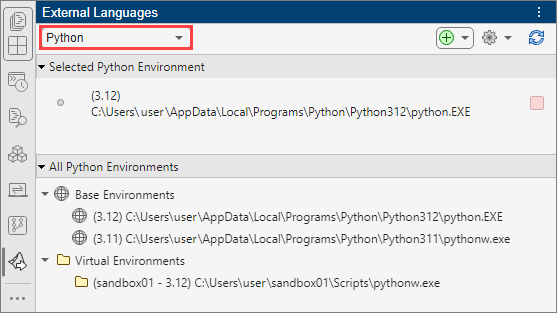
To add a Python environment for use with your deep learning workflow, click the Add button , and create a virtual environment.
In the Create Virtual Environment dialog box, fill in the fields for the base environment, virtual environment name, location, and requirements file. If you do not have a requirements file yet, you can install PyTorch and any other libraries in the next step. Also select the Set as selected environment box.
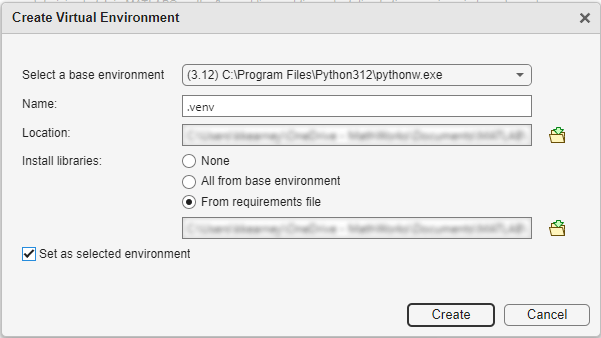
For more information on the External Languages panel, see Manage Python Environments Using External Languages Panel.
Install PyTorch
Once you have a virtual environment, install the torch module.
For more information, see Manage Python Environments Using External Languages Panel.
If your workflow uses a requirements file, install all required packages at once.
Many examples include a requirements file that identifies the Python libraries that you need and their specific versions. You can use the
requirements files with the pip command line program to install
all the required libraries. For more information, see https://pip.pypa.io/en/stable/user_guide/.
For information about PyTorch versions supported by the import and coexecution tools, see PyTorch Import Limitations.
To verify that MATLAB can access PyTorch, run the following command.
py.importlib.import_module("torch")Configure Environment for PyTorch Interface
Use these steps to configure your environment for running PyTorch models using the PyTorch interface (coexecution).
MATLAB can run Python code in two execution modes:
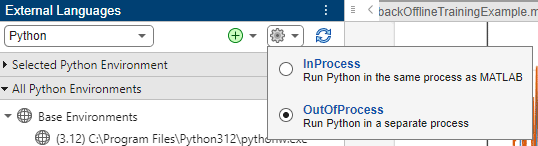
"InProcess"— Runs Python within the MATLAB process. This mode provides the best performance by eliminating interprocess communication overhead. Use this mode for production workflows."OutOfProcess"— Runs Python in a separate process. This mode allows you to restart the Python environment without restarting MATLAB, which is useful when debugging or iterating on environment configuration, and allows you to pass GPU data between MATLAB and Python.
Set the execution mode using pyenv.
pyenv(ExecutionMode="OutOfProcess")Use the "OutOfProcess" mode while you set up and debug your
environment. The out-of-process mode introduces overhead between MATLAB and Python that increases run time. For better performance, switch to
"InProcess" once your workflow runs correctly. You can also use
the gear icon on the External Languages panel to switch between
process modes.
Note
After loading pyenv with "InProcess" mode,
you must restart MATLAB to change the execution mode or the Python version.
For more information, see Out-of-Process Execution of Python Functionality.
Debug Python Code from MATLAB
When you encounter errors in Python code you call from MATLAB, use "OutOfProcess" execution mode so you can
modify and restart the Python environment without restarting MATLAB. For more information about how to debug Python code from MATLAB, see How can I debug Python code using MATLAB's Python Interface and Visual Studio
Code in MATLAB
Answers™.

