Use PyTorch and MATLAB for Deep Learning Workflows
R2026bUse Deep Learning Toolbox™ to bring PyTorch® models into MATLAB® and Simulink® workflows, so that you can combine PyTorch training with MATLAB tools for simulation, verification, and deployment.
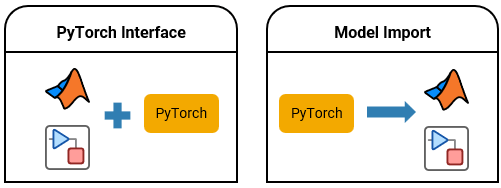
To bring PyTorch models into your MATLAB or Simulink workflows, you can use these approaches:
PyTorch Interface — Run a PyTorch model from MATLAB or Simulink without conversion.
Model Import — Convert a PyTorch model into a MATLAB network.
Tip
You can also train deep learning models in MATLAB. Deep Learning Toolbox provides tools for designing, training, and deploying deep neural networks, along with access to domain-specific toolboxes for tasks such as signal processing, computer vision, and automated driving. For more information, see Deep Learning in MATLAB.
Use this table to determine which workflow better suits your task.
| Workflow | Task | Quick Start |
|---|---|---|
| PyTorch Interface |
| Classify Images Using PyTorch Model Predict Block For more information, see PyTorch Interface. |
| Model Import |
| Import PyTorch Model Using Deep Network Designer For more information, see Model Import. |
PyTorch Interface
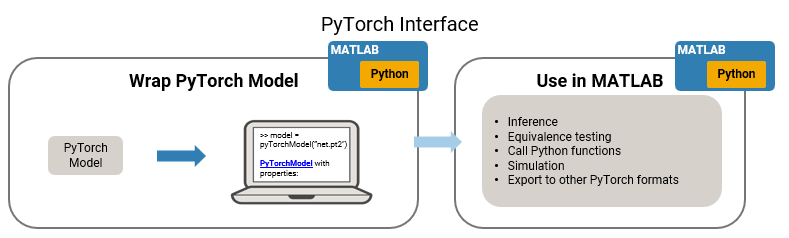
The PyTorch interface runs a PyTorch model in its native Python environment while you work in MATLAB or Simulink. The model stays in its original format with no conversion or import required.
Get Started
Use the pyTorchModel function to wrap your PyTorch model in a MATLAB
PyTorchModel object. You can load a PyTorch model from a file or from a Python constructor command.
When you have a PyTorchModel object, you can call forward
to run inference. You can pass numeric arrays, dlarray objects, or
gpuArray objects directly to the object. When you pass
MATLAB arrays to the object as input, it automatically converts them to
PyTorch tensors, and it converts any results back to MATLAB arrays, handling dimension reordering and data type conversion.
You can use a PyTorchModel object for these tasks:
Call model methods or Python functions by using
callFunction, and configure data transfer by usingaddFunction.Export the model to alternative formats (traced, scripted, exported program), using
export.Use MATLAB toolboxes to preprocess signals, generate data sets, and extract features for training or testing.
Perform PyTorch training from MATLAB, using MATLAB data pipelines and training monitors.
Simulink Integration
Use the PyTorch Model Predict block to run a PyTorch model directly from a Simulink model. The block supports Python preprocessing and postprocessing code alongside the model. For more flexibility, use the Custom Python Model Predict block to run custom Python inference code.
Requirements
To use the PyTorch interface, you need:
A supported Python installation configured for MATLAB
The
torchPython package installed in your Python environment
For setup instructions, see Set Up Python Environment for Deep Learning with PyTorch Workflows.
Examples
These examples and topics show how to use MATLAB and Python in a coexecution workflow.
| Workflow | Example |
|---|---|
| Use the PyTorch Model Predict block to classify images in Simulink. | Classify Images Using PyTorch Model Predict Block |
| Use the PyTorch Model Predict block for regression tasks in Simulink. | Predict Responses Using PyTorch Model Predict Block |
| Set up a PyTorch environment and retrain a PyTorch model. | Apply Transfer Learning on PyTorch Model to Identify 5G and LTE Signals (5G Toolbox) |
| Explore a PyTorch wrapper template to structure model training and inference from MATLAB. | PyTorch Wrapper Template (Communications Toolbox) |
| Extract signal features in MATLAB and train a PyTorch LSTM fault detection model. | Use Signal Feature Extraction to Train PyTorch Fault Detection Model (Signal Processing Toolbox) |
| Detect anomalies by coexecuting a PyTorch time-series foundation model in Signal Labeler. | Anomaly Detection in Signal Labeler Using Time-Series Foundation Model (Signal Processing Toolbox) |
| Train a speech command recognition model by using coexecution to combine MATLAB data processing and visualization capabilities with a Python deep learning framework. | Train PyTorch Speech Command Recognition Model (Audio Toolbox) |
Functions, Objects, Blocks, and Apps
| Tool | Description |
|---|---|
pyTorchModel | Reference a PyTorch model for Python execution. Load a model from a file or constructor command, invoke it on MATLAB data, and return results as MATLAB arrays. |
forward | Compute the |
callFunction | Call method of an underlying PyTorch model instance, or of a function that takes a PyTorch model as its first argument. |
addFunction | Configure the data transfer settings for a Python method or a function of
|
export | Save an underlying PyTorch model in a different PyTorch file format. |
reload | Reload a PyTorch model from stored model-loading properties. |
arrayToTorchTensor | Convert a MATLAB numeric array to a PyTorch tensor, with dimension reordering and data type conversion. |
torchTensorToArray | Convert PyTorch tensor to MATLAB numeric array, with dimension reordering and data type conversion. |
| PyTorch Model Predict | Predict responses by using a pretrained PyTorch model running in the MATLAB Python environment. |
| Custom Python Model Predict | Predict responses by using a custom Python model running in the MATLAB Python environment. |
Model Import
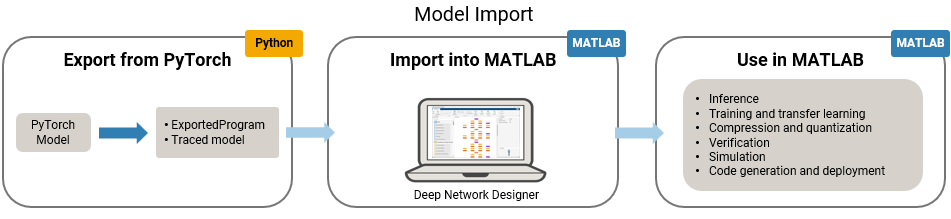
Model import converts a PyTorch model into a native MATLAB network, giving you access to MATLAB and Simulink tools. The imported model runs in MATLAB without a Python environment.
Get Started
First, export your PyTorch model as an ExportedProgram (recommended) or as a traced model. For more information about supported formats, see the Requirements section.
Next, use the Deep Network
Designer app to interactively import a PyTorch model. On import, the app shows an import report with details about
any issues that require attention. You can also import the model programmatically by
using the importNetworkFromPyTorch function.
After you import your network, you can perform these tasks:
Visualize, analyze, and edit the network in Deep Network Designer.
Perform transfer learning, fine-tuning, or retraining.
Compress the network using quantization, pruning, and projection.
Verify network properties and robustness.
Integrate the network into Simulink for system-level simulation.
Generate code and deploy it to embedded hardware.
Use domain-specific toolboxes for object detection, signal processing, image segmentation, and more.
Requirements
To import a PyTorch model, you need:
The Deep Learning Toolbox Converter for PyTorch Models support package. If the support package is not installed, then the software provides a download link in the Add-On Explorer.
A PyTorch model exported in a supported format. The import tools support two formats:
ExportedProgram (
.pt2, recommended) — Export usingtorch.export.export(). This format captures the model computation graph, input and output specifications, and parameters in a deterministic structure. Models in this format are more likely to be imported as fully initialized networks and map to more built-in MATLAB layers.Traced model (
.pt) — Export usingtorch.jit.trace(). Use this format when your model is not supported as an ExportedProgram. To reduce the number of autogenerated custom layers, specify the PyTorch input sizes on import.
Tip
Before exporting a model, set it to evaluation mode and move it to CPU. This produces deterministic behavior during import.
Export a trained model as an ExportedProgram using
torch.export.export()and save it withtorch.export.save().# Ensure the layers are set to inference mode. model.eval() # Move the model to the CPU. model.to("cpu") # Generate input data. X = torch.rand(1,3,224,224) # Export the model and save it in PyTorch version 2.8. exported_model = torch.export.export(model, (X,)) torch.export.save(exported_model, 'myModel.pt2')If you cannot export the model as an ExportedProgram or are using a version before R2026a, then export the model as a traced model instead.
# For traced models
# Trace the model and save it.
traced_model = torch.jit.trace(model.forward, X)
traced_model.save('myModel.pt')
Examples
These examples and topics show how to use MATLAB and Python for model import workflows.
| Workflow | Example |
|---|---|
| Overview of supported import and export functions and workflows for PyTorch, TensorFlow, and ONNX models | Interoperability Between Deep Learning Toolbox, TensorFlow, PyTorch, and ONNX |
| Tips for importing PyTorch models | Tips on Importing Models from TensorFlow, PyTorch, and ONNX |
| Use Deep Network Designer to import a PyTorch model | Import PyTorch Model Using Deep Network Designer |
Functions, Objects, Blocks, and Apps
| Tool | Description |
|---|---|
| Deep Network Designer | App for interactively importing, visualizing, and editing models and exporting them to Simulink. During import, the app provides an import report that contains any issues that require attention. |
importNetworkFromPyTorch | Function for importing PyTorch networks as a MATLAB network. The Deep Network Designer app is recommended for importing PyTorch networks. |
Alternative Workflows
An alternative approach for using PyTorch models with MATLAB and Simulink is to use the MATLAB Coder™ Support Package for PyTorch and LiteRT Models (MATLAB Coder).
See Also
Deep Network
Designer | importNetworkFromPyTorch | pyTorchModel
Topics
- Interoperability Between Deep Learning Toolbox, TensorFlow, PyTorch, and ONNX
- Tips on Importing Models from TensorFlow, PyTorch, and ONNX
- Set Up Python Environment for Deep Learning with PyTorch Workflows

