Organize Fault Trees in Fault Tree Documents
R2026bFault trees include the gates, events, and failure models that define the impacts of failure on the design. Fault tree documents can contain more than one fault tree, and the fault trees can share events and failure models. You can use the Safety Analysis Manager to reorganize fault trees, and associate fault trees with each other in the same document by using transfer gates.
Depending on the scope of your work, you may decide that sections of a fault tree, or subtrees, may be large enough to be a standalone fault tree. Turning subtrees into standalone fault trees can improve fault tree readability and maintainability.
For more information on how to create a fault tree, see Create Fault Trees in the Safety Analysis Manager. For more information on creating events, gates, and failure models, see Create Fault Tree Events and Create Fault Tree Gates.
Organize Fault Trees in the Opened Documents Pane
The Opened Documents pane displays the Safety Analysis
Manager documents, such as spreadsheets and fault tree documents. In each fault
tree document, the pane also displays the fault trees. In this image,
myFaultTreeDoc is a fault tree document that contains three fault
trees.
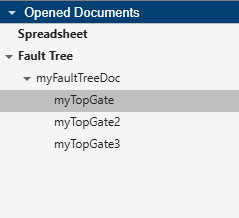
To change the order of the fault trees, click and drag the fault tree names. You can only reorganize fault trees in the same fault tree document. You can also copy and paste fault trees in the same document. See Copy Fault Trees.
Associate Fault Tree Artifacts by Using Transfer Gates
To access data from one fault tree in another fault tree, use transfer gates. Transfer gates can use another gate in the fault tree document as the source of their input data. You can also convert a subtree into a standalone tree by using transfer gates.
To add a transfer gate to a selected gate:
In a fault tree, select a gate.
In the toolstrip, in the Tree section, click Transfer In.
The transfer gate icon indicates a transfer gate.
To adjust the properties of a transfer gate, select the transfer gate and modify the properties in the Properties pane.
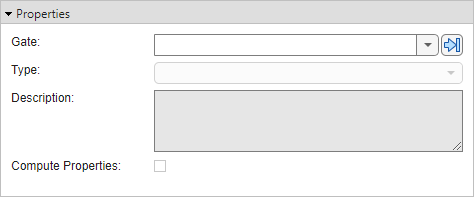
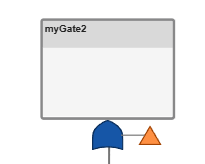
To define the source of the transfer gate data, set the Gate property. You can select another gate in the fault tree document. The transfer gate icon indicates that a gate outputs its data to a transfer gate.
Note
If a transfer gate creates a circular logic loop or logical redundancy, the Safety Analysis Manager displays an error.
Convert Subtrees to Standalone Trees
To convert a subtree of a fault tree into a standalone tree, right-click a gate and click Convert to Tree. The fault tree replaces the gate with a transfer gate.
View Transfer Gate Data Sources
A gate can transfer data to multiple transfer gates. To view the transfer gates that use the gate as a data source:
Select the gate in the fault tree or in the Artifacts pane.
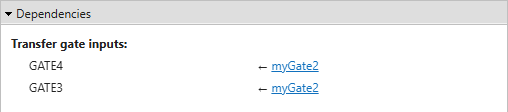
In the Properties pane, expand the Dependencies section.