Perform Synthesis and Implementation Using Synplify Elite
R2026bThis example shows how to run logic synthesis by using Synopsys® Synplify® Elite and perform implementation using a supported third-party implementation tool. This example uses Xilinx® Vivado® as the implementation tool.
Prerequisites
To run this example, you must install:
Synopsys® Synplify® Elite 2024.09
Xilinx® Vivado® 2025.1
Set Synthesis Tool Paths
HDL Workflow Advisor invokes third‑party tools during the synthesis and implementation tasks. Use hdlsetuptoolpath to add the supported tool to the system path and set up environmental variables for the current MATLAB session.
To set the Synplify Elite tool path, enter:
hdlsetuptoolpath("ToolName","Synplify Elite","ToolPath",... installation_path);
Where installation_path is the path to the Synplify Elite installation.
To set the Xilinx Vivado tool path, enter:
hdlsetuptoolpath("ToolName","Xilinx Vivado","ToolPath",... installation_path);
Where installation_path is the path to the Xilinx Vivado installation.
Open Model
Open the example hdlcoder_led_blinking model, which is compatible for HDL code generation. At the MATLAB command prompt, enter:
open_system("hdlcoder_led_blinking");Generate HDL Code
Next, specify the workflow, select synthesis tool, check the model readiness, and generate RTL code.
1. Open HDL Workflow Advisor. In the Simulink Toolstrip, select Apps > HDL Coder. In the HDL Coder tab, click Workflow Advisor.
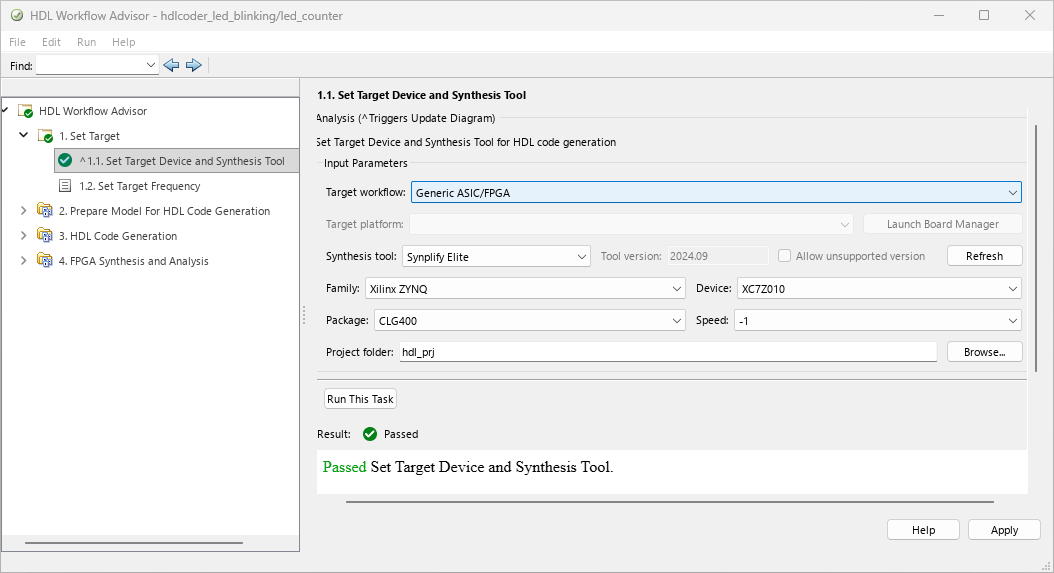
2. In the HDL Workflow Advisor, in task 1.1. Set Target Device and Synthesis Tool:
Set Target workflow to
Generic ASIC/FPGA.Set Synthesis Tool to
Synplify Elite.Set Family to
Xilinx ZYNQ.Click Run This Task.
3. In task 1.2. Set Target Frequency, set Target frequency (MHz) to 50. For more information, see Target Frequency.
4. In task 2.1. Check Model Settings, click HDL Code Advisor to run additional compatibility checks. After you make changes, click Apply, and then click Run This Task.
5. In task 3.1 Set HDL Options, set HDL code generation options using the HDL Code Generation Settings. For example, to customize the target HDL language and the target code generation folder, use the Set HDL Options task. After making changes, click Apply.
6. In task 3.2. Generate RTL Code and Testbench, select Generate RTL code and Generate test bench, and then click Run This Task.
Perform Logic Synthesis Using Synplify Elite
Next, create a Synplify project and synthesize the generated HDL code.
1. In task 4.1. Create Project, set Synthesis objective to Advanced, and click Run This Task.
2. In task 4.2. Perform Logic Synthesis, choose how to run the synthesis:
Clear Run build process externally to run the synthesis process inside HDL Workflow Advisor. If you choose this option, MATLAB is unavailable until the synthesis completes.
Select Run build process externally to run the synthesis process in an external console. If you choose this option, you can continue to use MATLAB while the synthesis completes.
3. Click Run This Task.
The Result pane displays the synthesis status and links to the log file and outputs.
If you select Run build process externally, verify that task 4.2 completes successfully in the external window before you start the next step.
Perform Place and Route Using Xilinx Vivado
Next, perform place and route on the synthesized netlist by using the supported implementation tool for your selected FPGA family. When you use Synopsys Synplify Elite, you can perform place and route for FPGA families that use these implementation tools:
Xilinx® Vivado®
Intel® Quartus® Prime Standard
Intel Quartus Prime Pro
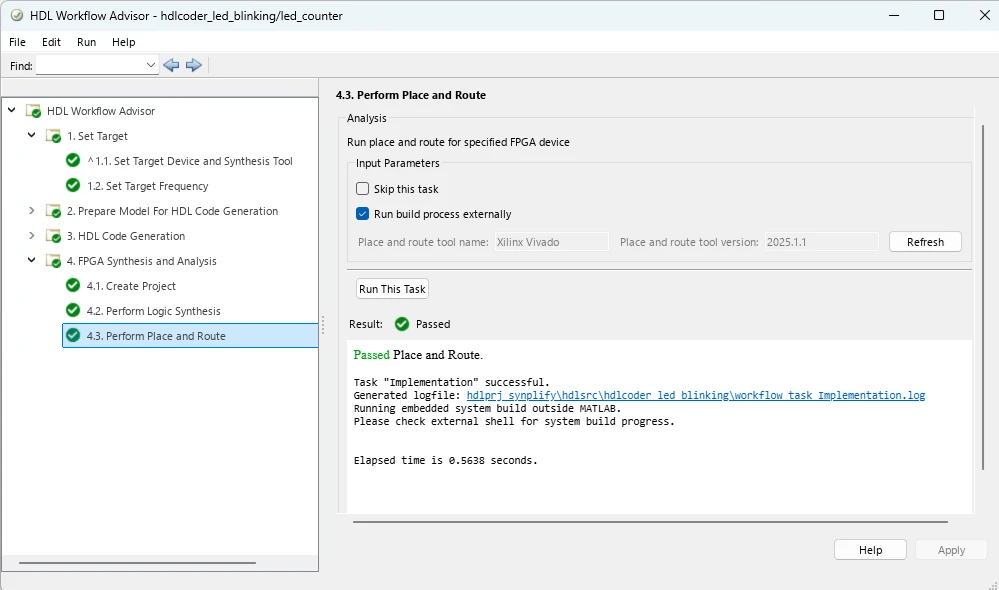
In task 4.3. Perform Place and Route:
To populate the Place and Route tool name and Place and route tool Version properties based on the selected FPGA family in task 1.1. Set Target Device and Synthesis Tool, click Refresh .
Choose how to run the place and route:
Clear Run build process externally to run the place and route inside HDL Workflow Advisor.
Select Run build process externally to run the place and route in an external console.
Click Run This Task.
Alternatively, to skip the place and route, in task 4.3. Perform Place and Route, select Skip this task.
The Result pane displays the results of the place and route and links to the log file.
You can run the same workflow using other supported FPGA devices and their corresponding implementation tools.

