Use HDL Cosimulation with Continuous Integration
R2026bThis example shows how to verify a Simulink® model using HDL Cosimulation as part of a Continuous integration (CI) workflow implemented on Jenkins®. The workflow uses the MATLAB® build tool to generate HDL code and a cosimulation model. Then it executes cosimulation tests with an HDL simulator. The build script integrates with Jenkins to trigger builds and tests on every commit. Jenkins also publishes test results and HDL code coverage reports, ensuring continuous verification throughout development. Continuous verification reduces integration risks and accelerates hardware design cycles.
Continuous Integration
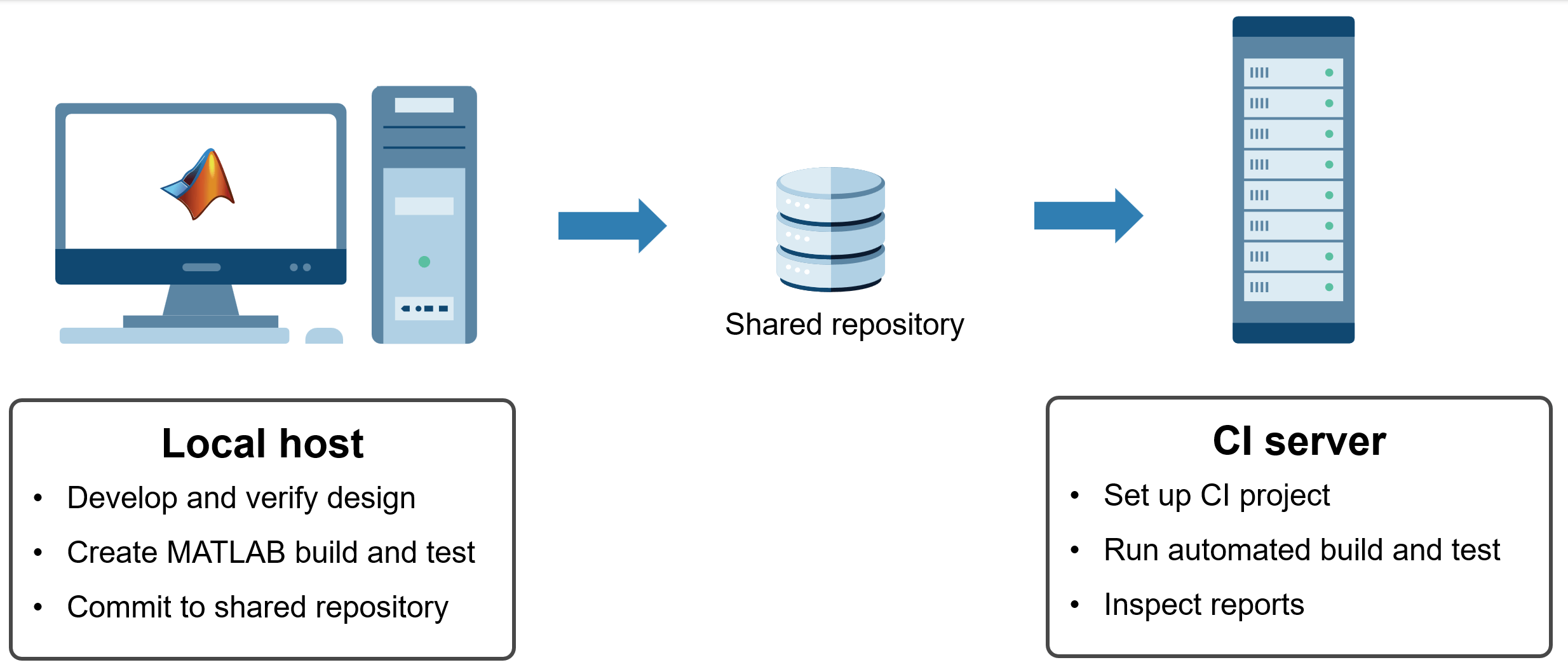
Continuous integration is a development practice where code changes are automatically built and tested when they are committed to a shared repository. This approach helps detect issues early, improves collaboration, and ensures consistent quality throughout the development cycle. MathWorks® integrates with CI workflows to build, test, and report on MATLAB and Simulink tasks.
Prerequisites
Before you start:
Install Jenkins on the CI server. See Installing Jenkins on the Jenkins website.
In addition to installing the Jenkins suggested plugins, install the MATLAB plugin, JUnit plugin, and HTML publisher plugin.
Install MATLAB and the required products on the environments where you plan to run build.
Set up an HDL simulator and ensure it is accessible from both environments. This example uses the Questa™ simulator. For other simulators, see Supported EDA Tools and Hardware
Place Simulink models and MATLAB scripts under Git™ source control and share them on GitHub® or GitLab®. See Collaborate Using Git in MATLAB.
Verify Design on Local Host
Before integrating your code with Jenkins, develop and verify your design locally.
The goal is to generate HDL code from a Simulink model, verify HDL code with cosimulation, and report HDL code coverage. The following files are provided:
cosimulationCICD.slx— Simulink model for HDL code generationbuildfile.m— MATLAB build script that defines tasks for code generation and testingtestHDLCosimulation.m— MATLAB unit test that runs HDL cosimulation
Create MATLAB Build Plan
To automate the HDL code generation and cosimulation test, this example uses the MATLAB build tool (see Overview of MATLAB Build Tool). The build tool organizes tasks into a build plan, which defines the tasks and dependencies. The build file, buildfile.m, defines five tasks in dependency order and sets test as the default task.
setup— Loads the Simulink model and sets HDL parameters. To generate a cosimulation model for the Questa/ModelSim simulator and enable HDL code coverage reporting, set the following parameters:
hdlset_param(modelName, GenerateCosimModel = "ModelSim");
hdlset_param(modelName, HDLCodeCoverage = "on");
checkhdl— Checks the DUT for HDL code generation compatibility usingcheckhdl(HDL Coder).makehdl— Generates HDL code from the DUT usingmakehdl(HDL Coder).makehdltb— Generates the cosimulation model usingmakehdltb(HDL Coder), and then saves it.test— Runs HDL cosimulation tests using the built-inmatlab.buildtool.tasks.TestTaskclass. The test task runs all tests in the current folder and subfolders, and produces test results in JUnit-style XML format.
Create MATLAB Test for HDL Cosimulation
To verify the cosimulation model, this example uses Testing Frameworks. The test class testHDLCosimulation.m performs these actions:
Loads the cosimulation model.
Starts the Questa simulator in batch mode.
Runs the cosimulation model.
Copies the Questa coverage report from
hdl_prj/hdlsrc/modelname/covhtmlreportto the project root folder.
You can add test classes as needed. The test task defined in the build plan automatically runs all tests, so expanding your test suite requires no changes to the build configuration.
Run MATLAB Build Locally
Before integrating your code into Jenkins, verify that the build and test run successfully on your local host. Make sure that the HDL simulator is on the system path, and execute the command at the MATLAB prompt:
buildtool
** Starting setup
Model 'cosimulationCICD' was exported from R2026b to R2026a. To find blocks that were removed during the export operation, click here. Save the model to remove this notification.
** Finished setup

** Starting checkhdl
### Running HDL checks on the model 'cosimulationCICD'.
### Begin compilation of the model 'cosimulationCICD'...
### HDL check for 'cosimulationCICD' complete with 0 errors, 0 warnings, and 1 messages.
** Finished checkhdl

** Starting makehdl
### Working on the model cosimulationCICD
### Generating HDL for cosimulationCICD/MAC
### Using the config set for model cosimulationCICD for HDL code generation parameters.
### Running HDL checks on the model 'cosimulationCICD'.
### Begin compilation of the model 'cosimulationCICD'...
### Working on the model 'cosimulationCICD'...
### Working on... GenerateModel
### Begin model generation 'gm_cosimulationCICD'...
### Copying DUT to the generated model....
### Model generation complete.
### Generated model saved at hdl_prj/hdlsrc/cosimulationCICD/gm_cosimulationCICD.slx
### Begin Verilog Code Generation for 'cosimulationCICD'.
### Working on cosimulationCICD/MAC as hdl_prj/hdlsrc/cosimulationCICD/MAC.v.
### Code Generation for 'cosimulationCICD' completed.
### Creating HDL Code Generation Check Report MAC_report.html
### HDL check for 'cosimulationCICD' complete with 0 errors, 0 warnings, and 1 messages.
### HDL code generation complete.
** Finished makehdl

** Starting makehdltb
### Begin TestBench generation.
### Generating HDL TestBench for 'cosimulationCICD/MAC'.
### Begin compilation of the model 'cosimulationCICD'...
### Begin compilation of the model 'gm_cosimulationCICD'...

### Generating new cosimulation tcl script: hdl_prj/hdlsrc/cosimulationCICD/gm_cosimulationCICD_mq_tcl.m.
### Generating new cosimulation tcl script: hdl_prj/hdlsrc/cosimulationCICD/gm_cosimulationCICD_mq_batch_tcl.m.
### Note: Option 'Allow direct feedthrough' has been set to 'on' on 'gm_cosimulationCICD_mq/MAC_mq'
### Begin simulation of the model 'gm_cosimulationCICD'...

### Collecting data...
### Generating test bench data file: hdl_prj/hdlsrc/cosimulationCICD/In1.dat.
### Generating test bench data file: hdl_prj/hdlsrc/cosimulationCICD/In2.dat.
### Generating test bench data file: hdl_prj/hdlsrc/cosimulationCICD/Out1_expected.dat.
### Working on MAC_tb as hdl_prj/hdlsrc/cosimulationCICD/MAC_tb.v.
### HDL TestBench generation complete.

** Finished makehdltb

** Starting test
The HDL simulator has been started in the background. When linking with
 MATLAB, the HDL simulator starts the simulation automatically when the
 'run' command is provided with the 'tclstart' property of the 'vsim' command.
 When linking with Simulink, the HDL simulator is blocked after startup by
 the 'vsimulink' command. It is unblocked by starting the cosimulation from
 Simulink. To unblock and exit the HDL simulator without initiating a
 cosimulation session, use the breakHdlSim command in MATLAB.
 When linking with MATLAB System Object, the HDL simulator is blocked after startup by
 the 'vsimmatlabsysobj' command. It is unblocked by starting the cosimulation from
 MATLAB. To unblock and exit the HDL simulator without initiating a
 cosimulation session, use the breakHdlSim command in MATLAB.


.
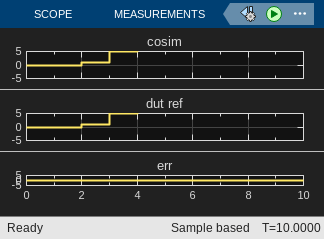
Test Summary:
    Total Tests: 1
         Passed: 1
         Failed: 0
     Incomplete: 0
       Duration: 4.2951 seconds testing time.

Test Results:
    JUnit: /mathworks/home/user/Documents/MATLAB/ExampleManager/user.Bdoc/hdlverifier-ex26770838/matlabTestArtifacts/junittestresults.xml
** Finished test

Build Successful:
    5 Tasks: 0 Failed, 0 Skipped
    27.732 sec total build time
Commit to Shared Repository
After verifying the build and tests locally, commit your project files to a Git repository such as GitHub or GitLab. For this example, include cosimulationCICD.slx, buildfile.m, and testHDLCosimulation.m.
Run Build and Test on Jenkins
Set Up Jenkins Project
In the Jenkins interface, create a new Freestyle Project.
Configure the Jenkins project. In the left pane, click Configure.
In the Source Code Management section, select Git. Specify the Repository URL and Credentials, if any, for your Git repository.
In the Triggers section, choose when and how frequently to run builds. To trigger builds manually, leave this section blank.
In the Environment section, select Use MATLAB Version and specify the MATLAB root.
In the Build Steps section, select Add Build Step > Run MATLAB Build.
In the Post-build Actions section, select Add post-build action > Publish HTML reports. Specify
covhtmlreportas the HTML directory to archive. Specifyindex.htmlas the Index page. EnterQuesta Code Coverage Reportas the Report title. Check Keep past HTML reports under the Publishing options.
Save the configuration. Click Save to apply the project settings.
For more information, see Run MATLAB Tests on Jenkins Server (GitHub).
Run Jenkins Build
Once the Jenkins project is configured, start the build by clicking Build Now for a manual trigger. If you enabled a GitHub hook trigger in the previous configuration step, the build runs automatically whenever you push changes to the repository.
During the build, Jenkins invokes MATLAB to run the build plan, executing the default task (test) and its dependencies. This process ensures all steps—setup, HDL checks, HDL code generation, cosimulation model creation, and tests—run in the correct order.
Inspect Build Results
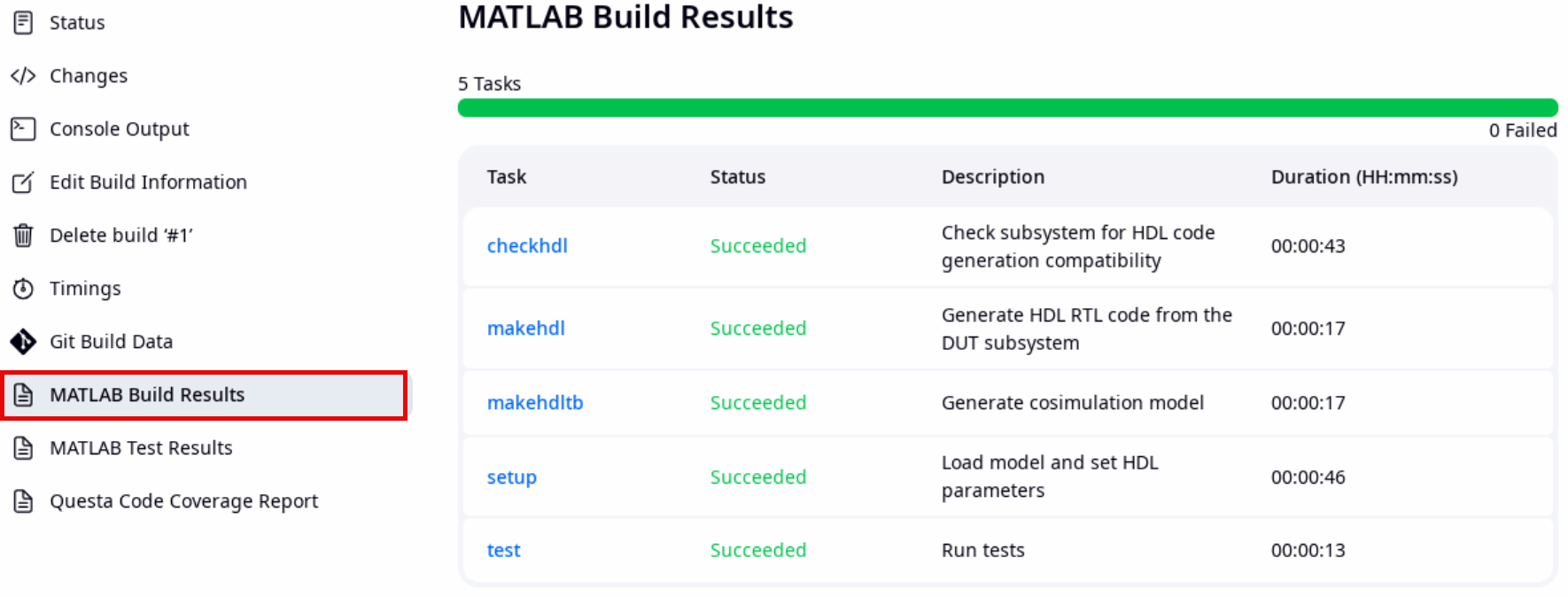
After the build, Jenkins assigns the build a number under Build History. Click the build number in the left pane and inspect the result.
MATLAB Build Results — Displays the execution of the five tasks defined in the build plan.
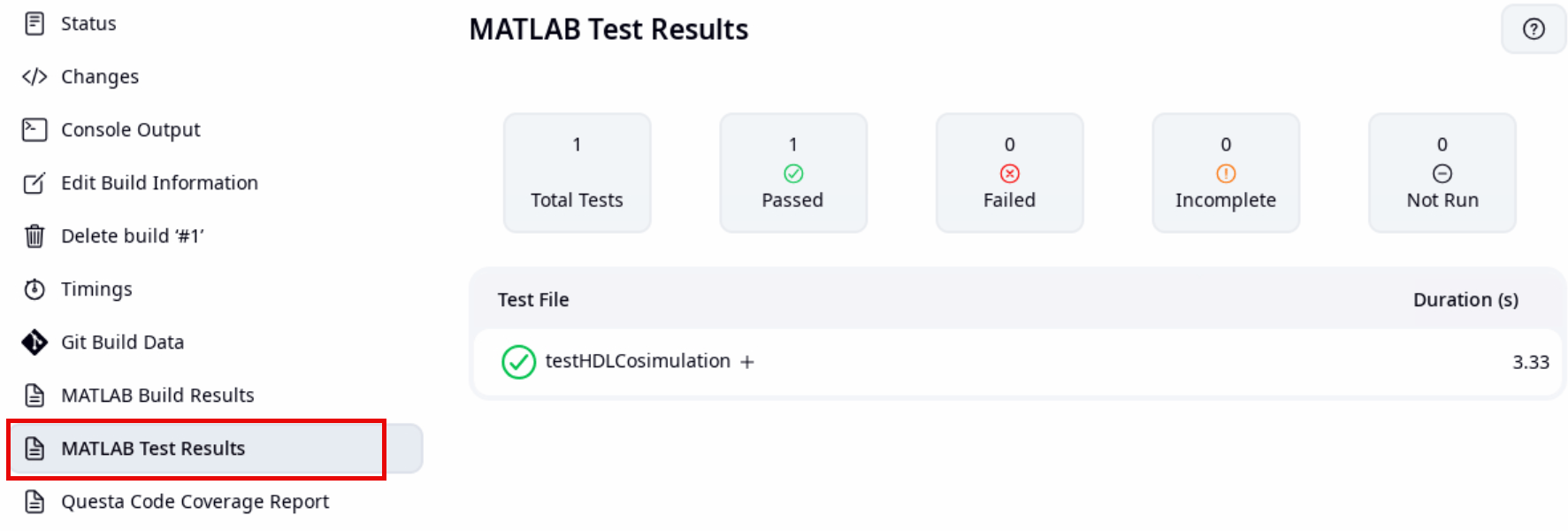
MATLAB Test Results — Displays the execution of all tests in the project folder and subfolders.
Questa Code Coverage Report — Displays detailed HDL code coverage metrics in an HTML format.
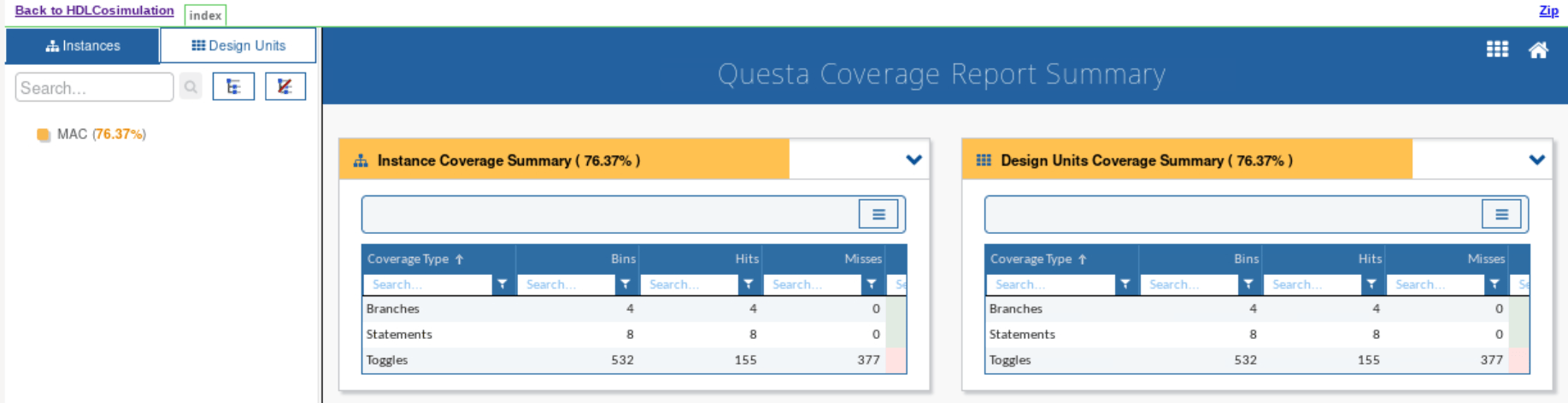
These reports help you validate functionality and measure test completeness. If the build or tests fail, review the failure details in the reports and resolve the issues before committing new changes. If all tasks pass, examine the coverage report to identify areas for improvement. You can add more tests or refine existing ones to increase HDL code coverage and strengthen verification.
Explore Advanced CI Options
After completing the basic workflow, you can extend and optimize your CI process with the following advanced options:
Use Jenkins Pipeline. Instead of a freestyle project, consider using a scripted or declarative Jenkins pipeline. Pipelines provide better scalability, version control, and flexibility for complex workflows. See Set Up Pipeline Project.
Run Parallel and Multi-Configuration Builds. Run tests on multiple platforms or MATLAB versions using Jenkins matrix builds or parallel stages. This approach helps validate compatibility and performance across environments. See Set Up Multi-Configuration Project.
Collect MATLAB and Simulink Coverage. In addition to HDL code coverage, you can measure MATLAB code coverage and Simulink model coverage. See Continuous Integration for Verification of Simulink Models.
Integrate with Other CI Platforms. You can follow similar logic with different CI platforms such as Azure® DevOps, Bamboo®, and GitHub Actions to run MATLAB code and Simulink models as part of your automated workflow. For a list of supported CI platforms, see Continuous Integration with MATLAB on CI Platforms.
See Also
makehdl (HDL Coder) | makehdltb (HDL Coder) | buildtool

