Read Node Values Using OPC UA Explorer
R2026bYou can read current, historical, and processed values from variable nodes in the
address space using the OPC UA Explorer app. The app represents variable
nodes with a blue tag  . When you select a node in the Address
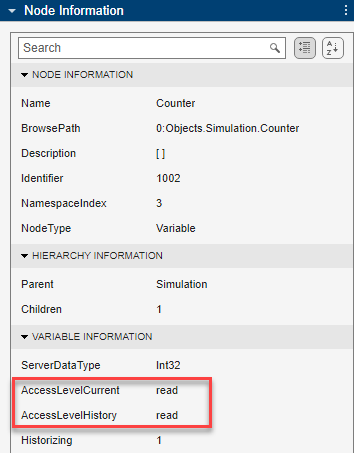
Space, the Node Information panel on the right
displays the properties of the node. You can perform read operations only on nodes with
read access. You can read historical data only from nodes that support historizing. For
information about your access level, check the AccessLevelCurrent
and AccessLevelHistory fields in the Node
Information panel.
. When you select a node in the Address
Space, the Node Information panel on the right
displays the properties of the node. You can perform read operations only on nodes with
read access. You can read historical data only from nodes that support historizing. For
information about your access level, check the AccessLevelCurrent
and AccessLevelHistory fields in the Node
Information panel.
Before you perform read operations, configure and connect to the server. For more information, see Configure Server Connection in OPC UA Explorer App.
Read Current Node Data
To read current value of a node, select the node in the Address
Space. You can select multiple nodes to read values from all of them
at once. You can read values from multiple nodes at a time. In the
Read tab of the Node Function panel,
select the Current Value option, and click
Read. To export the node data to the workspace, click
Export to Workspace. The app exports the node data as a
timetable. The workspace variable name is
opcuaData_1 for the first export in a session, and the number
in the name is incremented with each export.
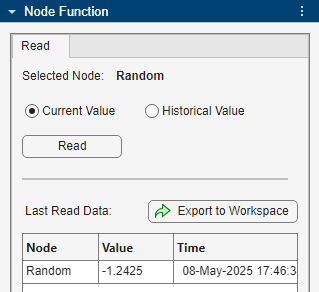
This example reads the current value of the Random node.
Read Historical or Processed Data over Time Range
To read historical values of a node, select the node in the Address
Space. You can select multiple nodes to read values from all of them
at once. In the Read tab of the Node
Function panel, select the Historical Value
option, specify the date and time range for the read operation using the
From and To options, and then click
Read.
To read processed data, select a function from the drop-down list in Aggregate Function and specify the aggregation interval in seconds. For each aggregation interval, the server calculates a processed value based on the selected aggregate function.
To export the node data to the MATLAB® workspace, click Export to Workspace. The app
exports the node data as a timetable. The workspace variable name
is opcuaData_1 for the first export in a session, and the number
in the name is incremented with each export.
This example reads processed values from the Random and
Sawtooth nodes over the specified range of time. The app
reads values from both the nodes at the same timestamps, and lists the value and
quality for each node in two columns.


