RayAberrationChart
R2026bDescription
Add-On Required: This feature requires the Optical Design and Simulation Library for Image Processing Toolbox add-on.
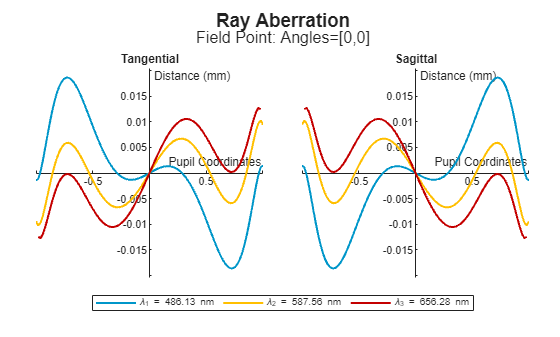
A RayAberrationChart object stores information used to display
the 2-D tangential and sagittal aberration values that result from a transverse ray aberration
analysis of an optical system. You can change aspects of the display, such as the title, line
color, and legend, by modifying properties of the RayAberrationChart
object.
Creation
Create a RayAberrationChart object by using the show function
with a RayAberration
object.
Properties
Ray aberration results, specified as a RayAberration
object.
Line color, specified as an RGB triplet, a hexadecimal color code, or a color name. You can also specify multiple colors as an M-by-3 numeric matrix where each row is an RGB triplet, or as an M-element string vector where each element is a hexadecimal color code or color name. If you specify a single color, the chart displays all results using the same color. If you specify multiple colors, then M must be equal to the number of wavelengths.
For a custom color, specify an RGB triplet or a hexadecimal color code.
An RGB triplet is a three-element row vector whose elements specify the intensities of the red, green, and blue components of the color. The intensities must be in the range
[0,1], for example,[0.4 0.6 0.7].A hexadecimal color code is a string scalar or character vector that starts with a hash symbol (
#) followed by three or six hexadecimal digits, which can range from0toF. The values are not case sensitive. Therefore, the color codes"#FF8800","#ff8800","#F80", and"#f80"are equivalent.
Alternatively, you can specify some common colors by name. This table lists the named color options, the equivalent RGB triplets, and the hexadecimal color codes.
| Color Name | Short Name | RGB Triplet | Hexadecimal Color Code | Appearance |
|---|---|---|---|---|
"red" | "r" | [1 0 0] | "#FF0000" |
|
"green" | "g" | [0 1 0] | "#00FF00" |
|
"blue" | "b" | [0 0 1] | "#0000FF" |
|
"cyan"
| "c" | [0 1 1] | "#00FFFF" |
|
"magenta" | "m" | [1 0 1] | "#FF00FF" |
|
"yellow" | "y" | [1 1 0] | "#FFFF00" |
|
"black" | "k" | [0 0 0] | "#000000" |
|
"white" | "w" | [1 1 1] | "#FFFFFF" |
|








Example: Color="r"
Example: Color="green"
Example: Color=[0 0.4470 0.7410]
Title of chart, specified as a string scalar or character vector.
Data Types: char | string
Legend display, specified as "on" or "off", or
as numeric or logical 1 (true) or
0 (false). A value of "on"
is equivalent to true, and "off" is equivalent to
false. The value is stored as an on/off logical value of type
matlab.lang.OnOffSwitchState.
Grid lines to display, specified as one of these options.
"major"— The chart displays only major grid lines."minor"— The chart displays major and minor grid lines."off"— The chart does not display any grid lines.
Data Types: char | string
Parent UI container, specified as a Figure object,
Panel object, GridLayout object,
Tab object, or TiledChartLayout object. If you
do not specify this property, MATLAB creates a new figure. You can create these UI
containers using their respective creation functions.
UI Figure:
uifigureUI Panel:
uipanelUI Grid Layout:
uigridlayoutUI Tab:
uitabTiled Chart Layout:
tiledlayout
Examples
Load a double Gauss lens from a ZMX file into the workspace.
opsys = zmximport("DoubleGaussLens.zmx");Compute the tangential and sagittal ray aberrations using the rayAberration object function. Display the lens distortion chart using the show object function.
rt = rayAberration(opsys);
plot_rt = show(rt);
Version History
Introduced in R2026a

