View and Share Pull Requests in MATLAB
R2026bYou can view and work with pull requests and merge requests directly within MATLAB® by using the Pull Requests panel. In the Pull Requests panel, you can:
Browse pull requests and merge requests across your source control hosting accounts.
Check out pull request and merge requests branches directly from the panel to run code, make edits, and push updates.
Compare files changed in a pull request or a merge request, including Simulink® models and other binary files, using comparison tools.
Open Pull Requests Panel
To open the Pull Requests panel, use one of these methods:
On the Source Control panel, click the More source control options button
 and select Pull Requests.
 In the Files or Project panel, in a folder or project under source control, right-click and select Source Control > Pull Requests.
If you have an active GitHub® or GitLab® connection, open the Connections panel and, in the My Connections section, right-click the connection and select Pull Requests. For more information about adding a GitHub or GitLab connection, see Connect to GitHub or GitLab from MATLAB.
Click an Open Pull Requests in Installed MATLAB link to open the Pull Requests panel focused on a specific pull request or merge request. For more information about creating and sharing pull requests and merge requests links, see Share Link to Pull Request in MATLAB.
Scope Pull Requests
Use the scope dropdown at the top of the Pull Requests panel to control which pull requests or merge requests you want to display. The scope dropdown contains your connected GitHub or GitLab accounts.
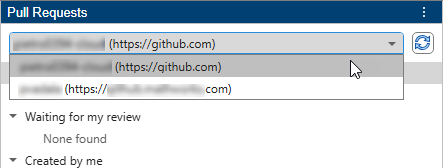
After you select the account, the Pull Requests panel shows all pull requests or merge requests across your connected GitHub or GitLab accounts where you are a reviewer, mentioned, the author, or assigned.
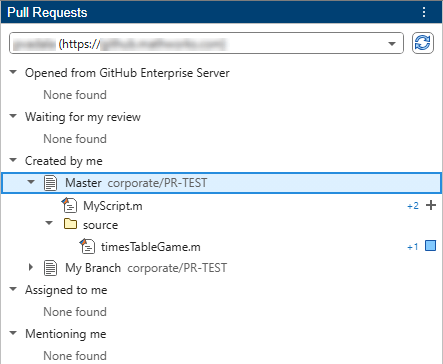
To update the list of pull and merge requests, click the Refresh
button  .
.
Download, Open, and View Changes in Files
To download and review the changes of a file in a pull request or a merge request:
Expand the pull or merge request in the list to see changed files.
Right-click a file and select Download and View Changes.
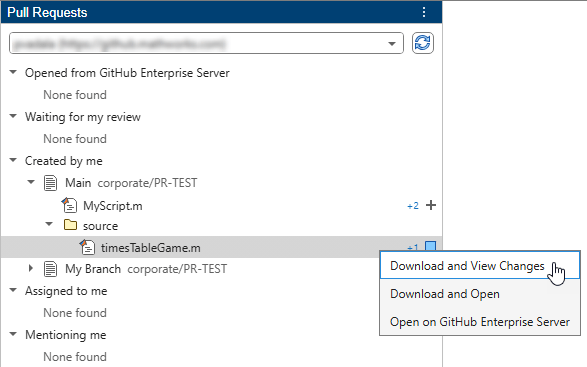
MATLAB downloads and compares both revisions of the file using the Comparison Tool.
To open the file without comparing the changes, right-click the file and select Download and Open instead.
Check Out Pull Request
To work on a pull request or merge request locally, right-click the pull or merge request and select Check Out Pull Request.
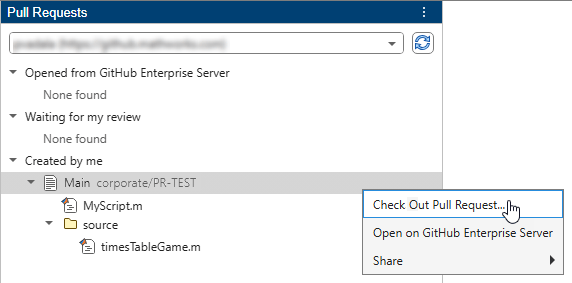
When you check out a pull or merge request, MATLAB:
Clones the Git™ repository.
If the pull request or merge request originates from a fork, adds a remote and fetches from it.
Creates a new local branch tracking the pull request or merge request source branch.
Switches to that branch.
Changes the current folder to the clone location.
Opens the Source Control panel and shows the repository.
Create Pull Request
You can create a new pull request or merge request directly from MATLAB after pushing changes.
When you push a branch to a remote repository from MATLAB, you can create a pull request or a merge request immediately by clicking Create Pull Request in the Push changes dialog box.
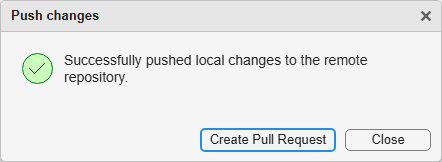
For more information on how to push changes, see Push to Git Remote.
In the Create Pull Request dialog box, populate the pull request or merge request.
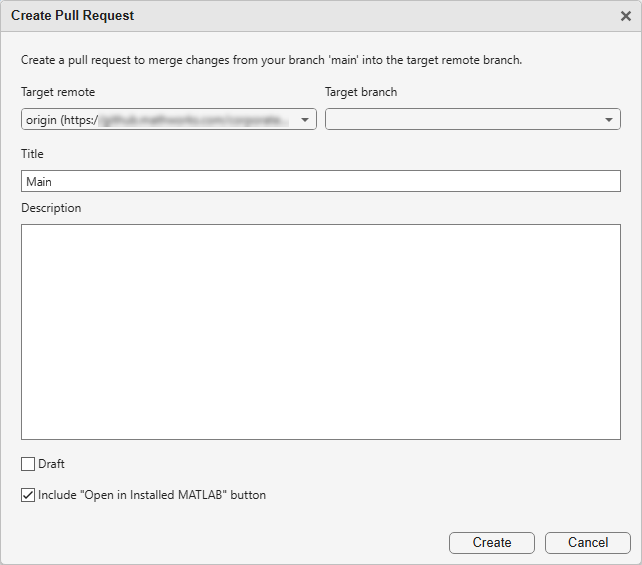
Target remote — Remote repository where the pull request or merge request is created. Select from the available remotes, such as
origin (https://github.com/...).Target branch — Branch you want to merge your changes into.
Title — Title of the pull request or merge request. Defaults to the name of your current branch.
Description — Description of the changes in the pull request or merge request.
Draft — Option to create the request as a draft. You cannot merge draft requests until marked as ready for review.
Include "Open in Installed MATLAB" button — Option to add a button to the request description on GitHub or GitLab that allows reviewers to view the pull or merge request directly in their installed MATLAB. For more information, see Share Link to Pull Request in MATLAB.
To submit the pull request or merge request, click Create.
Share Link to Pull Request in MATLAB
You can create links to open GitHub pull requests and GitLab merge requests directly in a locally installed MATLAB.
Share these links with reviewers by including them in a review request description. These links enable reviewers to open merge or pull requests in MATLAB and examine differences in files such as SLX files, SLDD files, and MAT files.
To create a link to your pull request or merge request, follow these steps.
Open the Pull Requests panel. If the Pull Requests panel is not in the sidebar, click the More source control options button
and select Pull Requests.In the Pull Requests panel, right-click the pull request you want to share and then click Share > Open Pull Request in Installed MATLAB.
(Optional) If you want the link to display an Open in Installed MATLAB button when you paste it in the description of the pull or merge request, select the Include button in link option.
Copy the link using the Copy Link button.
You can also create the link manually. Copy the link template and replace the template parameters with the information of your pull or merge request, as described in the table below.
matlab.mathworks.com/open/pullrequest/v1?host=<githost>&repo=<name>&pull=<number>&provider=<platform>

